[https://docs.scommerce-mage.com/magento-2-extensions/installation-via-composer/installation-via-composer](https://docs.scommerce-mage.com/magento-2-extensions/installation-via-composer/installation-via-composer)
### Configuration Settings for Admin Account Switcher [](#bkmrk--1) Go to **Admin > Stores > Configuration > Scommerce Configuration > Admin Account Switcher** #### General Settings [](#bkmrk--2) - **Enabled -** Select "Yes" or "No" to enable or disable the module. - **License Key -** Please add the license for the extension which is provided in the order confirmation email. Please note license keys are site URL specific. Please go to *Admin > Stores > Configuration > Scommerce Configuration > Core* and click on "Verify" to verify the license key. [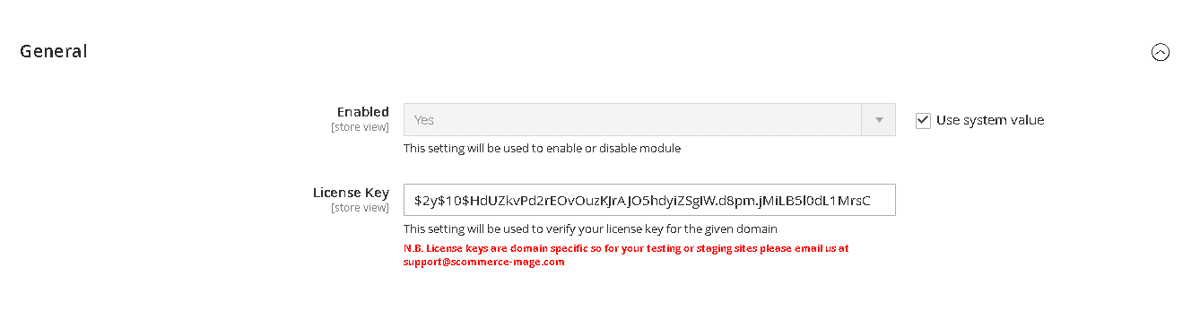](https://docs.scommerce-mage.com/uploads/images/gallery/2025-06/image-59-1.png) ### Admin Account Switcher Workflow [](#bkmrk--6) Using this extension an admin can login into another admin's account directly from admin edit form section without requiring a password which allows them to debug easily without having to reset the other admin's password. The admin can only use this functionality if they have the "Scommerce Switch Admin Account" (***Admin>System>Permissions>User Roles>Select Role>Role Resources***)selected under role resources for their user role. Go to Admin>System>Permissions>All Users, here select(click edit) the admins account in which you want to login. From the top menu click on "Switch User" and you will be logged into that admin's account without password authentication. [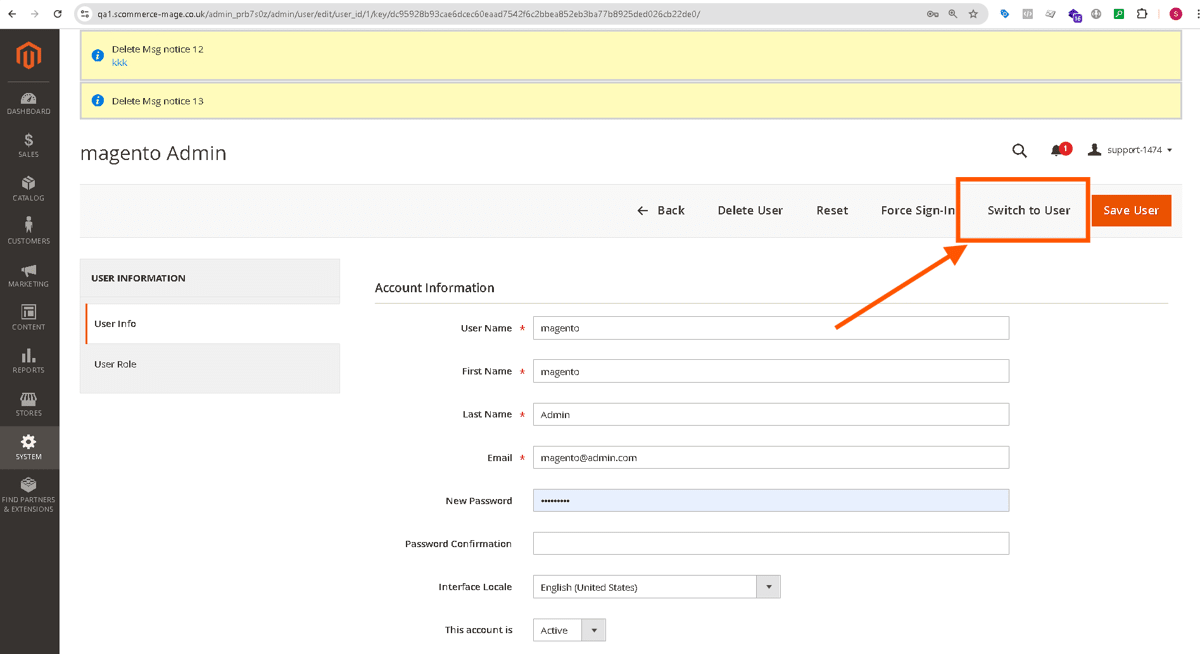](https://docs.scommerce-mage.com/uploads/images/gallery/2025-06/image-60-1.png) ### Admin Account Switcher Role [](#bkmrk--6) The "Switch to User" button is displayed **only if** the current admin user has the **"Scommerce Switch Admin Account"** permissions in their user role. To check this, you can go to *Admin>System>Permissions>User Roles>Role Resources* and check whether the user role has "Scommerce Switch Admin Account Role" selected. [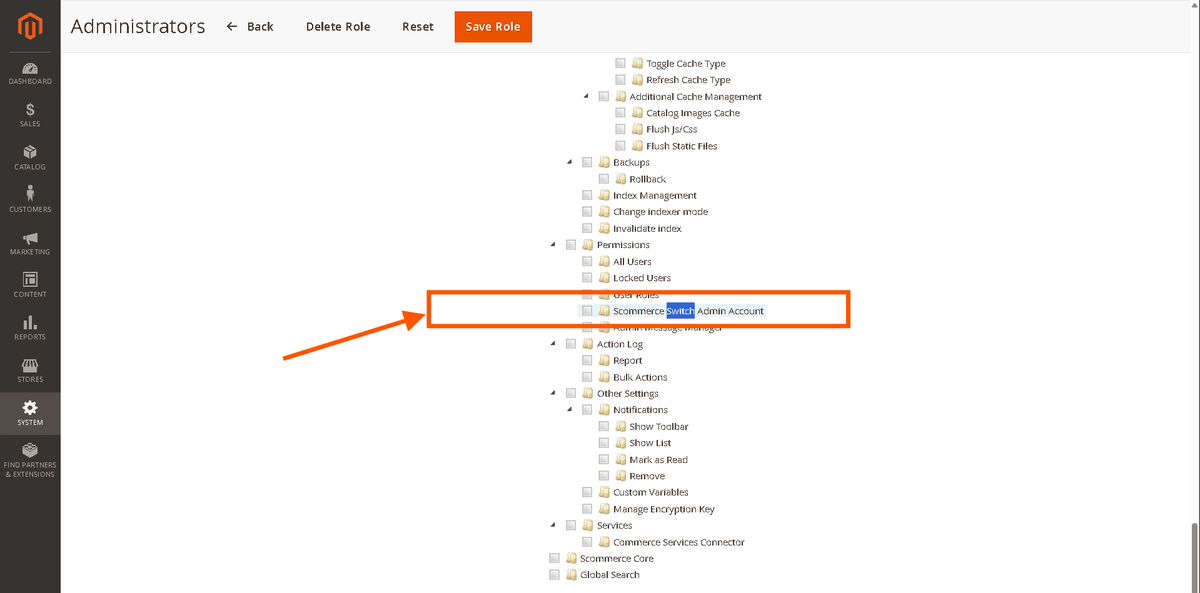](https://docs.scommerce-mage.com/uploads/images/gallery/2025-06/image-61-1.png) If you have a question related to this extension please check out our [**FAQ Section**](https://www.scommerce-mage.com/magento-2-admin-account-switcher.html#customfaq) first. If you can't find the answer you are looking for then please contact [**support@scommerce-mage.com**](mailto:core@scommerce-mage.com)**.**