[https://docs.scommerce-mage.com/magento-2-extensions/installation-via-composer/installation-via-composer](https://docs.scommerce-mage.com/magento-2-extensions/installation-via-composer/installation-via-composer)
### Configuration Settings for Admin Message Manager [](#bkmrk--1) Go to **Admin > Stores > Configuration > Scommerce Configuration > Admin Message Manager** #### General Settings [](#bkmrk--2) - **Enabled -** Select "Yes" or "No" to enable or disable the module. - **License Key -** Please add the license for the extension which is provided in the order confirmation email. Please note license keys are site URL specific. Please go to *Admin > Stores > Configuration > Scommerce Configuration > Core* and click on "Verify" to verify the license key. [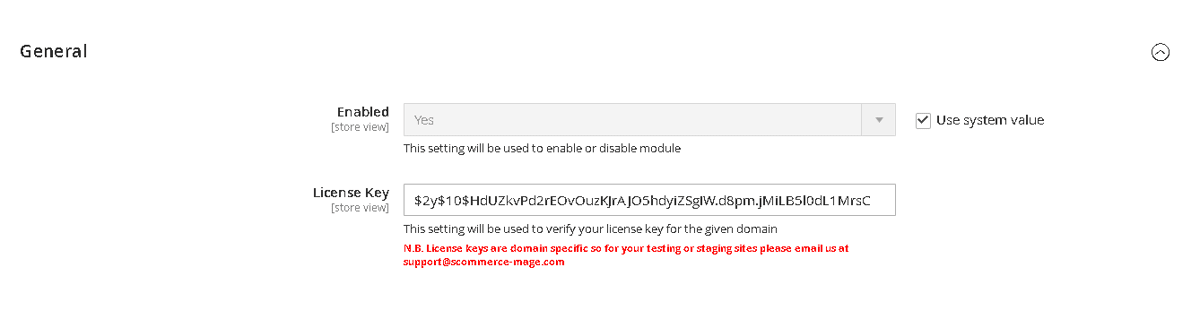](https://docs.scommerce-mage.com/uploads/images/gallery/2025-06/image-62-1.png) ### Admin Message Manager Workflow [](#bkmrk--3) Using this extension an admin create custom messages for the other admins and pass on critical updates based on user roles. The admin can only use this functionality if the have the "Scommerce Admin Message Manager Section" selected under role resources for their user role. #### **Step 1: Access the Admin Message Grid** - Navigate to **Admin>System>Admin Message Manager** - Only users with **"Scommerce Admin Message Manager Section"** permission can access this grid. [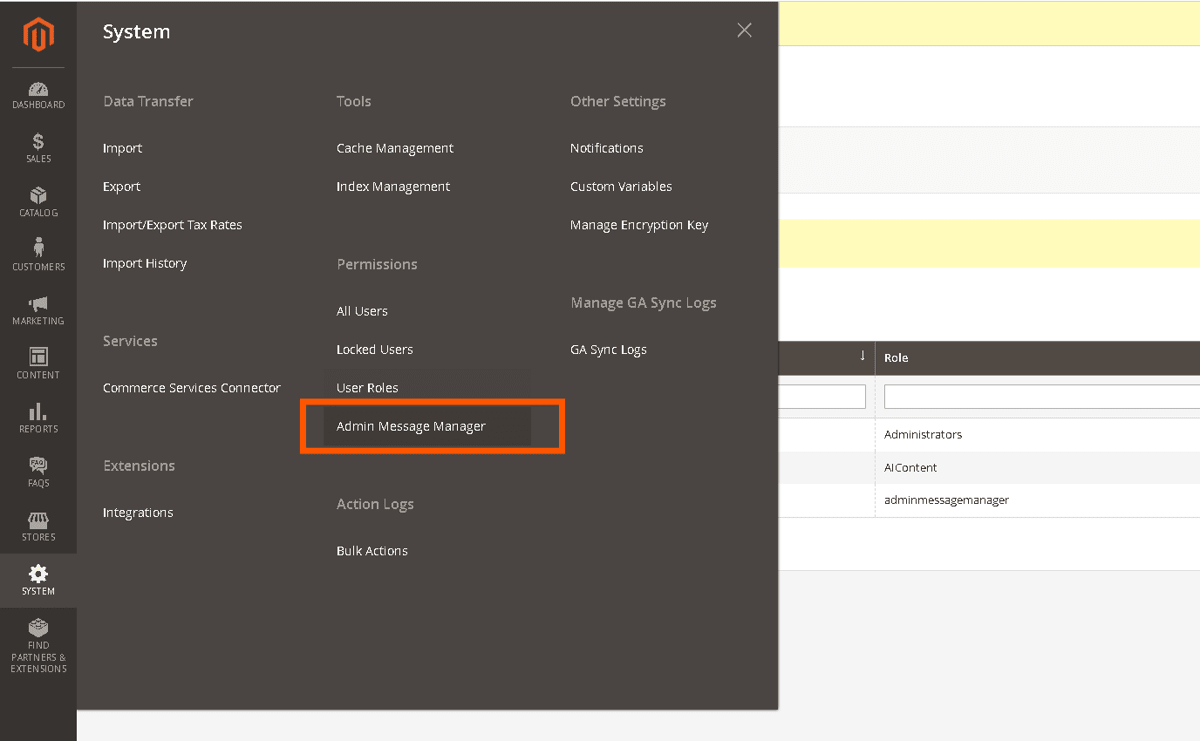](https://docs.scommerce-mage.com/uploads/images/gallery/2025-06/image-63-1.png) #### **Step 2: Create a New Message** - Go to **Admin>System>Admin Message Manager** - Click **"Add New Message"**. [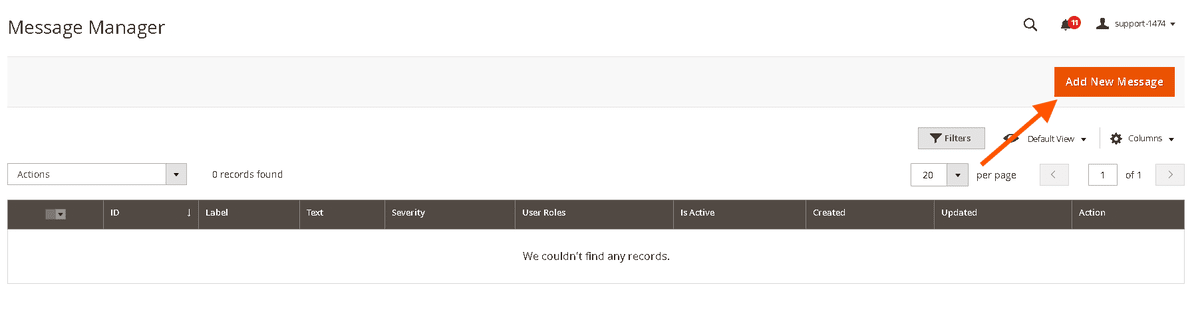](https://docs.scommerce-mage.com/uploads/images/gallery/2025-06/image-64-1.png) - Fill in the form: - **Enabled :-** Turn it on to enable the message (Active/Inactive toggle) - **Message Label** (Optional identifier) - **Severity Type** (Notice, Warning, Success, Error) - **User Roles** (Multi-select roles that should see the message) - **Message Text** (Supports HTML links, bold, italics via WYSIWYG editor) - Click **"Save"**. [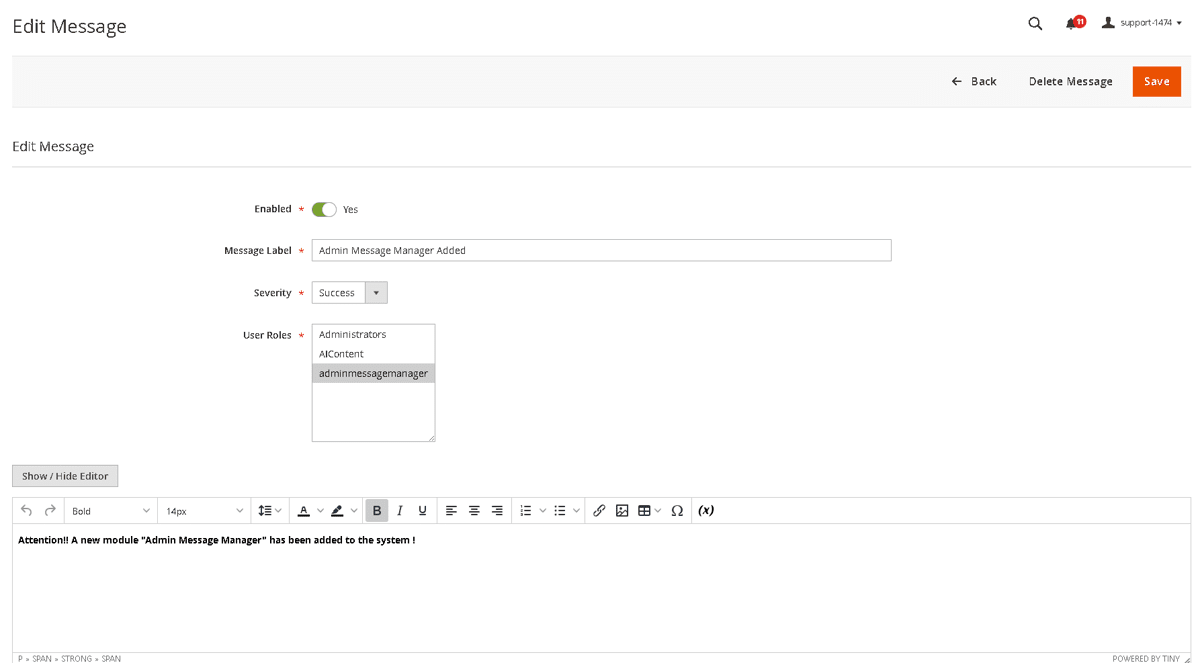](https://docs.scommerce-mage.com/uploads/images/gallery/2025-06/image-65-1.png) **Note:** - Required fields: **Enabled, Message Label, Severity, at least one User Role,** **Message Text.** - HTML is sanitized for security (only ``, ``, `` allowed). #### **Step 3: Edit or Delete Messages** **Edit A Message** 1. In the grid, click **"Edit"** on the desired message. 2. Modify any field (Label, Text, Severity, User Roles, Enabled). 3. Click **"Save"** or **"Delete"** (if removing the message). [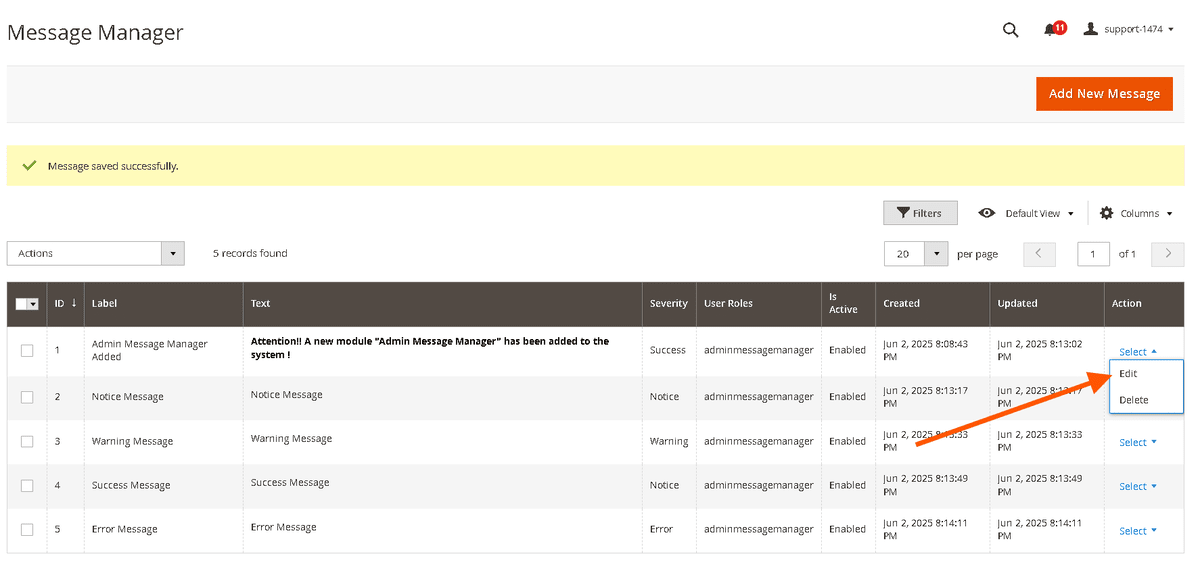](https://docs.scommerce-mage.com/uploads/images/gallery/2025-06/image-66-1.png) **Delete A Message** **Option 1: Single Deletion (From Grid)** - Click **"Delete"** on the Edit row then confirm deletion [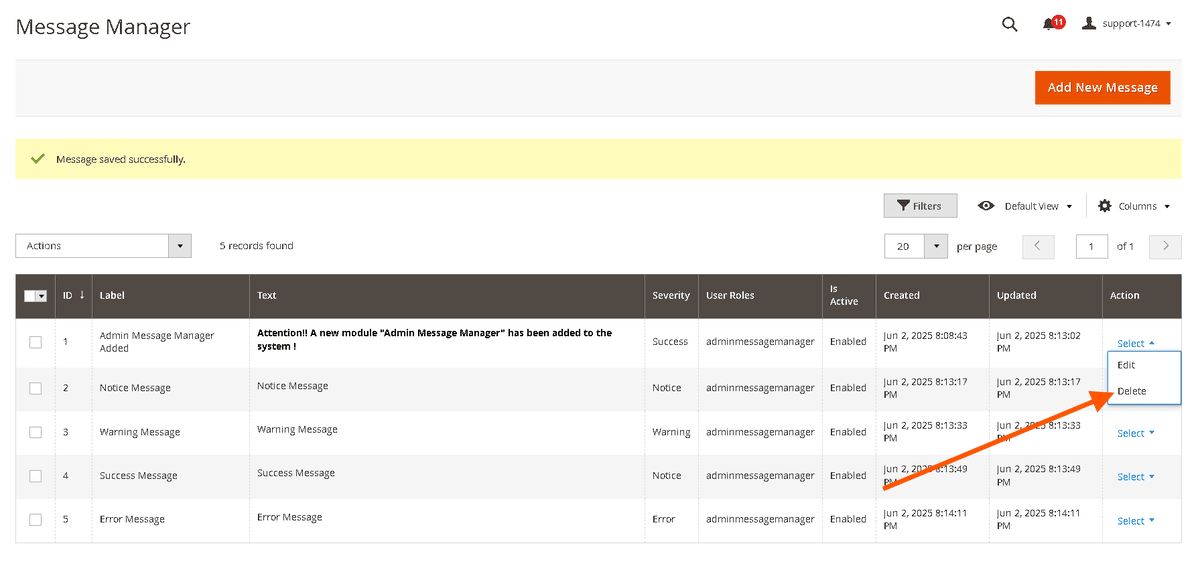](https://docs.scommerce-mage.com/uploads/images/gallery/2025-06/image-67-1.png) **Option 2: Single Deletion (From Edit Form)** - Open the message>Click **"Delete Message"**>Confirm. [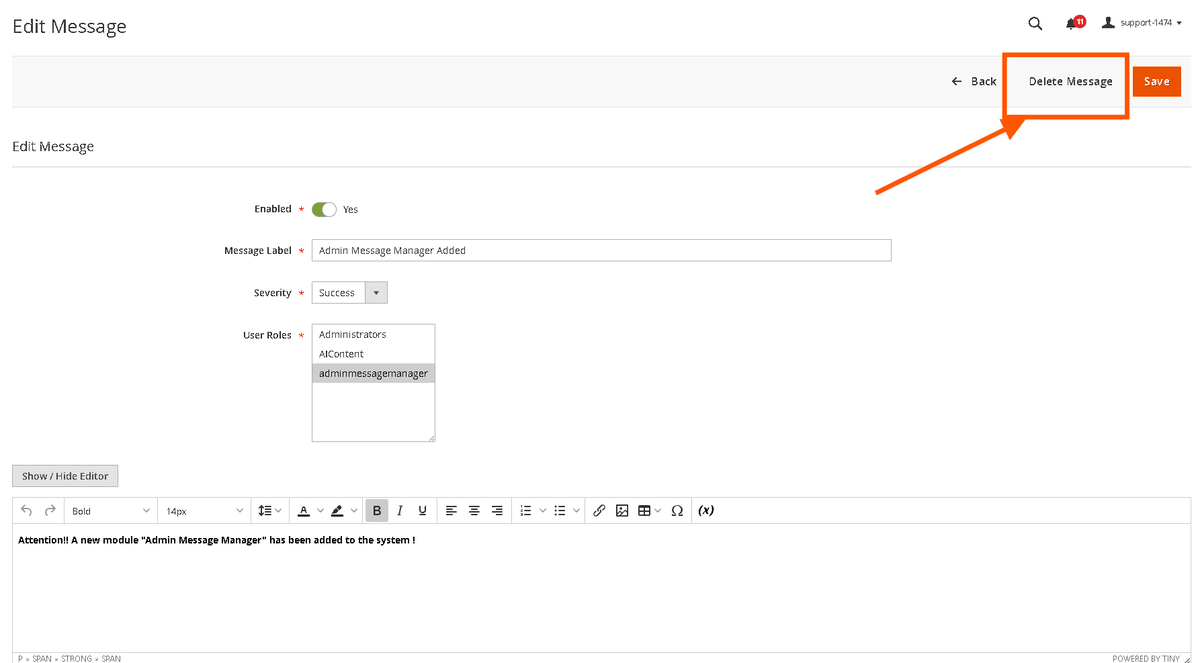](https://docs.scommerce-mage.com/uploads/images/gallery/2025-06/image-68-1.png) **Option 3: Mass Delete (Bulk Action)** 1. Select checkboxes next to messages. 2. From the **Actions** dropdown, choose **"Delete"**. 3. Confirm by clicking **"OK"** in the popup. [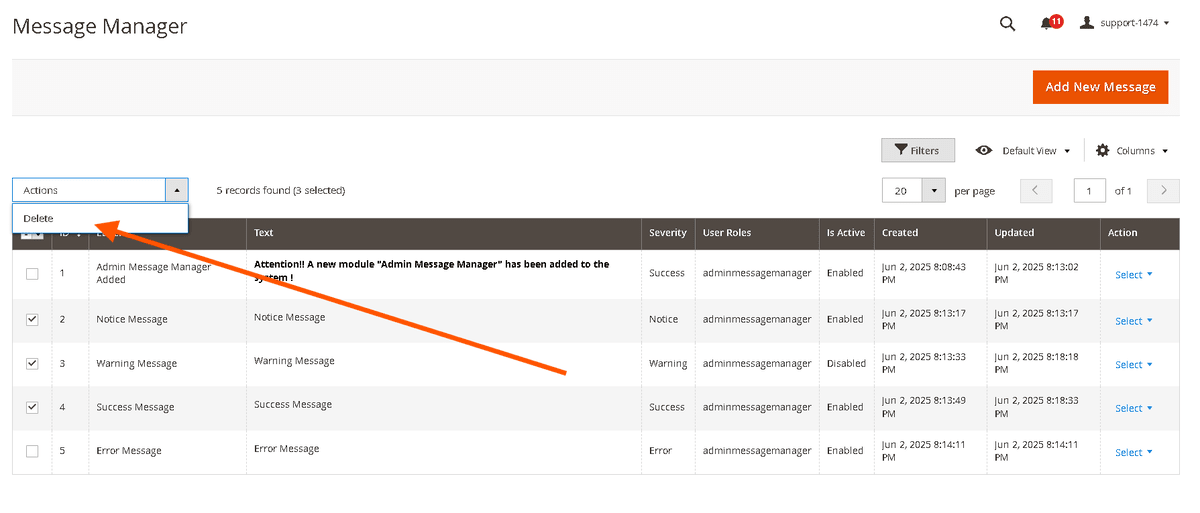](https://docs.scommerce-mage.com/uploads/images/gallery/2025-06/image-69-1.png) ### **Display Logic for Admin Messages** #### **When Do Messages Appear?** A message is displayed in the admin panel if: - **Status = Active** - **Admin user's role matches at least one selected role** in the message. **How Do Messages Appear?** - **Sticky banner** at the top of the admin panel. - **Severity-based styling** (colors match Magento's standard alerts): - **Success** (Green) - **Notice** (Blue) - **Warning** (Yellow) - **Error** (Red) #### **HTML Support** - Allowed tags: ``, ``, ``. - Links are clickable. ### **View Messages in Admin Panel** - Messages appear as **sticky banners** at the top of the admin panel. - Only **active** messages matching the user's role are displayed. #### Notice Message [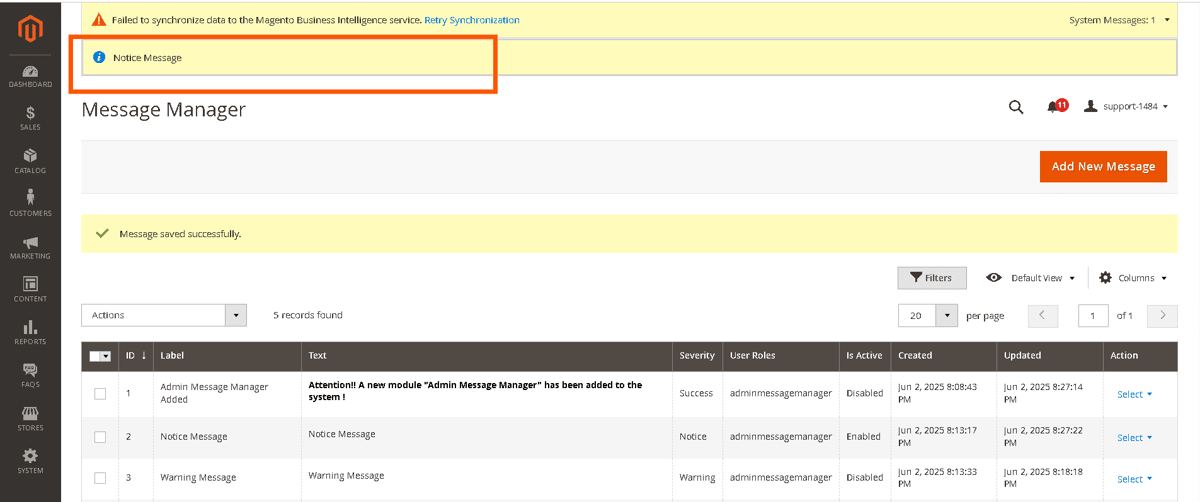](https://docs.scommerce-mage.com/uploads/images/gallery/2025-06/image-70-1.png) #### Warning Message [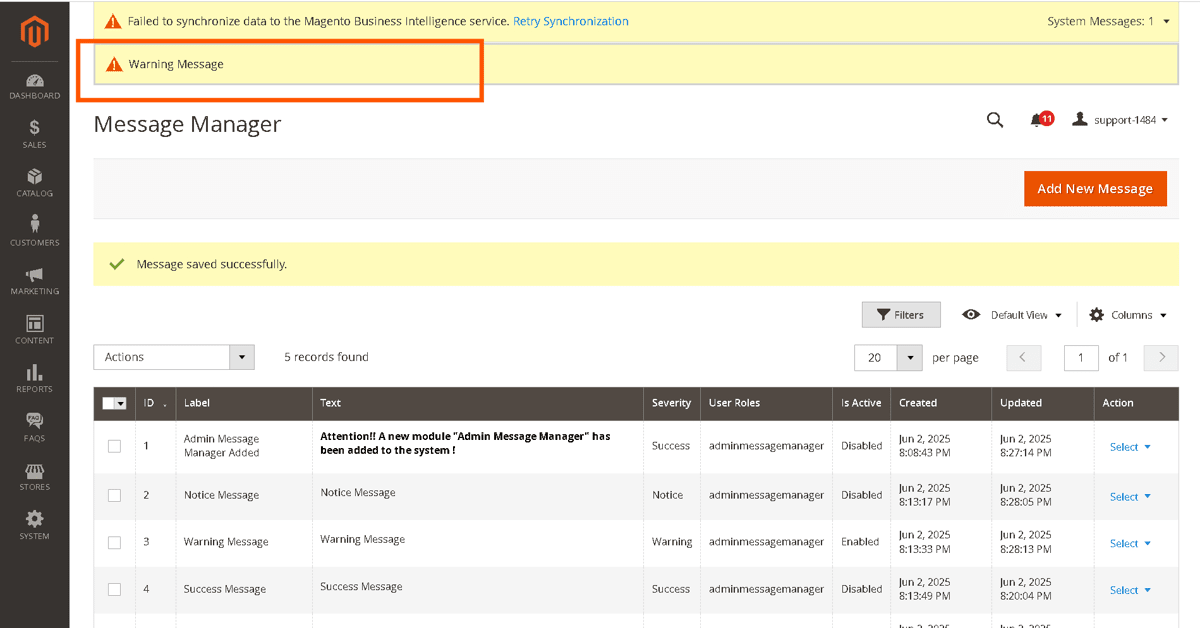](https://docs.scommerce-mage.com/uploads/images/gallery/2025-06/image-71-1.png) #### Success Message [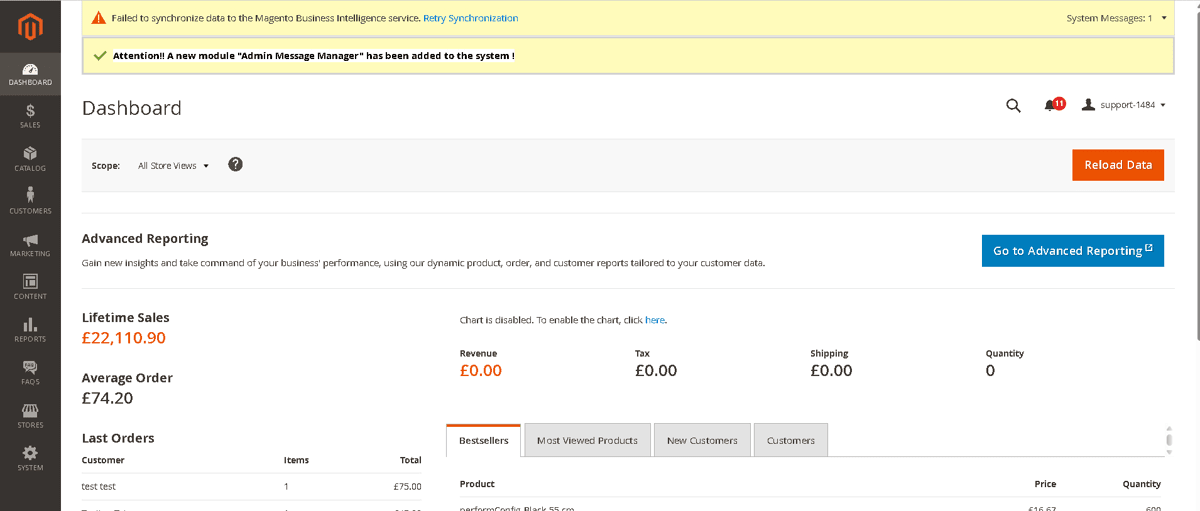](https://docs.scommerce-mage.com/uploads/images/gallery/2025-06/image-72-1.png) #### Error Message [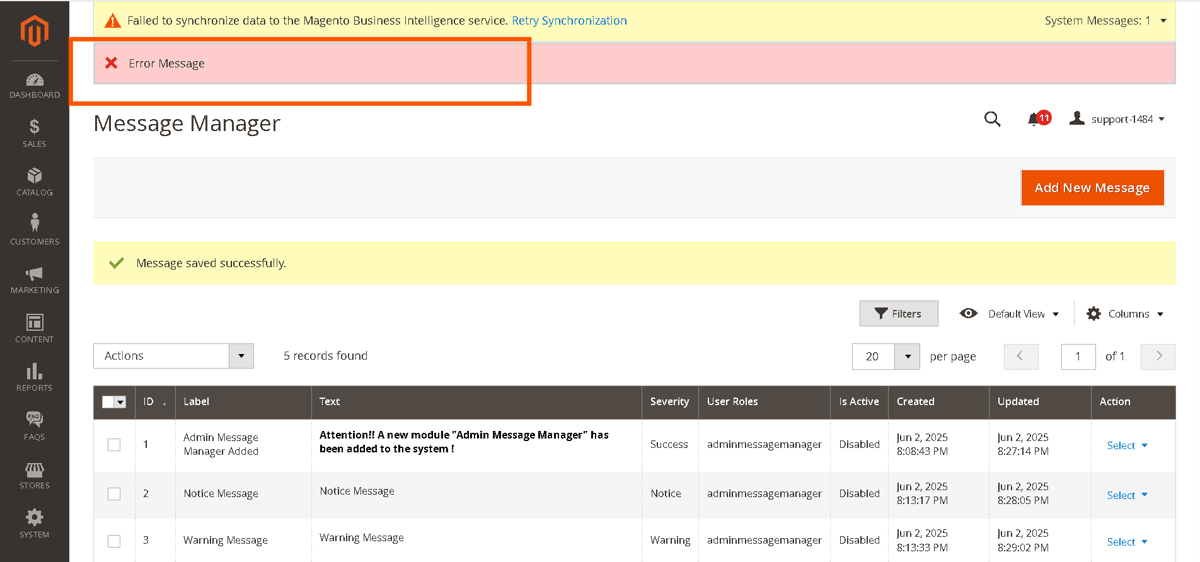](https://docs.scommerce-mage.com/uploads/images/gallery/2025-06/image-73-1.png) If you have a question related to this extension please check out our [**FAQ Section**](https://www.scommerce-mage.com/magento-2-admin-message-manager.html#customfaq) first. If you can't find the answer you are looking for then please contact [**support@scommerce-mage.com**](mailto:core@scommerce-mage.com)**.**