Magento 2 Content Security Policy (CSP) Whitelist Manager
Installation and User Guide for Magento 2 Content Security Policy (CSP) Whitelist Manager
Table of Contents
- Installation
- Download Extension
- Installation via app/code
- Installation via Composer
- Configuration Settings for Content Security Policy (CSP) Whitelist
- General Settings
- CSP Directives
- Critical Security Overrides
- CSP Reports Grid
- Working of the extension
- Steps to Check and Fix Console CSP Errors through CSP Grid
- Steps to Check and Fix Console CSP Errors
- Fixing Inline Script and Inline Style Content Security Policy Issues
- Inline Style Error Example
- Inline Script Error Example
Installation
-
Download Extension: Once you have placed the order from our site then go to My Account section and click on My Downloadable Products and download the extension package.

-
Installation via app/code: Upload the content of the module to your root folder. This will not overwrite the existing Magento folder or files, only the new contents will be added. After the successful upload of the package, run below commands on Magento 2 root directory.
php bin/magento setup:upgrade php bin/magento setup:di:compile php bin/magento setup:static-content:deploy en_GB en_US -
Installation via Composer: Please follow the guide provided in the below link to complete the installation via composer.
Configuration Settings for Content Security Policy (CSP) Whitelist
Go to Admin > Stores > Configuration > Scommerce Configuration > CSP Whitelist
General Settings
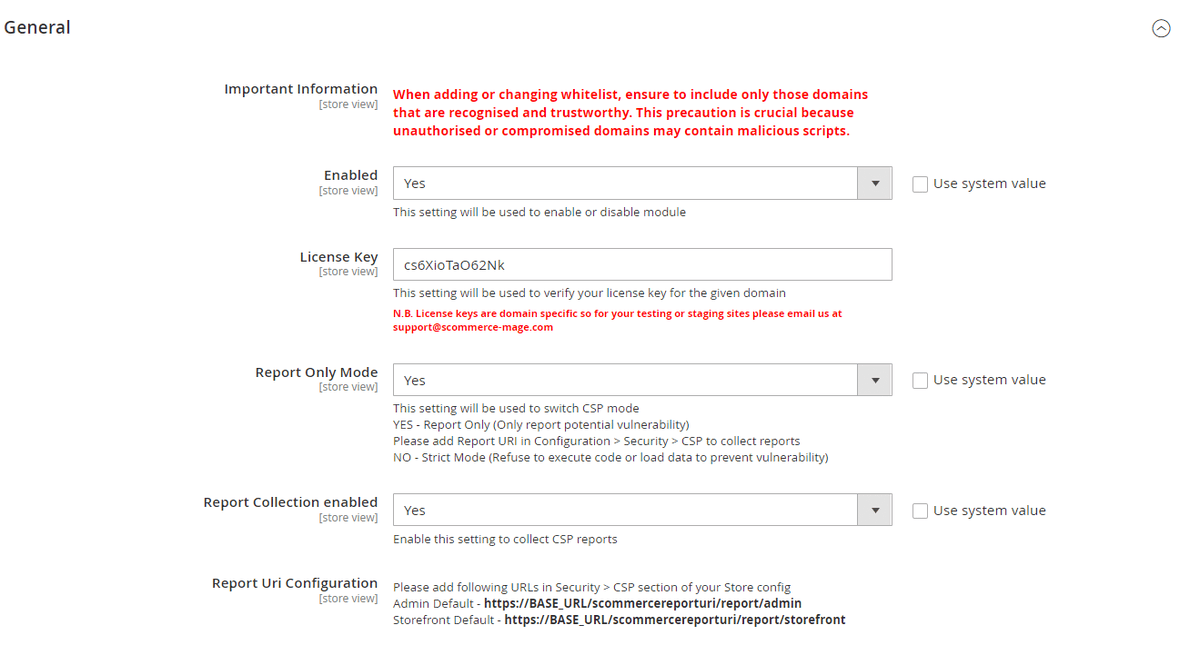
- IMPORTANT INFORMATION- When adding or changing whitelist, ensure to include only those domains that are recognized and trustworthy. This precaution is crucial because unauthorized or compromised domains may contain malicious scripts.
- Enabled – Select "Yes" or "No" to enable or disable the module.
- License Key – Please add the license for the extension which is provided in the order confirmation email. Please note license keys are site URL specific. If you require license keys for dev/staging sites then please email us at support@scommerce-mage.com.
- Report Only Mode - Set "Yes" to enable Report Only mode for CSP ( it will only report CSP vulnerabilities in the CSP reports grid and browser console. Make sure to add Report URL in Configuration>Security>CSP for the CSP grid to collect reports. Set "No" to enable Strict Mode ( it will prevent data from loading or code from getting executed to prevent vulnerabilities).
- Report Collection Enabled:- Set "Yes" to enable collecting CSP reports in the CSP grid, Set "No" these errors will only be available in the browser console
- Report URL Configuration:- Please add following URLs in Security > CSP section of your Store config Admin Default - https://BASE_URL/scommercereporturi/report/admin Storefront** Default** - https://BASE_URL/scommercereporturi/report/storefront
CSP Directives
-
Default Src
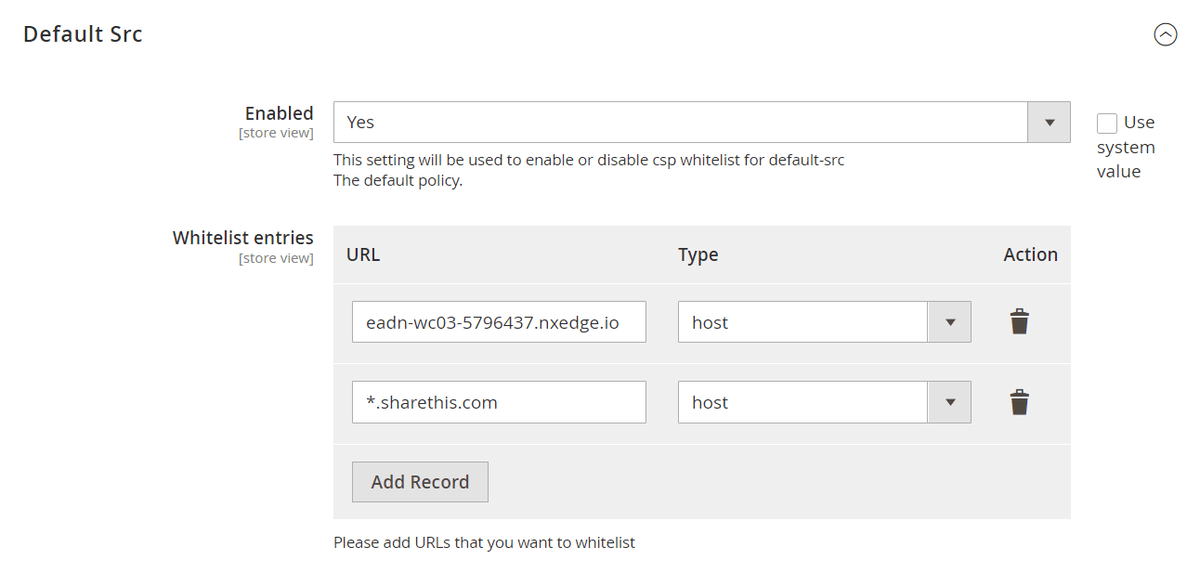
- Enabled- Select "Yes" or "No" to enable or disable csp whitelist for default-src
- Whitelist entries- Please add URLs that you want to whitelist. By default, the type of entry added would be host. You can also delete this entry and add multiple entries.
-
Base Uri
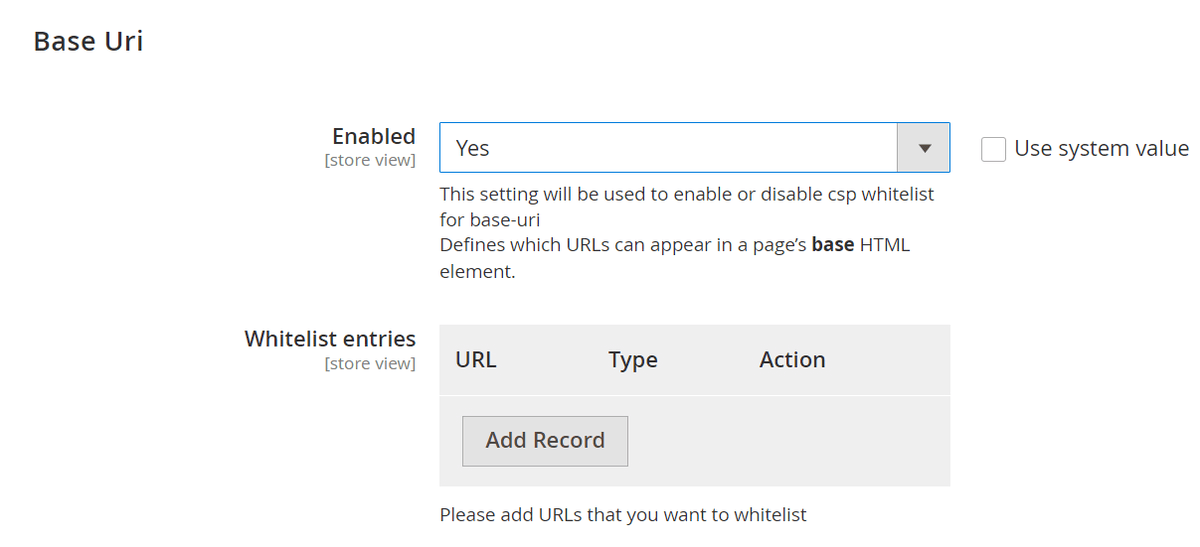
- Enabled- Select "Yes" or "No" to enable or disable csp whitelist for base-uri
- Whitelist entries- Please add URLs that you want to whitelist. By default, the type of entry added would be host. You can also delete this entry and add multiple entries.
-
Child Src
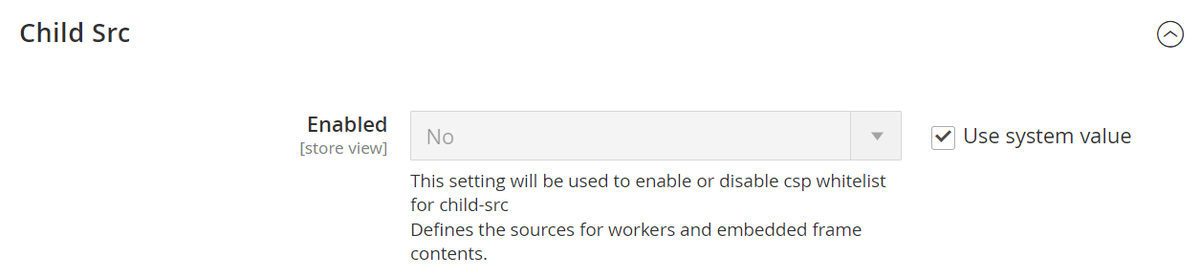
- Enabled- Select "Yes" or "No" to enable or disable csp whitelist for child-src
- Whitelist entries- Please add URLs that you want to whitelist. By default, the type of entry added would be host. You can also delete this entry and add multiple entries.
-
Connect Src
- Enabled- Select "Yes" or "No" to enable or disable csp whitelist for connect-src
- Whitelist entries- Please add URLs that you want to whitelist. By default, the type of entry added would be host. You can also delete this entry and add multiple entries.
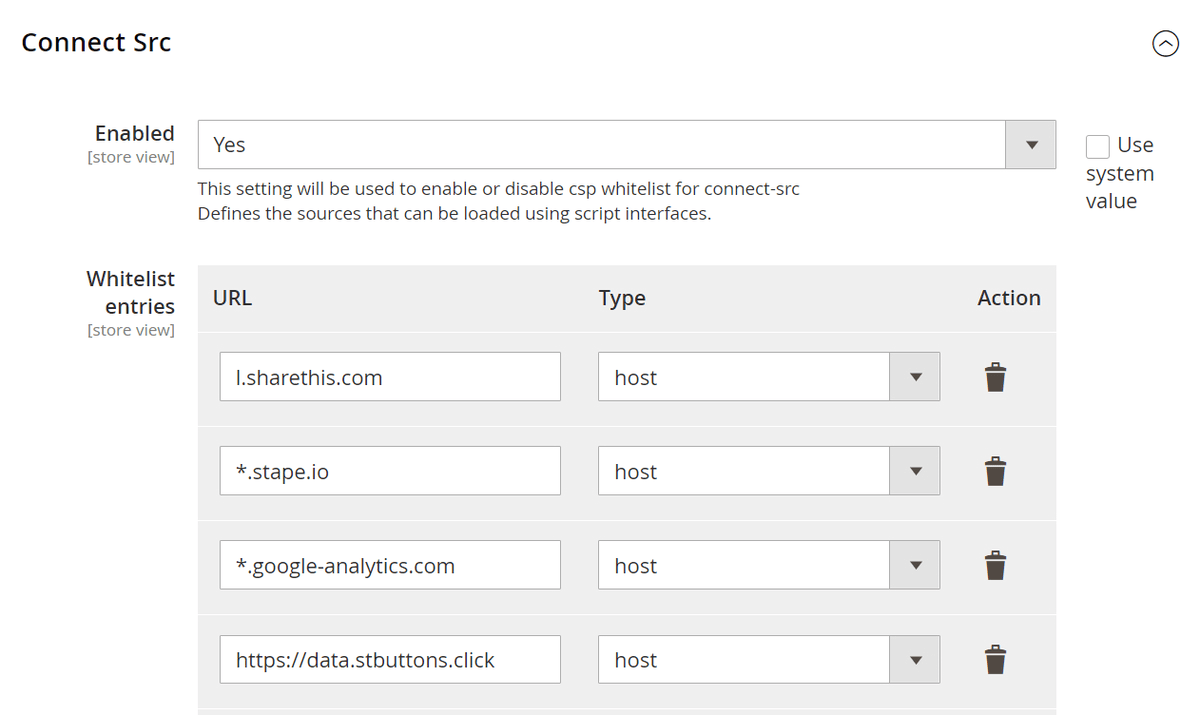
-
Font Src
- Enabled- Select "Yes" or "No" to enable or disable csp whitelist for font-src
- Whitelist entries- Please add URLs that you want to whitelist. By default, the type of entry added would be host. You can also delete this entry and add multiple entries.
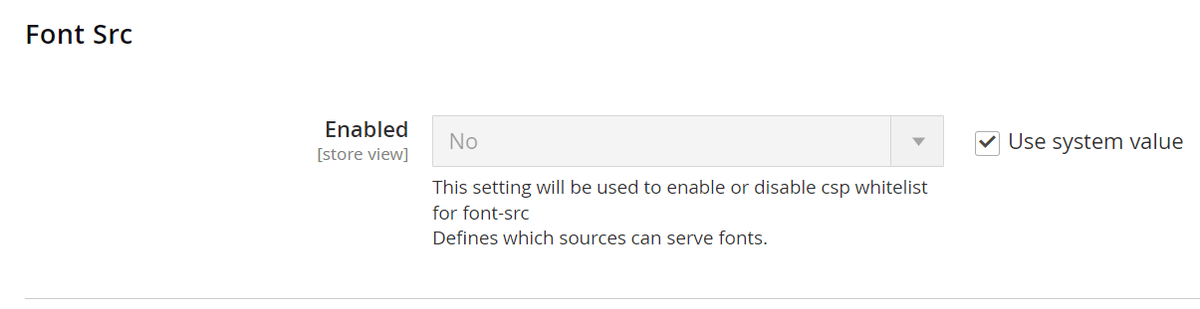
-
Form Action
- Enabled- Select "Yes" or "No" to enable or disable csp whitelist for form-action
- Whitelist entries- Please add URLs that you want to whitelist. By default, the type of entry added would be host. You can also delete this entry and add multiple entries.
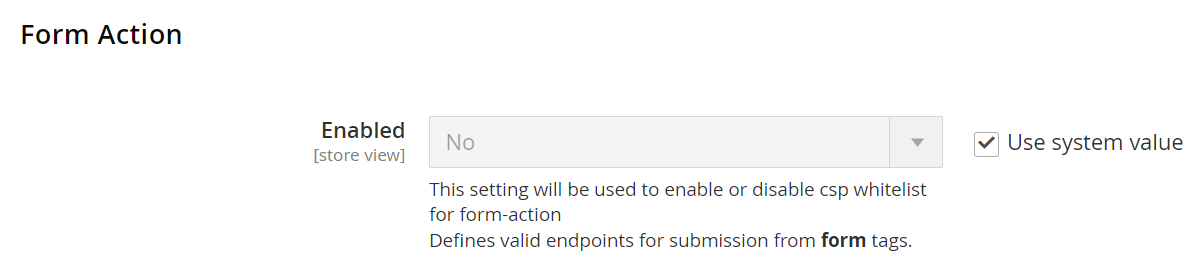
-
Frame Ancestors
- Enabled- Select "Yes" or "No" to enable or disable csp whitelist for frame-ancestors
- Whitelist entries- Please add URLs that you want to whitelist. By default, the type of entry added would be host. You can also delete this entry and add multiple entries.
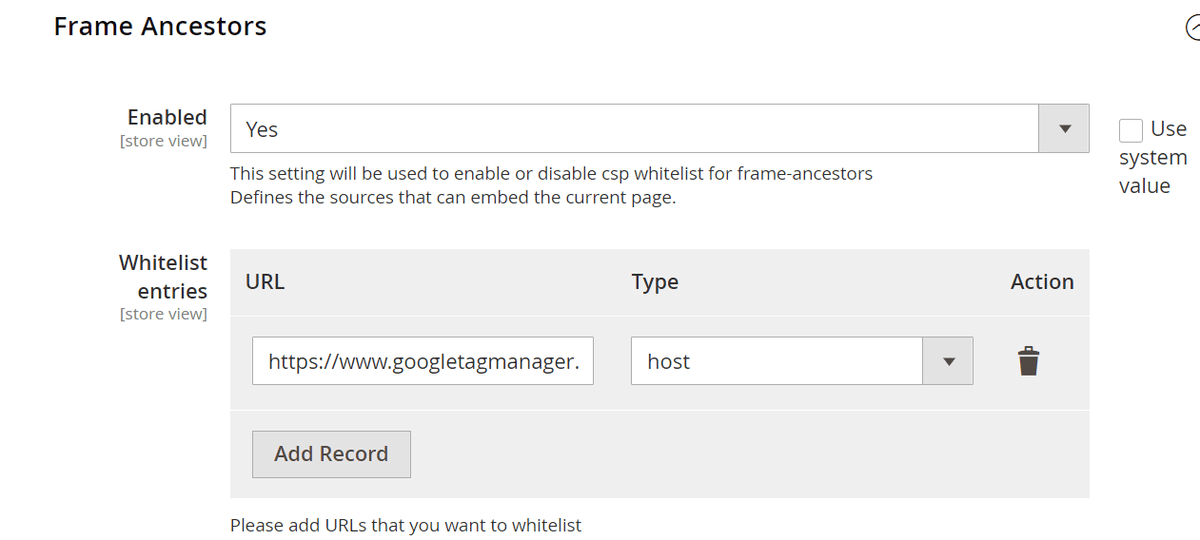
-
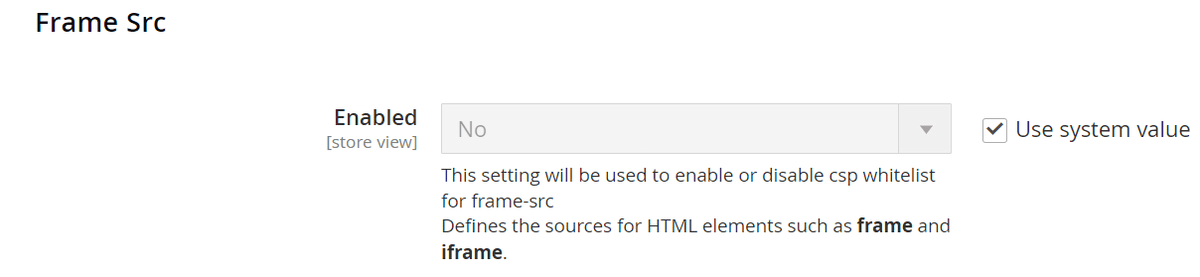
Frame Src
- Enabled- Select "Yes" or "No" to enable or disable csp whitelist for frame-src
- Whitelist entries- Please add URLs that you want to whitelist. By default, the type of entry added would be host. You can also delete this entry and add multiple entries.
-
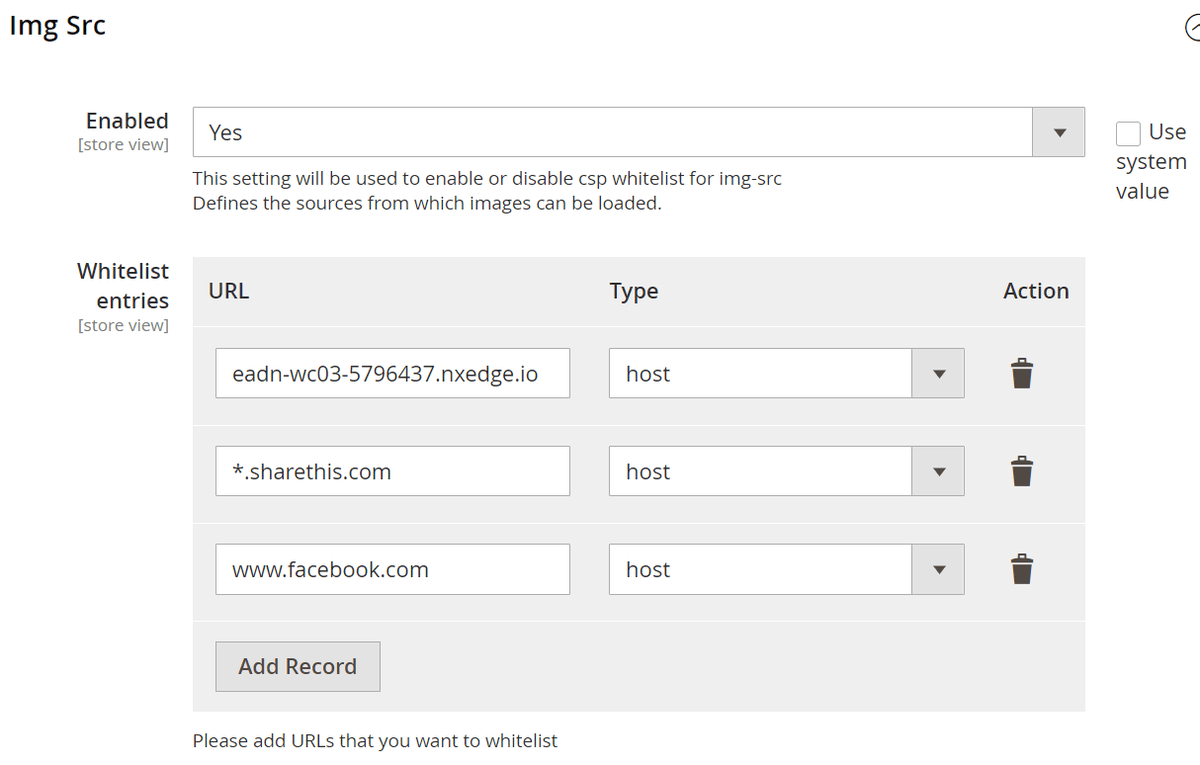
Img Src
- Enabled- Select "Yes" or "No" to enable or disable csp whitelist for img-src
- Whitelist entries- Please add URLs that you want to whitelist. By default, the type of entry added would be host. You can also delete this entry and add multiple entries.
-
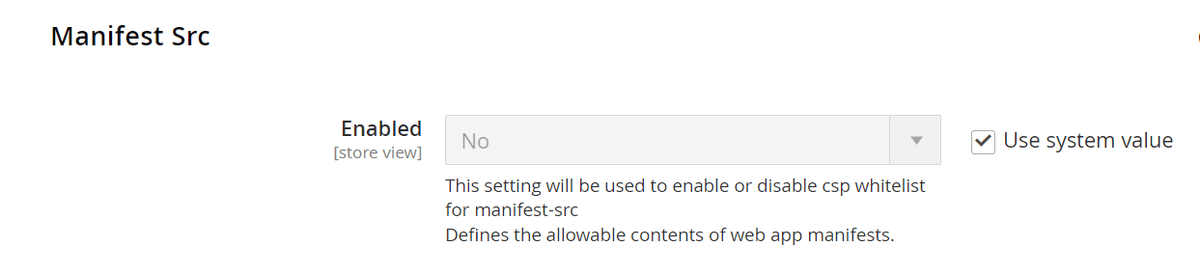
Manifest Src
- Enabled- Select "Yes" or "No" to enable or disable csp whitelist for manifest-src
- Whitelist entries- Please add URLs that you want to whitelist. By default, the type of entry added would be host. You can also delete this entry and add multiple entries.
-
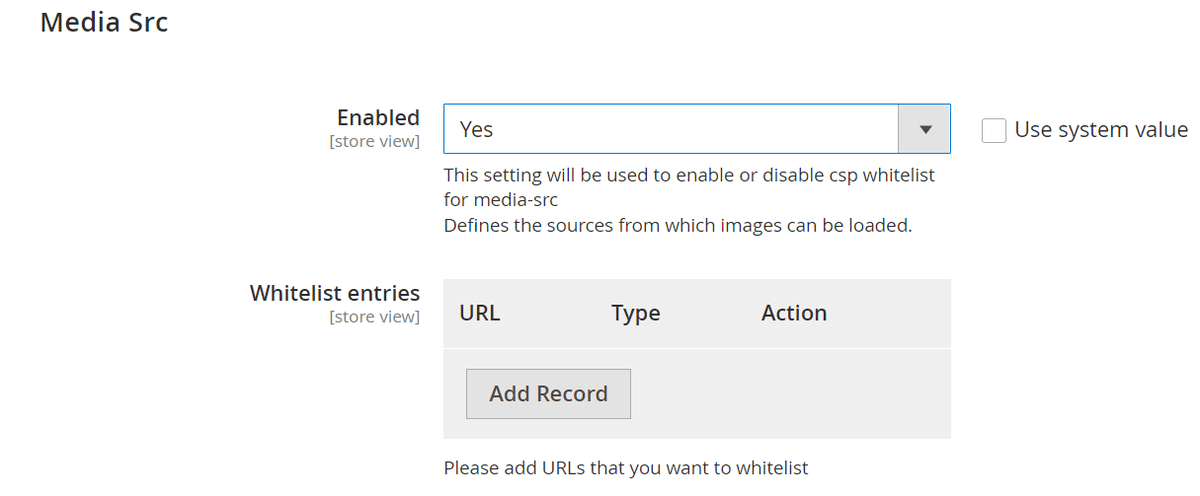
Media Src
- Enabled- Select "Yes" or "No" to enable or disable csp whitelist for media-src
- Whitelist entries- Please add URLs that you want to whitelist. By default, the type of entry added would be host. You can also delete this entry and add multiple entries.
-
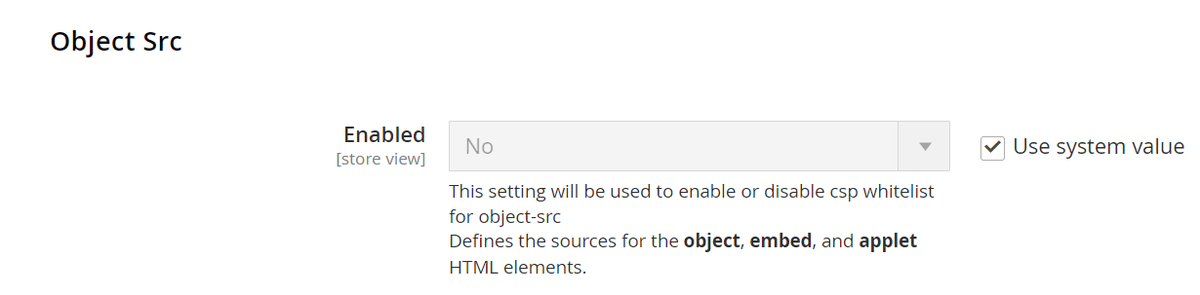
Object Src
- Enabled- Select "Yes" or "No" to enable or disable csp whitelist for object-src
- Whitelist entries- Please add URLs that you want to whitelist. By default, the type of entry added would be host. You can also delete this entry and add multiple entries.
-
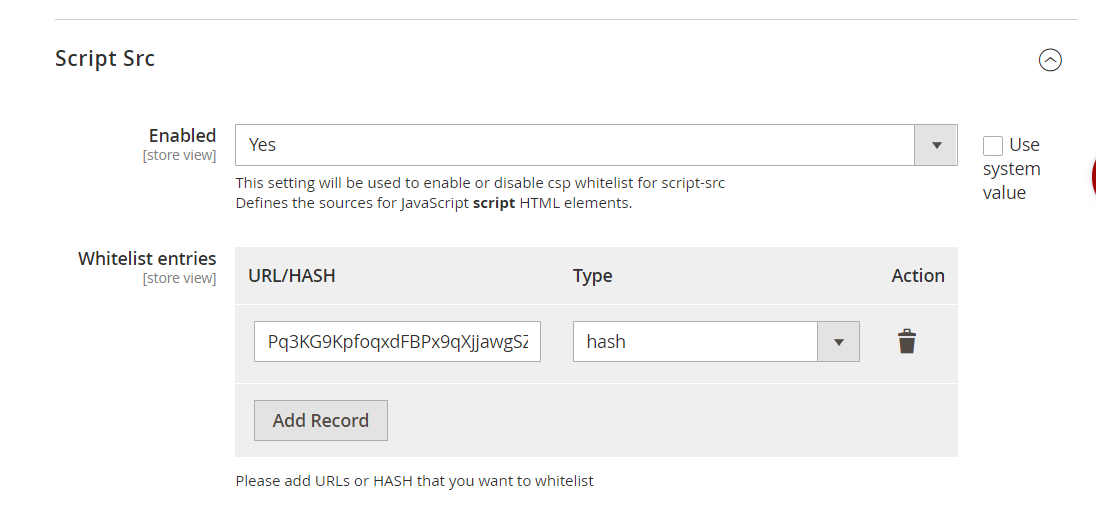
Script Src
- Enabled- Select "Yes" or "No" to enable or disable csp whitelist for script-src
- Whitelist entries- Please add URLs that you want to whitelist. By default, the type of entry added would be host. You can also delete this entry and add multiple entries.
-
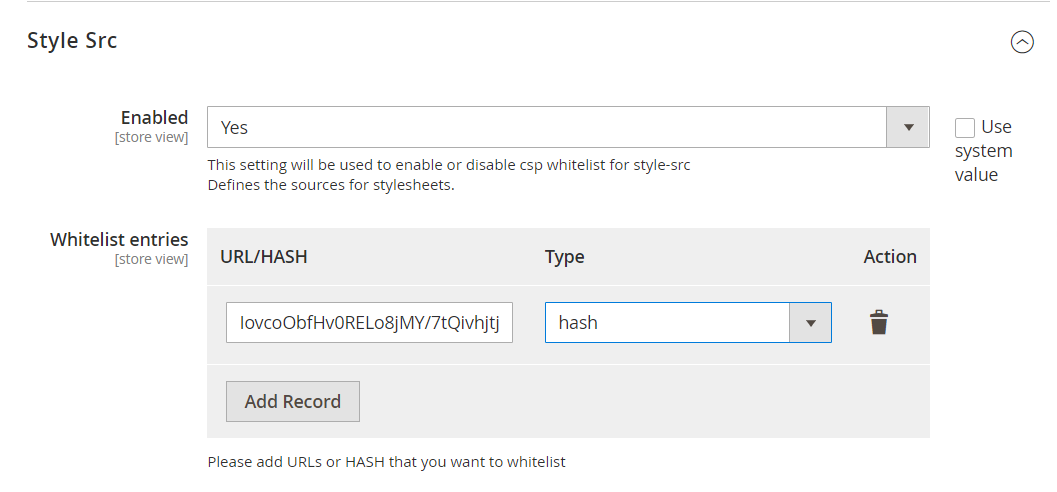
Style Src
- Enabled- Select "Yes" or "No" to enable or disable csp whitelist for style-src
- Whitelist entries- Please add URLs that you want to whitelist. By default, the type of entry added would be host. You can also delete this entry and add multiple entries.
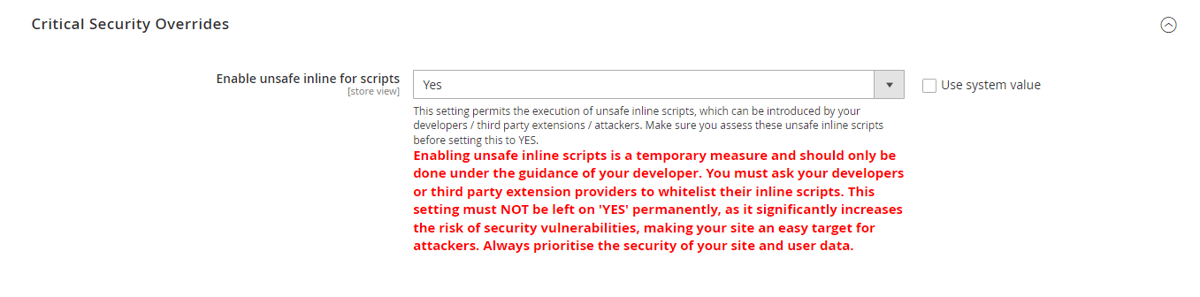
Critical Security Overrides
- Enable Unsafe Inline Script- This setting permits the execution of unsafe inline scripts, which can be introduced by your developers / third party extensions / attackers. Make sure you assess these unsafe inline scripts before setting this to YES.
Caution: Enabling unsafe inline scripts is a temporary measure and should only be done under the guidance of your developer. You must ask your developers or third party extension providers to whitelist their inline scripts. This setting must NOT be left on 'YES' permanently, as it significantly increases the risk of security vulnerabilities, making your site an easy target for attackers. Always prioritise the security of your site and user data.
CSP Reports Grid
The CSP Reports Grid collects and displays all the CSP errors on both frontend and backend. To enable report collection please make sure to add the following URLs in Security > CSP section of your Store config:-
- Admin Default - https://BASE_URL/scommercereporturi/report/admin
- Storefront** Default** - https://BASE_URL/scommercereporturi/report/storefront
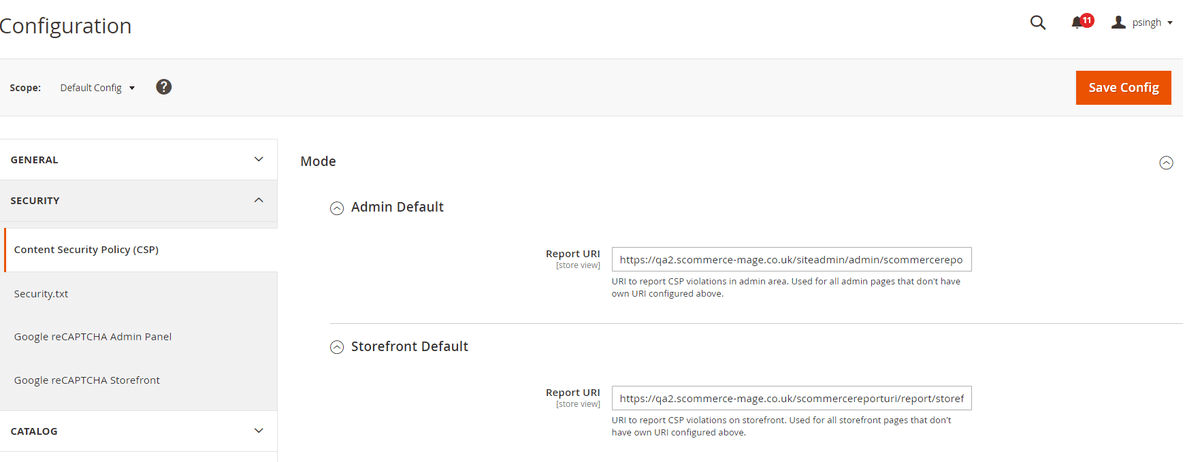
To access the grid go to Admin>System>Scommerce CSP Records> CSP Report Only Grid
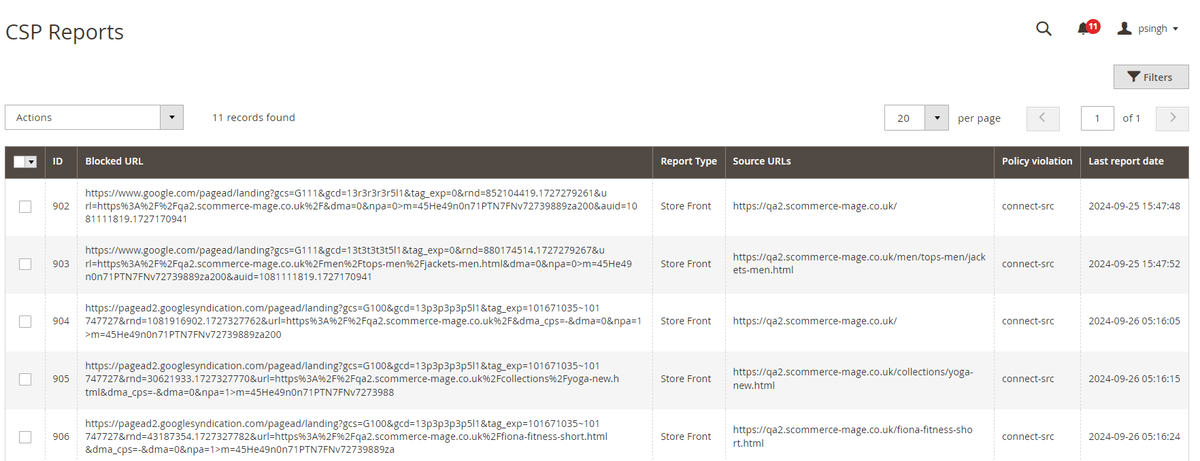
- ID:- Id of the record
- Blocked URL:- The URL reported in the CSP error
- Report Type:- Store Front (frontend) or Admin(backend), where the error was reported
- Source URLs:- The Source URL of the page where this error was reported
- Policy violation:- The CSP directive which was violated in this record.
- Last report date:- When was this error last reported.
Working of the extension
Steps to Check and Fix Console CSP Errors thorugh CSP Reports Grid
Go to Admin>System>Scommerce CSP Records> CSP Report Only Grid, select the error records that you want to whitelist then from the Actions dropdown, select whitelist.
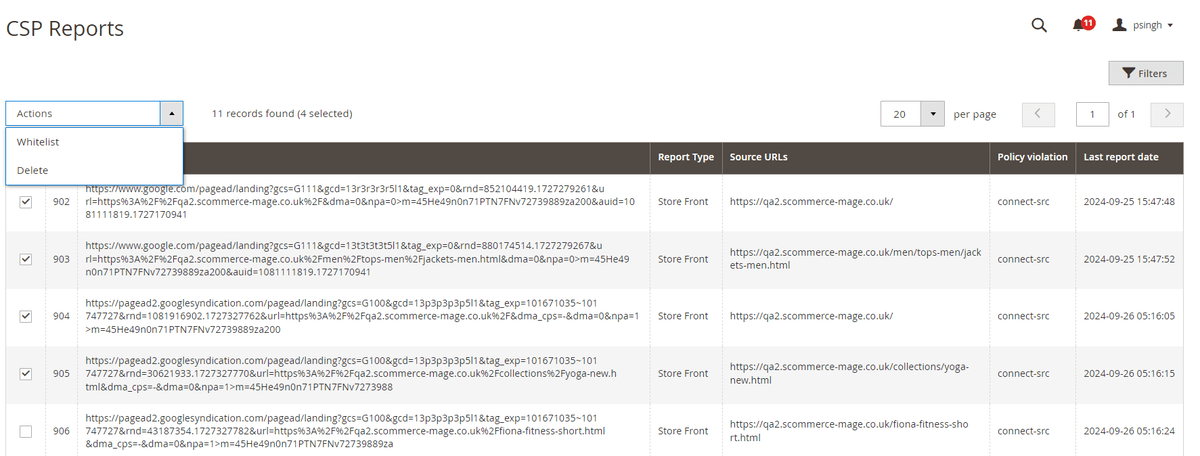
Please clear caches as prompted:-
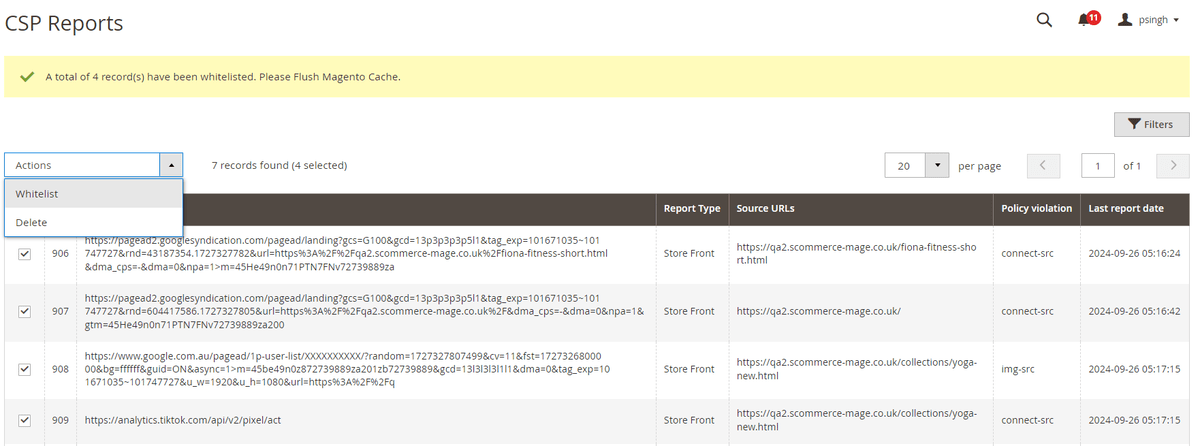
Once done all the selected entries will be whitelisted into their specific CSP directive and should be visible in the admin configuration.
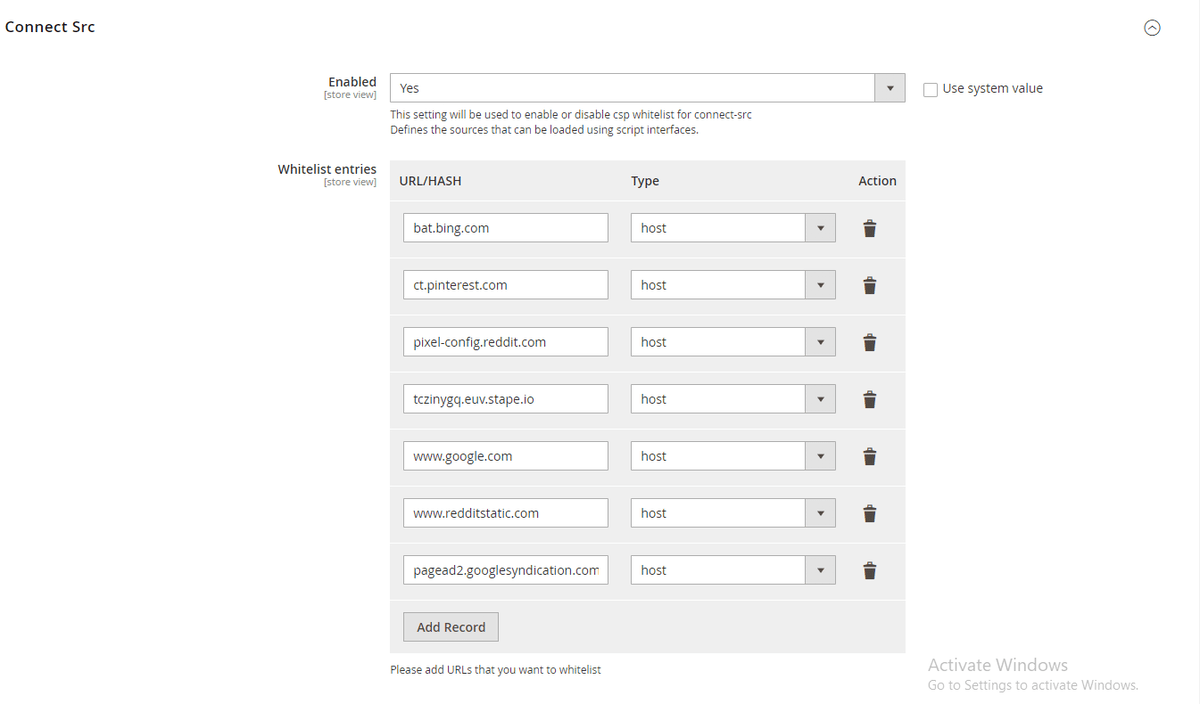
Note:- If you have already whitelisted the entries manually in the configuration then you can delete these records from the grid by selection the records that you want to delete and then click on Action dropdown and select delete.
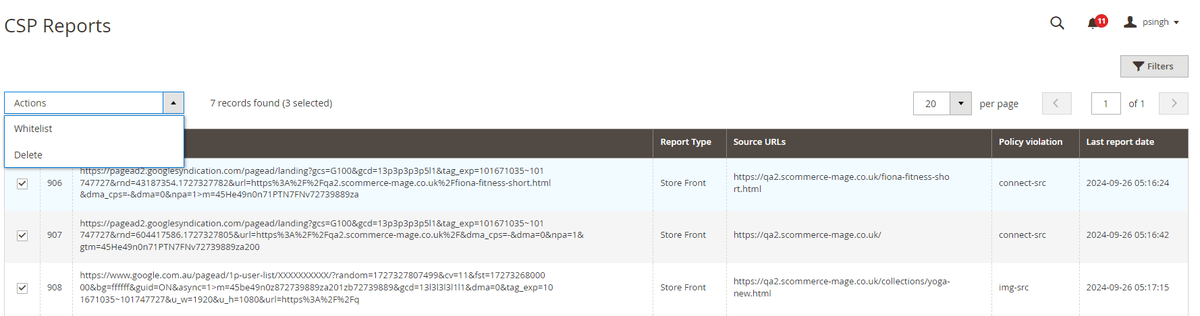
Steps to Check and Fix Console CSP Errors Manually
- Check the errors present in the frontend's console.

- Check the source of these errors.

- Check the URL present in these errors.

- In the backend, add the URL to the source to which that error belongs to.
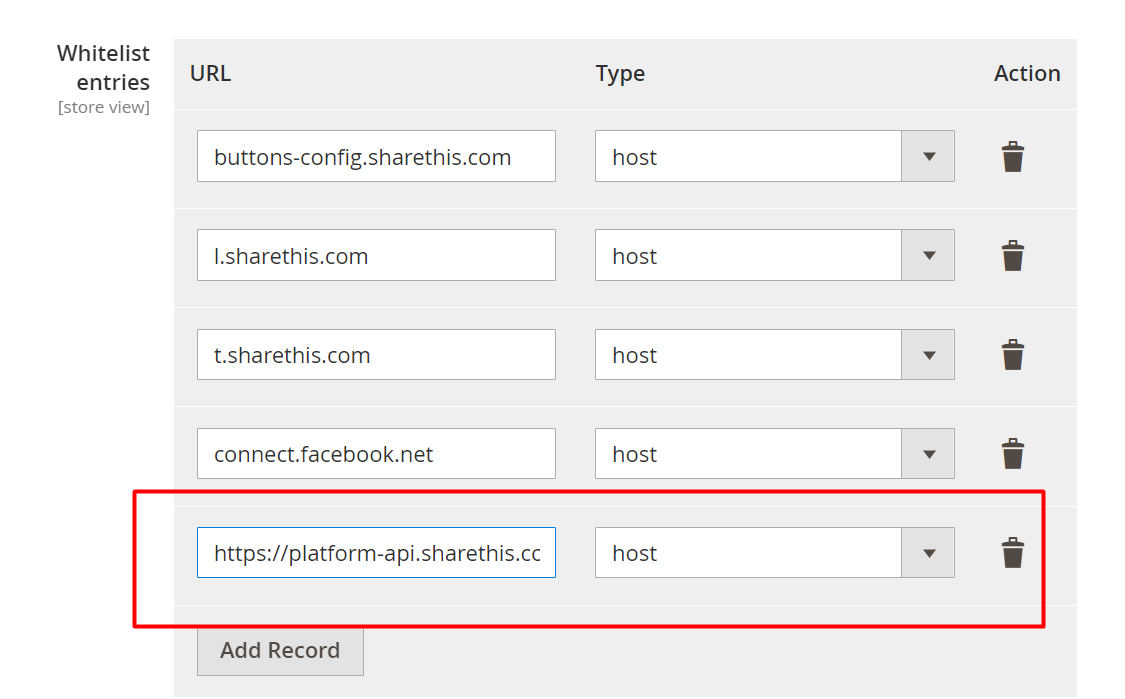
- You would no longer see the error on the frontend

Fixing Inline Script and Inline Style Content Security Policy Issues
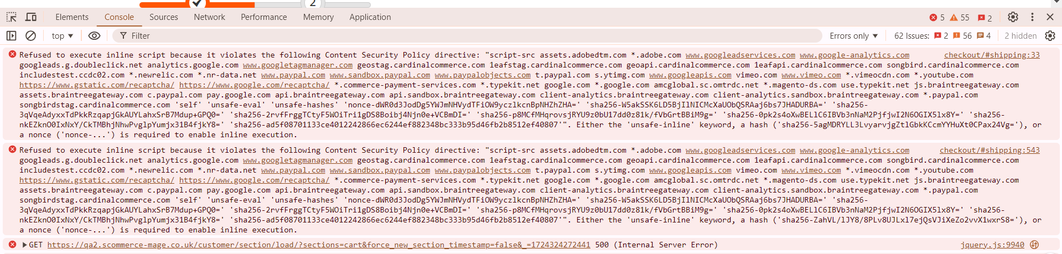
In this section, we will show you how to fix the inline script and style related console errors for Content Security Policy. Please check the image below:
-
Identify the script or style tag that's causing the console error.
-
Create SHA256 hash of contents of with the script or style tag and then use bas64 to encode this hash. It can be done all together :- https://emn178.github.io/online-tools/sha256.html
-
Alternatively you can generate the hash using PHP as shown below.
$whitelistHash = base64_encode(hash('sha256', $content, true)); -
Next we add this hash to our module in the correct section i.e either style or script.
Let us look at examples to understand this process better:
Inline Style Error Example
- Suppose we identified the style thats causing the issue as follows:
<style>
body {
background-color: #f3f3f3;
}
</style>- Next we will go the site and create a SHA256 hash as well as the base64 encode of this hash of the contents of the style tag as shown in screengrab below:
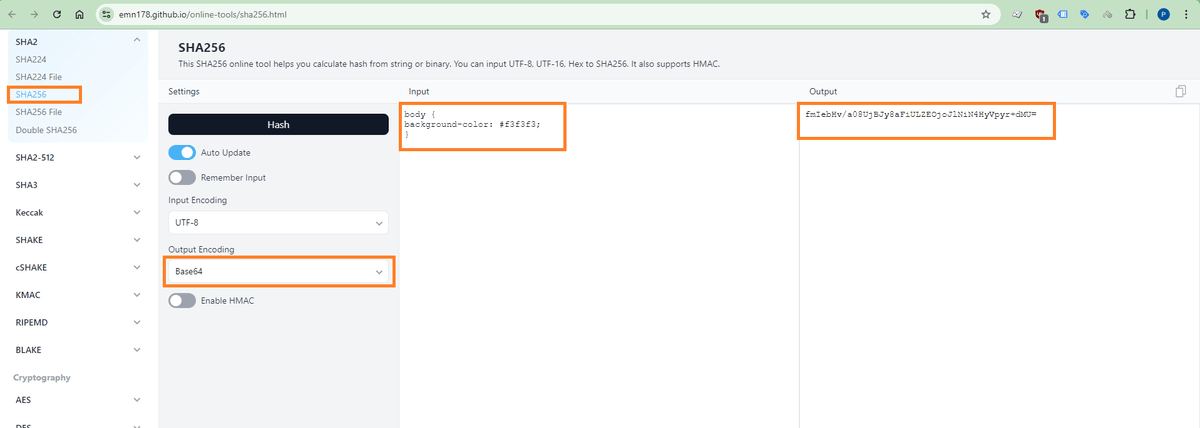
- Now copy this hash and go to Stores>Configuration>Scommerce Configuration>CSP Whitelist and scroll down to find the Style Src section. Add the hash here as shown in the image below:
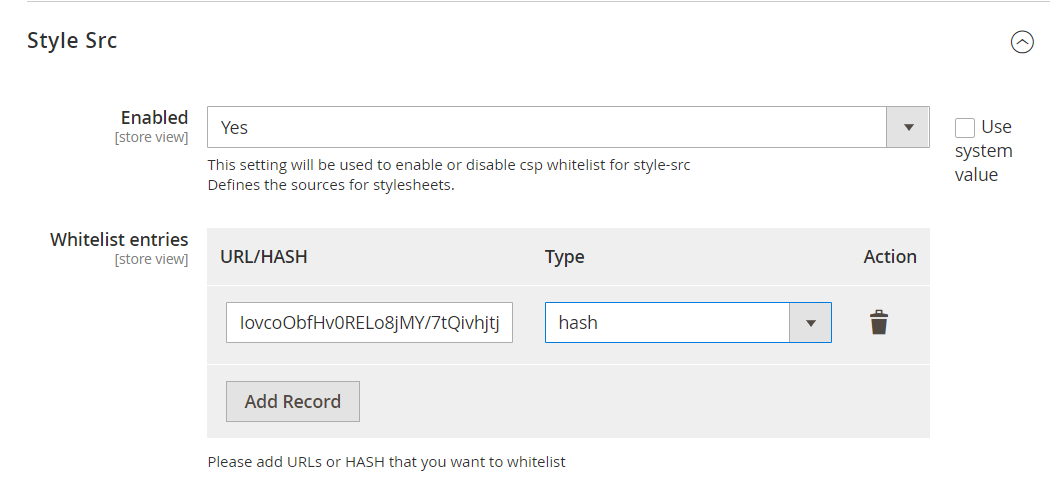
- Please make sure hash is selected in the type dropdown. This should resolve the console error.
Inline Script Error Example
- The identified script tag causing the issue is as follows:
<script>
console.log('Hello, world!');
</script>- We will go the site(https://emn178.github.io/online-tools/sha256.html) and create a SHA256 hash as well as the base64 encode of this hash of the contents of the style tag as shown in screengrab below:
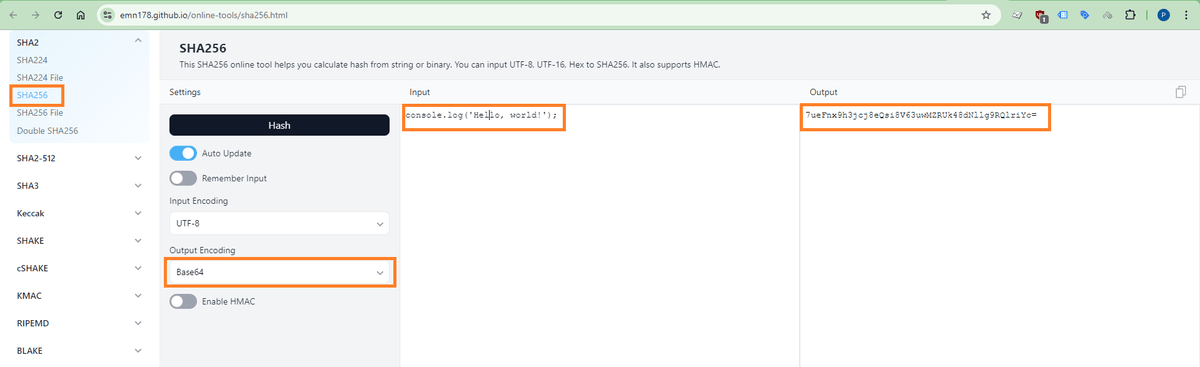
- Now copy this hash and go to Stores>Configuration>Scommerce Configuration>CSP Whitelist and scroll down to find the Script Src section. Add the hash here as shown in the image below:
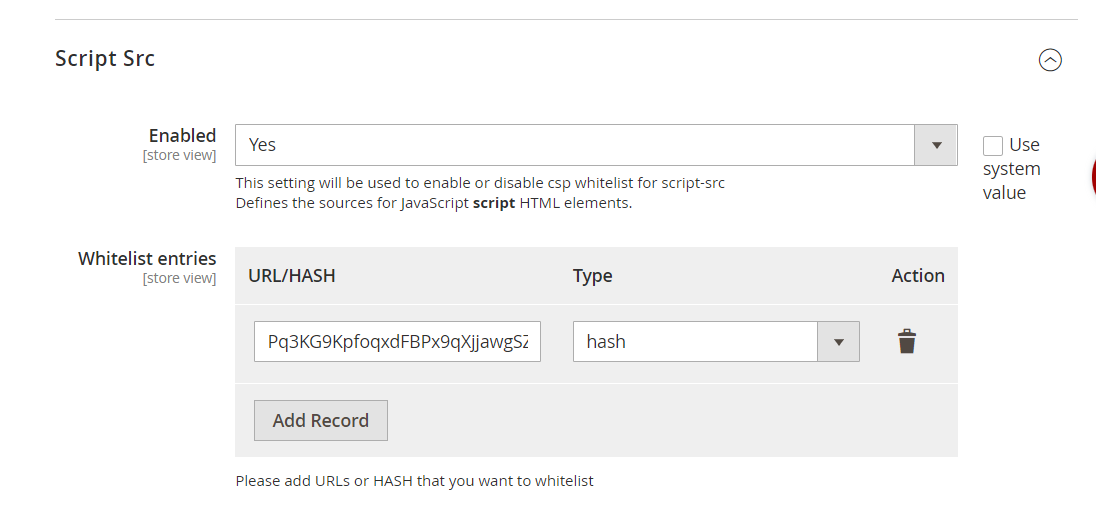
- Please make sure hash is selected in the type dropdown. This should resolve the console error.
If you have a question related to this extension please check out our FAQ Section first. If you can't find the answer you are looking for then please contact support@scommerce-mage.com.