# Magento 2 Custom Stock Status Extension
### Installation and User Guide for Magento 2 Custom Stock Status Extension
**Table of Contents**
1. [*Installation* ](#bkmrk-installation)
- *Installation via app/code*
- *Installation via Composer*
2. [*Configuration Settings for Custom Stock Status* ](#bkmrk-configuration-settin)
- *General Settings*
- *Stock Status Rules Grid*
- *Add New Rule*
- *Custom Stock Status and Rule Name at Product Level*
- *Salable Quantity*
- *Assign Custom Stock Status Rule to Products Automatically or Manually*
- *Manually*
- *Automatically on Cron Run*
- *Multi Websites Selection*
- *Custom Stock Status Product Attribute*
3. [*Front-end Site View* ](#bkmrk-front-end-site-view)
- *Custom Stock Message for Simple Products on the Product Page*
- *Custom Stock Message for Configurable Products on the Product Page*
- *Custom Stock Message on the Cart & Checkout Pages*
- *Custom Stock Message on Related, Cross-sells and Up-sells Products*
- *Status Message in the Order Confirmation Email*
### Installation [](#bkmrk-)
- **Installation via app/code:** Upload the content of the module to your root folder. This will not overwrite the existing Magento folder or files, only the new contents will be added. After the successful upload of the package, run below commands on Magento 2 root directory.
```php
php bin/magento setup:upgrade
php bin/magento setup:di:compile
php bin/magento setup:static-content:deploy
```
- **Installation via Composer:** Please follow the guide provided in the below link to complete the installation via composer.
[https://docs.scommerce-mage.com/magento-2-extensions/installation-via-composer/installation-via-composer](https://docs.scommerce-mage.com/magento-2-extensions/installation-via-composer/installation-via-composer)
### Configuration Settings for Custom Stock Status [](#bkmrk--1)
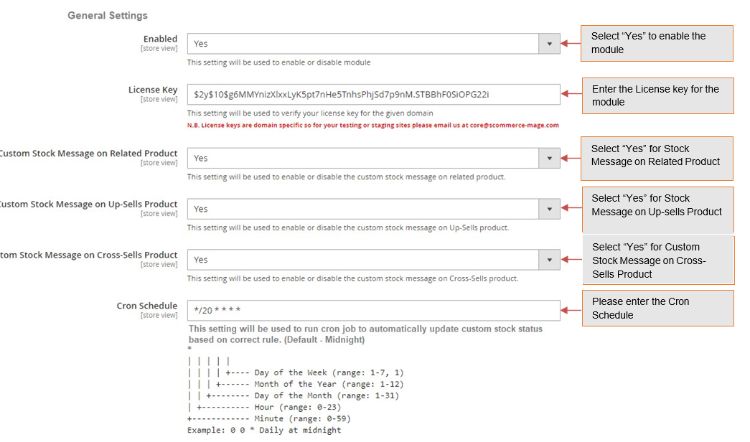
Go to **Admin > Stores > Configuration > Scommerce Configuration > Custom Stock Status**
#### General Settings [](#bkmrk--2)
- **Enabled -** Select "Yes" or "No" to enable or disable the module.
- **License Key -** Please add the license for the extension which is provided in the order confirmation email. Please note license keys are site URL specific. If you require license keys for dev/staging sites then please email us at .
- **Custom Stock Message on Related Product –** Select "Yes" to enable the custom stock message on related product.
- **Custom Stock Message on Up-Sells Product –** Select "Yes" to enable the custom stock message on Up-sells product.
- **Custom Stock Message or Cross-Sells Product –** Select "Yes" to enable the custom stock message on Cross-sells product.
- **Cron Schedule –** Schedule cron job to automatically update custom stock status based on correct rule.
[](https://docs.scommerce-mage.com/uploads/images/gallery/2025-05/image-11.jpg)
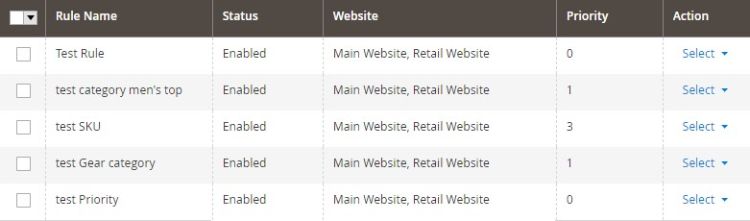
**Stock Status Rules Grid –** This will be a grid in admin > Catalog > Stock Status Rules, with below column: -
- **ID:** ID, this is auto generated and non-editable
- **Rule Name:** Name of the rule
- **Status:** Status of the rule, Enabled/Disabled
- **Website:** Name of the website
- **Priority:** Priority of the rule
- **Action:** Edit/Delete
[](https://docs.scommerce-mage.com/uploads/images/gallery/2025-05/4Tlimage-12.jpg)
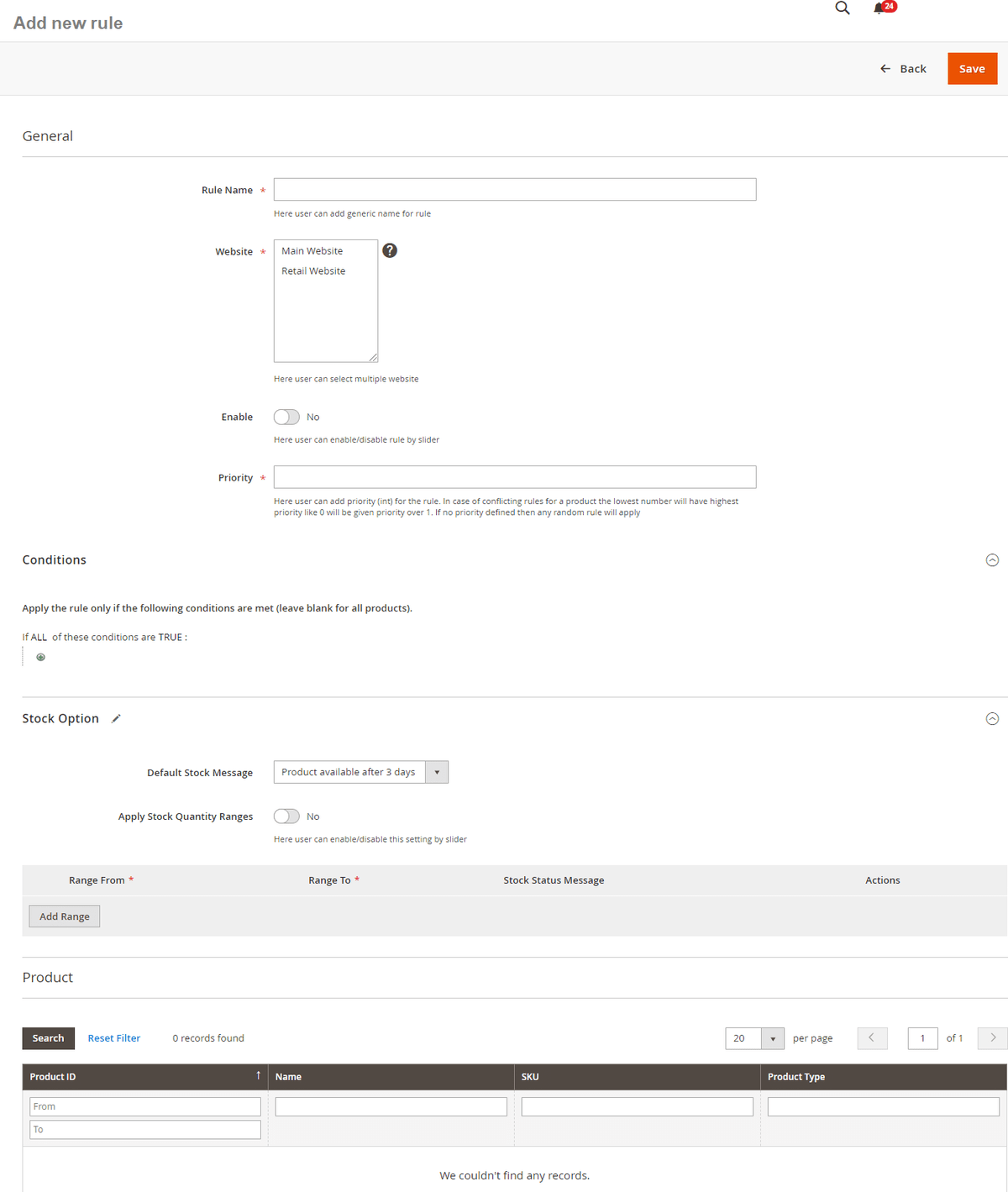
- **Add New Rule –** You can add new rule by clicking "Add New Rule" from **Admin > Catalog > Products > Stock Status Rules >Add New Rule**, it redirects to the detailed view for Rule from where you can create a new rule by filling the required fields.
- **Rule Name -** Add generic name for rule
- **Website -** Select website from multi-select, from here you can select multiple website
- **Enable -** Please enable/disable rule by slider
- **Priority -** You can add priority (int) for the rule. In case of conflicting rules for a product the lowest number will have highest priority like 0 will be given priority over 1. If no priority defined then any random rule will apply
- **Conditions -** Add the conditions to match, leave blank for all products
- **Default Stock Message -** You can select default stock message from the drop- down, which will be shown on the frontend and replace availability (In Stock / Out Stock) message.
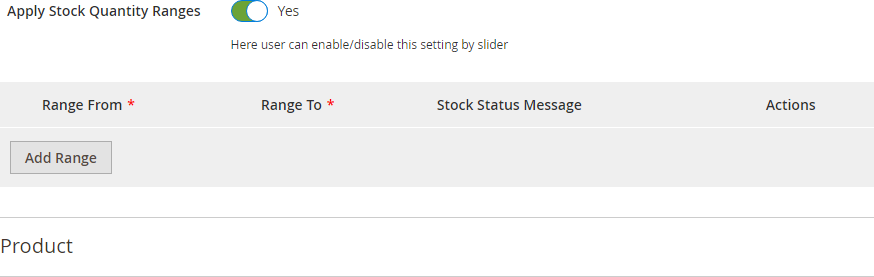
- **Apply Stock Quantity Ranges:** You can enable it by turning "On" this option. If it is enabled then it shows below grid where you can define stock ranges and corresponding status. Please note that if the range is not provided for given stock quantity then the default message will be shown.
[](https://docs.scommerce-mage.com/uploads/images/gallery/2025-05/XG9image-19.png)
### Add New Stock Status Rules - Admin Site View
[](https://docs.scommerce-mage.com/uploads/images/gallery/2025-05/image-16-1.png)
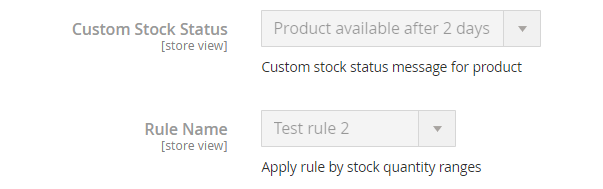
- **Custom Stock Status and Rule Name at Product Level -** You can view the associated rule to product from **Admin > Catalog > Products > Select product.**
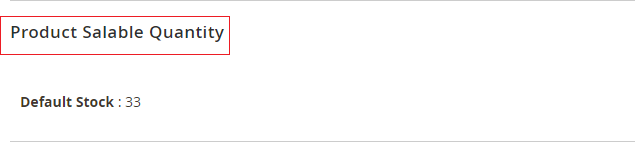
**Salable Quantity -** On product save it updates the stock status message based on the salable quantity and the quantity rule. To view salable quantity go to **Admin > Catalog> products > Select Product > Product Salable Quantity.**
**[](https://docs.scommerce-mage.com/uploads/images/gallery/2025-05/WQNimage-20.png)**
#### Assign Custom Stock Status Rule to Products Automatically or Manually [](#bkmrk--8)
- **Manually -** You can assign rules to product manually from **Admin > Catalog> Products > Select Product > Rule Name -** Select rule from the "Rule Name" drop-down list.
[](https://docs.scommerce-mage.com/uploads/images/gallery/2025-05/dcuimage-21.png)
- **Automatically on Cron Run -** You can schedule the Cron job from **Admin > Stores > Configuration > Scommerce Configuration > Custom Stock Status**, on cron run the rule will be automatically assigned to products based on the matched condition and set the correct message.
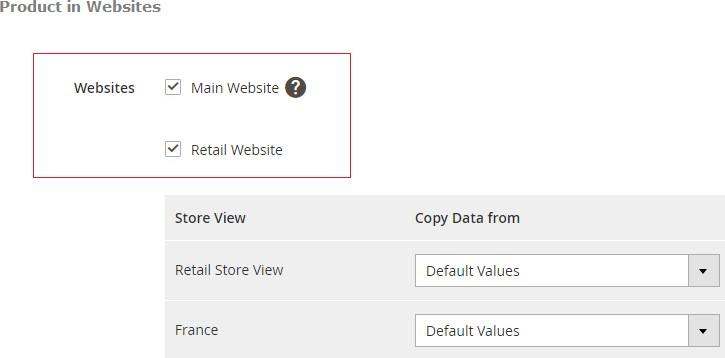
**Multi Websites Selection -** It fully supports multi-store and websites, you can select websites from **Admin > Catalog > Products > Select Product > Product in Websites-** check websites.
[](https://docs.scommerce-mage.com/uploads/images/gallery/2025-05/ctXimage-13.jpg)
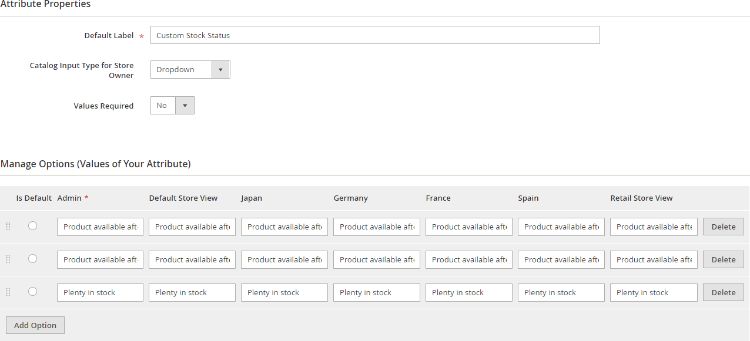
- **Custom Stock Status Product Attribute -** You can add values to custom stock status product attribute from **Admin > Store >Attribute > Product> Product Attribute>Select - custom\_stock\_status > Properties > Add option**, the added values will be populated in the default /custom stock status message drop-down.
[](https://docs.scommerce-mage.com/uploads/images/gallery/2025-05/image-14.jpg)
### Front-end Site View [](#bkmrk--12)
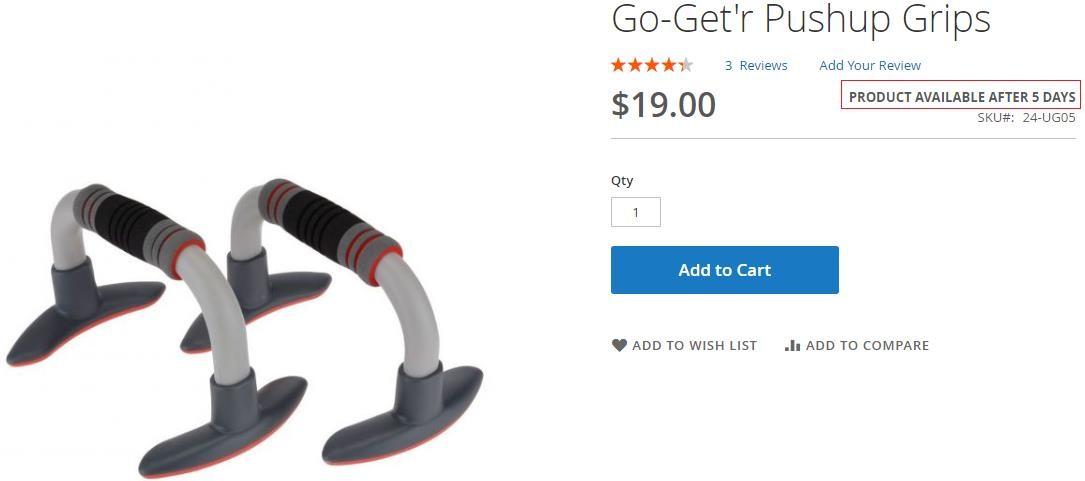
- **Custom Stock Message for Simple Products on the Product Page –** It displays stock status message for simple product based on salable qty and quantity ranges rule.
[](https://docs.scommerce-mage.com/uploads/images/gallery/2025-05/Idkimage-15.jpg)
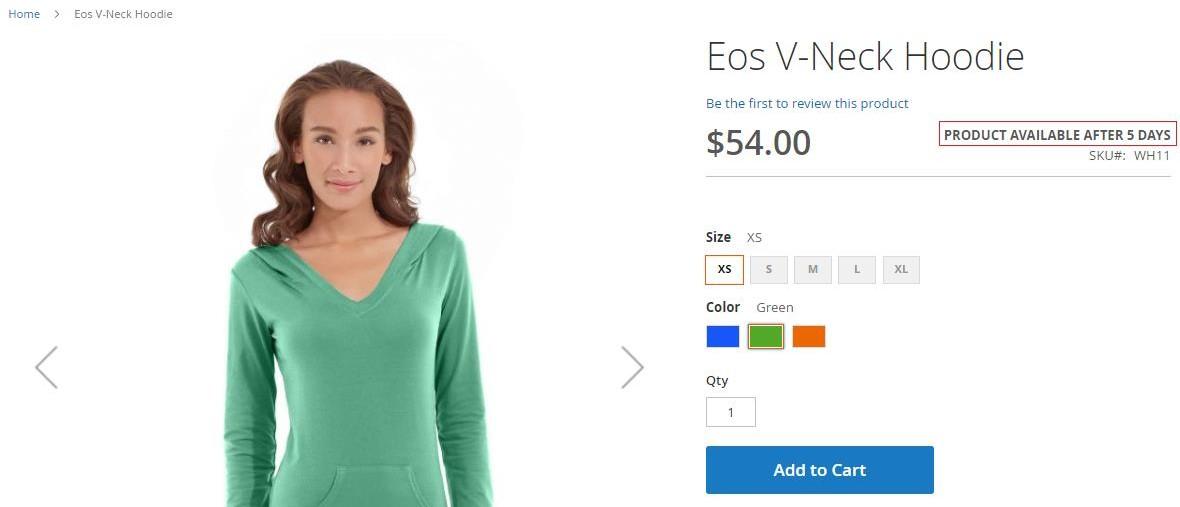
- #### Custom Stock Message for Configurable Products on the Product Page :- For configurable product it displays stock status based on variant selection**.** [](#bkmrk--14)
**[](https://docs.scommerce-mage.com/uploads/images/gallery/2025-05/9Uuimage-16.jpg)**
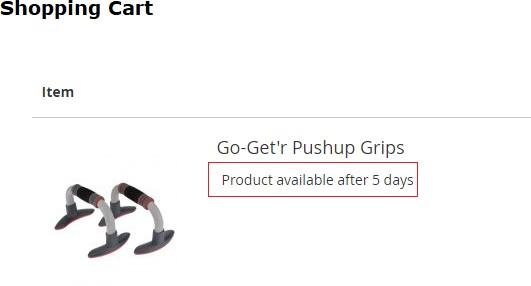
- **Custom Stock Message on the Cart & Checkout Pages –** You can see the stock status message on cart and checkout pages.
[](https://docs.scommerce-mage.com/uploads/images/gallery/2025-05/dbAimage-17.jpg)
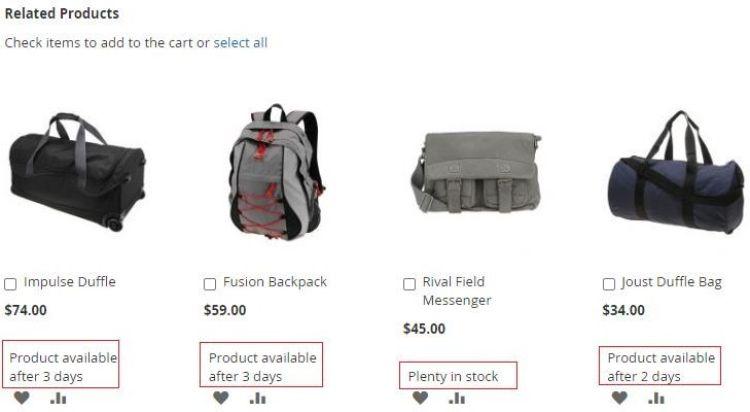
- **Custom Stock Message on Related, Cross-sells and Up-sells Products –** When you select "Yes" for "**Custom Stock Message on Related Product / Up-Sells/ Cross- Sells**" from **Admin > Stores > Configuration > Scommerce Configuration > Custom Stock Status,** then it shows stock status message on related/up-sells/cross- sells products.
[](https://docs.scommerce-mage.com/uploads/images/gallery/2025-05/qt6image-18.jpg)
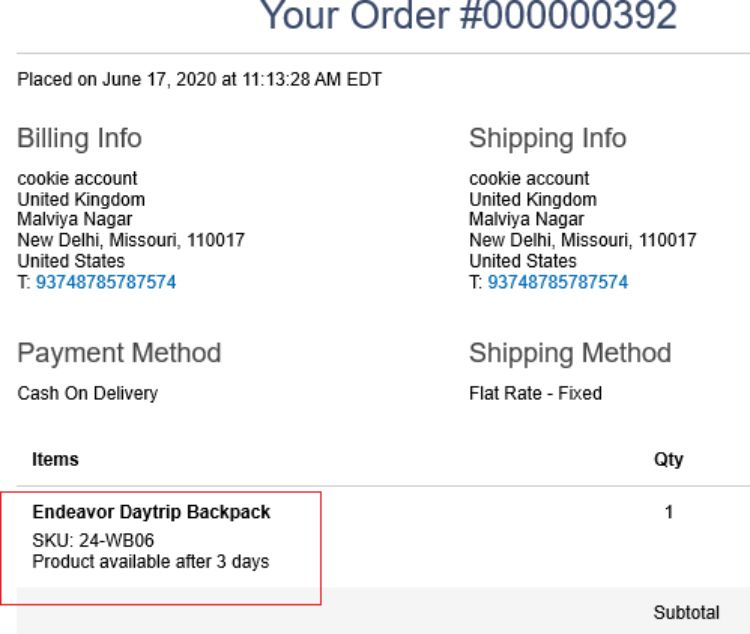
- **Status Message in the Order Confirmation Email –** In the order confirmation email you can see the added stock status message.
[](https://docs.scommerce-mage.com/uploads/images/gallery/2025-05/image-19.jpg)
If you have a question related to this extension please check out our [**FAQ Section** ](https://www.scommerce-mage.com/magento-2-custom-stock-status.html#customfaq)first. If you can't find the answer you are looking for then please contact [**support@scommerce-mage.com**](mailto:core@scommerce-mage.com)**.**