Magento 2 Sample Product
Installation and User Guide for Magento 2 Sample Product extension
Table of Contents
- Installation
- Installation via app/code
- Installation via Composer
- Configuration Settings for Sample Product
- General Settings
- Sample Product Settings
- Configure a Sample Product
- Free Sample
- Sample with Cost Associated
- Sample products are not Eligible for Coupon Discounts
- Coupon Code Validation for Free Sample Product
- Coupon Code Validation for Sample with Cost Associated product
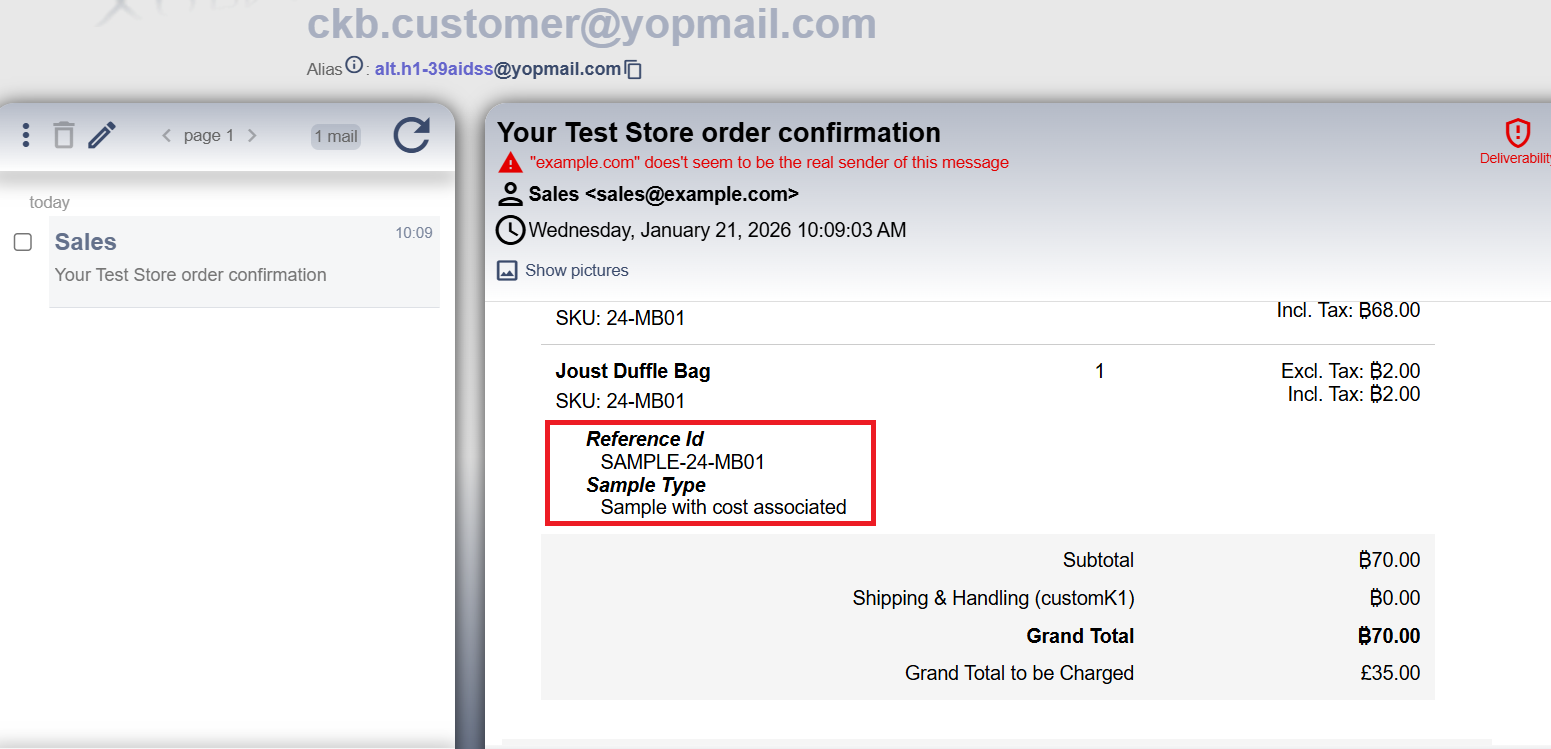
- Email Received for a Sample Product
Installation
-
Installation via app/code: Upload the content of the module to your root folder. This will not overwrite the existing Magento folder or files, only the new contents will be added. After the successful upload of the package, run below commands on Magento 2 root directory.
php bin/magento setup:upgrade php bin/magento setup:di:compile php bin/magento setup:static-content:deploy -
Installation via Composer: Please follow the guide provided in the below link to complete the installation via composer.
Configuration Settings for Sample Product
Go to Admin > Stores > Configuration > Scommerce Configuration > Sample Product
General Settings
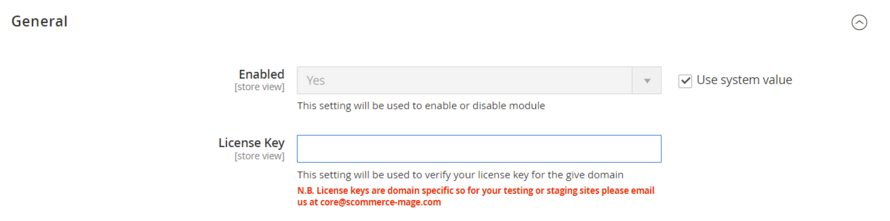
- Enabled – Select "Yes" or "No" to enable or disable the module.
- License Key – Please add the license for the extension which is provided in the order confirmation email. Please note license keys are site URL specific. If you require license keys for dev/staging sites then please email us at support@scommerce-mage.com.
Sample Product Settings
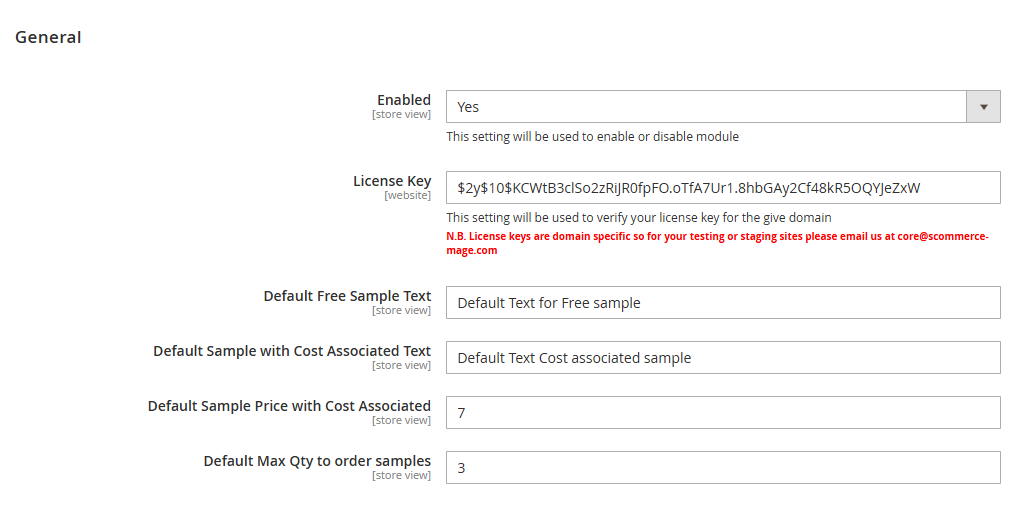
- Enabled – Select "Yes" or "No" to enable or disable the module.
- License Key – Please add the license for the extension which is provided in the order confirmation email. Please note license keys are site URL specific. If you require license keys for dev/staging sites then please email us at support@scommerce-mage.com.
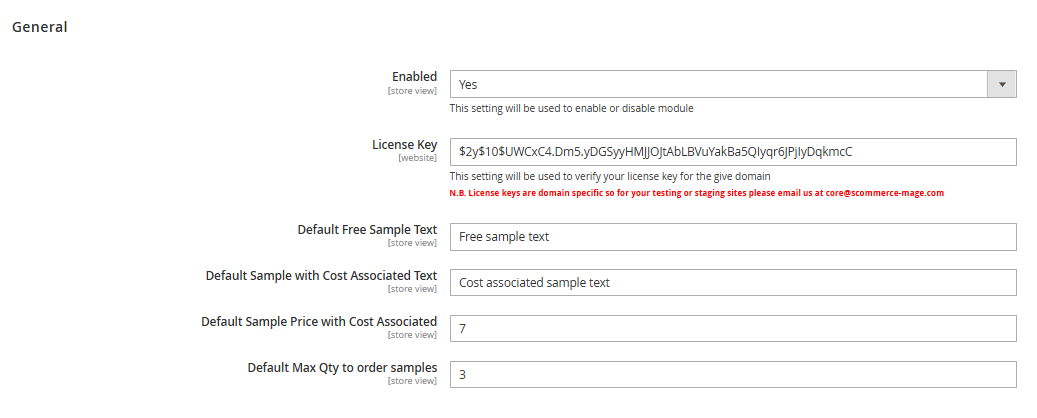
- Default Free Sample Text – Please add the Default Free Sample Text
- Default Sample with Cost Associated Text – Please add the Default Sample with Cost Associated Text
- Default Sample Price with Cost Associated - Please add the Default simple price with cost associated
- Default Max Qty to order samples - Please add the Default max qty to order samples
Configure a Sample product
-
Free Sample
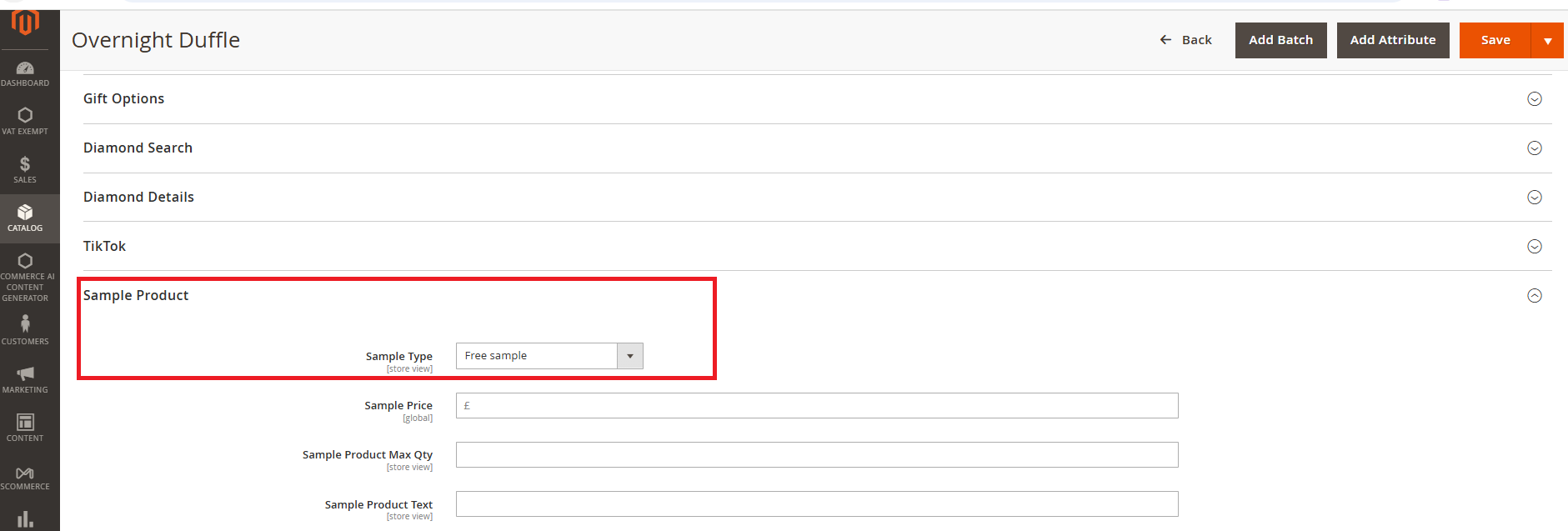
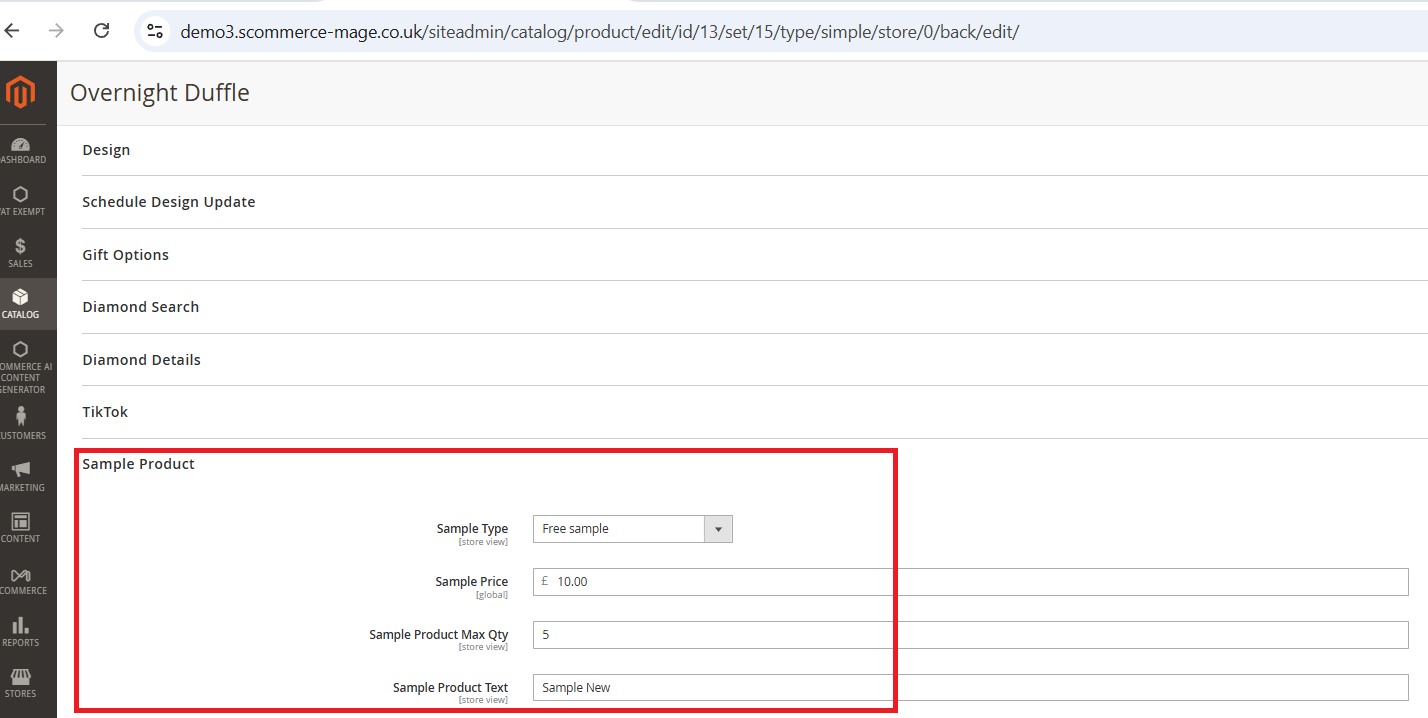
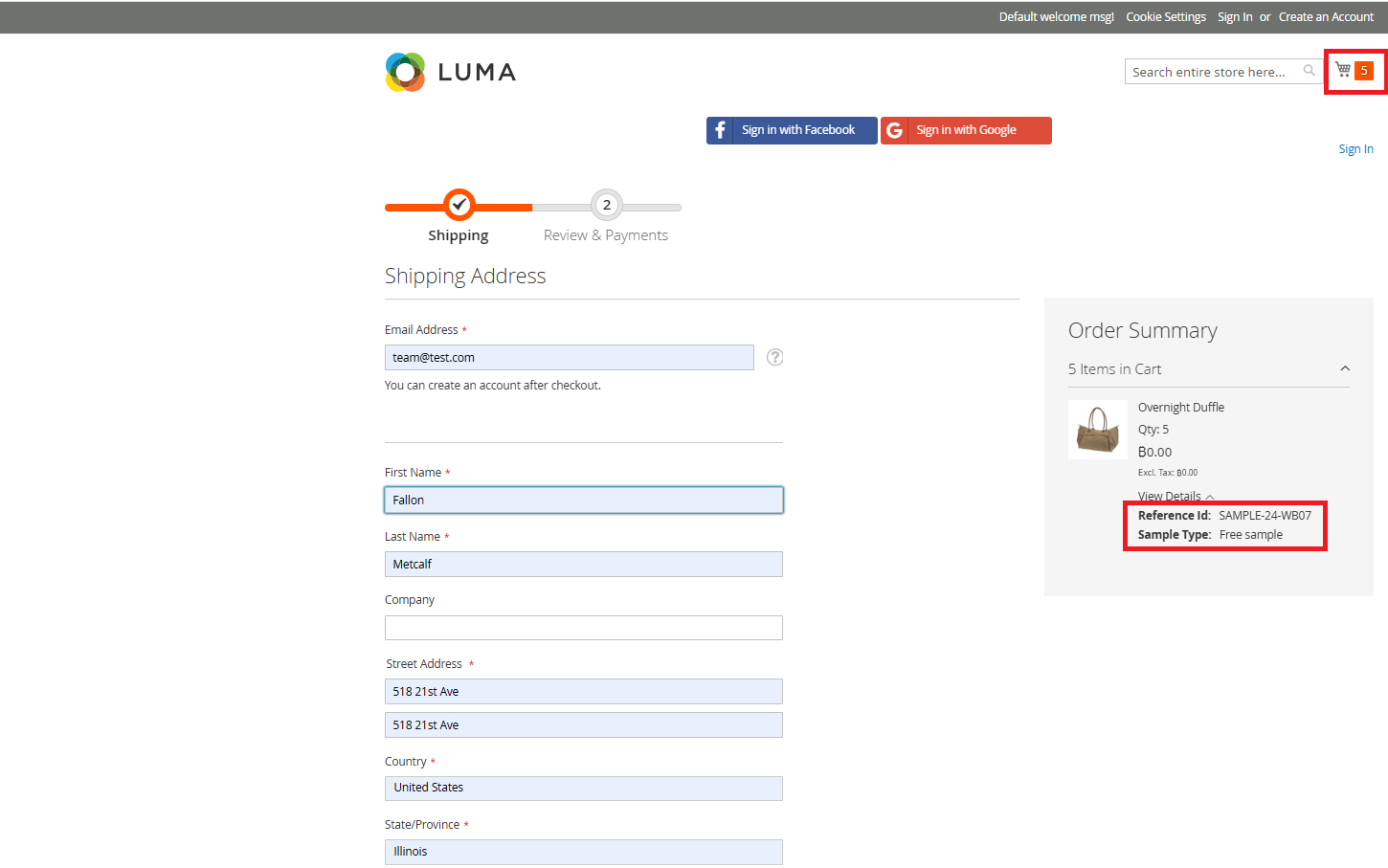
Log in to the Admin Panel and navigate to Catalog → Products. Select the product you want to edit and click Edit. Scroll down to the Sample Product section and choose Free Sample from the Sample Type dropdown.
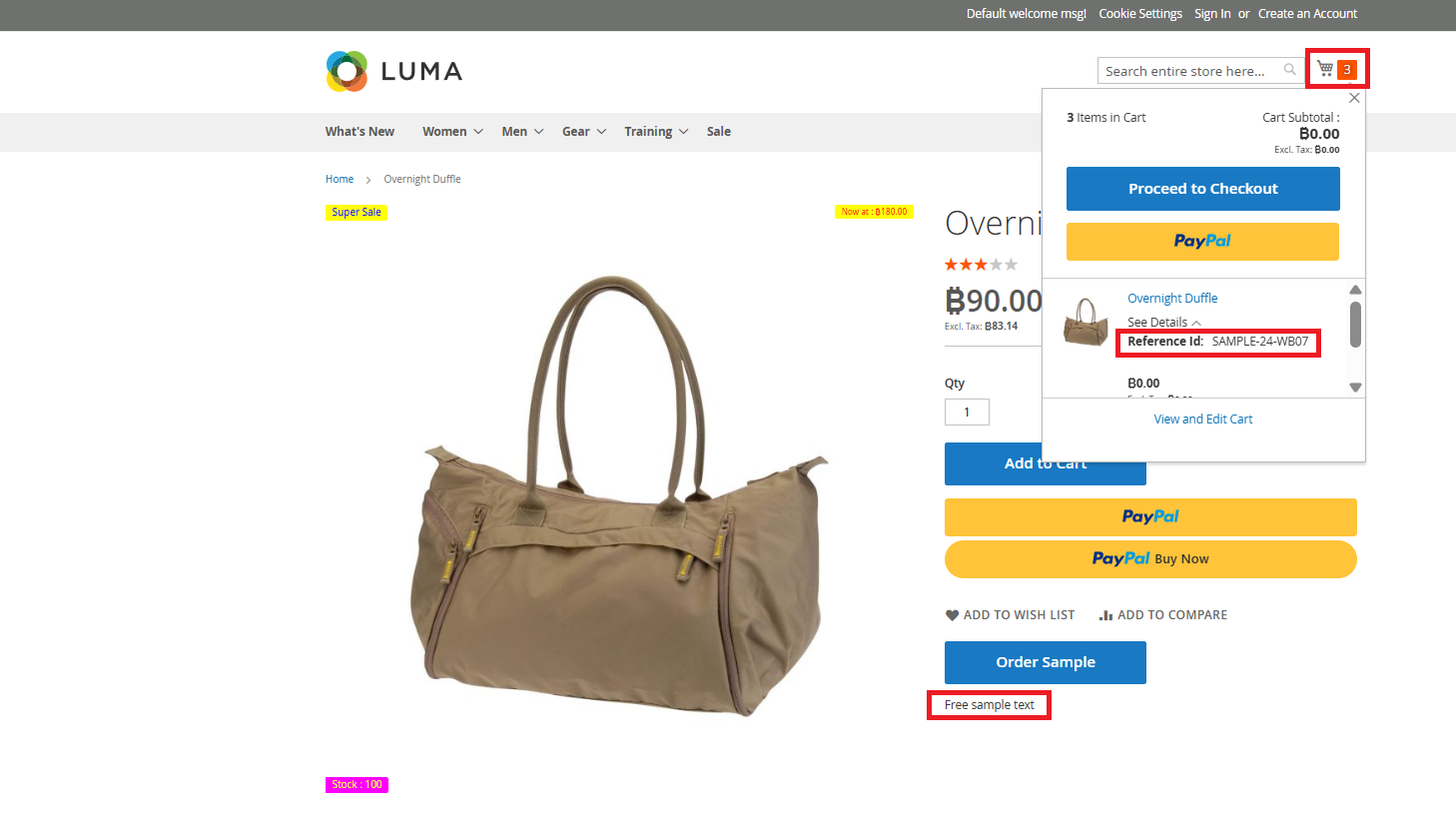
1. When the fields are empty
If all fields are left blank, the system will use the default configuration values.
On the frontend product page:
- The default quantity of 3 is applied, allowing the item to be added to the cart.
- The label Free Sample is displayed (e.g., for product 24‑WB07).
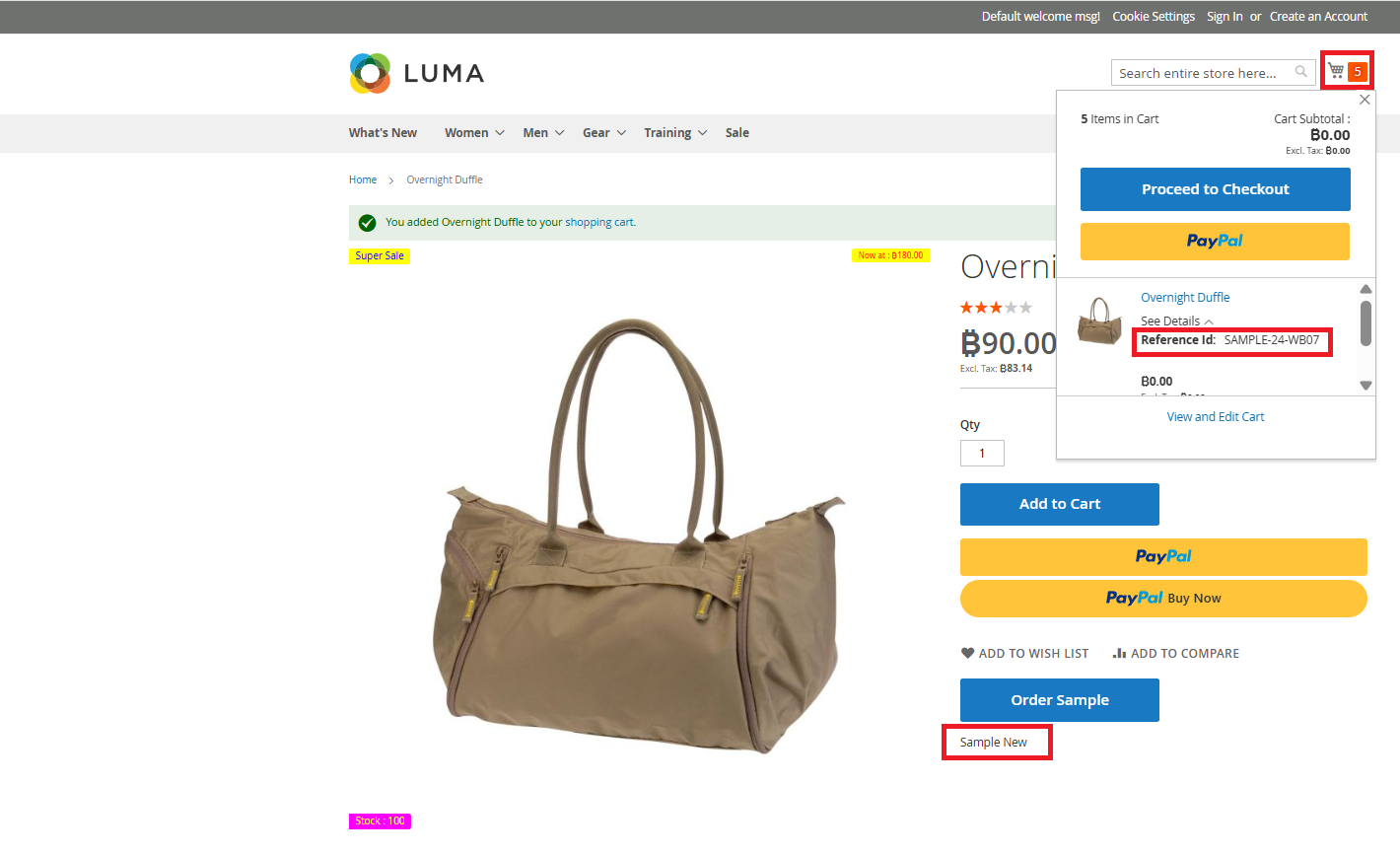
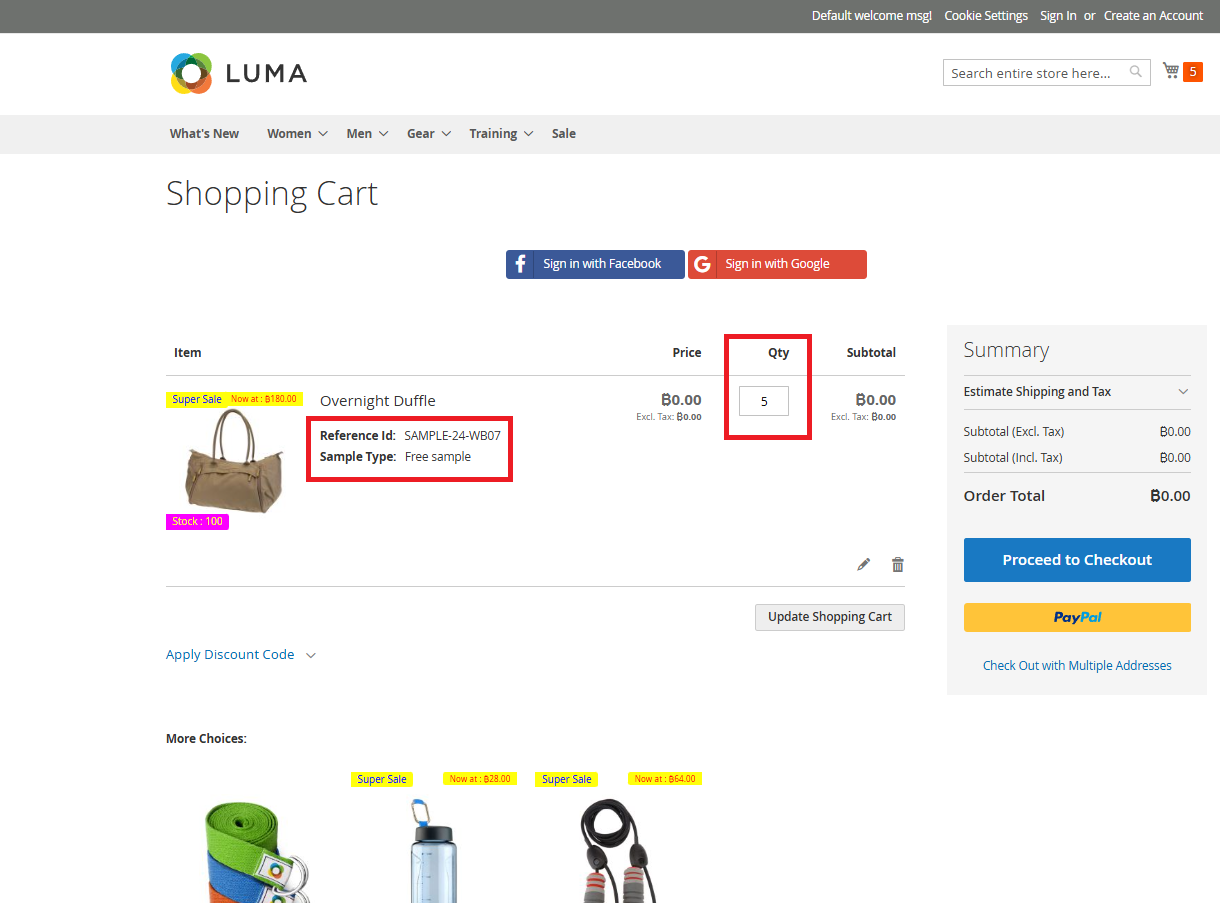
2. When the fields have values set
If any fields in the Sample Product section contain values, those product‑level values override the defaults and are used on the frontend.
-
Sample with Cost Associated
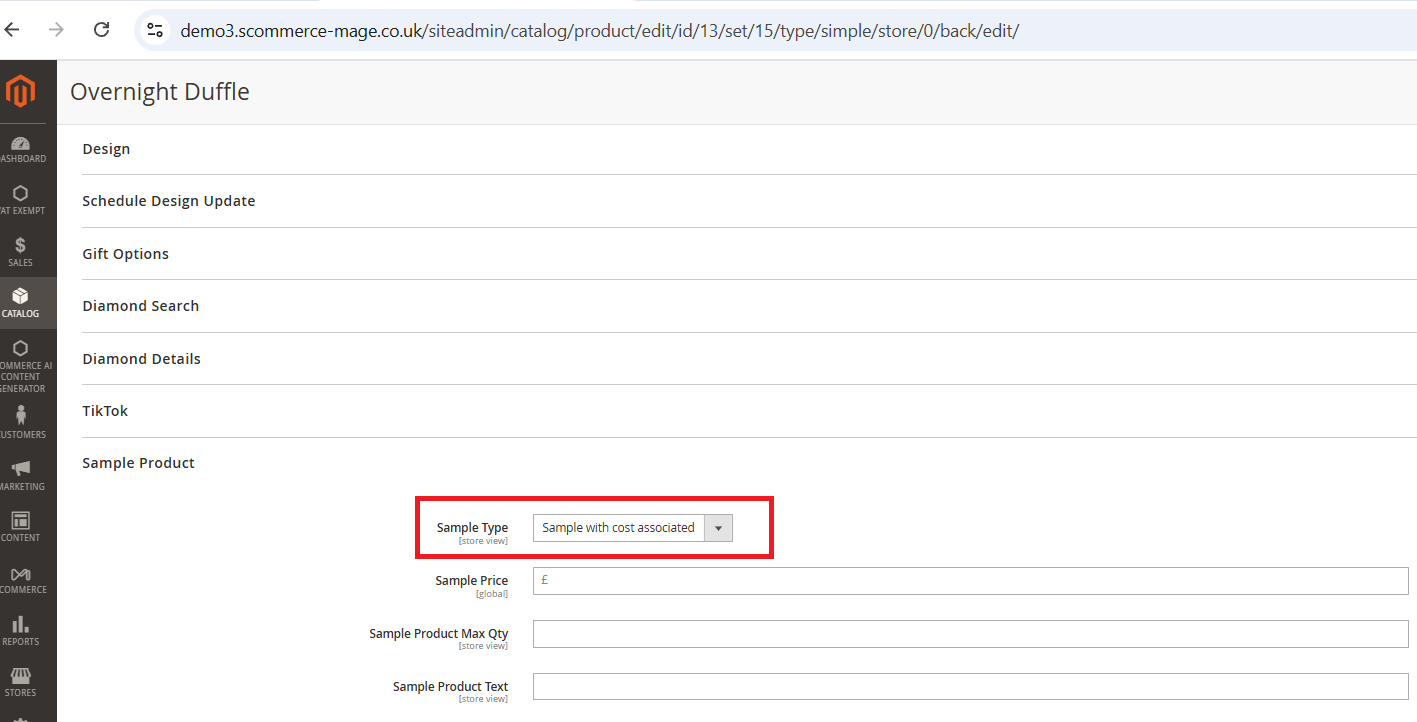
Log in to the Admin Panel and go to Catalog → Products. Open the product you want to update by clicking Edit. Scroll down to the Sample Product section.
From the Sample Type dropdown, select Sample with Cost Associated.
- If you leave all fields empty, the system will automatically use the default price, title, and quantity from the configuration settings.
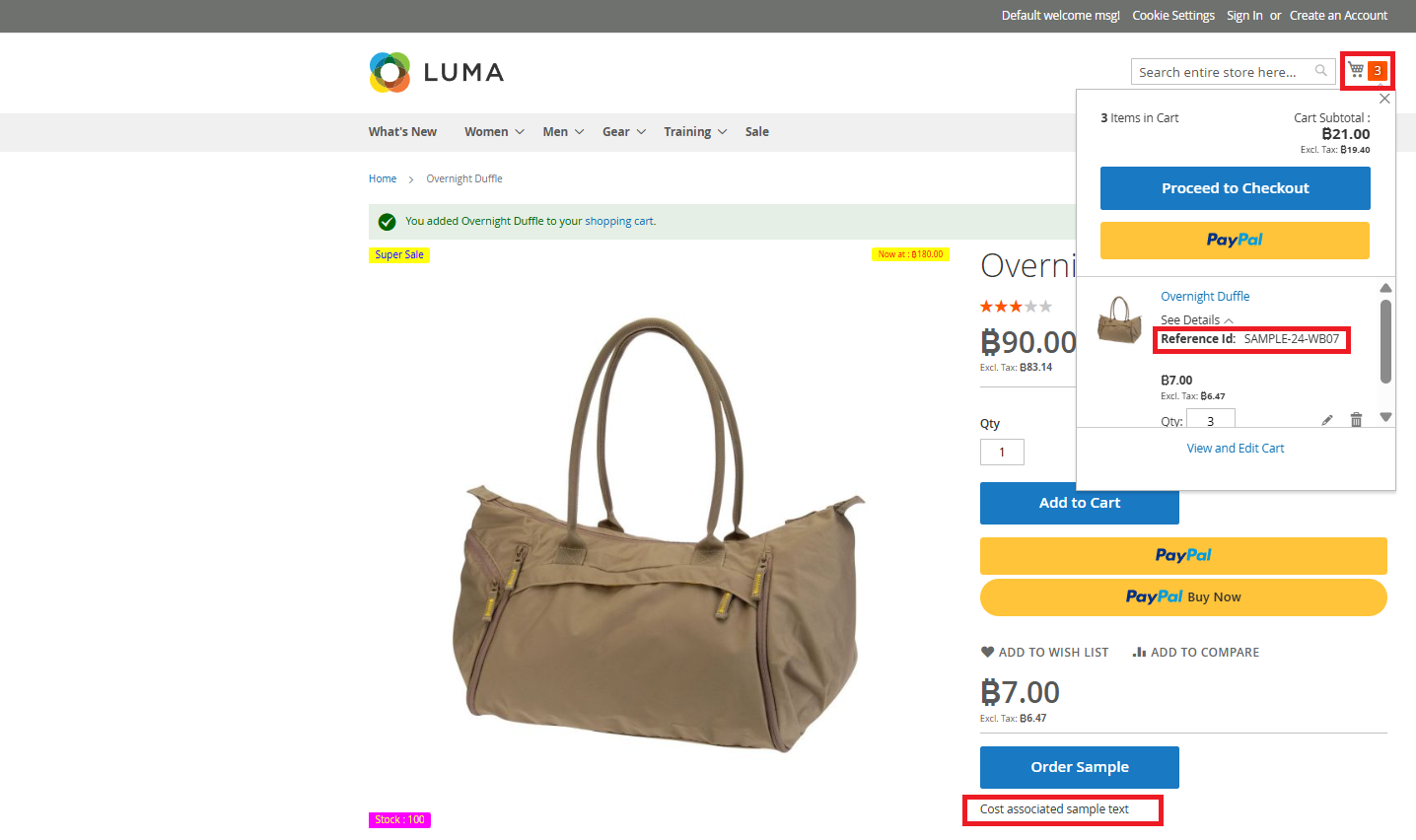
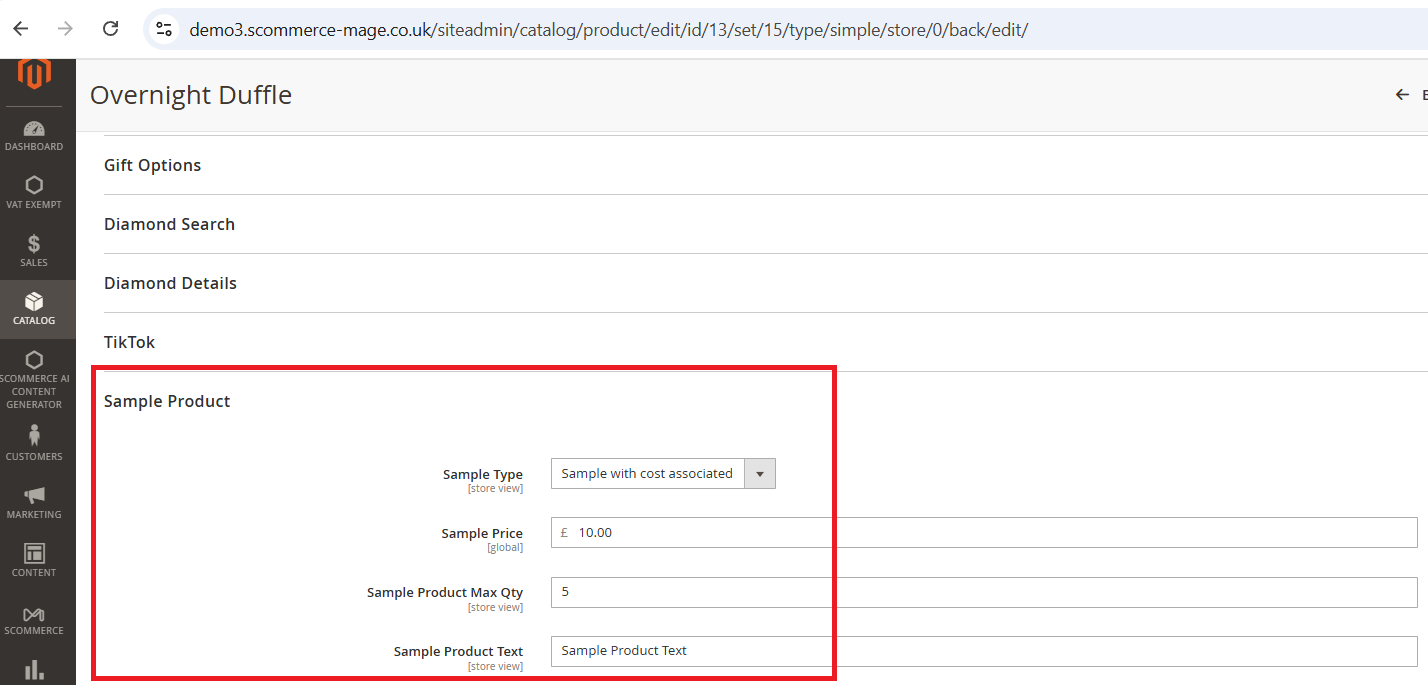
- If you enter values in these fields, the system will use the product‑level values set in the Sample Products section instead.
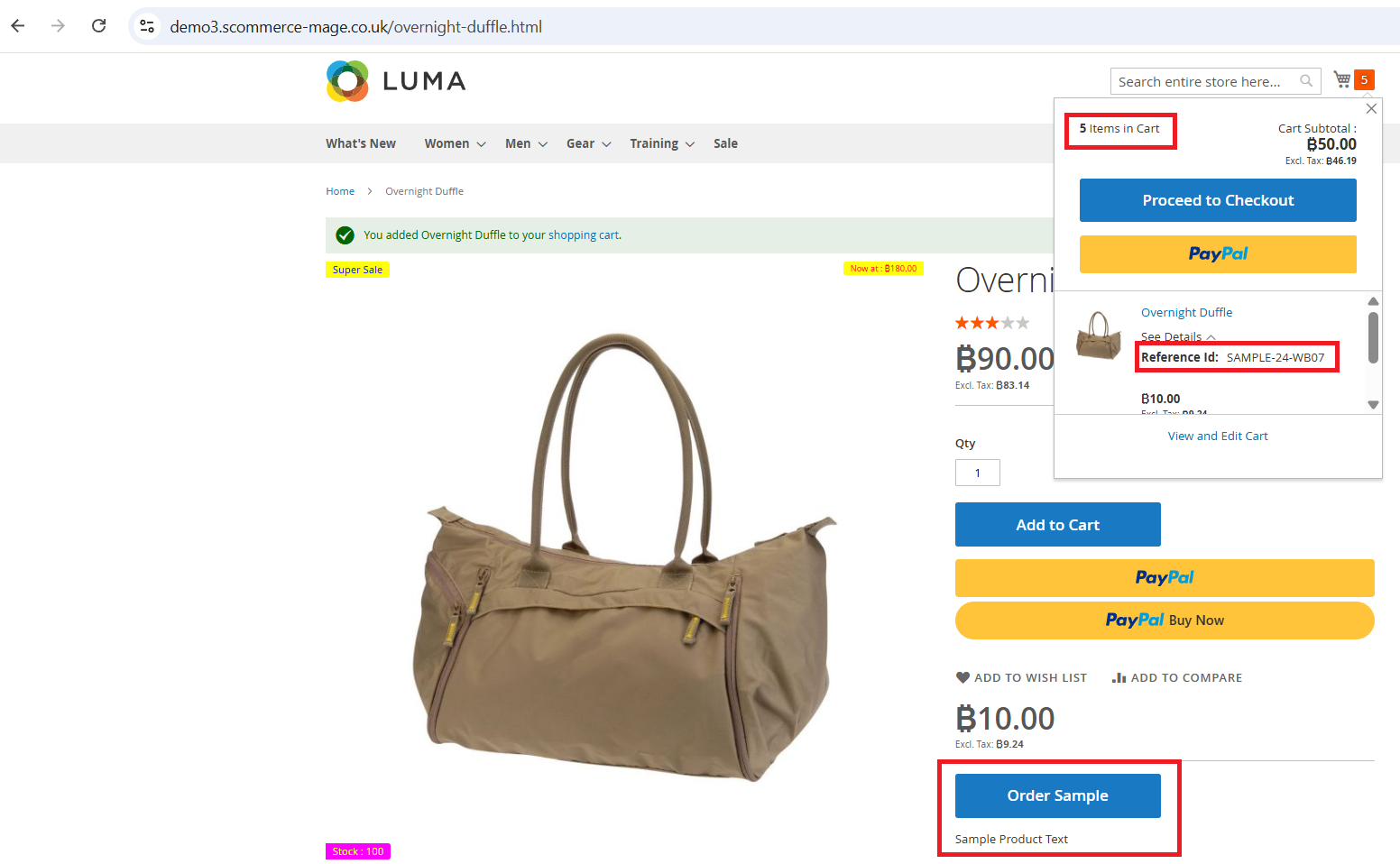
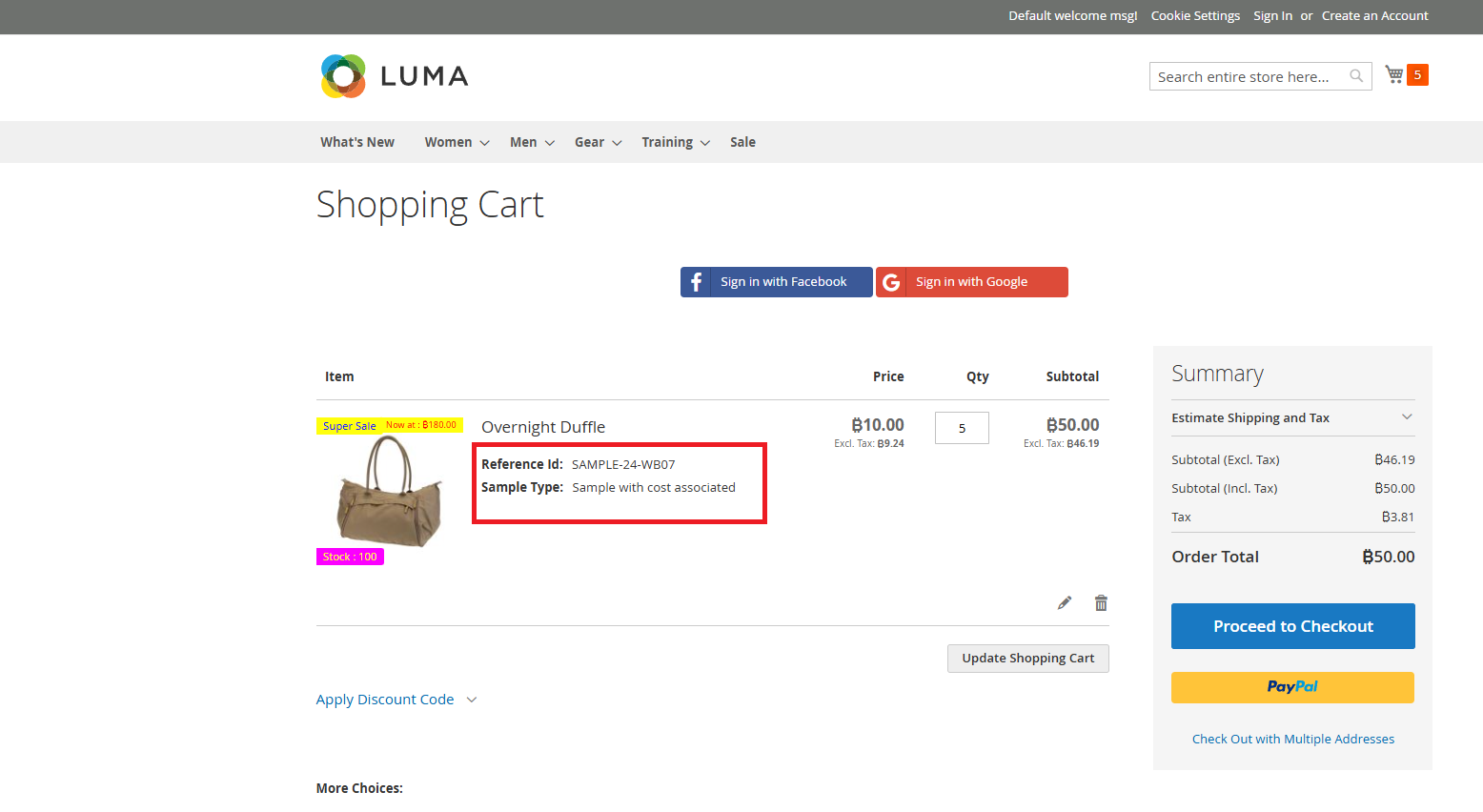
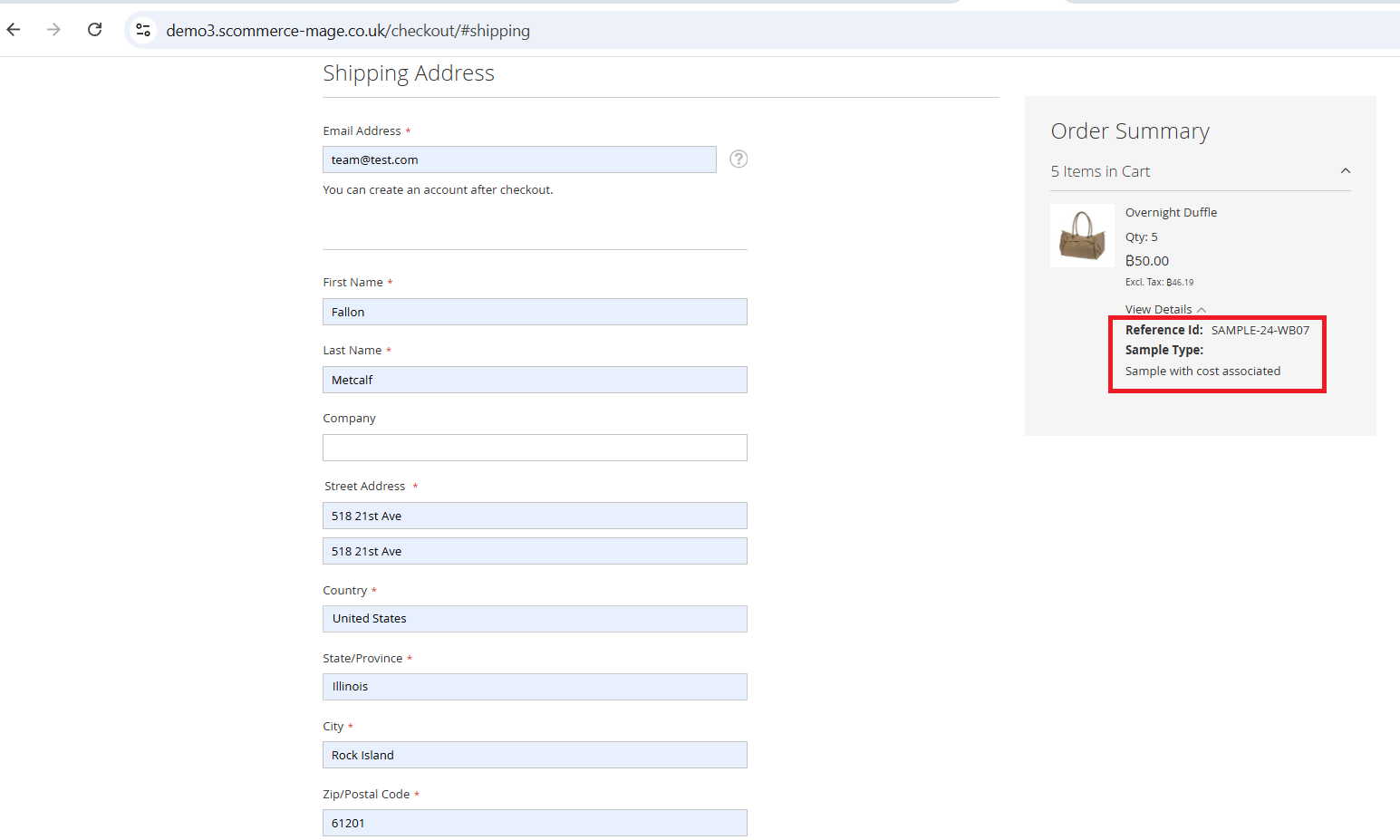
Sample Products are not Eligible for Coupon Discounts
-
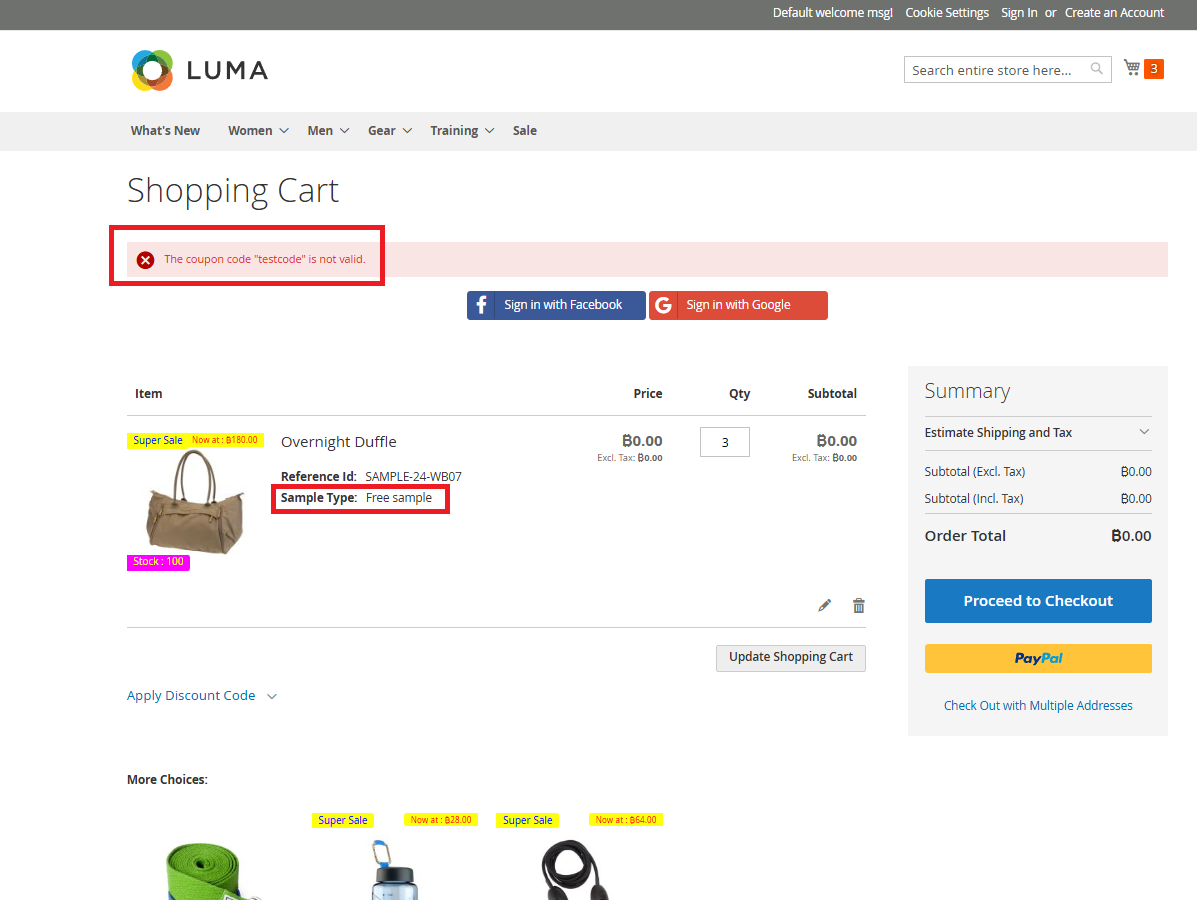
Coupon Code Validation for Free Sample Product
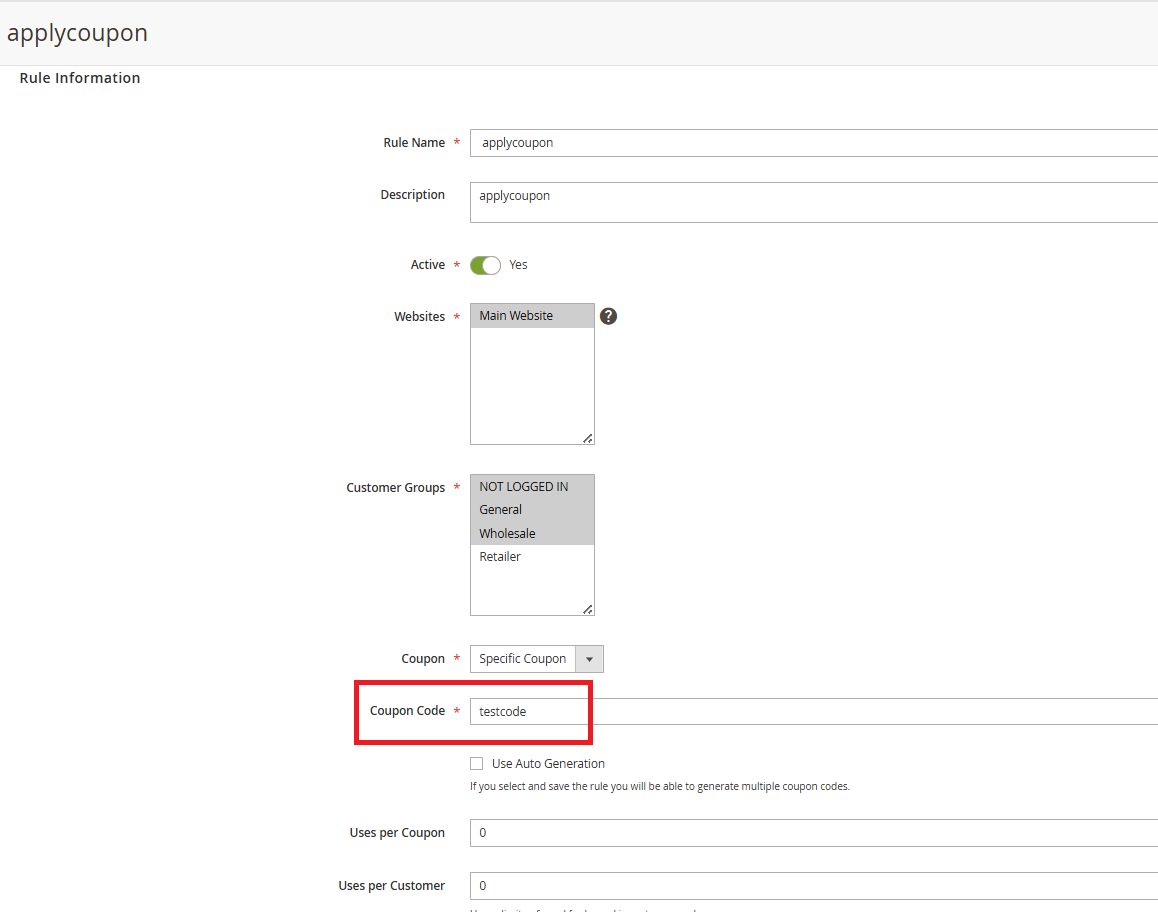
Log in to the Admin Panel and go to Marketing → Cart Price Rules. Create a new coupon code, for example “testcode”. When you apply this coupon on the frontend for the sample products, it should display a validation error, even if the code itself is valid, because coupon codes are not meant to work for sample products
-
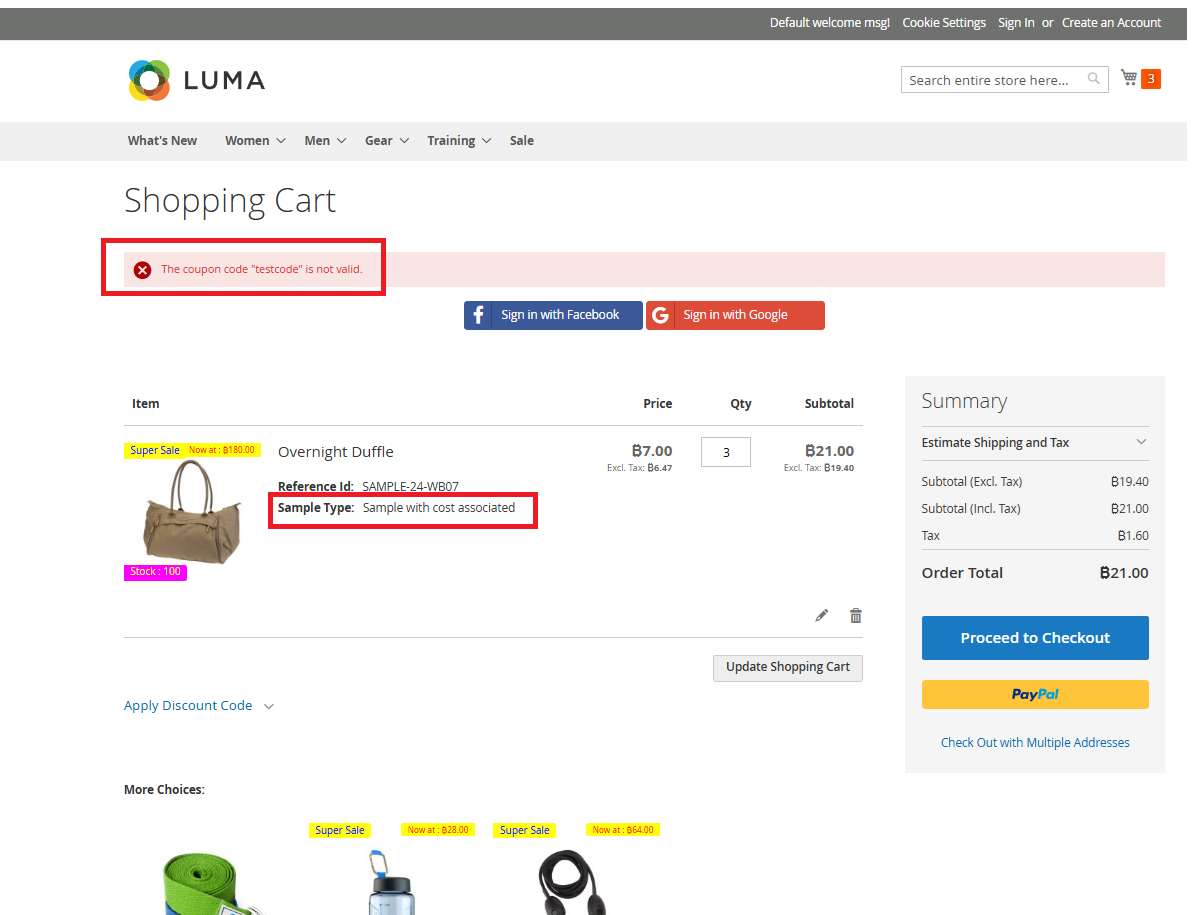
Coupon Code Validation for Sample with Cost Associated product
We’ve created a coupon code called “testcode” in the Admin Panel. This code works normally for regular products, but it won’t apply to the Sample product (e.g. 24‑WB07). When a customer tries to use the coupon code for the sample products, the system will show a validation message saying the code isn’t valid.
Email Received for a Sample Product
If you have a question related to this extension please check out our FAQ Section first. If you can't find the answer you are looking for then please contact support@scommerce-mage.com.