# Magento Update Order Email Address
### Installation and User Guide for Magento 1 Update Order Email Address
**Table of Contents**
1. [Installation ](#bkmrk-installation)
- Disable Compilation Mode
- Upload Package
- Clear Caches
2. [Configuration Settings for Update Order Email Address ](#bkmrk-configuration-settin)
- General Settings
- Update Order Email Address from Order Detail View Page
- Updated Email Address on the Order Detail View Page
### Installation [](#bkmrk-)
- **Disable Compilation Mode:** To check that this is disabled, go to **System >Tools> Compilation**. If the compiler status is 'Disabled', you are ready to go. If not, simply click the 'Disable' button on the right hand side of the screen.
- **Upload Package:** Upload the content of the module to your root folder. This will not overwrite the existing Magento folder or files, only the new contents will be added.
- **Clear Caches:** This can be done from the admin console by navigating to the cache management page (**System > Cache Management**), selecting all caches, clicking 'refresh' from the drop-down menu, and submitting the change.
### Configuration Settings for Update Order Email Address [](#bkmrk--1)
Go to **Admin > Stores > Configuration > Scommerce Configuration > Update Order Email Address**
#### General Settings [](#bkmrk--2)
- **Enabled –** Select "Yes" or "No" to enable or disable the module.
- **License Key –** Please add the license for the extension which is provided in the order confirmation email. Please note license keys are site URL specific. If you require license keys for dev/staging sites then please email us at .
[](https://docs.scommerce-mage.com/uploads/images/gallery/2025-07/image-81-1.png)
- **Update Order Email Address from Order Detail View Page –** You can update email address from **Admin > Sales > Orders > Select Orders >** Click on **"Change"** then add new email address **>** Click **"Save".**
**[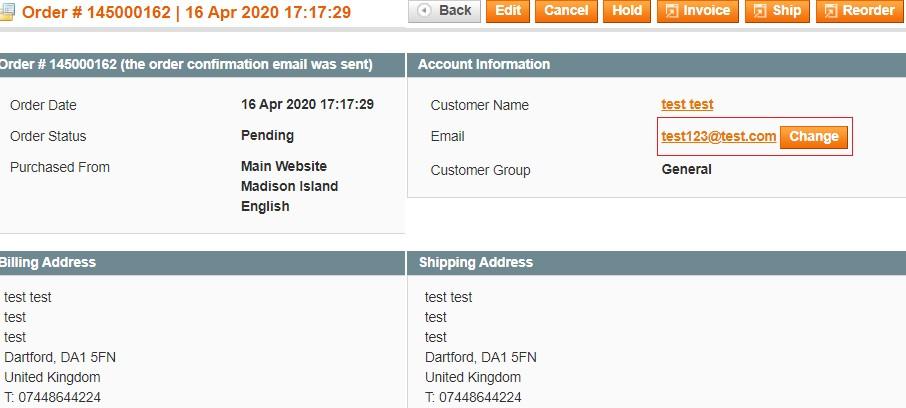](https://docs.scommerce-mage.com/uploads/images/gallery/2025-07/image-2025-07-01t141100-068.jpg)**
- **Updated Email Address on the Order Detail View Page –** The updated email address will be shown on the order detail view page under "Account Information" section.
[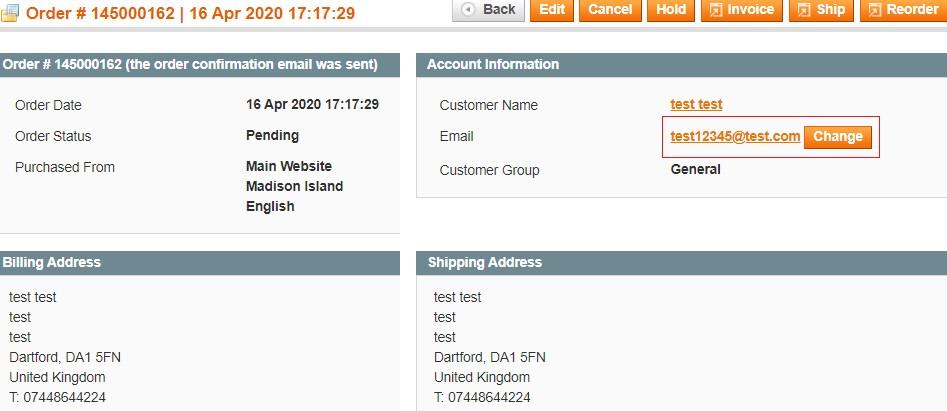](https://docs.scommerce-mage.com/uploads/images/gallery/2025-07/image-2025-07-01t141137-068.jpg)
If you have a question related to this extension please check out our [**FAQ Section**](https://www.scommerce-mage.com/magento-update-order-email-address.html#faq) first. If you can't find the answer you are looking for then please contact [**support@scommerce-mage.com**](mailto:core@scommerce-mage.com)**.**