Magento 1 Google Analytics Synchronization Extension
Installation and User Guide for Magento 1 Google Analytics Synchronization Extension
Table of Contents
- Installation
- Disable Compilation Mode
- Upload Package
- Clear Caches
- Configuration Settings for Google Analytics Synchronization
- General Settings
- Create Project in Google Developer Console for GA Reporting API
- Add Cloud Console Email to Google Analytics 4
- Order Tracking INFO
- Verify Synced Transactions
- GA Sync Logs
- Google Analytics 4 Real Time Reports
- Run GA Synch Manually
Installation
- Disable Compilation Mode: To check that this is disabled, go to System>Tools > Compilation. If the compiler status is 'Disabled', you are ready to go. If not, simply click the 'Disable' button on the right hand side of the screen.
- Upload Package: Upload the content of the module to your root folder. This will not overwrite the existing Magento folder or files, only the new contents will be added.
- Clear Caches: This can be done from the admin console by navigating to the cache management page (System > Cache Management), selecting all caches, clicking 'refresh' from the drop-down menu, and submitting the change.
Configuration Settings for Google Analytics Synchronization
Go to Admin > Stores > Configuration > Scommerce Configuration > Google Analytics Synchronization
General Settings
-
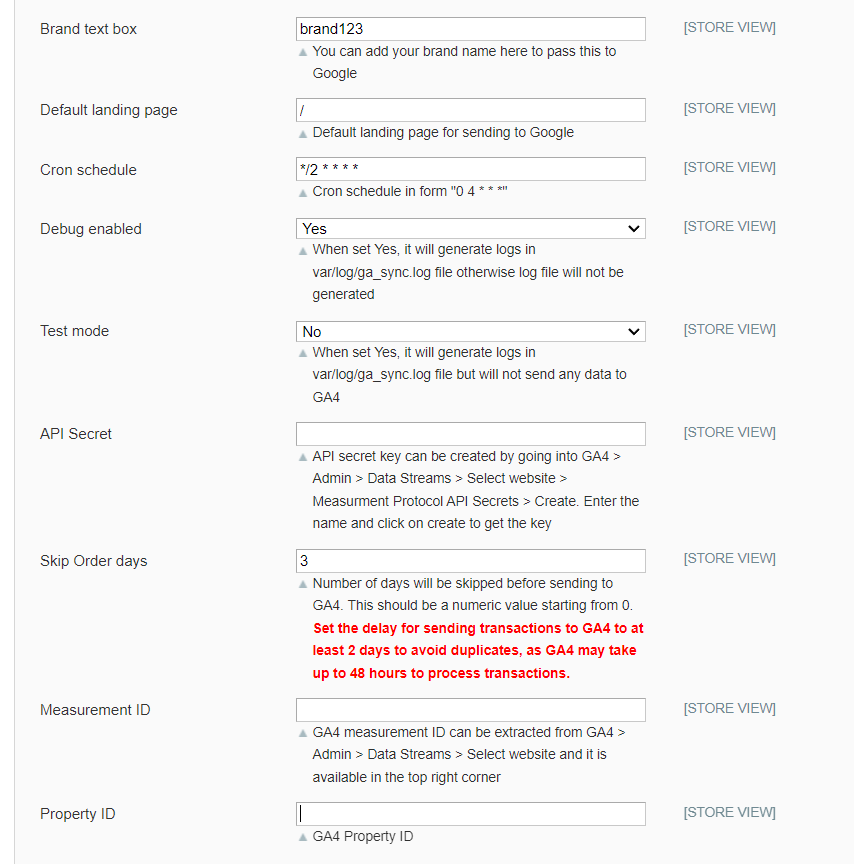
Enabled – Select "Yes" or "No" to enable or disable the module.
-
License Key – Please add the license for the extension which is provided in the order confirmation email. Please note license keys are site URL specific. If you require license keys for dev/staging sites then please email us at support@scommerce-mage.com.
-
Application Name – It is the project name or the application name that you get from Google console. ( https://console.developers.google.com/ )(ClICK HERE FOR MORE INFO)
-
Security key (JSON) – Security key JSON file can be obtained from Google Console under account credentials. (ClICK HERE FOR MORE INFO)
-
Exclude order statuses – You can choose to exclude certain order statues from sync. These orders won't be synced with Google Analytics.
-
Send Base Data – Select whether you want to send base order data or store order data.
-
Brand Attribute – Select a brand attribute to send with brand names

-
Brand Text box – Input brand name to send to Google
-
Default Landing Page - This setting allows you to set default landing page value which shows in Google Analytics in case landing page is not available to sent as part of missing transaction.
-
Cron Schedule – Schedule specific cron time to run the sync automatically.
-
Debugging – When set Yes, it will generate logs in var/log/ga_sync.log file otherwise log file will not be generated.
-
Test Mode- This setting allows you to check missing transactions before we send the transactions to GA. It helps in validating the data before it gets posted to Google Analytics
-
API Secret – Enter the API secret key here. API secret key can be created by going into GA4>Admin>Data Streams>Select website>Measurement Protocol API Secrets>Create enter the name and click on create to get the key.
-
Skip Order days –
Number of Days to Skip Before Sending to GA4:
- Numeric value starting from 0
- Set delay for sending transactions to GA4 to at least 2 days to avoid duplicates (GA4 may take up to 48 hours to process transactions)
- A value less than 2 days risks sending duplicates, as GA4 takes 24-48 hours to populate transactions in your reports
- If set to 0: Extension compares today's transactions with GA4 and syncs those transactions (may result in duplicates)
- If set to 1: Extension compares yesterday's transactions with GA4 and syncs those transactions (may result in duplicates)
- Recommended value is 2 or greater to ensure sufficient time for GA4 to process and populate transactions before comparison and syncing
-
Measurement ID – Enter the measurement ID of your GA4 property. Ga4 measurement ID can be extracted from GA4>Admin>Data Streams>Select website and it is available in the top right corner.
-
Property ID – Enter the property ID of GA4. GA4>Admin>Property Settings>Property ID
Create Project in Google Developer Console for GA Reporting API
Please follow the steps below to create project in Google developer console for GA reporting API and to obtain "application name" and "security key JSON File": -
-
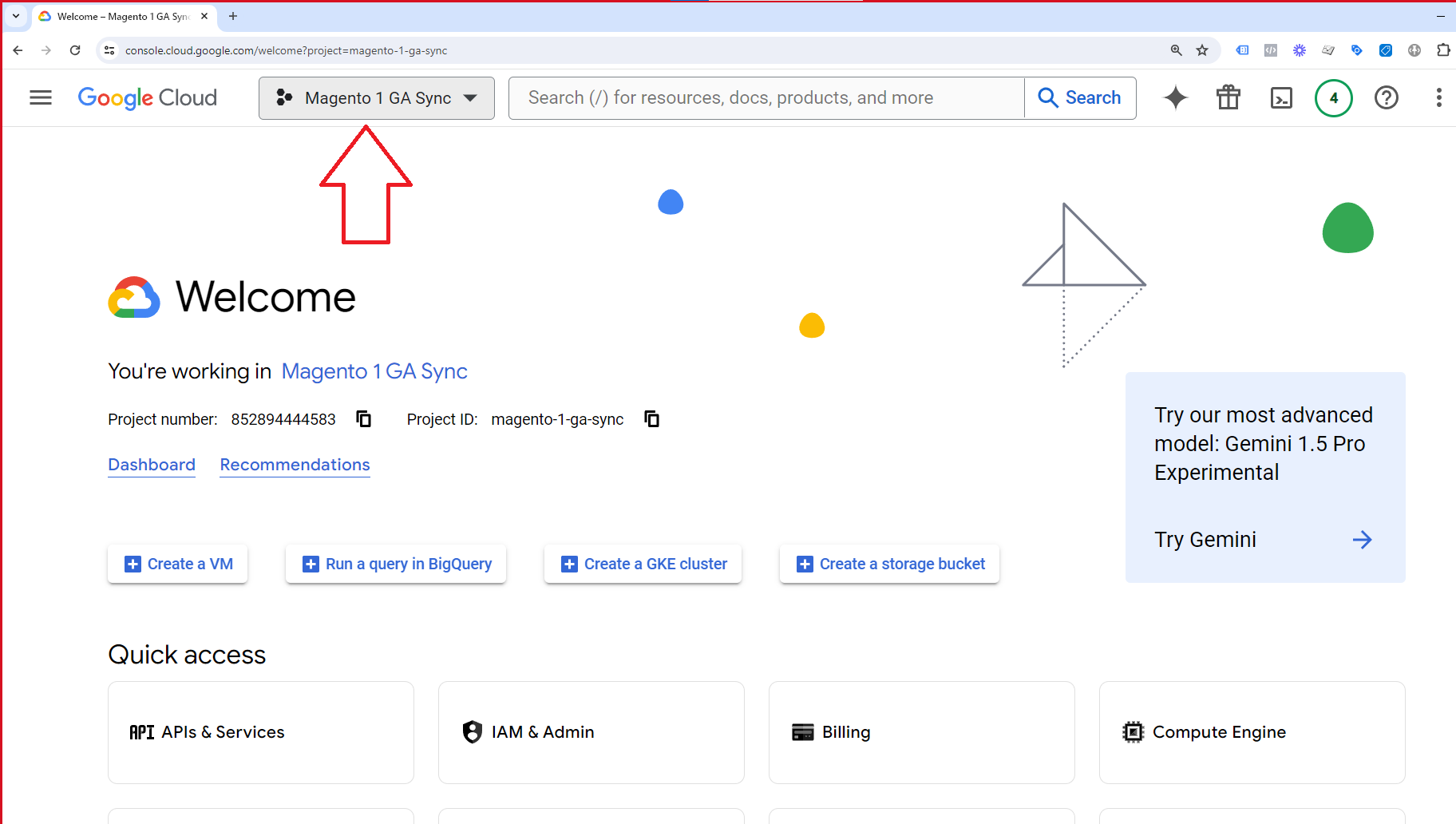
Go to https://console.developers.google.com/. Click on the dropdown on the left as shown in the image below and a popup will appear on your screen.
-
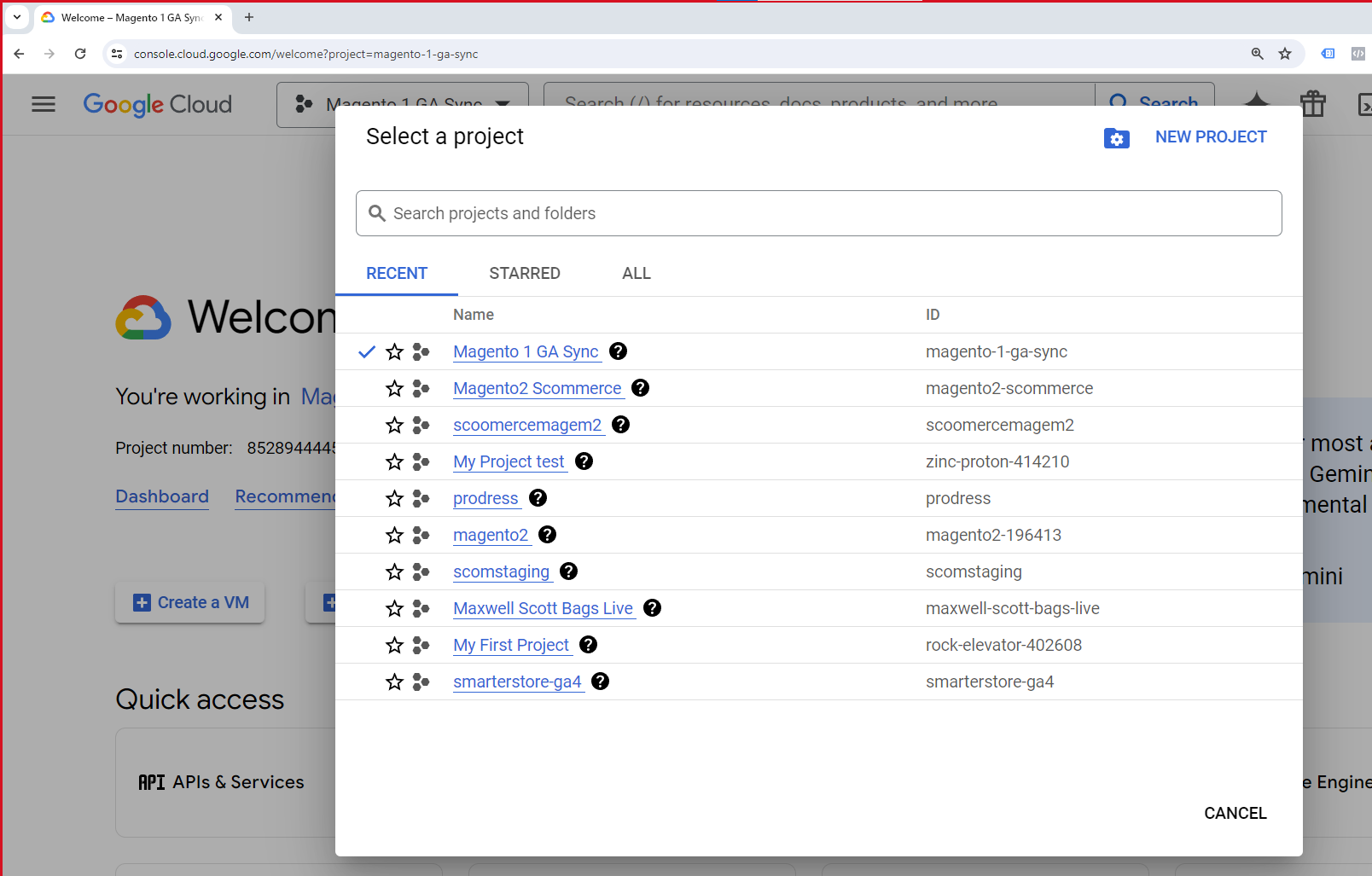
Click on New Project
-
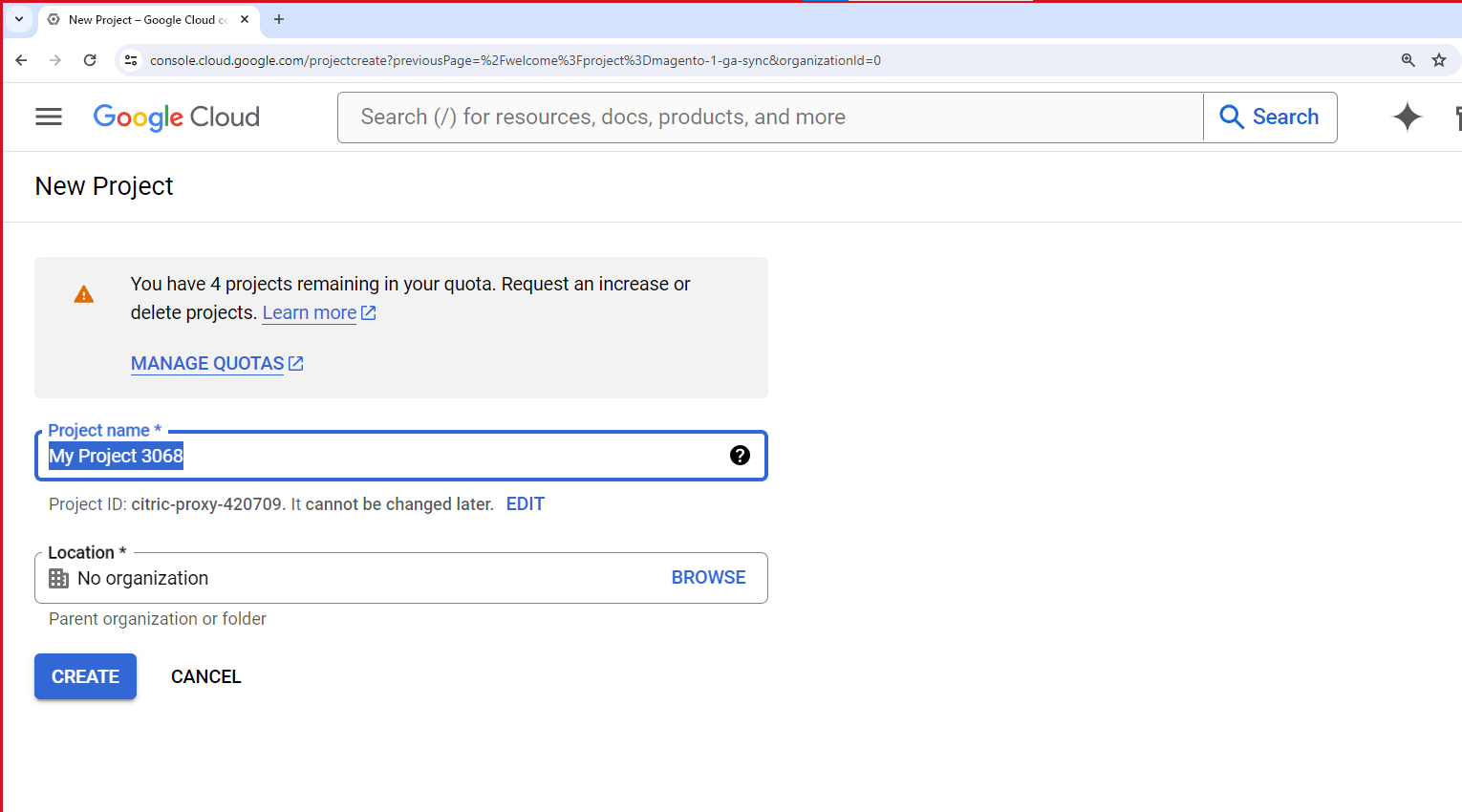
Enter your project name and Location then click on create.
-
Click on Enable APIS and SERVICES
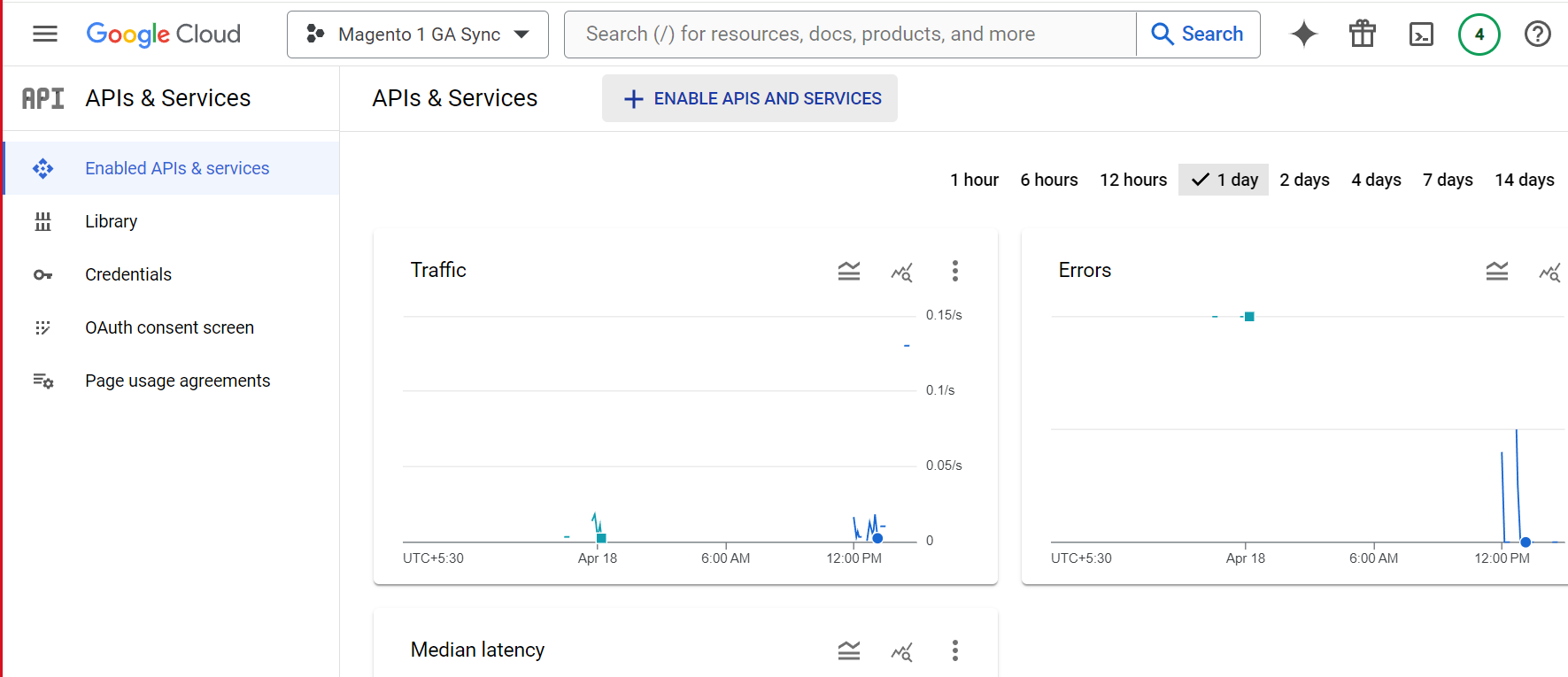
-
In the next window search for Google Analytics Data API
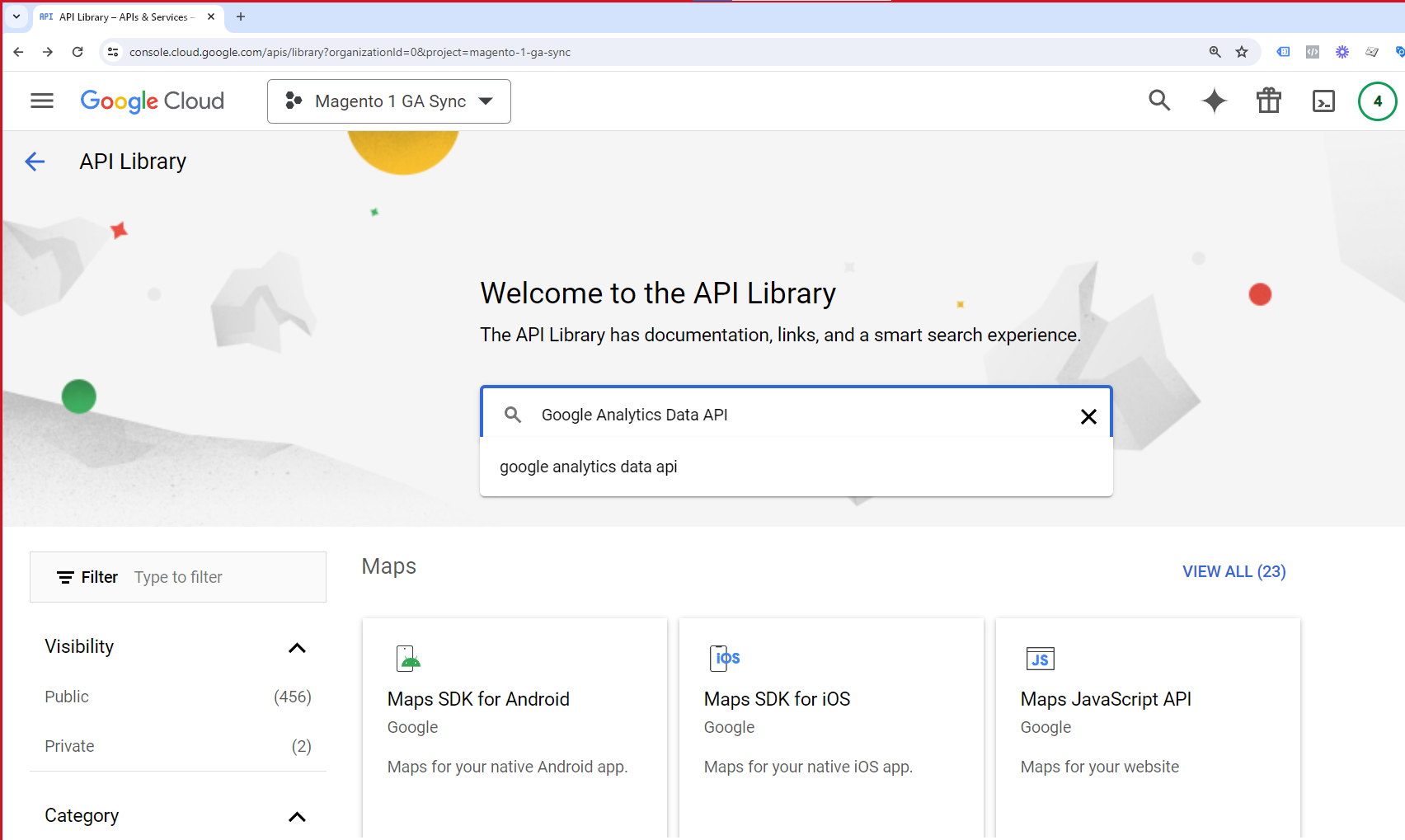
-
Click on Enable to enable the API
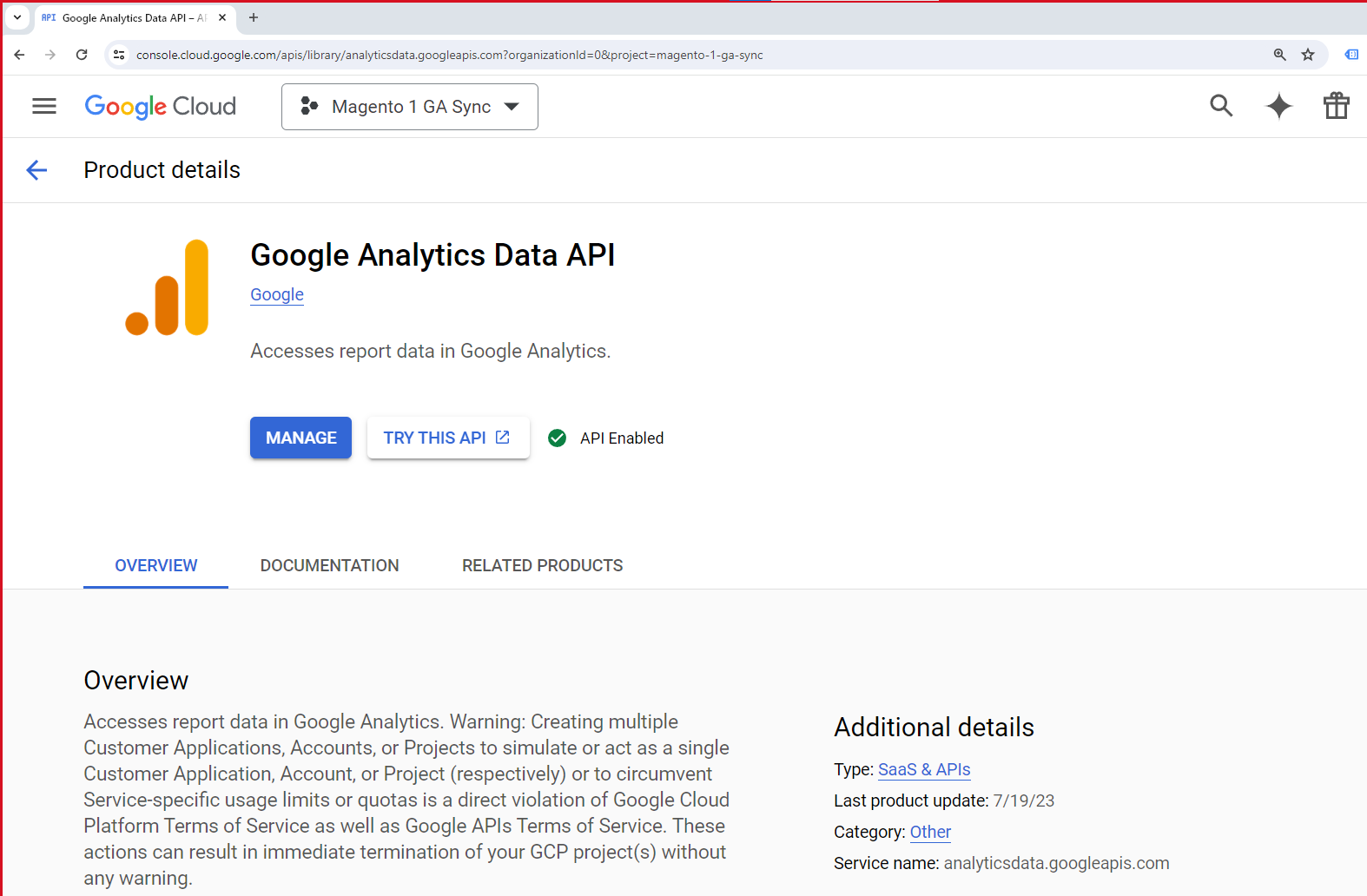
-
Similarly enable the "Google Analytics Reporting API" as well.
-
Click on Credentials from the left window then click on Create Credentials and choose service account.
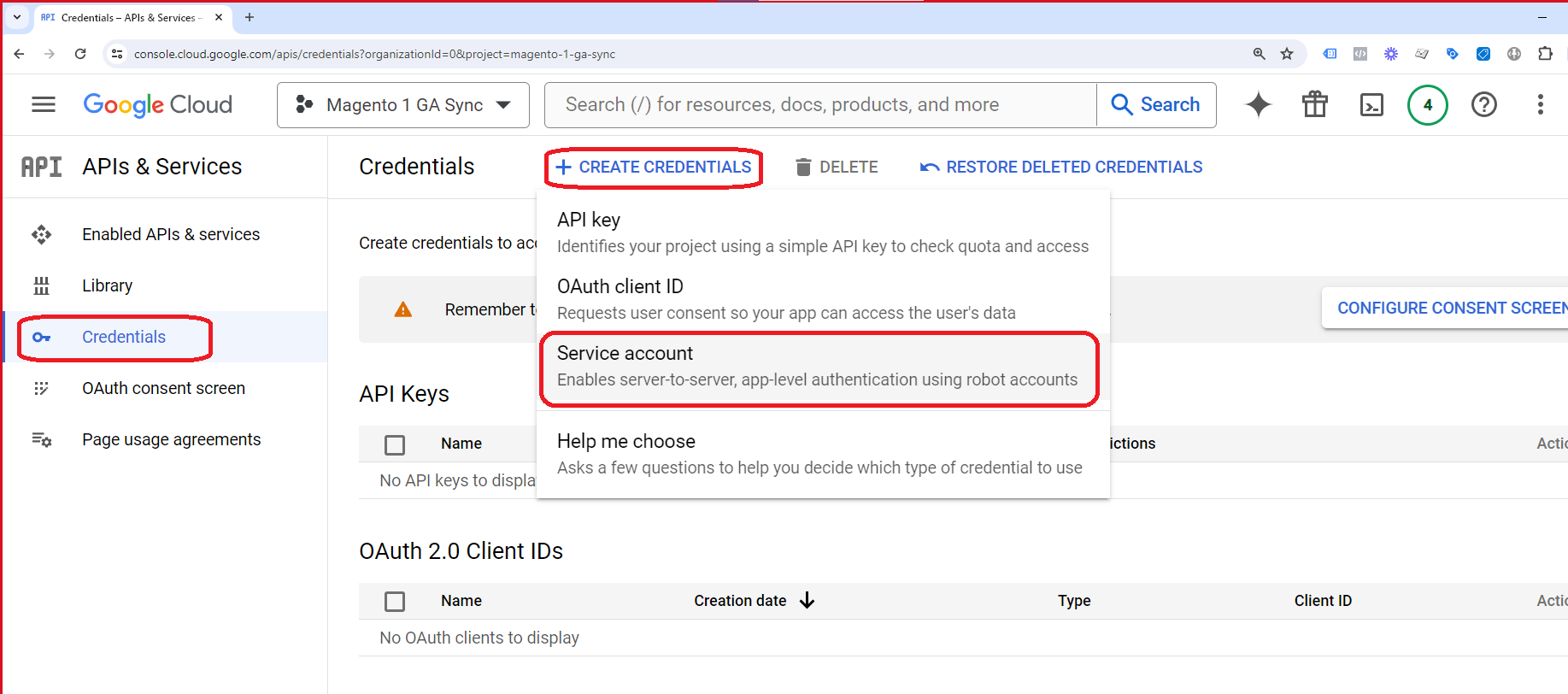
-
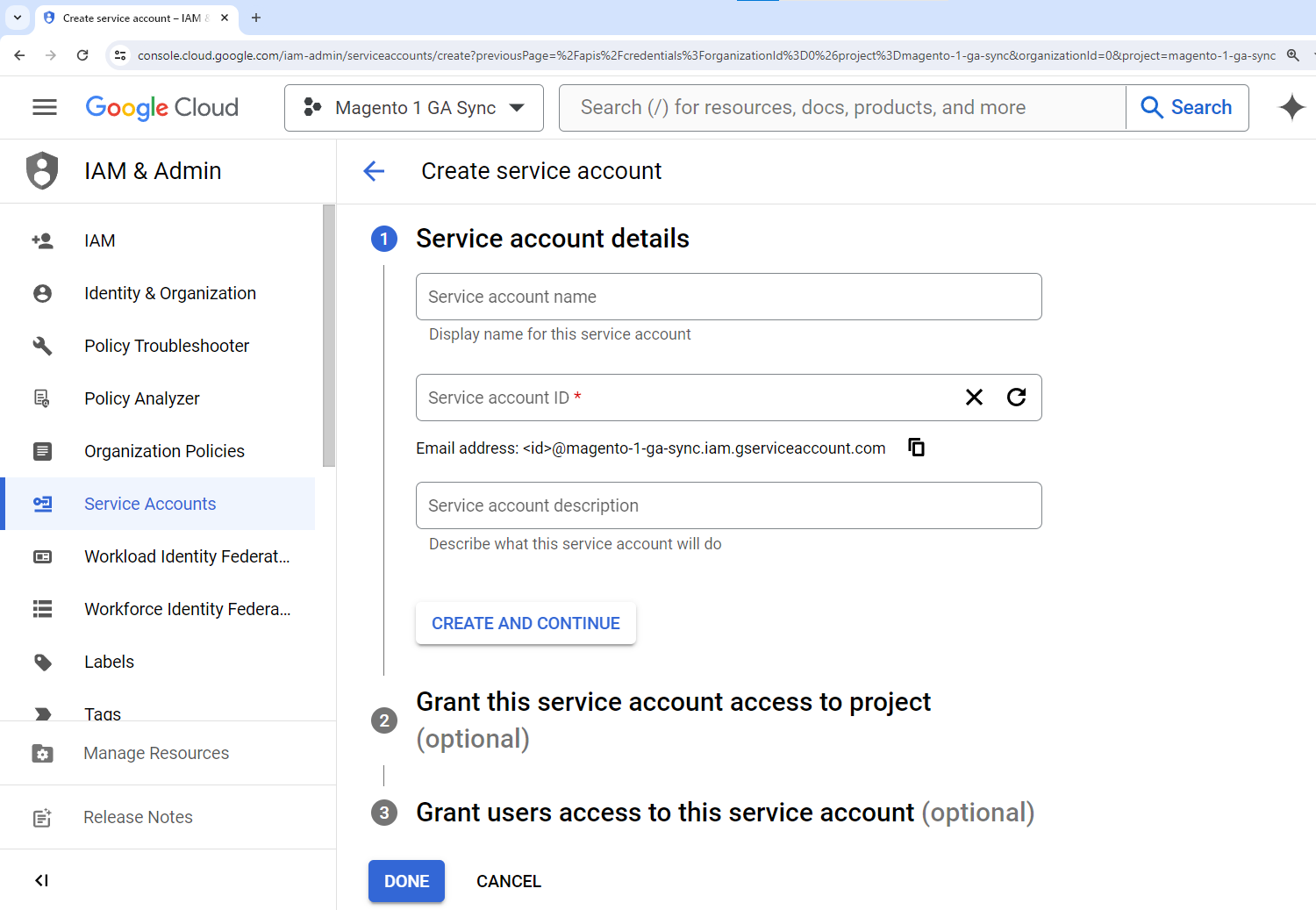
In the next window, fill in your service account name and description then click on Create. An email will be automatically created as per your name. We need to add this email in google analytics. We will do it in the steps down below. Your service name will be your Application Name that you will enter in the configuration.
-
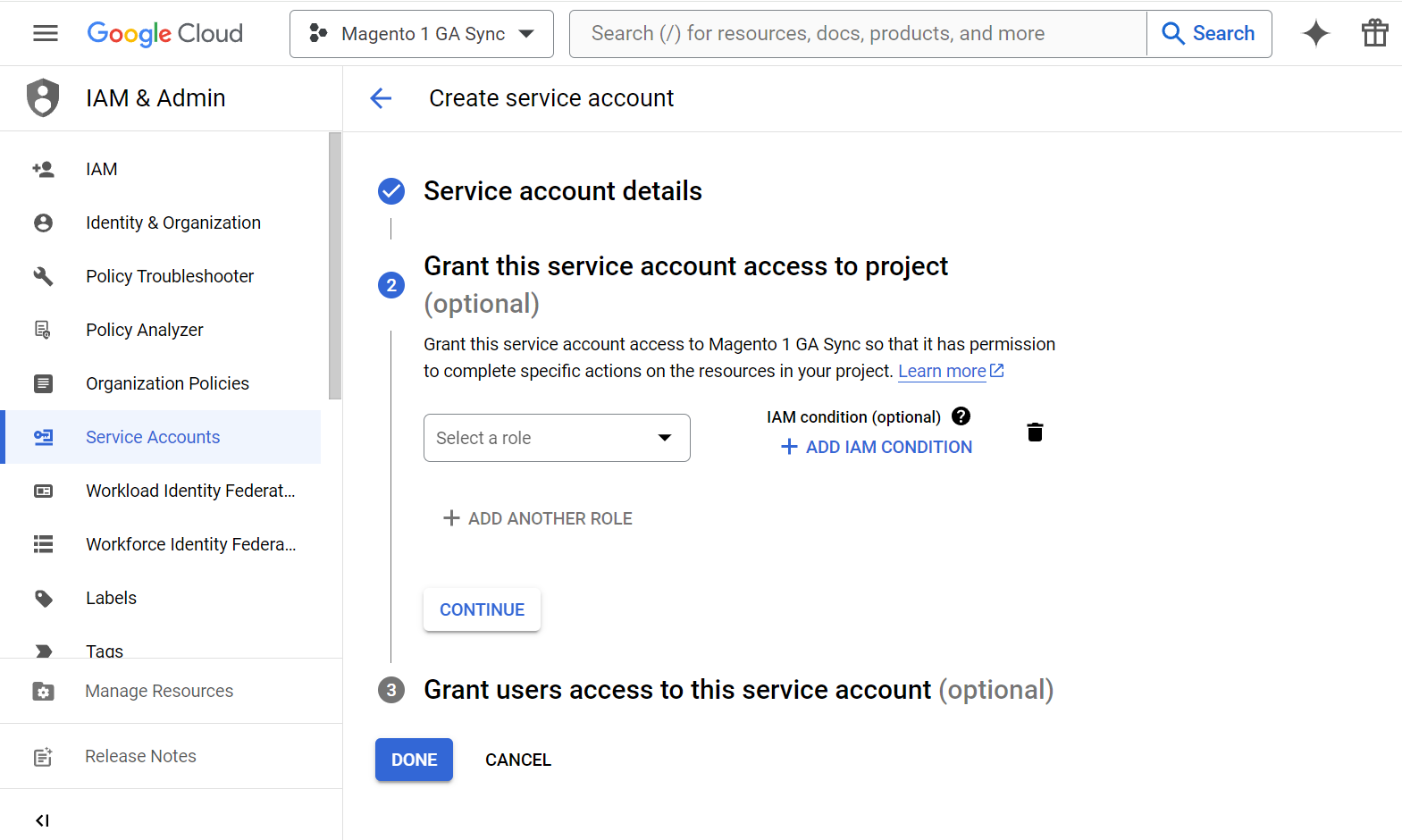
Click on continue without selecting a role.
-
Click Continue again without any selection
-
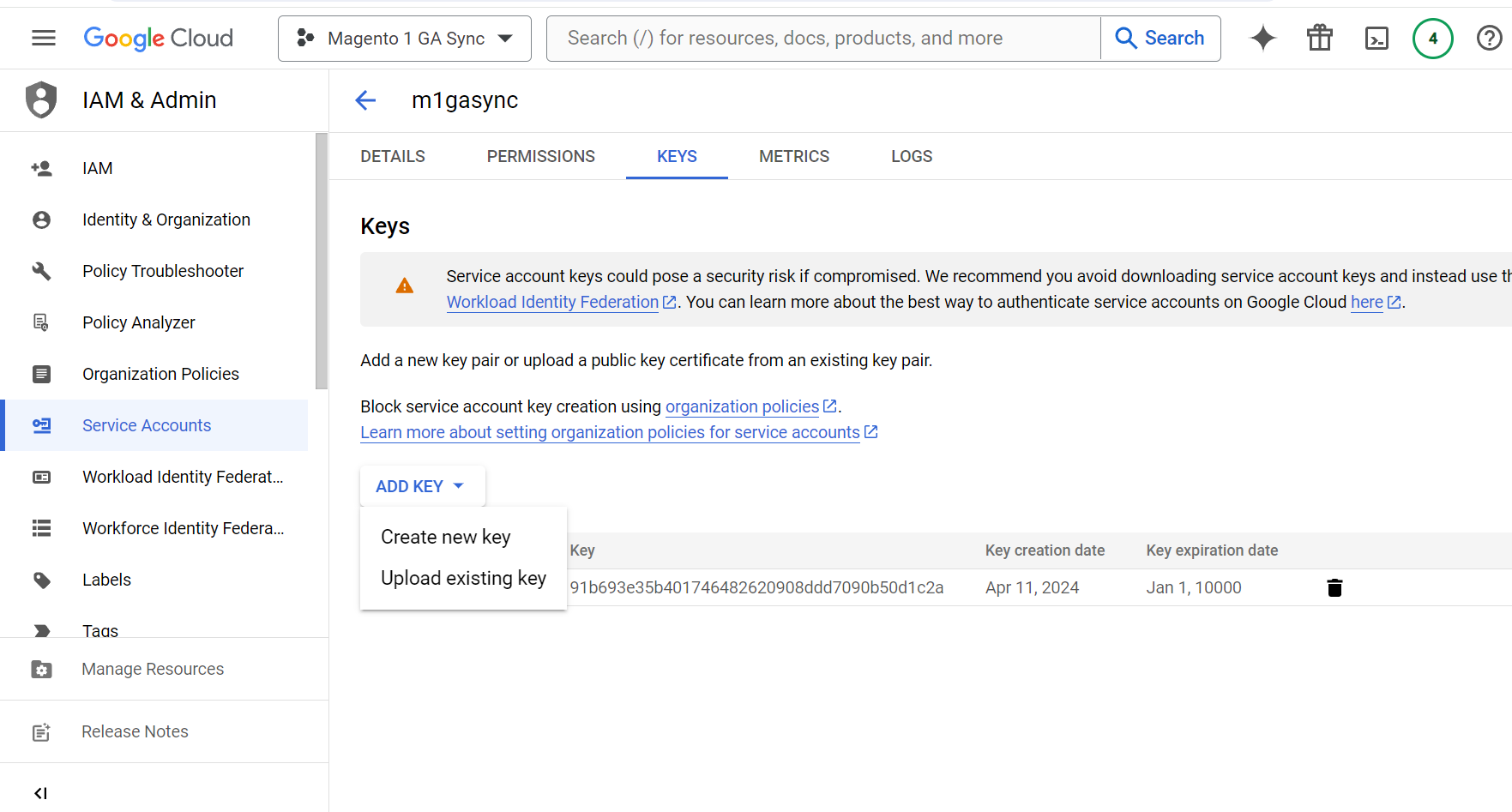
Click on Create Key from the image below and select json your key file will be downloaded. Place this key file in the VAR directory of your website. Copy the exact name with extension ".json" and input it into security Key in the configuration.
Add Cloud Console Email to Google Analytics 4
In the earlier step we created a service account ID which is also the service account email. Alternatively, you can go to the "API & Services" section from the left menu and find your service account email there as shown in screengrab below:-
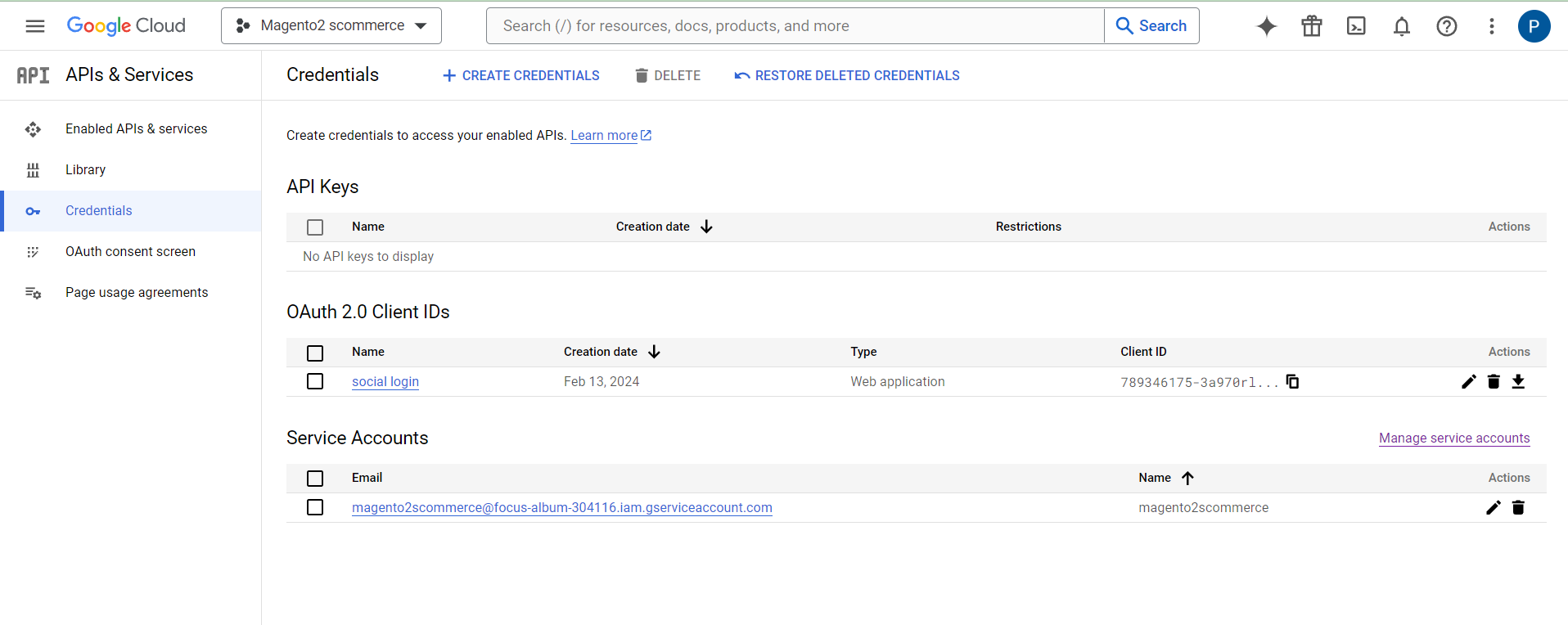
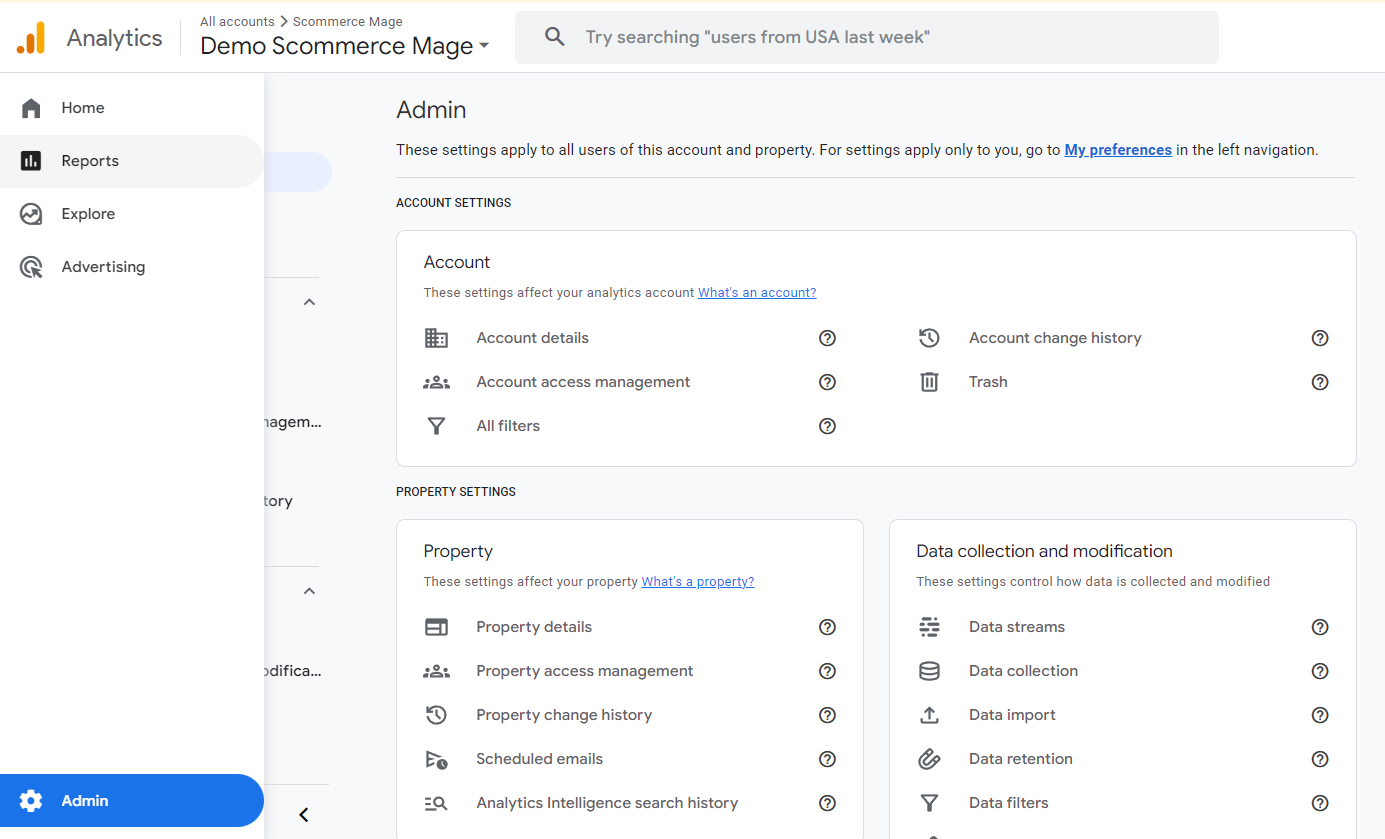
Now In order for this account to access your GA4 property we are required to add this service email to GA4. To do that copy this email address and go to your GA4 property. Go to admin and click on Property access management:-
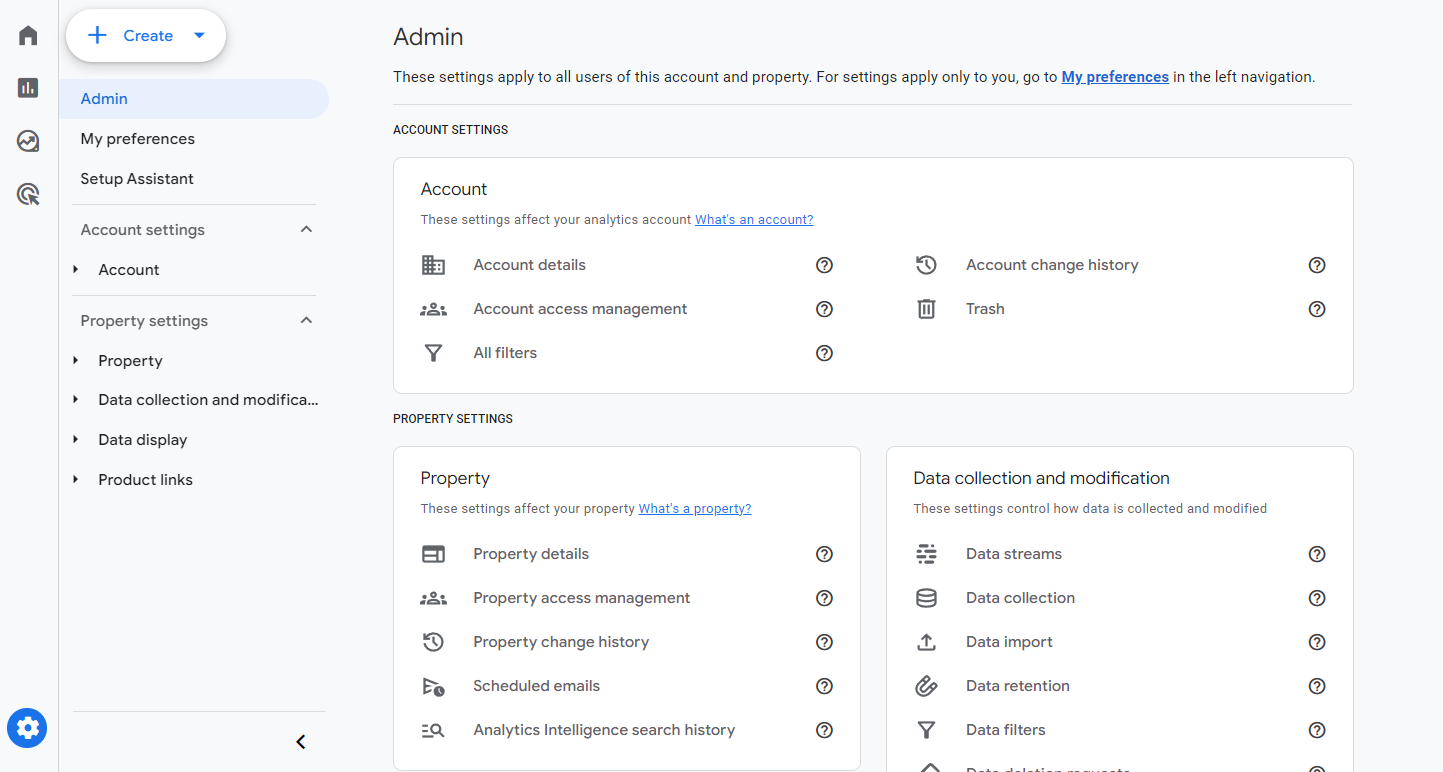
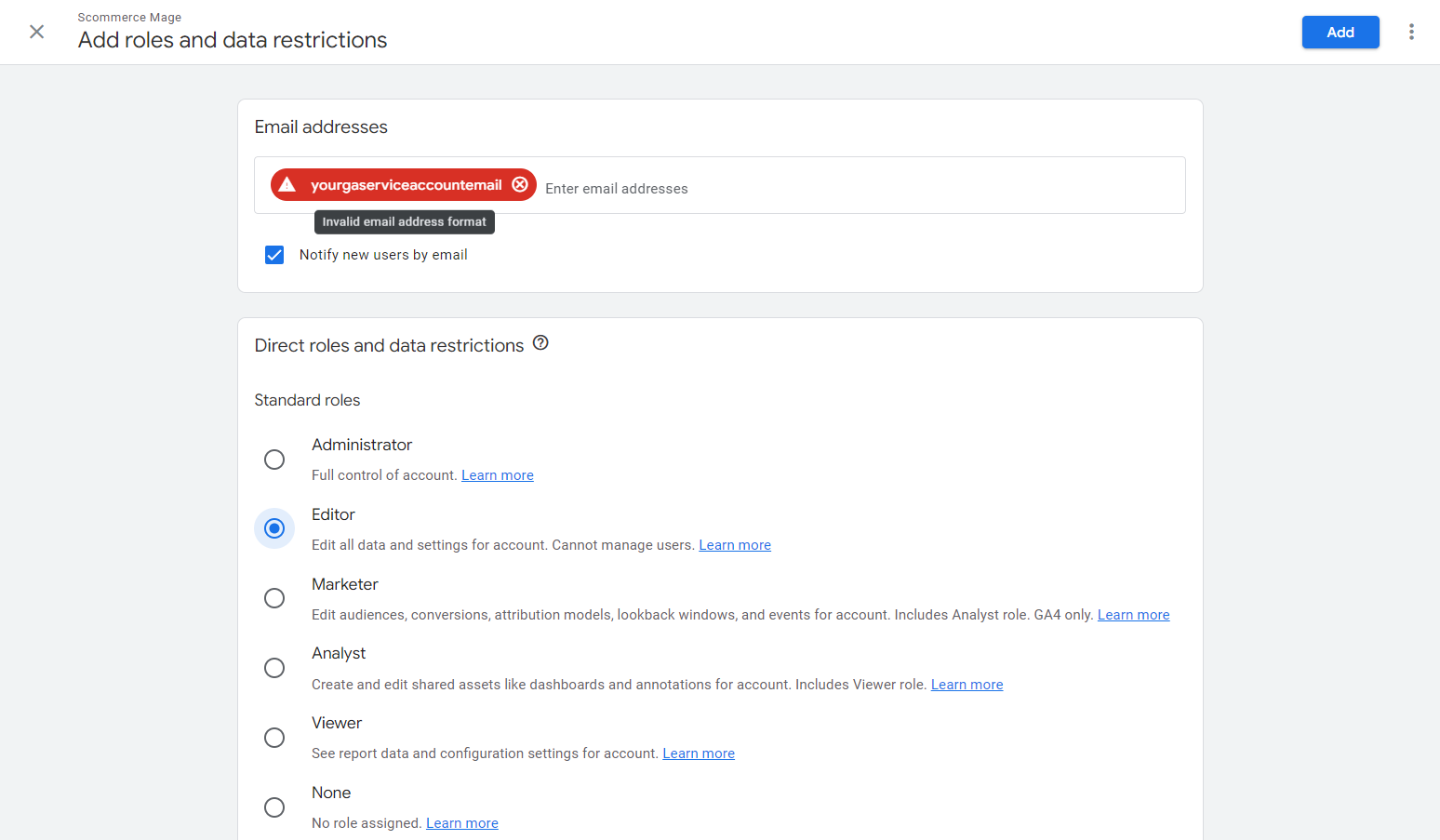
Click on plus sign to add new email:-

Next add the email and set the permissions to Editor and you are done.
Order Tracking INFO
The order tracking info is captured against each order which is later used to sync the transactions to GA4 attributing them to correct sessions and dates to improve report accuracy. The order tracking info can be viewed by going into Admin>Sales>Order>Edit any order. Please refer to the screengrab below.
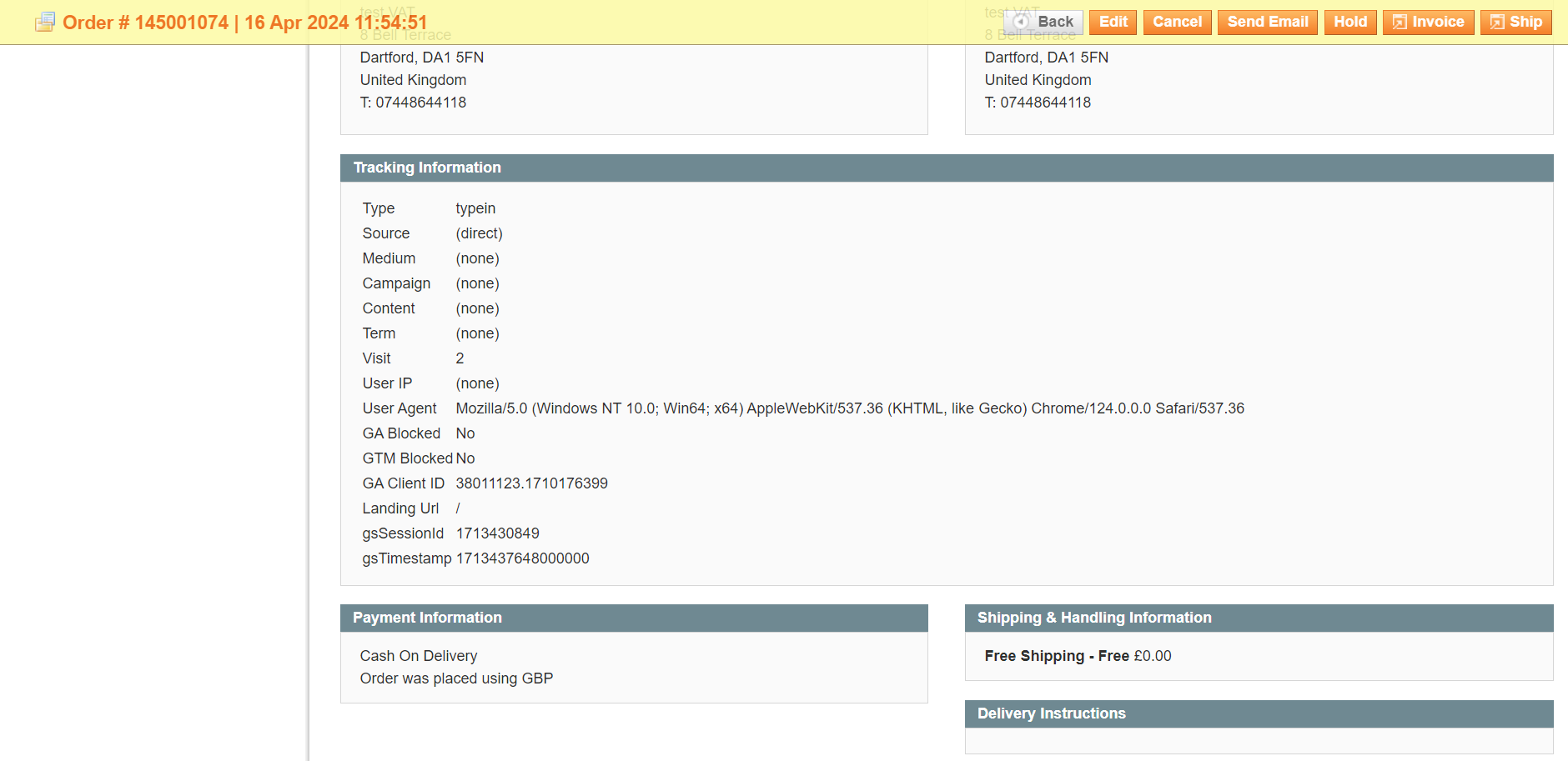
Note:- The Order tracking info will only present in the orders that are placed after the module is installed and enabled. It won't be present for historical orders.
Verify Synced Transactions
The synced transactions can be verified in two ways. Either checking the GA Sync logs or by checking the Real time reports in GA4 (as it takes 24 to48 hrs for GA4 to attribute data to reports realtime is the quickest way to verify).
GA Sync Logs
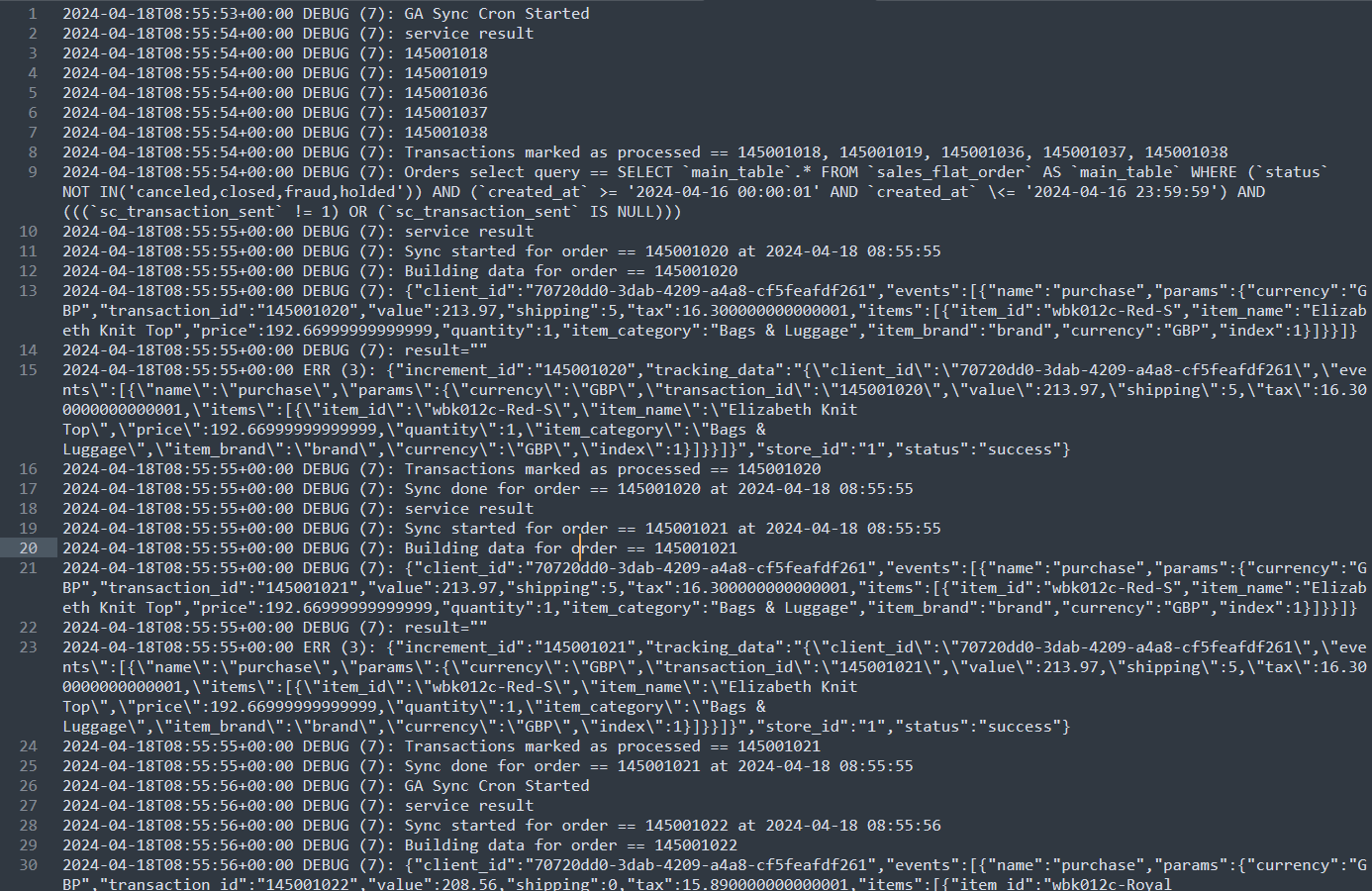
The GA Sync logs can be viewed by going into your server>Magento installation directory>Var>log>ga_sync.log.
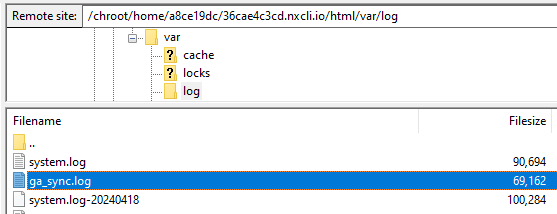
This file contains details of each synced transaction alongwith the order data that was sent, please refer to the image below.
Google Analytics 4 Real Time Reports
Go to your Google Analytics 4 Property then from left menu click on reports:-
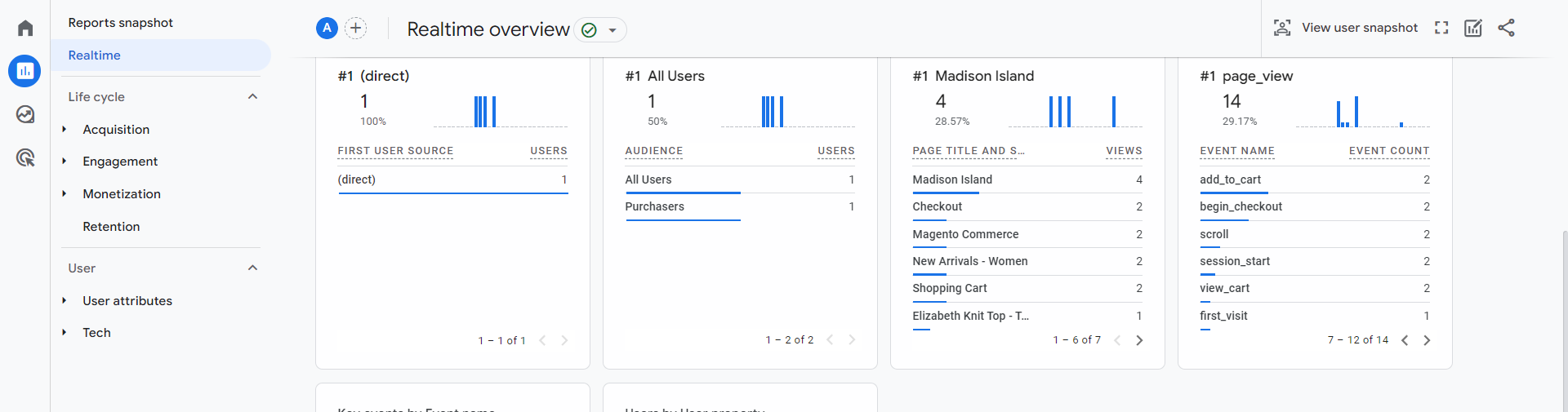
Next, select realtime from the left menu and under the event name column you can find the purchase event by clicking on that you can verify the transaction ID that was sent through the sync module.
Google Analytics 4 Custom Reports
You can create a transaction report in GA4 using custom reports to verify the transactions received. For more information, please check https://www.scommerce-mage.com/blog/how-to-create-transactions-report-in-google-analytics-4-ga4.html
Run GA Synch Manually
You can run the synch manually by utilizing the built in frotnend controller to the run the sync. The controller is as follows:-
scommerce_gatransactionsync/index/syncVisit the frontend page pointing to the controller in the URL, please refer to below link as an example:-
https://demo.scommerce-mage.co.uk/scommerce_gatransactionsync/index/syncIf you have a question related to this extension please check out our FAQ Section first. If you can't find the answer you are looking for then please contact support@scommerce-mage.com.