Magento 1 / OpenMage GA4 Google Tag Manager (GTM)
Installation and User Guide for Magento 1 / OpenMage GA4 Google Tag Manager (GTM)
Table of Contents
- Installation
- Disable Compilation Mode
- Upload Package
- Clear Caches
- Configuration Settings for Google Tag Manager Pro Tracking
- General Settings
- Query String Parameter Cookies
- JSONs provided with extension package
- Google Analytics 4
- Facebook Pixel Tracking
- Snapchat Pixel Tracking
- Adwords Dynamic Remarketing
- Google Ads Enhanced Conversion Tracking with Javascript variable
- Google Ads Enhanced Conversion Tracking with Data layer
- Microsoft UET Tracking (Bing Ads Tracking)
- Tiktok Pixel Tracking
- Twitter(X) Pixel Tracking
- Reddit Pixel Tracking
- Importing JSONs into GTM
- Setting variable information in GTM
- Publishing Tags in GTM
- Set up Google Analytics 4
- AJAX Add to Basket or Remove from Basket
- AJAX Add to Basket
- AJAX Remove from Basket
- Set Primary Categories
- Upgrading the Module From 0.0.35 and Below
- Query String Parameter Cookies
Installation
- Disable Compilation Mode: To check that this is disabled, go to System>Tools > Compilation. If the compiler status is 'Disabled', you are ready to go. If not, simply click the 'Disable' button on the right hand side of the screen.
- Upload Package: Upload the content of the module to your root folder. This will not overwrite the existing Magento folder or files, only the new contents will be added.
- Clear Caches: This can be done from the admin console by navigating to the cache management page (System > Cache Management), selecting all caches, clicking 'refresh' from the drop-down menu, and submitting the change.
Configuration Settings for Google Tag Manager Pro Tracking
Go to Admin > Stores > Configuration > Scommerce Configuration > Google Tag Manager Pro Tracking
General Settings
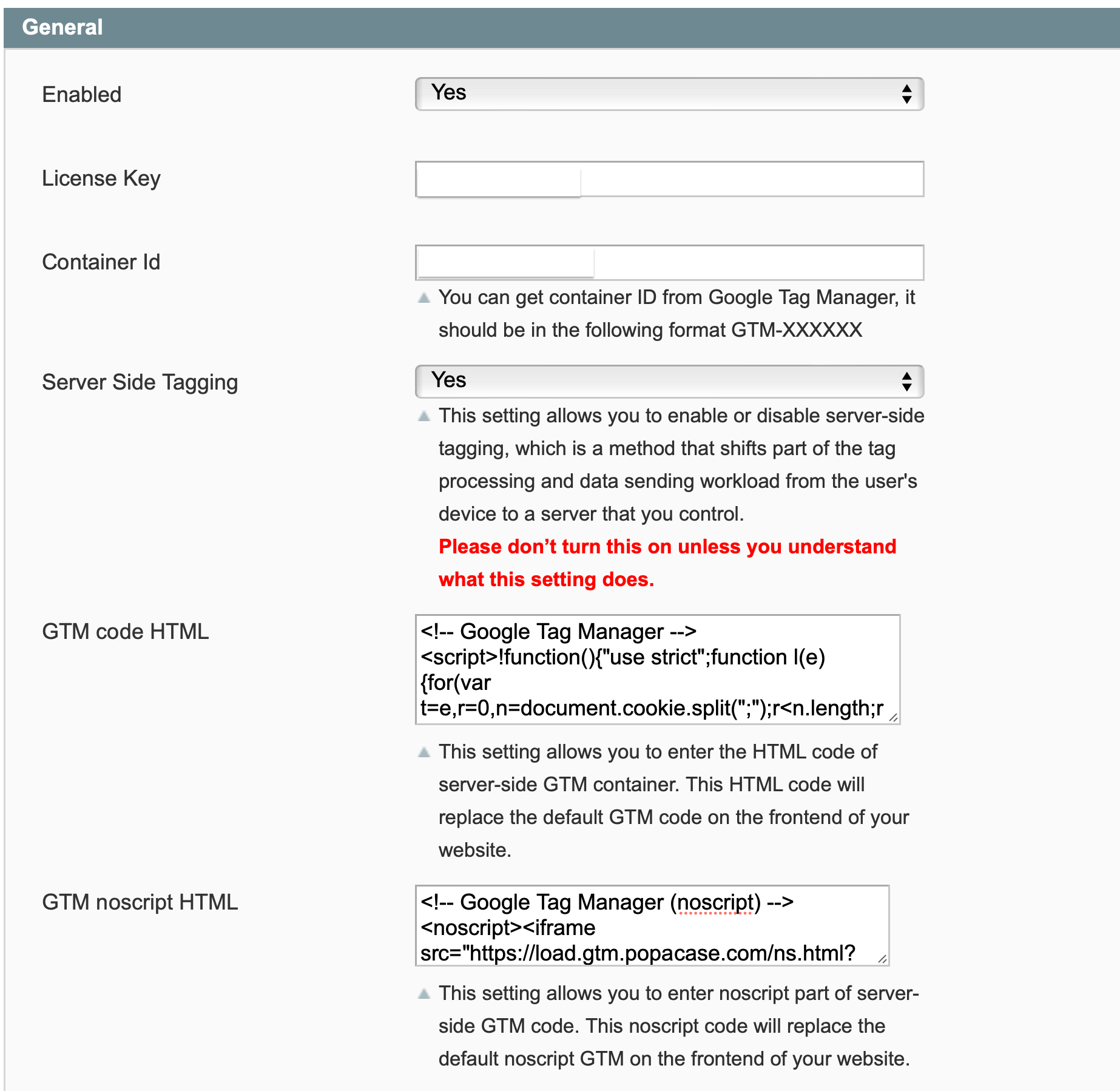
- Enabled – Select “Yes” or “No” to enable or disable the module.
- License Key – Please add the license for the extension which is provided in the order confirmation email. Please note license keys are site URL specific. If you require license keys for dev/staging sites then please email us at support@scommerce-mage.com
- Container Id – Enter your Google Tag Manager Container Id.
- Server Side Tagging - This setting allows you to enable or disable server-side tagging, which is a method that shifts part of the tag processing and data sending workload from the user's device to a server that you control.
Please don’t turn this on unless you understand what this setting does.
- GTM code HTML - This setting allows you to enter the HTML code of server-side GTM container. This HTML code will replace the default GTM code on the frontend of your website.
- GTM noscript HTML - This setting allows you to enter noscript part of server-side GTM code. This noscript code will replace the default noscript GTM on the frontend of your website.
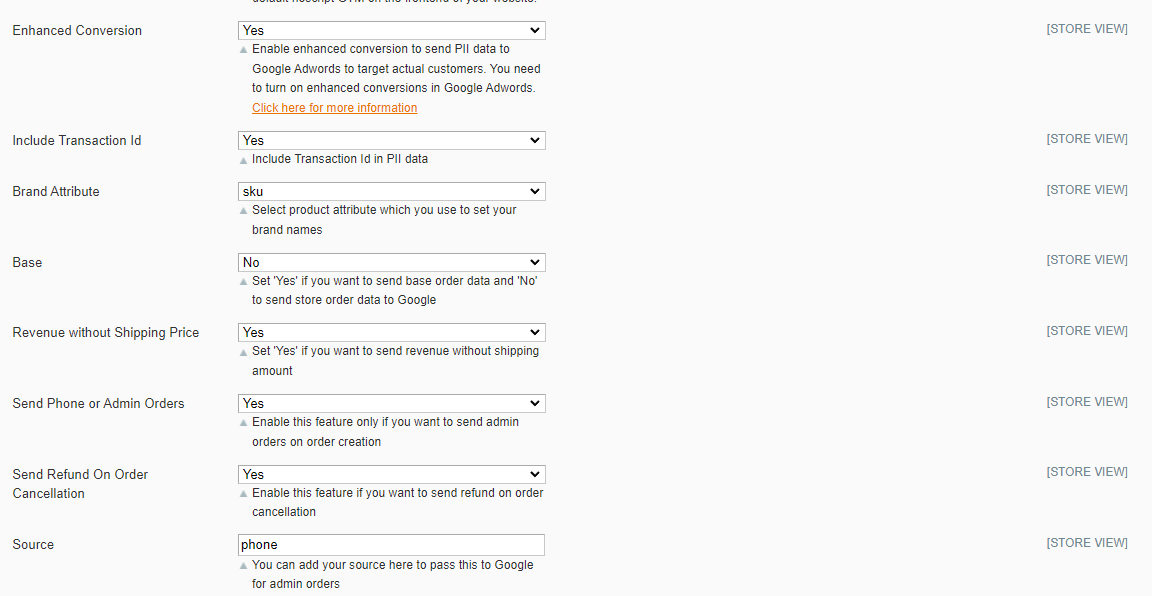
- Enhanced Conversion – Set “yes” to enable the enhanced conversion and send PII data with the tag. Please make sure enhanced conversion is enabled in Google Ads before using this setting.
- Brand Attribute – Select brand attribute to send brand information to Google Analytics.
- Brand text box – If you don’t have brand attribute and you want to send default brand name to Google Analytics then you can enter here.
- Base – Set “Yes” if you want to send base order data and ‘No’ to send store order data to Google. Set this to “Yes” always unless you have multi- store/currency is enabled and you want to send different currency data to Google.
- Revenue without Shipping Price – Set “yes” to send revenue data without the shipping amount.
- Send Phone or Admin Orders – Enable this feature only if you want to send admin orders on order creation.
- Send Refund on Order Cancellation – Enable this feature to send refund event when an order is cancelled from admin.
- Source – Add source you want to pass to Google for admin orders.
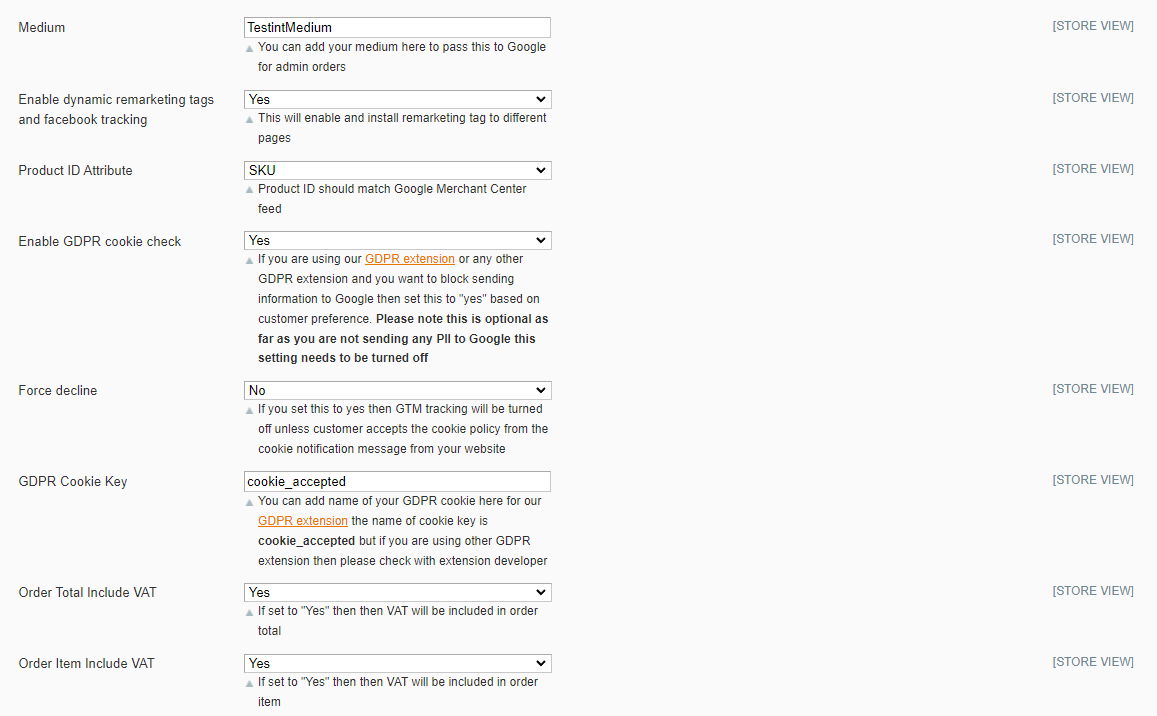
- Medium – Add medium you want to pass to Google for admin orders.
- Enable dynamic remarketing tags and facebook tracking – Set yes to enable dynamic remarketing tags and facebook tracking.
- Product ID Attribute – Select attribute for Product ID, this should be same attribute as you have in your Google Base Feed.
- Enable GDPR cookie check – If you are using our GDPR Extension or any other GDPR Extension and you want to block sending information to Google then set this to “yes” based on customer preference. Please note this is optional as far as you are not sending any PII to Google this setting needs to be turned off.
- Force decline – If you set this to yes then GTM tracking will be turned off unless customer accepts the cookie policy from the cookie notification message from your website.
- GDPR Cookie Key – You can add name of your GDPR cookie here for our GDPR extension
-
Order Total Include VAT – If set to “Yes” then VAT will be included in order total.
-
Order Item Include VAT – If set to “Yes” then VAT will be included in order item.
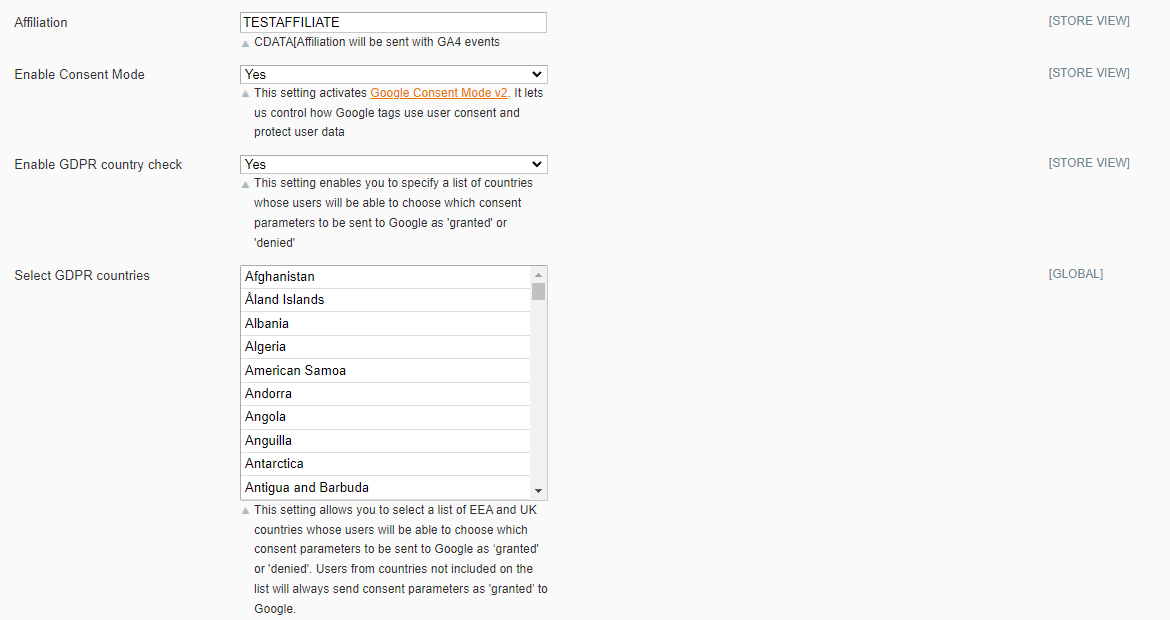
- Affiliation – Enter the affiliation to be sent with GA4 events.
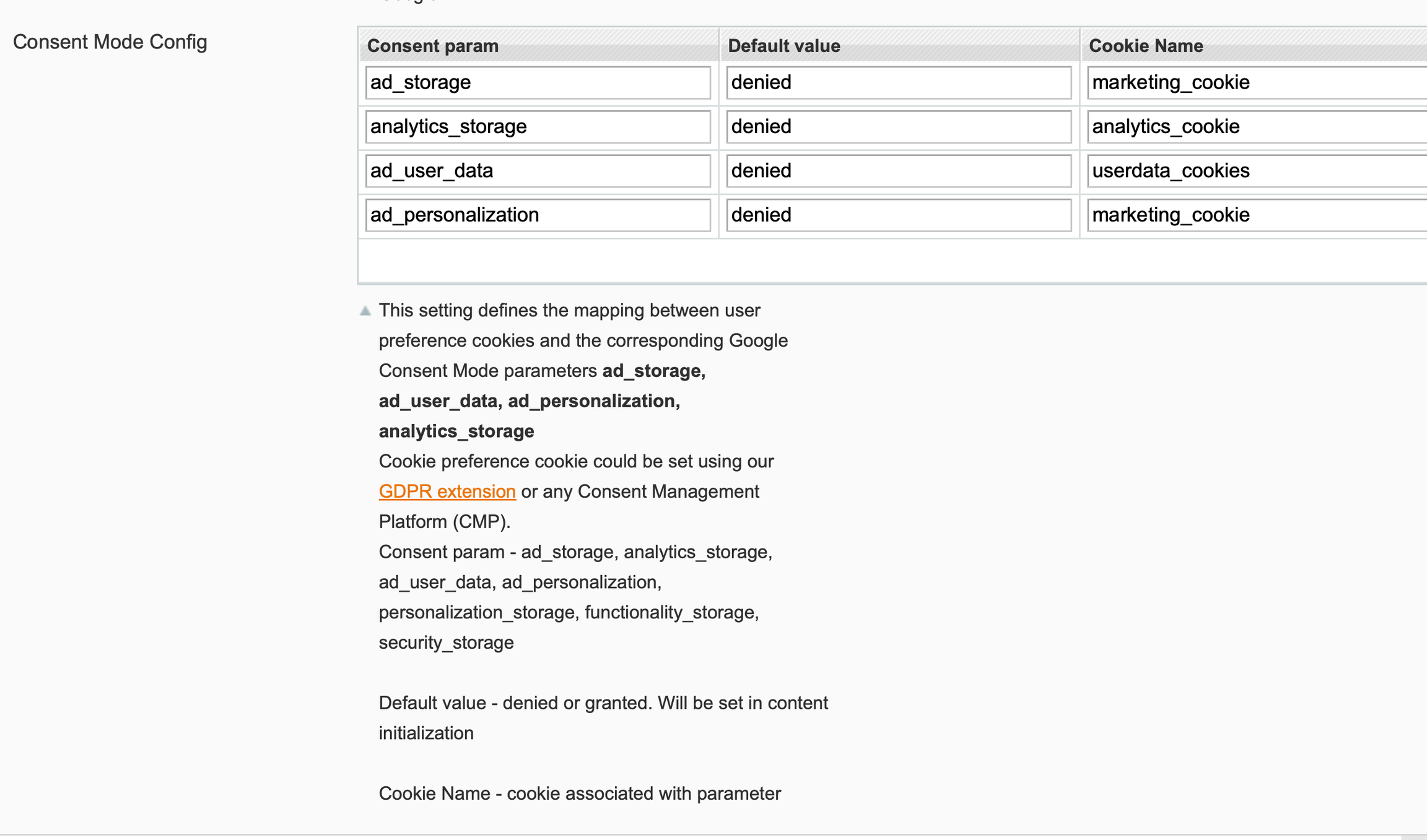
- Enable Consent Mode - This setting activates Google Consent Mode v2 . It lets us control how Google tags use user consent and protect user data
- Enable GDPR country check -This setting enables you to specify a list of countries whose users will be able to choose which consent parameters to be sent to Google as 'granted' or 'denied'
- Consent Mode Config - This setting defines the mapping between user preference cookies and the corresponding Google Consent Mode parameters ad_storage, ad_user_data, ad_personalization, analytics_storage
Consent param - ad_storage, analytics_storage, ad_user_data, ad_personalization, personalization_storage, functionality_storage, security_storage
Default value - denied or granted. Will be set in content initialization
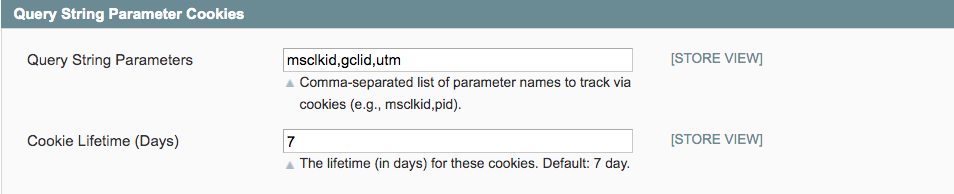
Query String Parameter Cookies
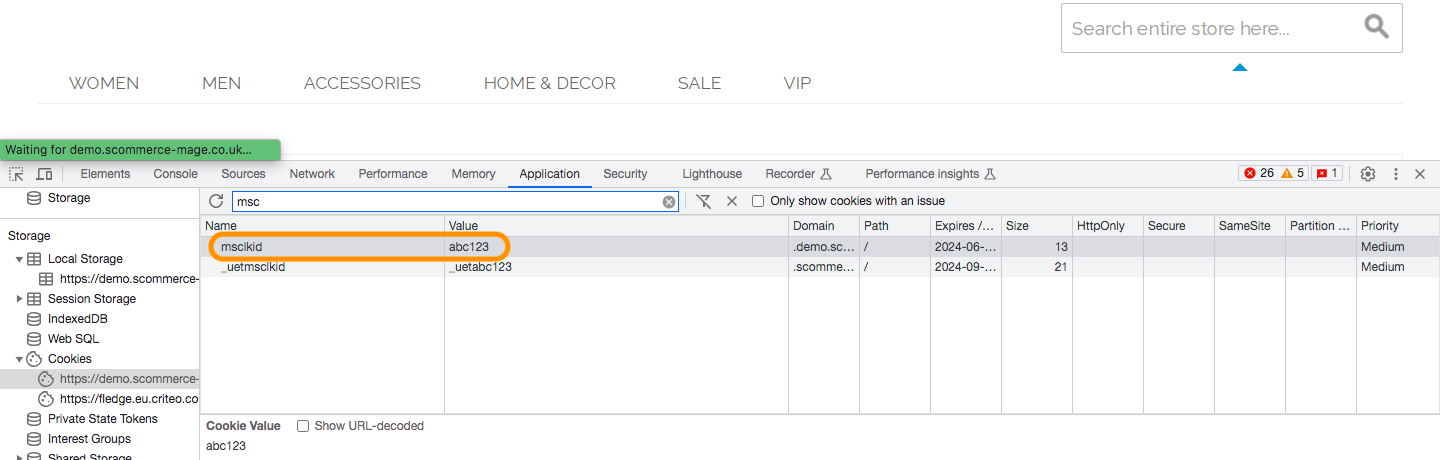
- Query String Parameters - Enter the cookie parameter names comma separated, once the if the parameter is passed with the URL then that cookie will be generated.
- Cookie Lifetime (Days) - Enter the lifetime of the cookie in days. It will be stored in the users browser as per the time defined in this setting

JSONs provided with extension package
The extension package contains JSONs which can be imported in GTM to set up required Tags, Triggers and Variables. The JSONs can be used to set up:
- Google Analytics 4
- Facebook Pixel Tracking
- Snapchat Pixel Tracking
- Adwords Dynamic Remarketing
- Google Ads Enhanced Conversion Tracking with Javascript variable
- Google Ads Enhanced Conversion Tracking with Data layer
- Microsoft UET Tracking (Bing Ads Tracking)
- Tiktok Pixel Tracking
- Twitter(X) Pixel Tracking
- Reddit Pixel Tracking
Importing JSONs into GTM
- To import JSONS provided with extension package follow below steps:
- Log into GTM and navigate to your Account and container
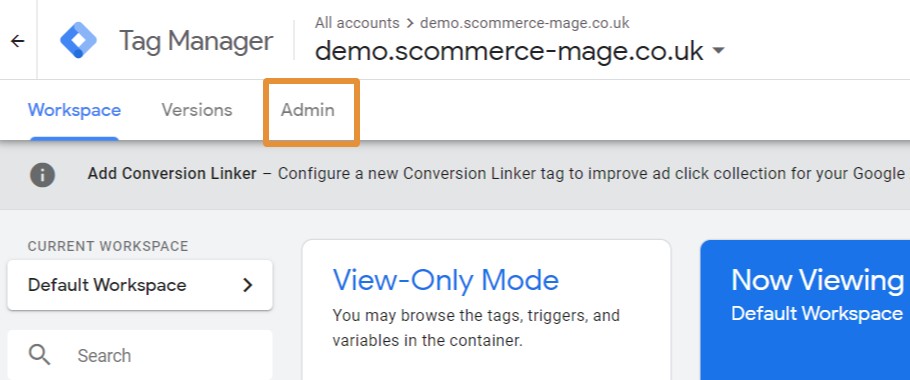
- In the top navigation, click through the Admin

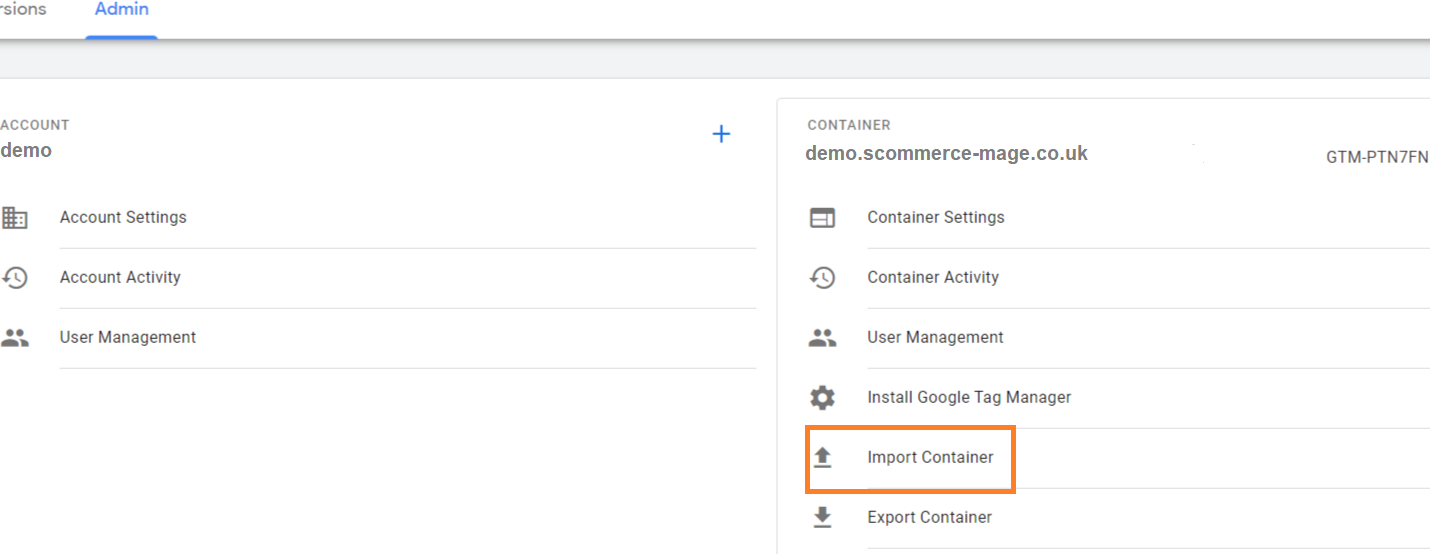
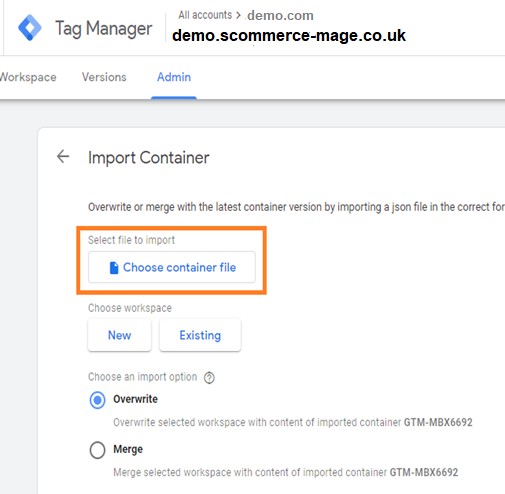
- Under the container options, click on Import Container

- Choose the JSON file which you would like to import

- Choose to either Overwrite or Merge
- Overwriting the existing container will remove all your existing tags, triggers, and variables, and will replace them with those in the imported container. A new container version will be created before the import.
- Merging containers will let you keep your existing tags, triggers, and variables, and just add in the new ones. If you choose to Merge the new container with your existing container, you’ll have to then decide whether you want to overwrite conflicting tags or rename conflicting tags.
- Overwriting the existing container will remove all your existing tags, triggers, and variables, and will replace them with those in the imported container. A new container version will be created before the import.
-
Overwrite – If a variable, tag, or trigger in the new container has the same name but the contents are different, overwrite the old one with the new one.
Rename – If a variable, tag, or trigger in the new container has the same name but the contents are different, keep the old one and rename the new one.
-
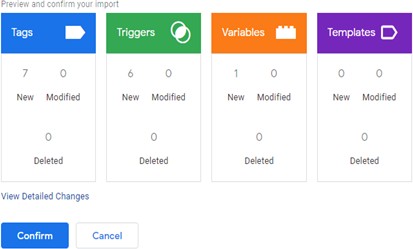
Click Continue. You’ll see a preview of changes, showing how many tags, triggers, and variables will be added, modified, or deleted. You can also click the link to View Detailed Changes to see which tags, triggers, and variables are being added, modified, or deleted.

- Once satisfied with the changes, click Confirm
Setting variable information in GTM
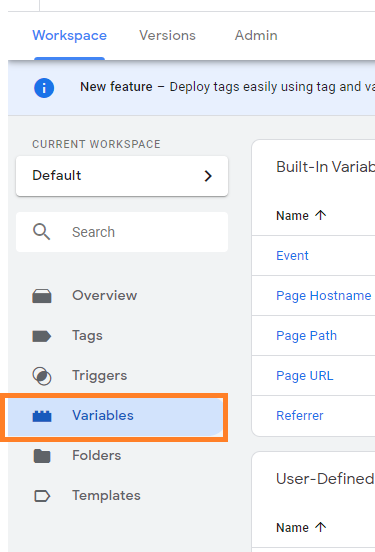
- Once the GTM container file has been imported, you need to change variable information with correct value corresponding to the site. To access variables, go to workspace where you have imported the JSONs and click on variables on left hand side .

Variables Created with JSON's
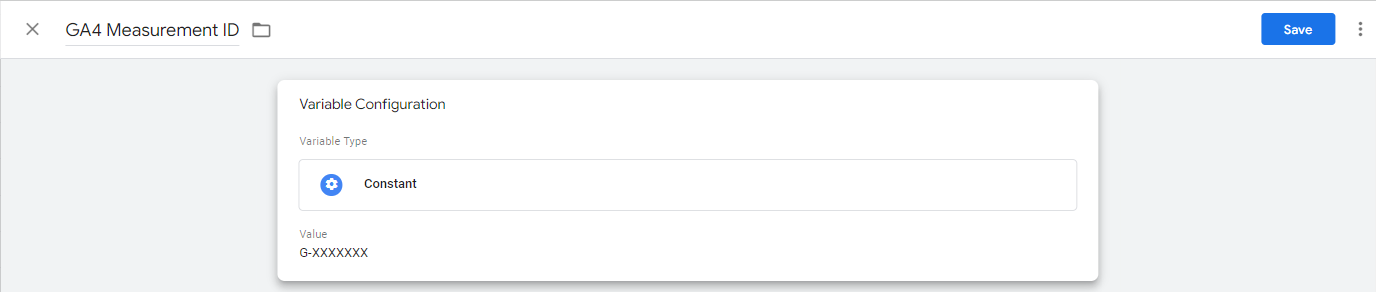
- GA4 Measurement ID - This variable is created when GTM-Google Analytics 4.json is imported and it holds value for Google Analytics 4 Measurement Id for the site. Click on the GA4 Measurement ID and change it to correct value.

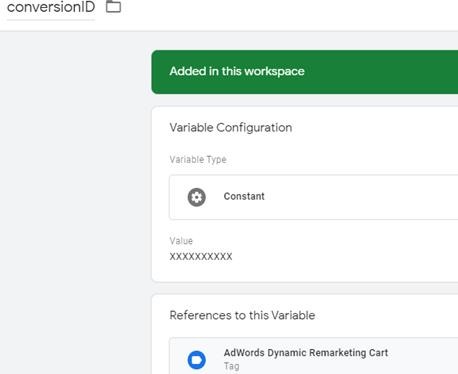
- conversionID - This variable is created when GTM- AdwordsDynamicRemarketing.json is imported and it holds value for Google Adwords Conversion Id for the site. Click on the conversionID and change it to correct value.

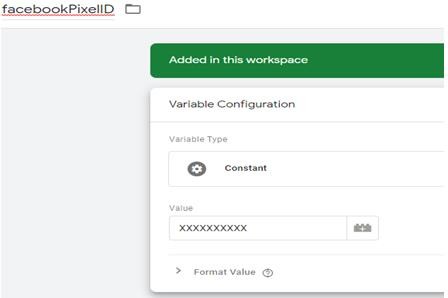
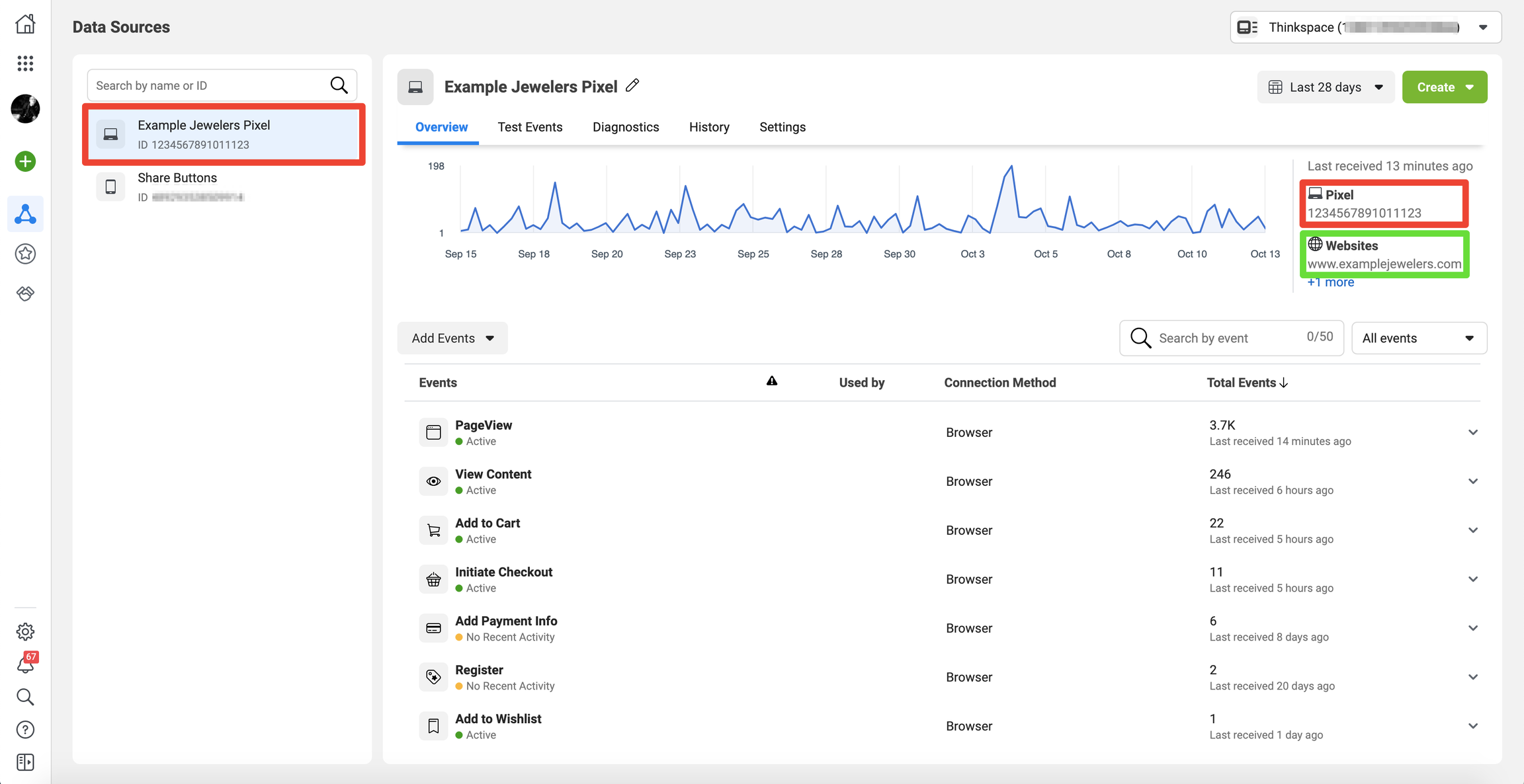
- facebookPixelID - This variable is created when GTM-Facebook.json is imported and it holds value for Facebook pixel Id for the site. Click on the facebookPixelID and change it to correct value.

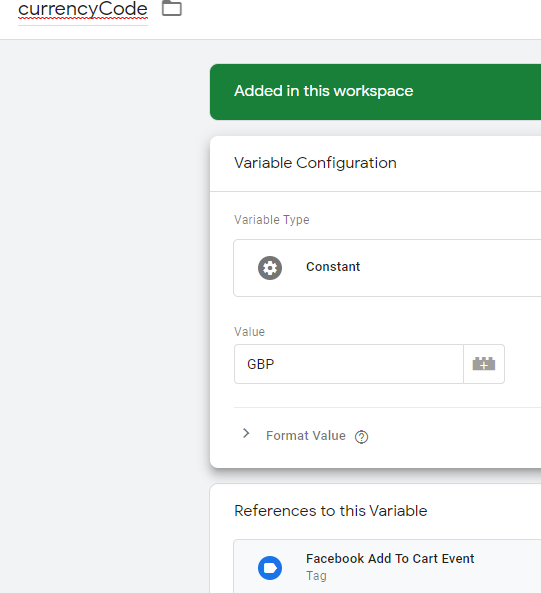
- currencyCode - This variable is created when GTM-Facebook.json is imported and it holds value for currency used on site. Click on the currencyCode and change it to correct value.

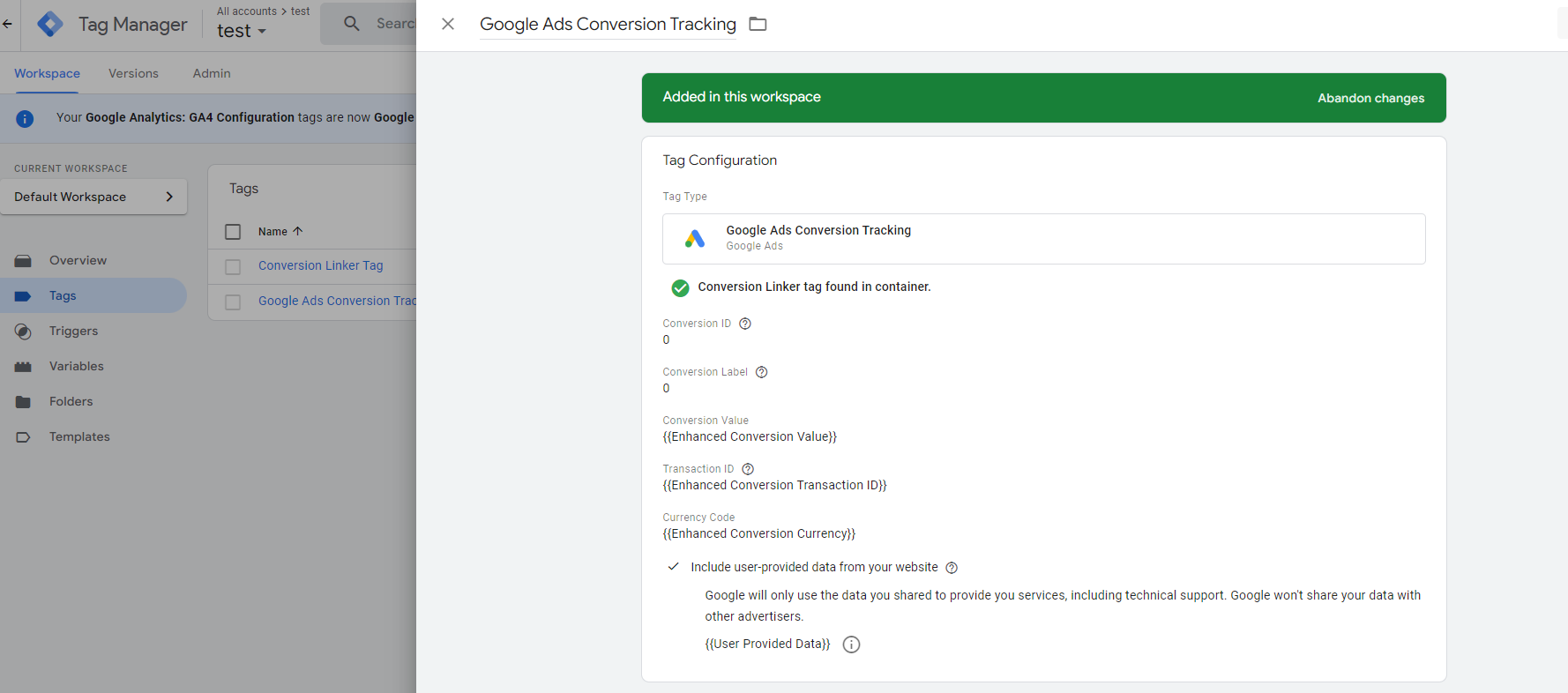
- Google Ads Conversion Tracking - Add Conversion ID and Conversion Label in the Google Ads Conversion Tracking tag before publishing the container. These IDs can be found in your Google Ads account.

- Microsoft UET Tracking - Add the Microsoft Advertising UET Tag ID which can be obtained from microsoft Ads account.

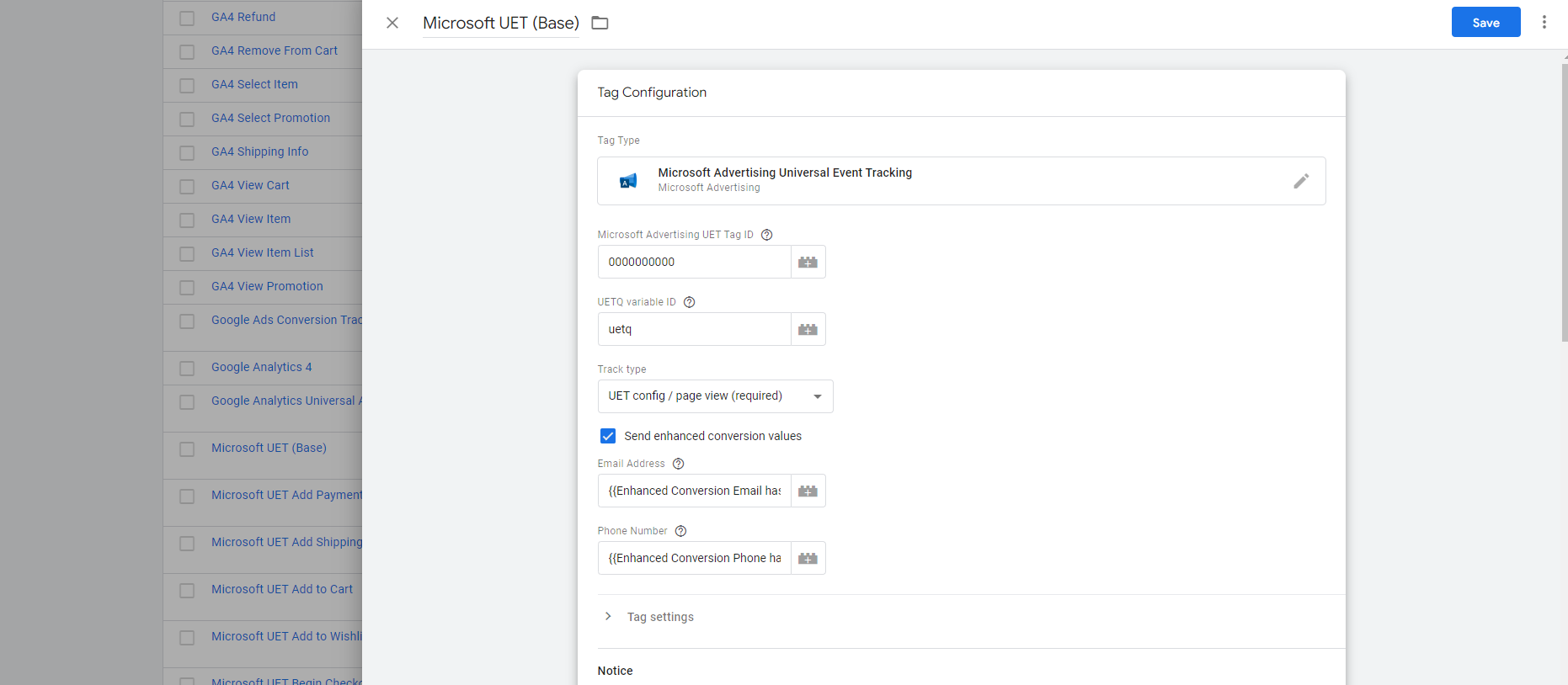
- Facebook Pixel Tracking - Add the Microsoft Advertising UET Tag ID which can be obtained from microsoft Ads account.

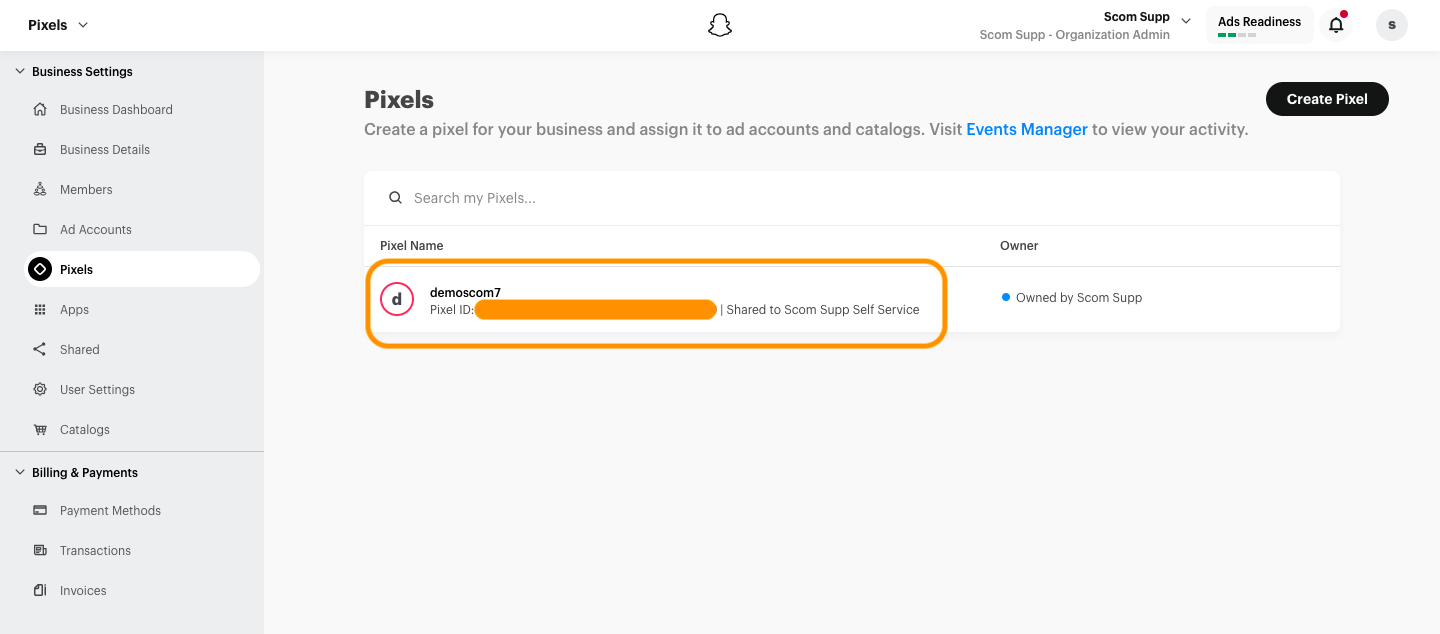
- Snapchat Pixel Tracking - Add the Snapchat Pixel ID which can be obtained from snapchat Ads account as shown below.

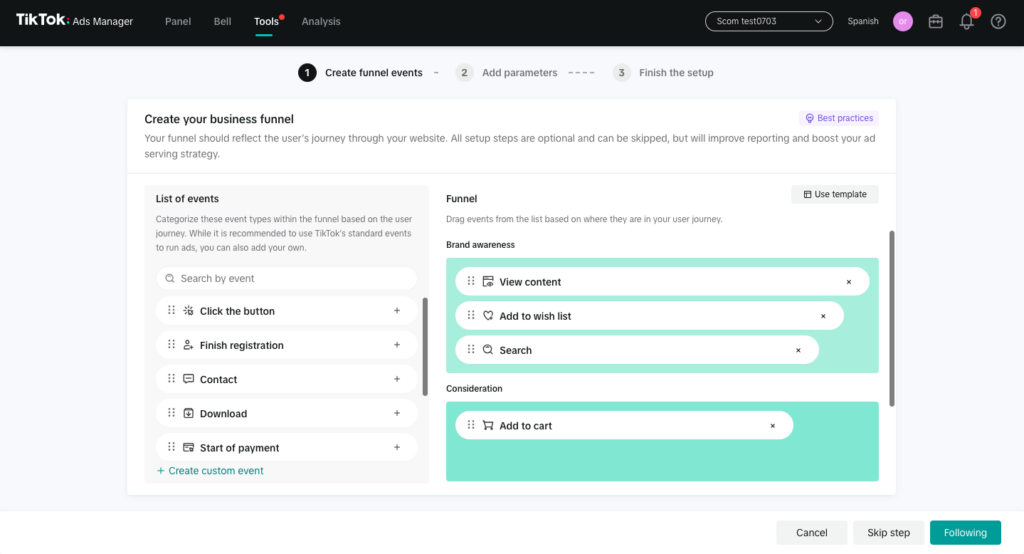
- Tiktok Pixel Tracking - Add the Tiktok Pixel ID which can be obtained from Tiktok Ads account as shown below. Once your pixel is created, copy the unique pixel ID code.

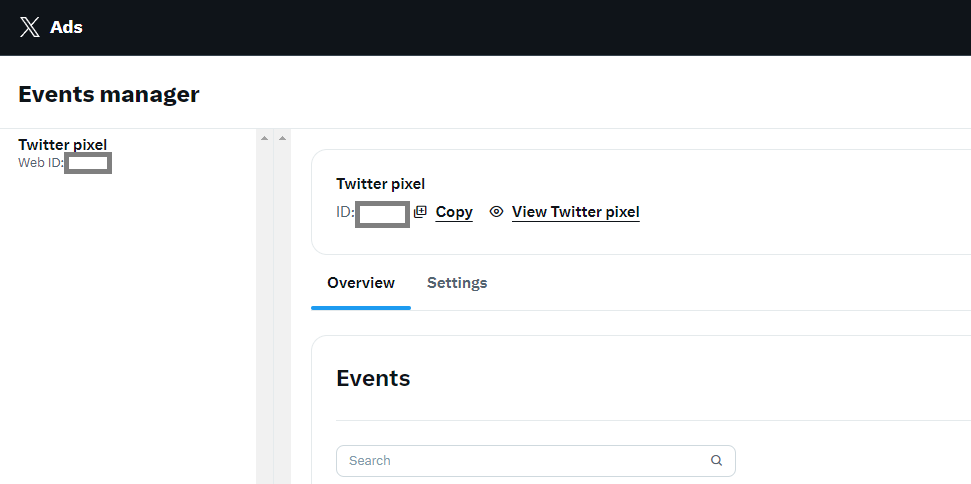
- Twitter(X) Pixel Tracking - Add the Twitter Pixel ID which can be obtained from Twitter Ads account as shown below.

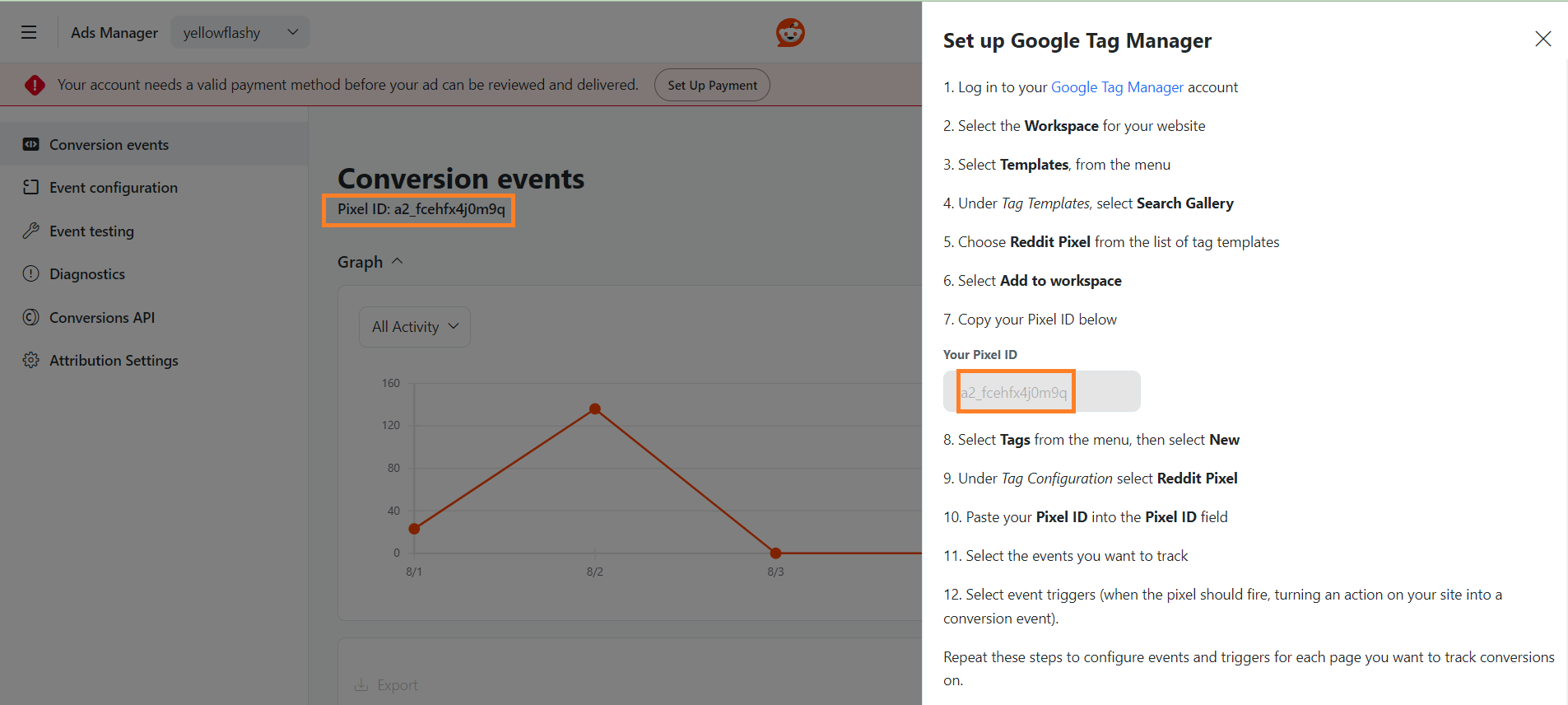
- Reddit Pixel Tracking - Add the Reddit Pixel ID which can be obtained from Reddit Ads account as shown below.

Publishing Tags in GTM
Once all set up is done and verified, need to Publish the tags to make it live on the website.
Step 1 - Click the SUBMIT button at the top right corner of the screen.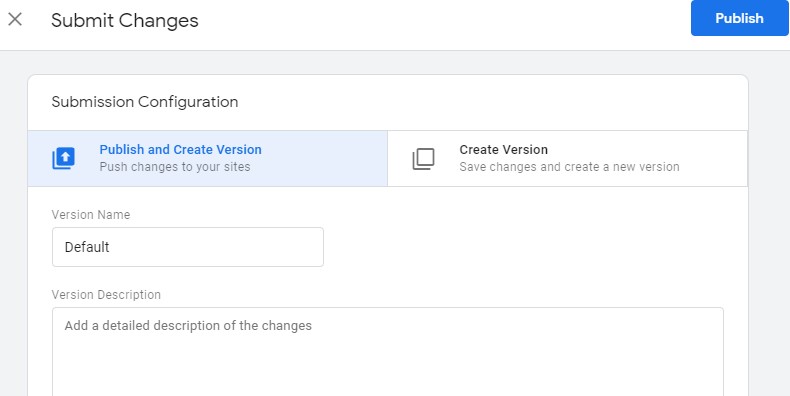
Step 2 - Enter an identifiable Version name.
Step 3 - Scroll down to the Workspace Changes to see all the changes made.
Step 4 - Click PUBLISH and you will be presented with a summary for this version.
Set up Google Analytics 4
- Go to Analytics and select the website on which you want to implement GA4 alongside universal analytics.
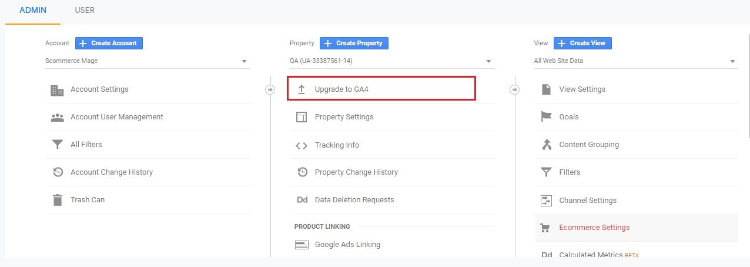
- Once you are in universal analytics panel go into admin settings. Here you will notice an UPGRADE TO GA4 button, click on it. You will be walked with creating a new property. Follow along, once you are finished you will see the new GA4 view on your screen.

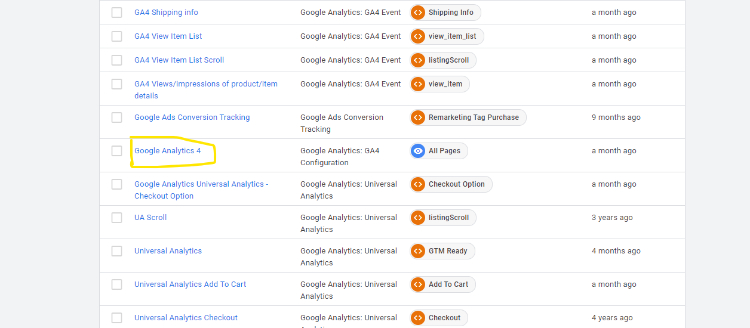
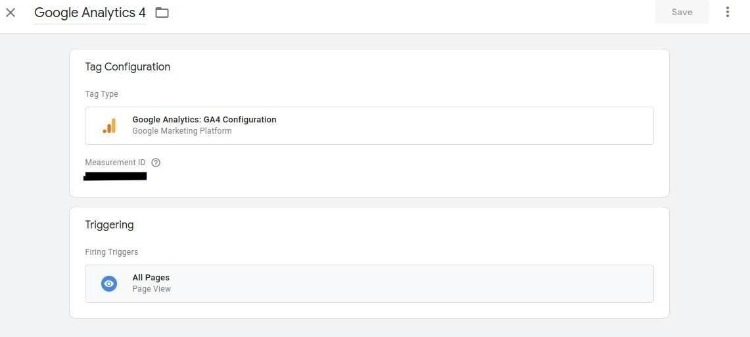
- Now we need to setup the tag manager for GA4. If you have already imported all the tags using our JSON file then you only need to edit the tag and add your Measurement ID. However, if you are creating tags yourself then you need to create a new configuration tag.

-
To create a new configuration tag in GTM. Please look at the image below: -
-
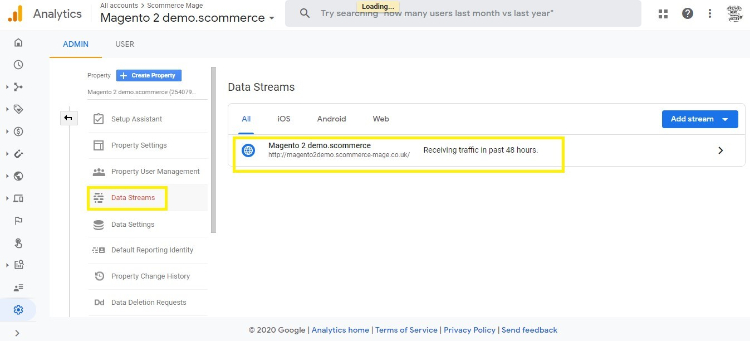
To get the measurement id you need to go to your GA4 view. Go to the admin settings and then data streams. Click on the website url coloured in blue and a popup should open.
-
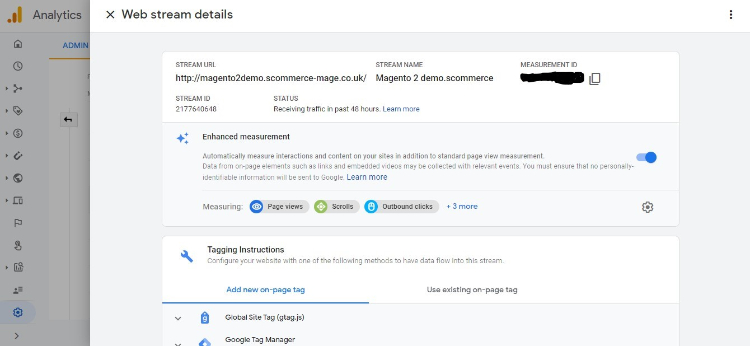
You will see the Measurement ID listed on the top right corner of this page.
-
Now for the final step import our Google Analytics 4 JSON file in your GTM to get all the configurations for GA4. Once done you will see data flowing into Google Analytics 4. Learn more about Google Analytics 4
AJAX Add to Basket or Remove from Basket
Add the following two functions in your ajax add to basket js file and call gaAddToCart on success of Ajax add to basket and gaRemoveFromCart on success of Ajax remove from basket function.
AJAX Add to Basket
function gaAddToCart() {
	jQuery.cookie.json = true;
	var productToBasket = jQuery.cookie("productToBasket");
	var productlist = jQuery.cookie("productlist");
	if (productToBasket != undefined) {
		manipulationOfCart(productToBasket, 'add', productlist);
		jQuery.removeCookie("productToBasket", {
			path: '/',
			domain: '.' + document.domain
		});
	}
}
AJAX Remove from Basket
function gaRemoveFromCart() {
	jQuery.cookie.json = true;
	var productOutBasket = jQuery.cookie("productOutBasket");
	if (productOutBasket != undefined) {
		manipulationOfCart(productOutBasket, 'remove', '');
		jQuery.removeCookie("productOutBasket", {
			path: '/',
			domain: '.' + document.domain
		});
	}
}
Set Primary Categories
You can use a script provided with the extension to automatically add primary categories for products. Admin can exclude certain categories from primary category and also prioritise one category over the other to be picked as the primary category.
Go to Admin>Catalog>Categories select a category then scroll down to find the option "Primary Category Settings". Here click on "Exclude From Primary Category" to exclude this category from primary category or enter the priority 0 being the highes. The highest priority category will be picked first for the primary category.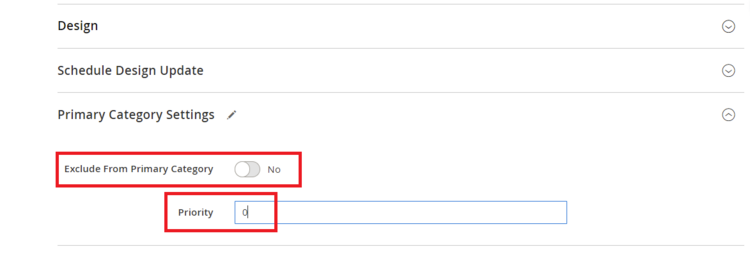
To automatically assign primary category for all products run the command given below by going into the root directory of your store.
scommerce:seo-base:set-primary-categoryN.B - If you are using older version then run the script provided in the extension folder at the path Data/SetPrimaryCategoryM2.php from ssh
Upgrading the Module From 0.0.35 and Below
If you are using an older version of the extension(0.0.35 and below) where a common data layer is used to populate data to both UA and GA4 then upon updating to the latest version you need to make the following changes in GTM.
Remove these Tags, Triggers and Variables from GTM container
TAGS
- Google Analytics 4
- GA4 Views/impressions of product/item details
- GA4 View Item List Scroll
- GA4 View Item List
- GA4 Shipping info
- GA4 Remove a product from a shopping cart
- GA4 Refunds
- GA4 Purchases
- GA4 Promotion views/impressions
- GA4 Promotion clicks
- GA4 Product/Item List Clicks
- GA4 Payment info
- GA4 Begin Checkout
- GA4 Add a product to a shopping cart
Variables
- Ecommerce-detail-products
- Ecommerce-product-detail-value
- Ecommerce-checkout-products
- Ecommerce-checkout-option
- Ecommerce-remove-products
- Ecommerce-refund-products
- Purchase-affiliation
- Purchase-tax
- Purchase-shipping
- ecommerce-promoView-promotions
- ecommerce-promoClick-promotions
- Ecommerce-click-products
- ecommerce-product-click-list-name
Triggers
- View_item
- View_item_list
- Shipping Info
- removeFromCart
- Refund
- Purchase
- View_promotion
- promotionClick
- productClick
- Payment_info
- addToCart
Now follow the steps below to import the latest GA4 settings for GTM
Step 1:- Acquire the latest GA4 JSON file provided with the module.
Step 2:- Go to your GTM container then click on admin>Import Container.
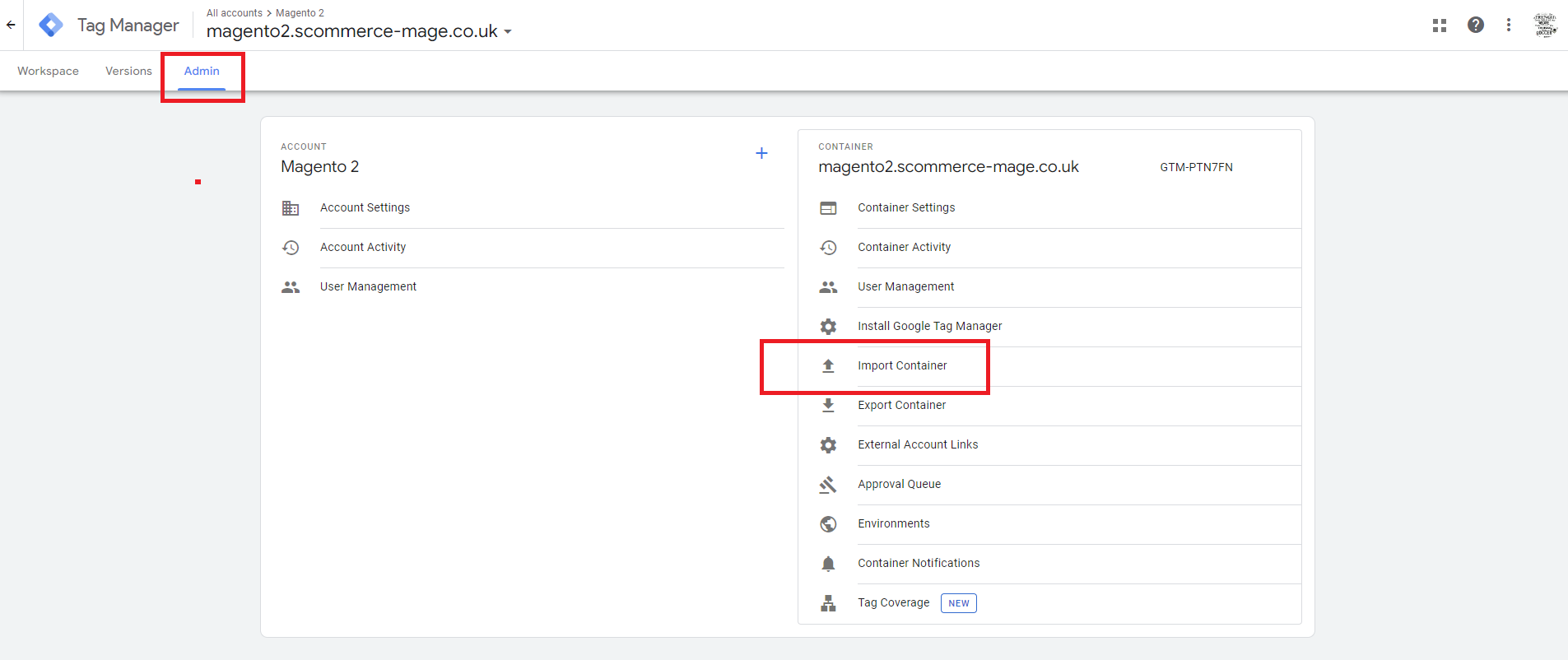
Step 3:- Click on Choose container file and choose the JSON file acquired in step 1 then select the workspace new/existing. Also select Merge>Rename conflicting tags, triggers, and variables so that no crucial setting is lost.
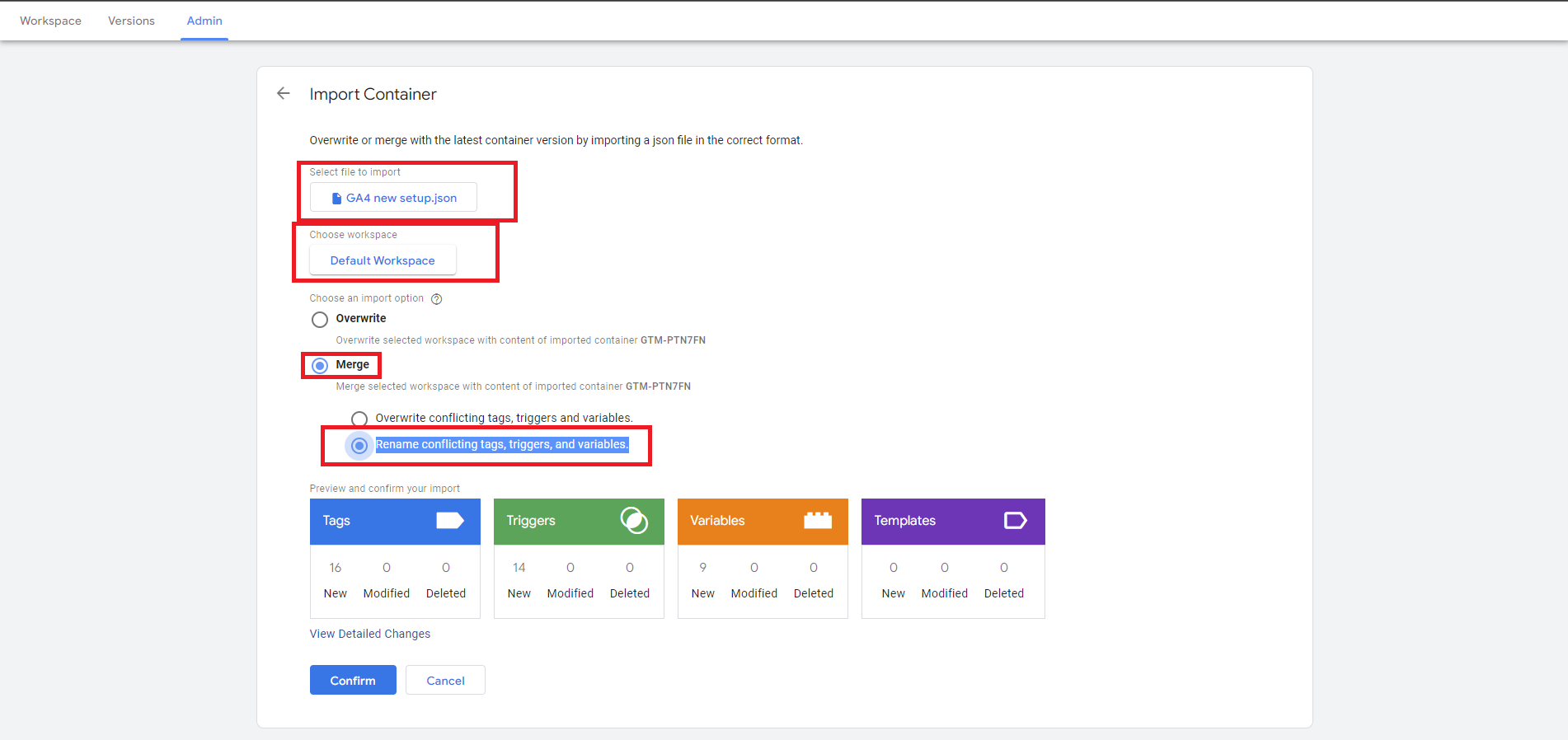
Step 4:- Lastly, click confirm to finish the import. Once it's done you will have the latest tags, triggers and variables for GA4 in your GTM.
Set up Consent Mode V2 with GTM
- Please follow the below guide to set up consent mode v2 with GTM, also you would need to have both GTM and GDPR modules to complete this setup.
- GDPR:- https://www.scommerce-mage.com/magento1-gdpr-compliance.html
Query String Parameter Cookies
If you have a question related to this extension please check out our FAQ Section. If you can't find the answer you are looking for then please contact support@scommerce-mage.com.