# Magento 2 Not On The High Street Integration
### Installation and User Guide for Magento 2 Noths Integration Extension
**Table of Contents**
1. [*Installation* ](#bkmrk-installation)
- *Installation via app/code*
- *Installation via Composer*
2. [*Configuration Settings for Noths Integration* ](#bkmrk-configuration-settin)
- *General Settings*
- *Integration Settings*
3. [*Noths Order(s) View from Back-end* ](#bkmrk-noths-order%28s%29-view-)
- *Noths Order Import*
- *Noths Order Details on Order View Page*
- *Noths Order Logs*
### Installation [](#bkmrk-)
- **Installation via app/code:** Upload the content of the module to your root folder. This will not overwrite the existing Magento folder or files, only the new contents will be added. After the successful upload of the package, run below commands on Magento 2 root directory.
```php
php bin/magento setup:upgrade
php bin/magento setup:di:compile
php bin/magento setup:static-content:deploy
```
- **Installation via Composer:** Please follow the guide provided in the below link to complete the installation via composer.
[https://docs.scommerce-mage.com/magento-2-extensions/installation-via-composer/installation-via-composer](https://docs.scommerce-mage.com/magento-2-extensions/installation-via-composer/installation-via-composer)
### Configuration Settings for Noths Integration [](#bkmrk--1)
Go to **Admin > Stores > Configuration > Scommerce Configuration > Noths**
#### General Settings
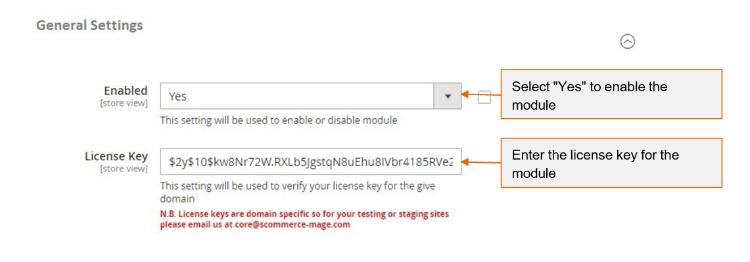
- **Enabled -** Select "Yes" or "No" to enable or disable the module.
- **License Key -** Please add the license for the extension which is provided in the order confirmation email. Please note license keys are site URL specific. If you require license keys for dev/staging sites then please email us at .
[](https://docs.scommerce-mage.com/uploads/images/gallery/2025-05/BWbimage.jpg)
#### Integration Settings [](#bkmrk--3)
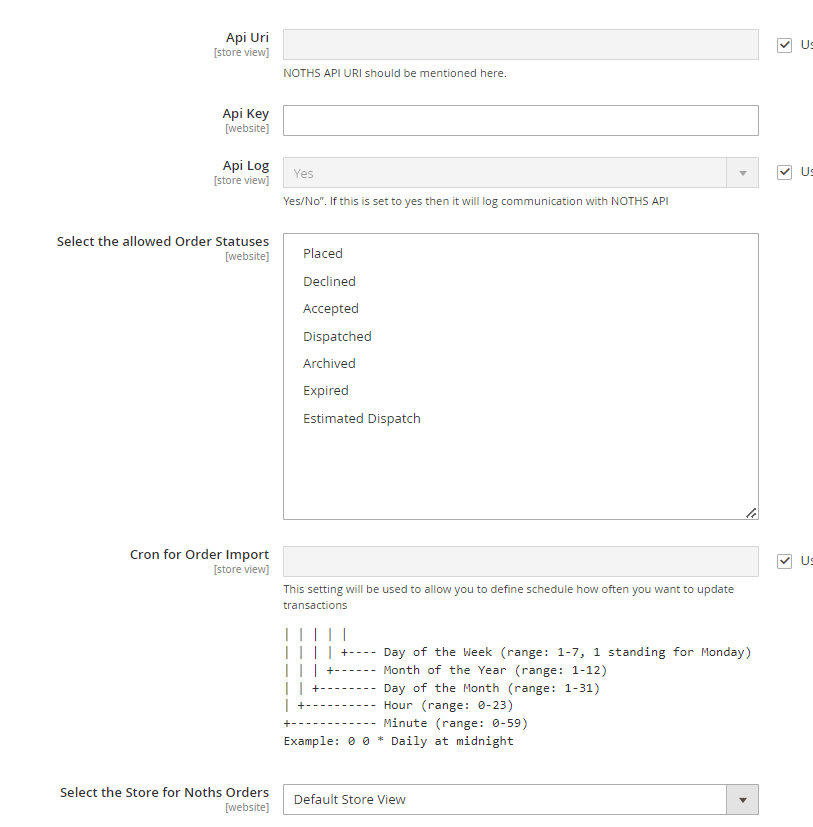
- **API Uri -** NOTHS API URI should be mentioned here.
- **API Key -** Please enter API Key
- **API Log -** Select "Yes" to enable the API Log. If set to "Yes" then it will log communication with Noths API.
- **Select the allowed order statuses -** Please select order status which will be imported from Noths
- **Cron for Order Import -** Please add define schedule how often you want to update transactions
- **Select the store for NOTHS Orders -** Please select the store for Noths orders.
[](https://docs.scommerce-mage.com/uploads/images/gallery/2025-05/2r3image-5.png)
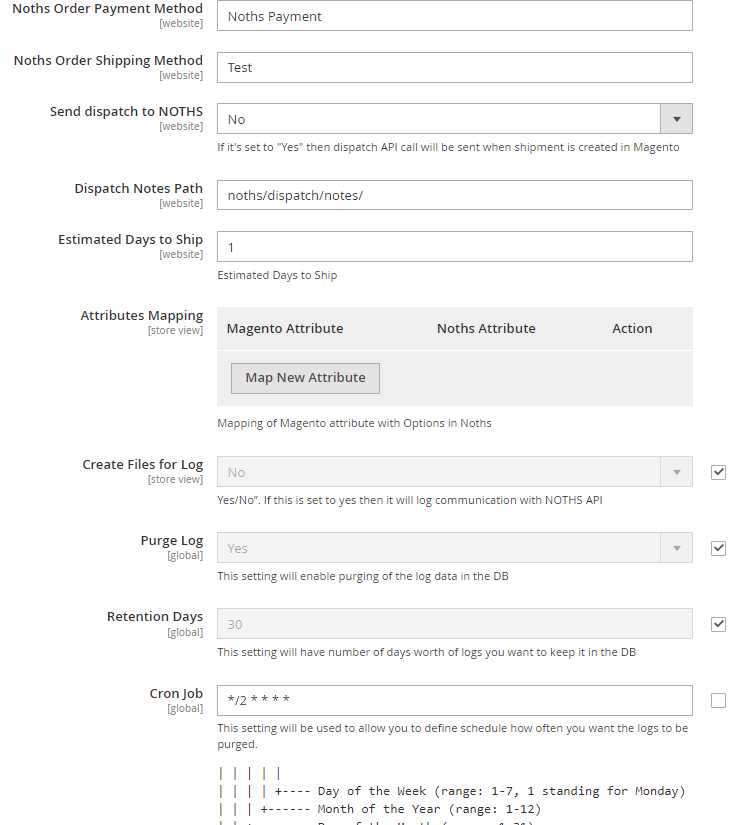
- **Noths Order Payment Method -** Please add the payment method which will be used to import orders from Noths.
- **Noths Order Shipping Method -** Please add the shipping method which will be used to import orders from Noths.
- **Send dispatch to NOTHS -** Select Yes/No. If this is set to yes then dispatch API call will be sent when shipment is created in Magento.
- **Dispatch Notes Path -** Please add the dispatch notes path in media/noths/dispatchnote/\[order number\].pdf
- **Estimated Days to ship -** Please add the days for estimated days to ship.
- **Attributes Mapping -** Please add the mapping of Magento attribute with options in Noths.
- **Create Files for Log -** Select Yes/No". If this is set to yes then it will log communication with NOTHS API
- **Purge Log -** Please enable purging of the log data in the DB.
- **Retention Data -** Please add number of days worth of logs you want to keep it in the DB.
- **Cron Job -** Please add define schedule how often you want the logs to be purged.
[](https://docs.scommerce-mage.com/uploads/images/gallery/2025-05/eHSimage-6.png)
### Noths Order(s) View from Back-end [](#bkmrk--6)
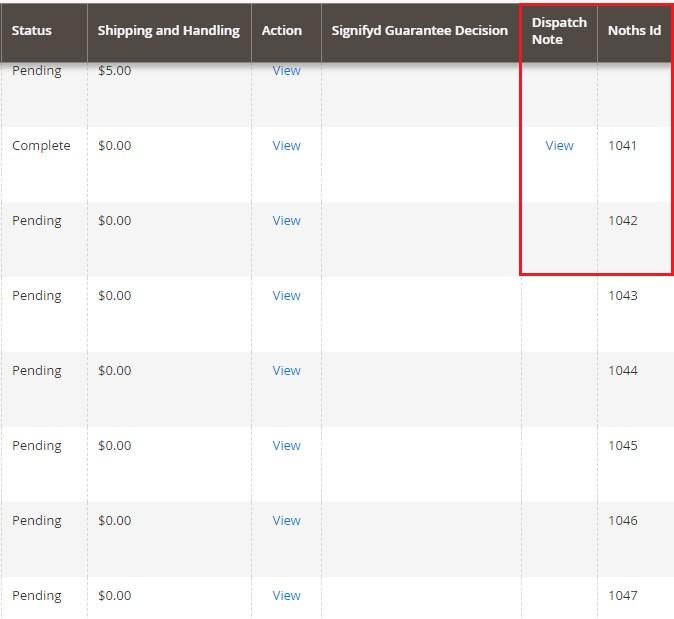
- **Noths Order Import -** You can view imported Noths order(s) from **Admin > Sales> Orders.** This grid will have "Dispatch Note " and "Noths Id".
[](https://docs.scommerce-mage.com/uploads/images/gallery/2025-05/Vipimage-1.jpg)
- **Noths Order Details on Order View Page -** You can view Noths order details at **Admin > Sales > Select Order > View.**
**[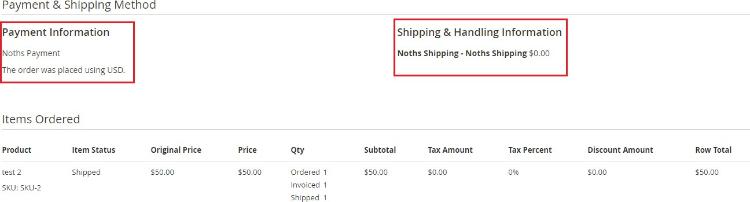](https://docs.scommerce-mage.com/uploads/images/gallery/2025-05/iu4y774.jpg)**
- **Noths Order Logs -** To view Noths Logs go to **Admin > Scommerce Noths > Order Logs.** This log will have Entity Id, Request, Status, Type, Created At, and Response.
[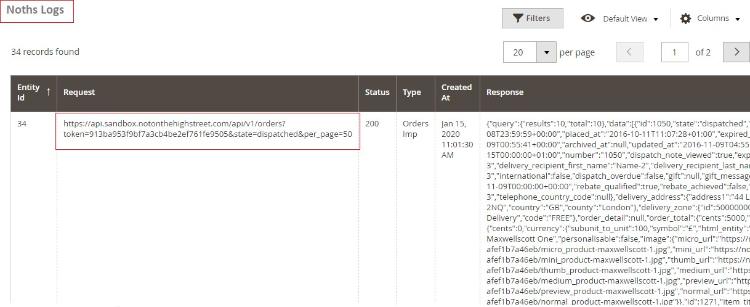](https://docs.scommerce-mage.com/uploads/images/gallery/2025-05/BNXimage-2.jpg)
If you have a question related to this extension please check out our [**FAQ Section** ](https://www.scommerce-mage.com/magento-2-noths-integration.html#customfaq)first. If you can't find the answer you are looking for then please contact [**support@scommerce-mage.com**](mailto:core@scommerce-mage.com)**.**