# Cash Back Discount
### Installation and User Guide for Magento 1 Cash Back Discount
**Table of Contents**
1. [Installation ](#bkmrk-installation)
- Disable Compilation Mode
- Upload Package
- Clear Caches
2. [Configuration Settings for Cashback Discount ](#bkmrk-configuration-settin)
- General Settings
- Reminder
- Shopping Cart Price Rules Setup
- Conditions
- Actions
- Labels
- Manage Coupon Codes
- Applied Cashback Details on the order view page
- Theme Changes
3. [Front-end site view ](#bkmrk-front-end-site-view)
- Cashback Discount Option on the Checkout Page
### Installation [](#bkmrk-)
- **Disable Compilation Mode:** To check that this is disabled, go to **System >Tools> Compilation**. If the compiler status is 'Disabled', you are ready to go. If not, simply click the 'Disable' button on the right hand side of the screen.
- **Upload Package:** Upload the content of the module to your root folder. This will not overwrite the existing Magento folder or files, only the new contents will be added.
- **Clear Caches:** This can be done from the admin console by navigating to the cache management page (**System > Cache Management**), selecting all caches, clicking 'refresh' from the drop-down menu, and submitting the change.
### Configuration Settings for Cashback Discount [](#bkmrk--1)
Go to **Admin > Stores > Configuration > Scommerce Configuration > Cashback**
#### General Settings [](#bkmrk--2)
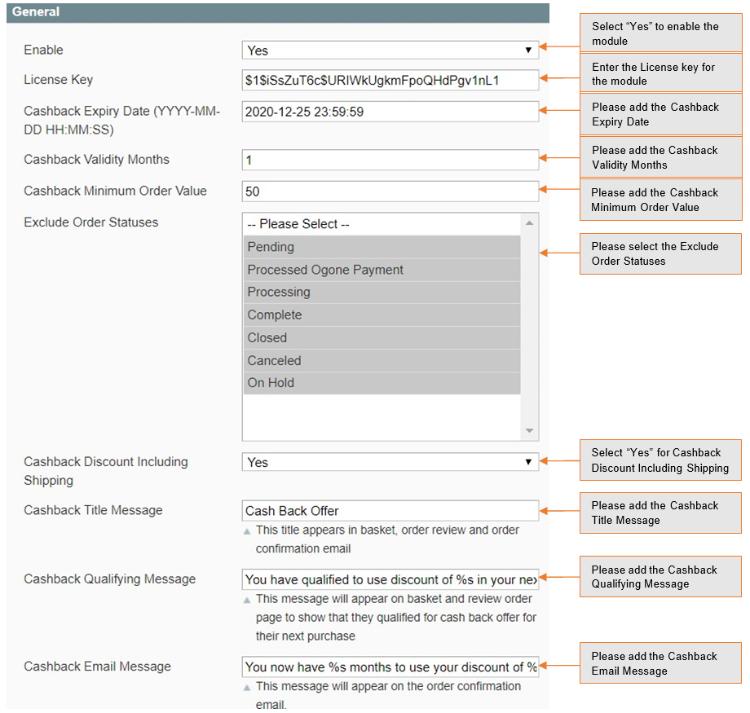
- **Enabled –** Select "Yes" or "No" to enable or disable the module.
- **License Key –** Please add the license for the extension which is provided in the order confirmation email. Please note license keys are site URL specific. If you require license keys for dev/staging sites then please email us at .
- **Cashback Expiry Date (YYYY-MM-DD HH:MM:SS) –** Expiry date and time for Cash back offer. Orders placed before this date and time will get cash back offer for their next order. It should be in (YYYY-MM-DD HH:MM:S\*\*)\*\* format.
- **Cashback Validity Months -** Cash back discount validity period. It defines the period for the validity of cash back discount for next order.
- **Cashback Minimum Order Value –** The discount will only apply when the basket value exceeds the minimum order value.
- **Exclude Order Statuses –** Order status excluded from cash back offer.
- **Cashback Discount Including Shopping –** Include shipping in discount or not.
- **Cashback Title Message –** Cashback title appears to appear on basket, order review and order confirmation email.
- **Cashback Qualifying Message –** Message to appear on basket and review order page to show that they qualified for cash back offer for their next purchase.
- **Cashback Email Message –** Message will appear on the order confirmation email. Default message, "%s" will be replaced with validity period.
[](https://docs.scommerce-mage.com/uploads/images/gallery/2025-06/image-2025-06-19t180714-604.jpg)
#### Reminder [](#bkmrk--4)
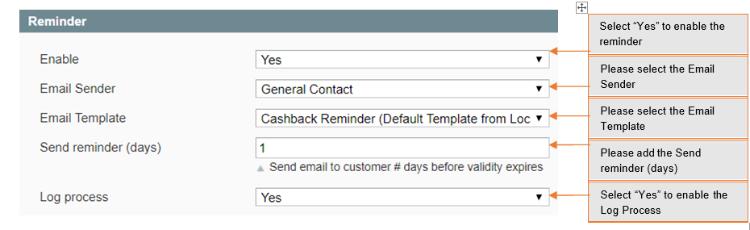
- **Enable –** Select "Yes" to enable the Reminder.
- **Email Sender –** Email address to appear as sender.
- **Email Template –** Email Template Default is Cashback Reminder.
- **Send reminder (days) –** Number days defined for reminder email before cash back validity expires.
- **Log Process –** If set to yes, logs the reminder email logs in var/log folder.
[](https://docs.scommerce-mage.com/uploads/images/gallery/2025-06/image-2025-06-19t180814-746.jpg)
- **Shopping Cart Price Rules Setup –** Steps to set up discount offer:
1. Go to Promotions > Shopping Cart Price Rules > Add new rule
2. Set up discount details as required.
3. Make sure discount From and To date matches to the discount validity. From Date Start Date for cash back discount.
To Date should be the Expiry date of Cash Back + Validity Months
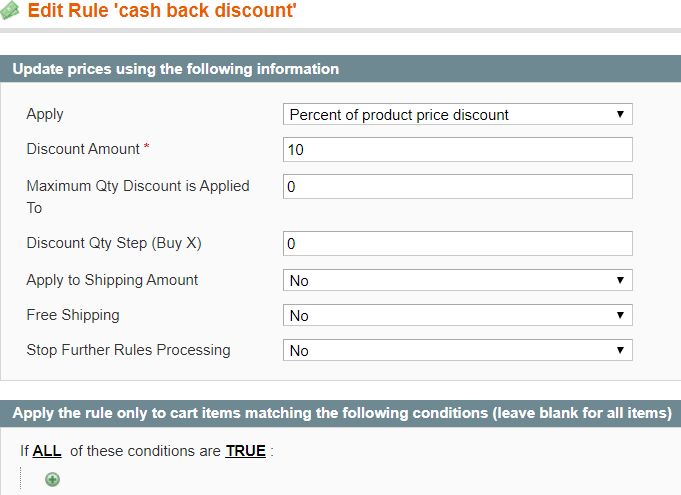
1. Select "Cash Back Percentage" in Action > Apply
2. Save Rule.
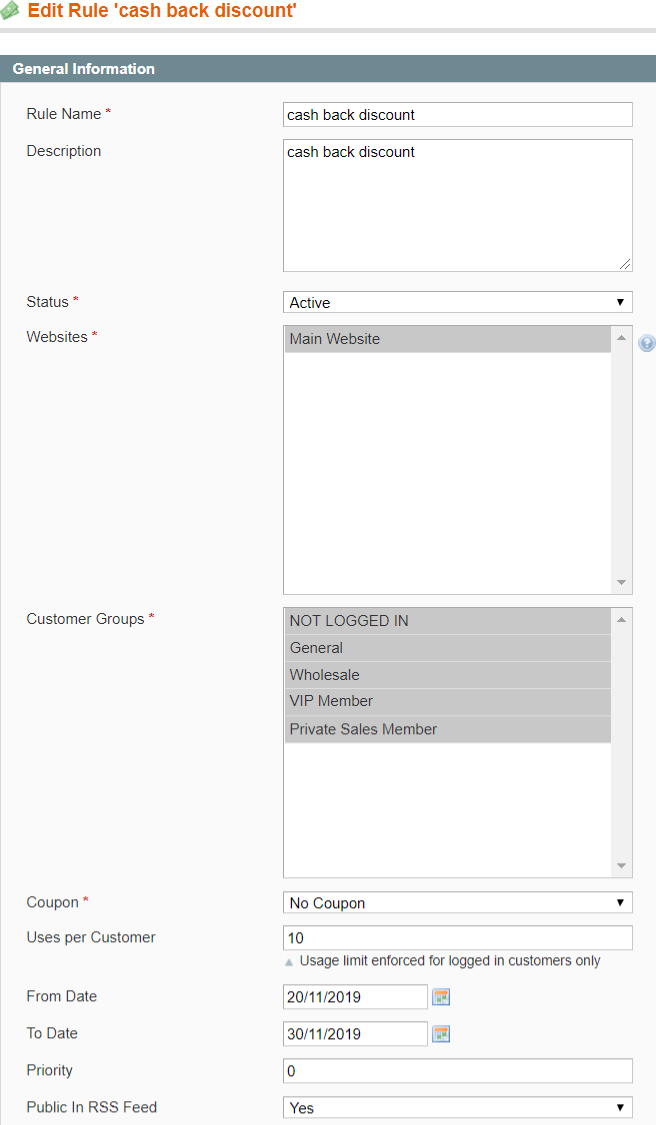
**Please refer to the below screen grabs for setting up cash back discount rule:**
**From Date –** This should be start date of the cash back promotion
**To Date –** This should be expiry date of the cash back promotion specified in system configuration plus validity month specified in system configuration.
**For example ,** in system configuration of cash back, if you have specified expiry date is on **30/05/2020** and validity month is 1 month then To Date should be **30/06/2020**, this will allow customers to redeem their offer in next 30 days especially those who have placed their first order on **30/05/2020**
**[](https://docs.scommerce-mage.com/uploads/images/gallery/2025-06/image-2025-06-19t180908-327.png)**
#### Conditions [](#bkmrk--7)
[](https://docs.scommerce-mage.com/uploads/images/gallery/2025-06/image-2025-06-19t181007-972.png)
#### Actions [](#bkmrk--9)
[](https://docs.scommerce-mage.com/uploads/images/gallery/2025-06/image-2025-06-19t181049-717.png)
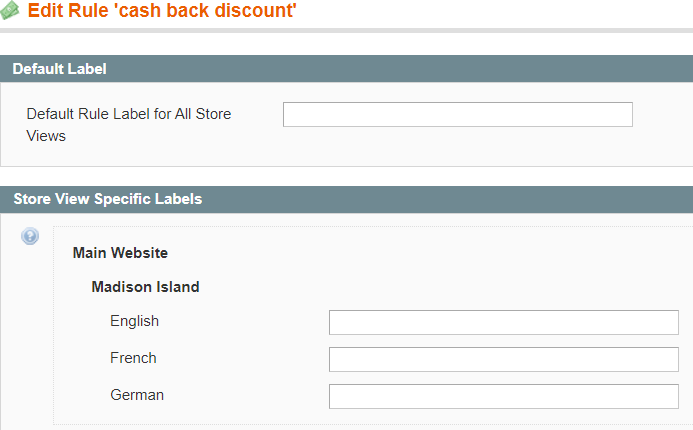
#### Labels [](#bkmrk--11)
[](https://docs.scommerce-mage.com/uploads/images/gallery/2025-06/image-2025-06-19t181157-871.png)
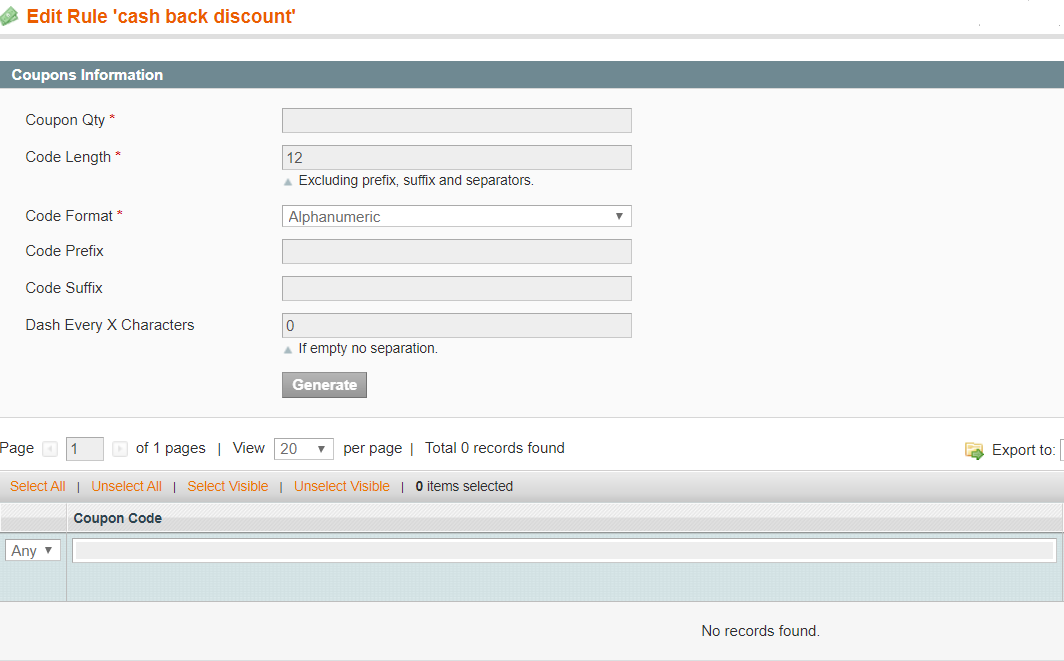
#### Manage Coupon Codes [](#bkmrk--13)
[](https://docs.scommerce-mage.com/uploads/images/gallery/2025-06/image-2025-06-19t181238-905.png)
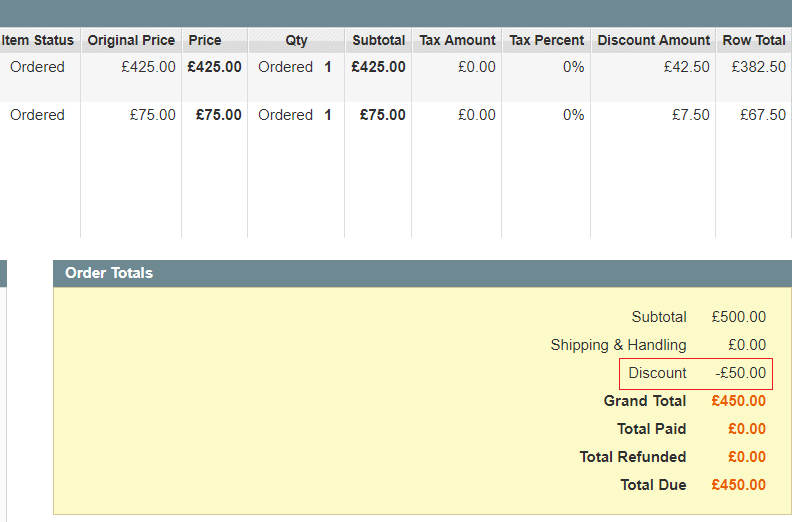
#### Applied Cashback Details on the order view page [](#bkmrk--15)
[](https://docs.scommerce-mage.com/uploads/images/gallery/2025-06/image-2025-06-19t181315-175.png)
#### **Theme Changes**
If you are not using your custom theme then this module should work out of the box. But if you are using custom theme then follow the following steps: -
- **Check if you have the following files in your custom theme folder**
```php
/app/design/frontend/default/<>/template/checkout/cart.phtml
/app/design/frontend/default/<>/template/checkout/onepage/r eview/info.pthml
/app/design/frontend/default/<>/template/email/order/items.p html
```
- **If these files don't exist in your custom theme then copy them form the following paths into your custom theme with folders:-**
```php
app/design/frontend/default/default/template/checkout/cart.phtml
app/design/frontend/default/default/template/checkout/onepage/review/ info.phtml
app/design/frontend/default/default/template/email/order/items.phtml
```
- **If these files do exist in your custom theme then copy the differences in your version of files**
- **Clear Caches –** Once you are done with everything above, clear the cache to get the changes reflect on your website
### Front-end site view [](#bkmrk--17)
#### Cashback Discount Option on the Checkout Page [](#bkmrk--18)
[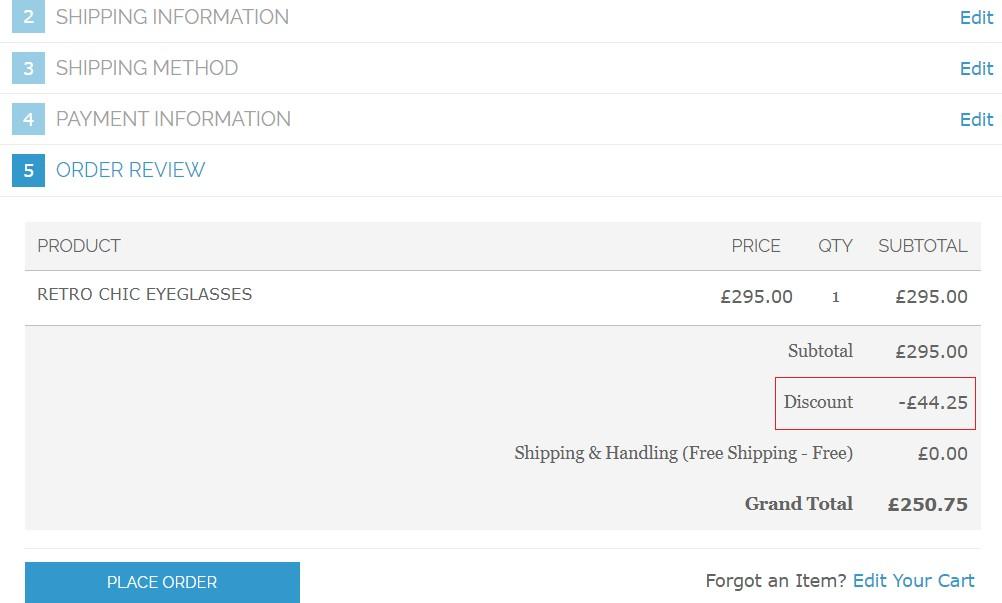](https://docs.scommerce-mage.com/uploads/images/gallery/2025-06/image-2025-06-19t181708-497.jpg)
If you have a question related to this extension please check out our [**FAQ Section**](https://www.scommerce-mage.com/magento-next-order-discount.html#faq) first. If you can't find the answer you are looking for then please contact [**support@scommerce-mage.com**](mailto:core@scommerce-mage.com)**.**