# Magento 2 Cash Back Discount
### Installation and User Guide for Magento 2 Cash Back Discount Extension
### Table of Contents
1. [Installation ](#bkmrk-installation)
- *Installation via app/code*
- *Installation via Composer*
2. [Configuration Settings for Cash Back Discount ](#bkmrk-configuration-settin)
- *General Settings*
- *Cash Back*
- *Cash Back Reminder*
- *Create Cart Price Rules for Cashback Discount*
- *Cashback Transactions*
- *Cashback Customize Email Template*
3. [Front-end Site View](#bkmrk-cash-back-reminder)
- *Cashback Qualifying Message on the Checkout Page*
- *Cashback Discount Option on the Checkout Page*
- *Applied Cashback Discount on the Checkout Page*
- *Auto Apply Discount*
- *Cashback Discount Details on the Front-end - My Account Section*
- *Cashback Expiry Reminder Email*
- *Second Cashback Expiry Reminder Email*
- *Order Confirmation Email*
- *Invoice Email*
### Installation [](#bkmrk-)
- **Installation via app/code:** Upload the content of the module to your root folder. This will not overwrite the existing Magento folder or files, only the new contents will be added. After the successful upload of the package, run below commands on Magento 2 root directory.
```php
php bin/magento setup:upgrade
php bin/magento setup:di:compile
php bin/magento setup:static-content:deploy
```
- **Installation via Composer:** Please follow the guide provided in the below link to complete the installation via composer.
[https://docs.scommerce-mage.com/magento-2-extensions/installation-via-composer/installation-via-composer](https://docs.scommerce-mage.com/magento-2-extensions/installation-via-composer/installation-via-composer)
### Configuration Settings for Cash Back Discount
Go to **Admin > Stores > Configuration > Scommerce Configuration > Cash Back**
#### General Settings
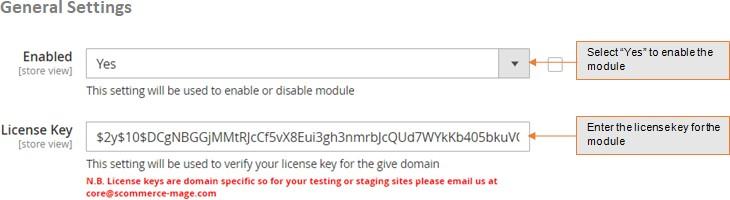
- **Module Enable -** Select "Yes" or "No" to enable or disable the module.
- **License Key -** Please add the license for the extension which is provided in the order confirmation email. Please note license keys are site URL specific. If you require license keys for dev/staging sites then please email us at .
[](https://docs.scommerce-mage.com/uploads/images/gallery/2025-05/ZiJimage-28.jpg)
#### Cash Back [](#bkmrk--2)
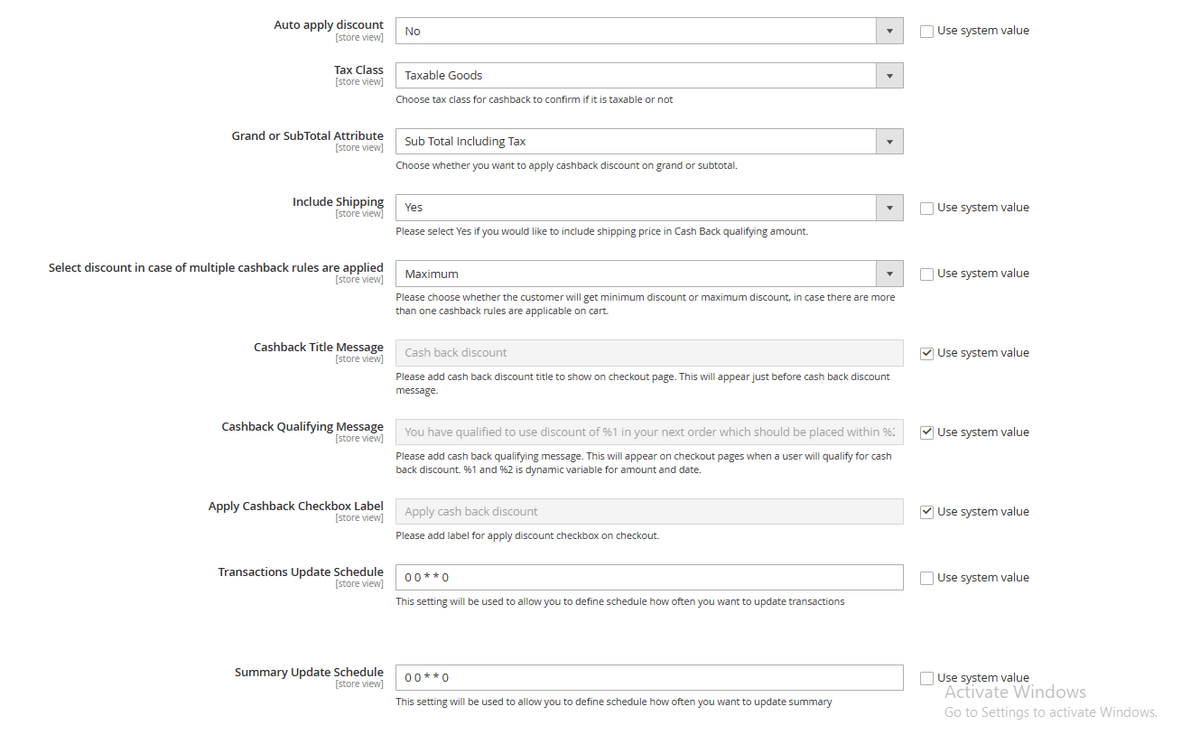
- **Auto Apply Discount –** Please select "Yes" if you would like to auto apply discount.
- **Tax Class -** Select the tax class
- **Grand or SubTotal Attribute -** Select the grand or subtotal attribute
- **Select discount in case of multiple cash back rules are applied –** Please choose whether the customer will get minimum discount or maximum discount, in case there are more than one cashback rules are applicable on cart.
- **Include Shipping (Yes/No) –** Please select "Yes" if you would like to include shipping price in Cash Back qualifying amount.
- **Cashback Title Message –** Please add cashback discount title to show on checkout page. This will appear just before cashback discount message.
- **Cashback Qualifying Message –** Please add cashback qualifying message. This will appear on checkout pages when a user will qualify for cashback discount %s and %d is dynamic variable for amount and date.
- **Apply Cashback Checkbox Label –** Please add label for apply discount checkbox on checkout.
- **Transactions Update Schedule –** This setting will be used to allow you to define schedule how often you want to update transactions.
- **Summary Update Schedule –** This setting will be used to allow you to define schedule how often you want to update summary.
[](https://docs.scommerce-mage.com/uploads/images/gallery/2025-05/image-28-1.png)
#### Cash Back Reminder [](#bkmrk--4)
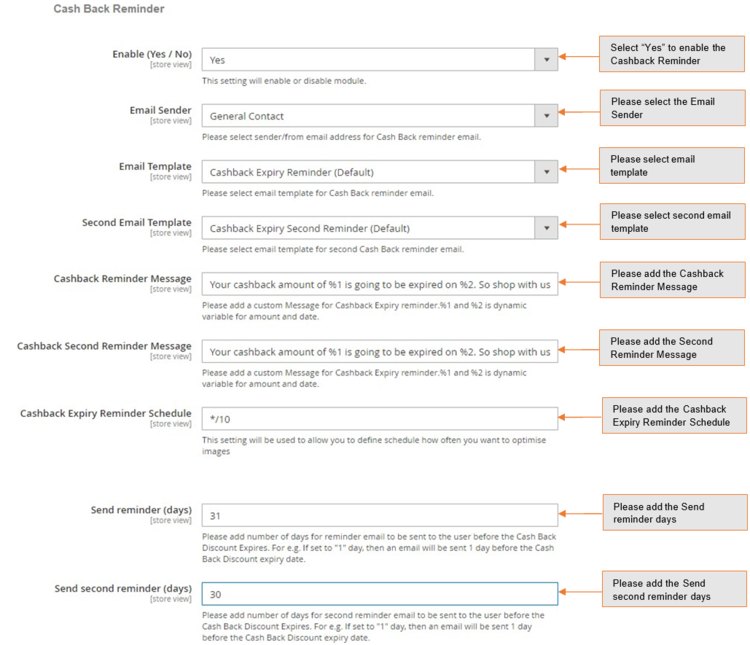
- **Enable (Yes/No) –** This setting will enable or disable module.
- **Email Sender –** Please select sender/from email address for Cash Back reminder email.
- **Email Template –** Please select email template for Cash Back reminder email.
- **Second Email Template –** Please select email template for second Cash Back reminder email.
- **Cashback Reminder Message –** Please add a custom message for Cash back expiry reminder %1 and %2 is dynamic variable for amount and date.
- **Cashback Second Reminder Message –** Please add a custom Message for Cas back expiry second reminder %1 and %2 is dynamic variable for amount and date.
- **Cashback Expiry Reminder Schedule –** Please define how often you want to run cron for the cash back reminder email.
- **Send reminder (days) –** Please add number of days for reminder email to be sent to the user before the Cash back Discount expires. For e.g. If set to "1" day, then an email will be sent 1 day before the Cash Back Discount expiry date.
- **Send second reminder (days) -** Please add number of days for second reminder email to be sent to the user before the Cash back Discount expires. For e.g. If set to "1" day, then an email will be sent 1 day before the Cash Back Discount expiry date.
[](https://docs.scommerce-mage.com/uploads/images/gallery/2025-05/OdCimage.png)
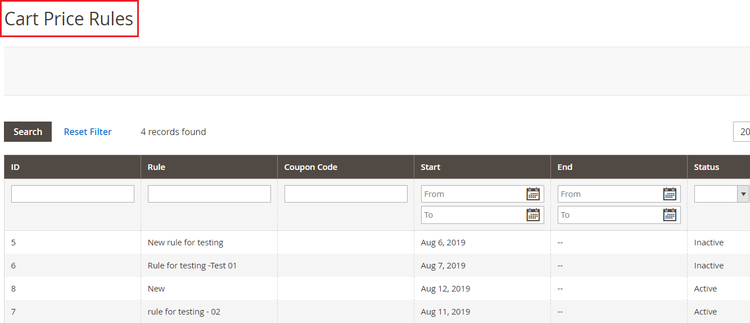
- **Create Cart Price Rules for Cashback Discount -** You can create cart price rules from **Admin > Marketing > Promotions > Cart Price Rules >** Click on "**Add New Rule"**, it redirects on new cart price rule and by filling all the required details you can create the new cart price rule.
[](https://docs.scommerce-mage.com/uploads/images/gallery/2025-05/image-49.png)
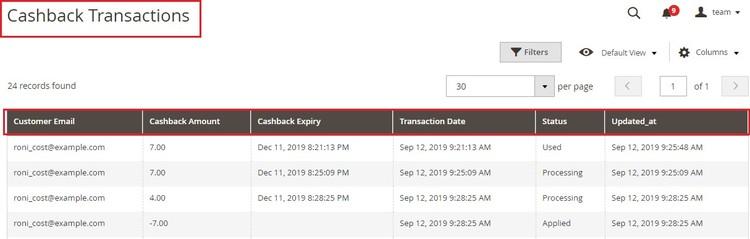
- **Cashback Transactions -** To view cash back transaction go to **Admin > Sales > Scommerce Cash Back > Cash Back > Cashback Transactions.**
The grid will have following columns/information:-
- **Customer Email –** Customer email Id
- **Cashback Amount –** Cashback amount
- **Cashback Expiry –** Cashback discount expiry date
- **Transaction Date –** Date of added or deducted cash back discount
- **Status –** Cash Back discount status (Applied/Processing/Used)
- **Updated\_at –** Updated date
[](https://docs.scommerce-mage.com/uploads/images/gallery/2025-05/7dTimage-29.jpg)
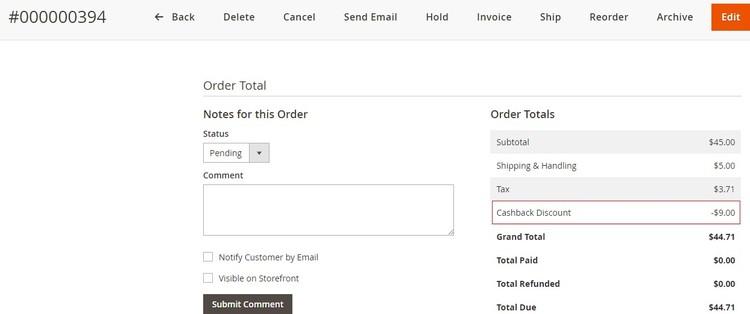
- **Applied Cashback Details on the Order View Page -** You can view the applied cashback discount at **Admin > Sales > Orders > select Order > View.**
**[](https://docs.scommerce-mage.com/uploads/images/gallery/2025-05/Qplimage-30.jpg)**
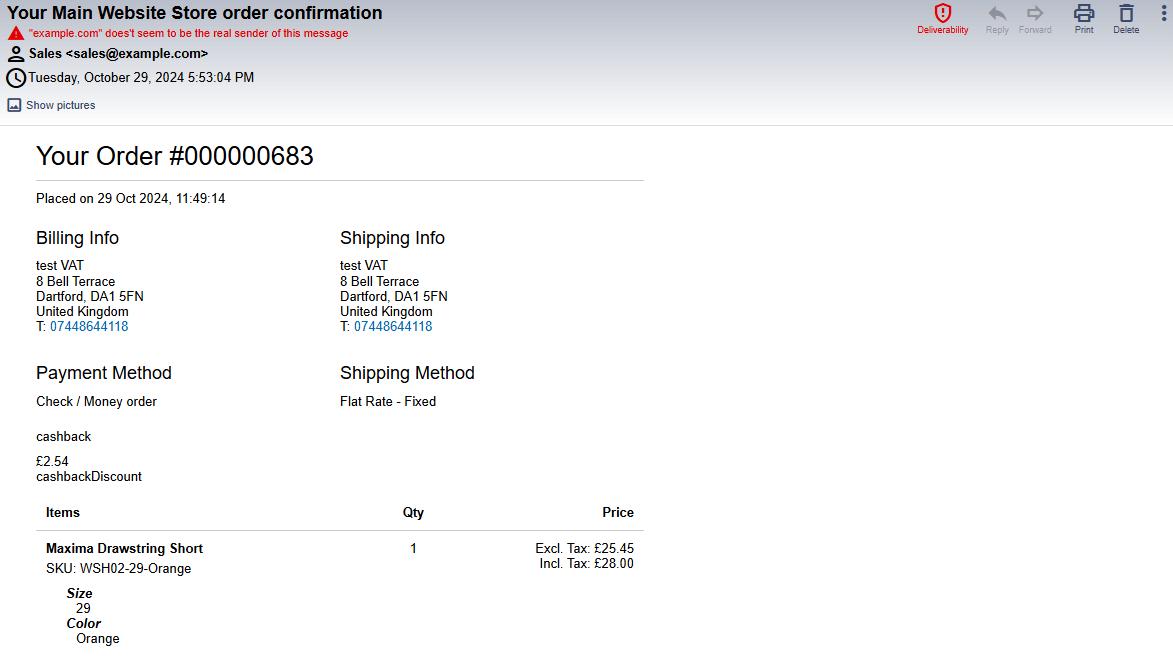
- **Cashback Customize Email Template -** You can display cashback discount in any of your email templates using the built in variables.
```php
cashback
{{var cashback}} - - - this is to display cashback value
{{depend cashbackDiscount}} - - - this is to make clause (if cashbackDiscount exist and not 0 then show something)
cashbackDiscount
{{/depend}}
```
[](https://docs.scommerce-mage.com/uploads/images/gallery/2025-05/image-50.png)
### **Front-end Site View**
- [](#bkmrk--11)Cashback Qualifying Message on the Checkout Page - You can define qualifying message from Admin > Stores > Configuration > Scommerce Configuration > Cashback Qualifying Message - " ", the message will be shown on the checkout page.
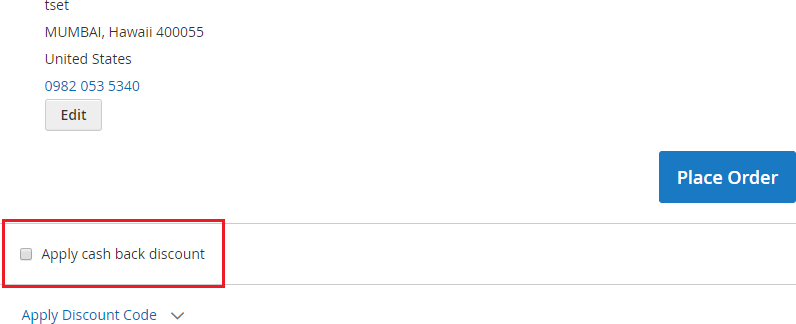
- Cashback Discount Option on the Checkout Page - When you enable the module and if there is any cash back discount available then it shows "Apply cash back discount" option on the checkout page and by checking this option you can apply for cash back discount.
[](https://docs.scommerce-mage.com/uploads/images/gallery/2025-05/image-51.png)
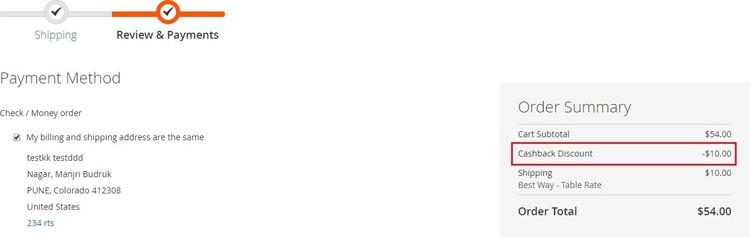
- Applied Cashback Discount on the Checkout Page - You can see the applied cash back discount on the checkout page under "Order Summary" section.
[](https://docs.scommerce-mage.com/uploads/images/gallery/2025-05/87bimage-31.jpg)
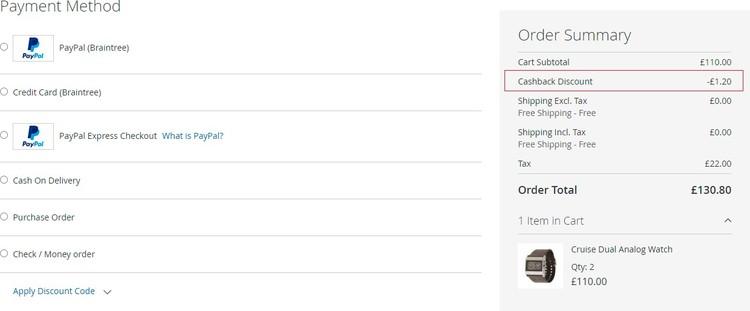
- Auto Apply Discount - To apply discount automatically and hide checkbox on checkout, set 'Auto apply discount' to 'Yes' from Admin > Stores > Configuration > Scommerce Configuration > Cash Back > Auto apply discount – "Yes/No".
[](https://docs.scommerce-mage.com/uploads/images/gallery/2025-05/iA5image-33.jpg)
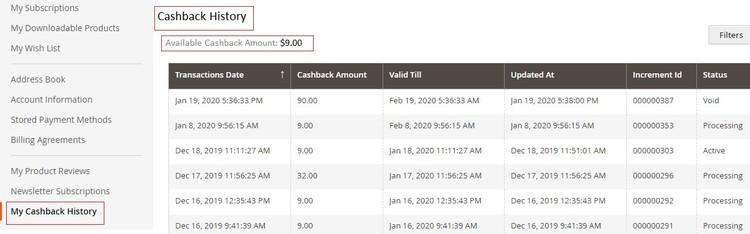
- Cashback Discount Details on the Front-end - My Account Section - You can view cash back details on the front-end from My Account > My Cashback History.
[](https://docs.scommerce-mage.com/uploads/images/gallery/2025-05/Zepimage-34.jpg)
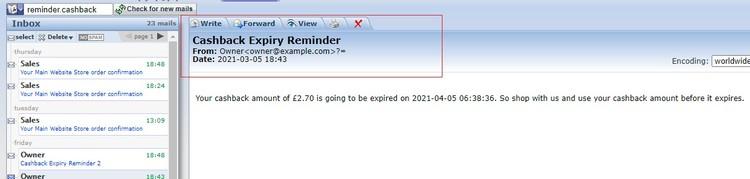
- Cashback Expiry Reminder Email - When you enable the "Cash Back Reminder" from Admin > Stores > Configuration > Scommerce Configuration > Cash Back > Cash Back Reminder > Enable - "Yes", it sends an expiry reminder email to customers before the period of the discount expired.
[](https://docs.scommerce-mage.com/uploads/images/gallery/2025-05/A08image-35.jpg)
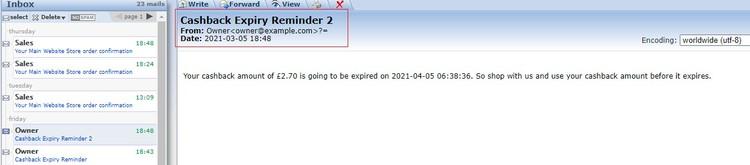
- Second Cashback Expiry Reminder Email – You can set the email templates and reminder days for second email from Admin > Store > Configuration > Scommerce Configurations > Cash Back Reminder- Second Email Template and Send second reminder (days).
[](https://docs.scommerce-mage.com/uploads/images/gallery/2025-05/RHJimage-36.jpg)
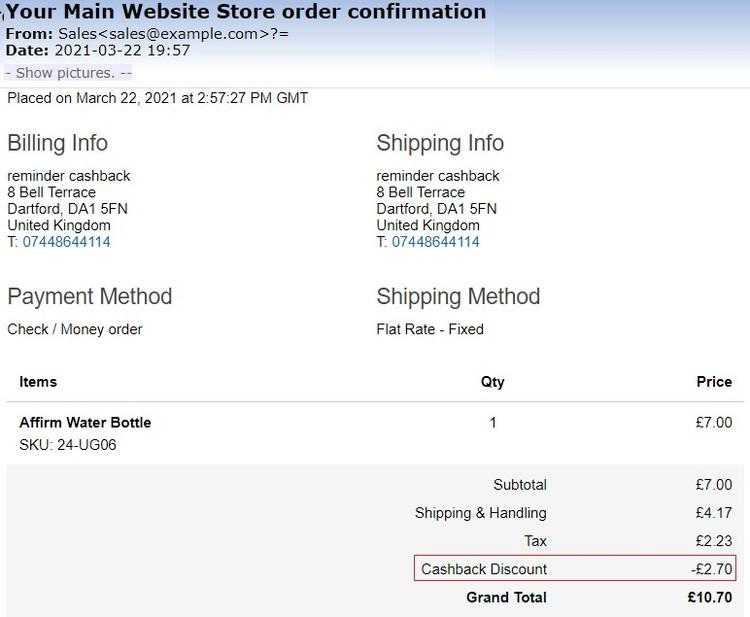
- Order Confirmation Email – You can see the applied cashback discount on the order confirmation and invoice emails.
[](https://docs.scommerce-mage.com/uploads/images/gallery/2025-05/image-37.jpg)
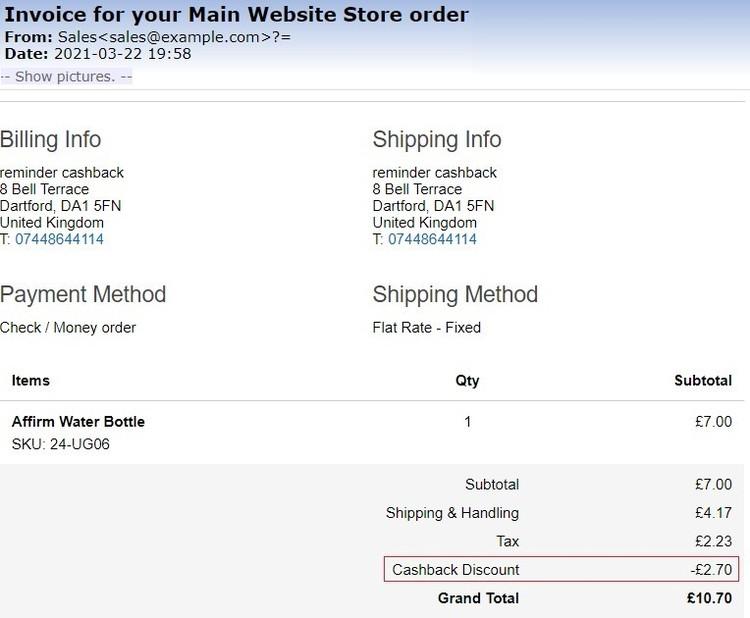
- Invoice Email – Below is the image where you can see applied cashback discount.
[](https://docs.scommerce-mage.com/uploads/images/gallery/2025-05/image-38.jpg)
If you have a question related to this extension please check out our [**FAQ Section**](https://www.scommerce-mage.com/magento-2-next-order-discount.html#customfaq) first. If you can't find the answer you are looking for then please contact **support@scommerce-mage.com**.