# Magento 2 Product Label
### Installation and User Guide for Magento 2 Product Label Extension
**Table of Contents**
1. [*Installation* ](#bkmrk-installation)
- *Installation via app/code*
- *Installation via Composer*
2. [*Configuration Settings for Product Label*](#bkmrk-configuration-settin)
- *General Settings*
- *Product Label Grid*
- *Add New Product Label*
3. [*Front-end Site View* ](#bkmrk-front-end-site-view)
- *Product Label on Category Page*
- *Product Label on Product Page*
### Installation [](#bkmrk-)
- **Installation via app/code:** Upload the content of the module to your root folder. This will not overwrite the existing Magento folder or files, only the new contents will be added. After the successful upload of the package, run below commands on Magento 2 root directory.
```php
php bin/magento setup:upgrade
php bin/magento setup:di:compile
php bin/magento setup:static-content:deploy
```
- **Installation via Composer:** Please follow the guide provided in the below link to complete the installation via composer.
[https://docs.scommerce-mage.com/magento-2-extensions/installation-via-composer/installation-via-composer](https://docs.scommerce-mage.com/magento-2-extensions/installation-via-composer/installation-via-composer)
### Configuration Settings for Product Label [](#bkmrk--1)
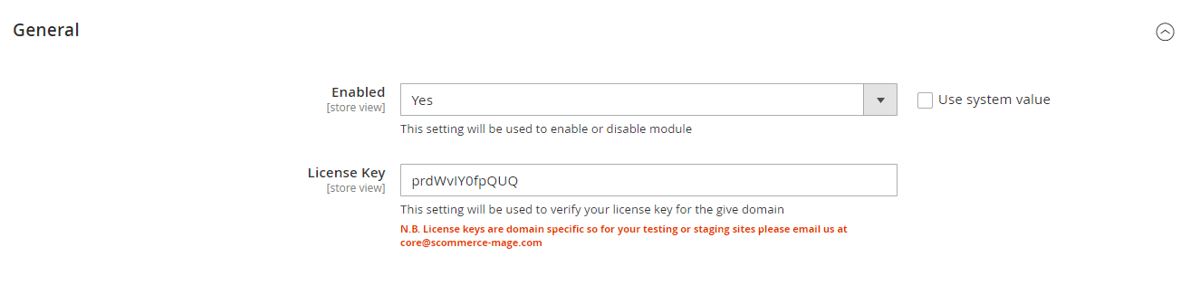
Go to **Admin > Stores > Configuration > Scommerce Configuration > Product Label**
#### General Settings [](#bkmrk--6)
- **Enabled –** Select "Yes" or "No" to enable or disable the module.
- **License Key –** Please add the license for the extension which is provided in the order confirmation email. Please note license keys are site URL specific. If you require license keys for dev/staging sites then please email us at .
[](https://docs.scommerce-mage.com/uploads/images/gallery/2025-05/xhPimage-4-1.png)
#### Product Label Grid [](#bkmrk--6)
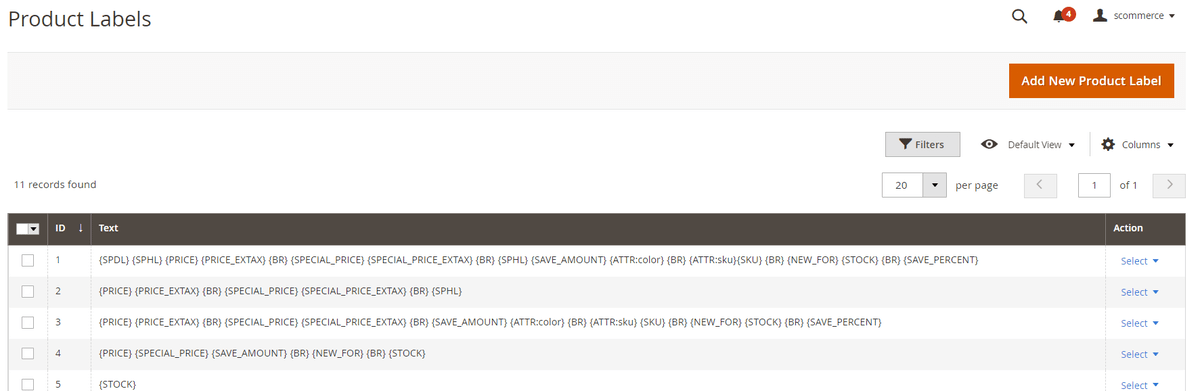
Go to **Admin>Catalog>Scommerce Product Labels>Product Labels**
**[](https://docs.scommerce-mage.com/uploads/images/gallery/2025-05/Txcimage-5-1.png)**
#### Add New Product Label [](#bkmrk--6)
Go to **Admin>Catalog>Scommerce Product Labels>Product Labels>Add New Product Label**
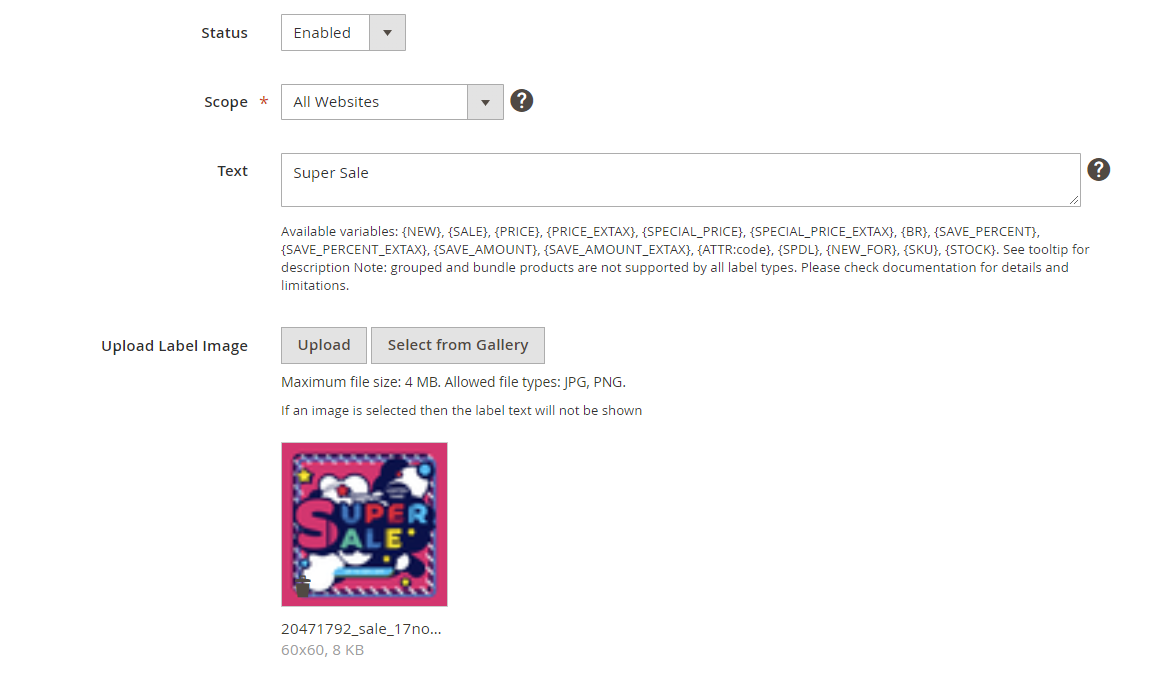
- **Status–** Select "Enabled" or "Disabled" to enable or disable the product label.
- **Scope–** Choose the website scope where the product label will be applicable
- **Text–** Enter the text displayed in the product label. You can use the several special variables mentioned below the inputbox to create enticing labels. Following special variables can be used for the tag:-
- {PRICE} - regular price;
- {PRICE\_EXTAX} - price excluding tax;
- {BR} - new line
- {SAVE\_PERCENT} - save percent
- {SAVE\_PERCENT\_EXTAX} - save percent excluding tax
- {SAVE\_AMOUNT} - save amount
- {SAVE\_AMOUNT\_EXTAX} - save amount excluding tax
- {SPECIAL\_PRICE} - special price
- {SPECIAL\_PRICE\_EXTAX} - special price excluding tax;
- {ATTR:code} - attribute value, e.g. {ATTR:color}
- {SPDL} - days left for special price
- {SPHL} - hours left for special price
- {NEW\_FOR} - days ago the product was added
- {SKU} - product SKU
- {STOCK} - product qty (for product view page)
- **Upload Label Image–** Upload the product label image
[](https://docs.scommerce-mage.com/uploads/images/gallery/2025-05/IOJimage-21.png)
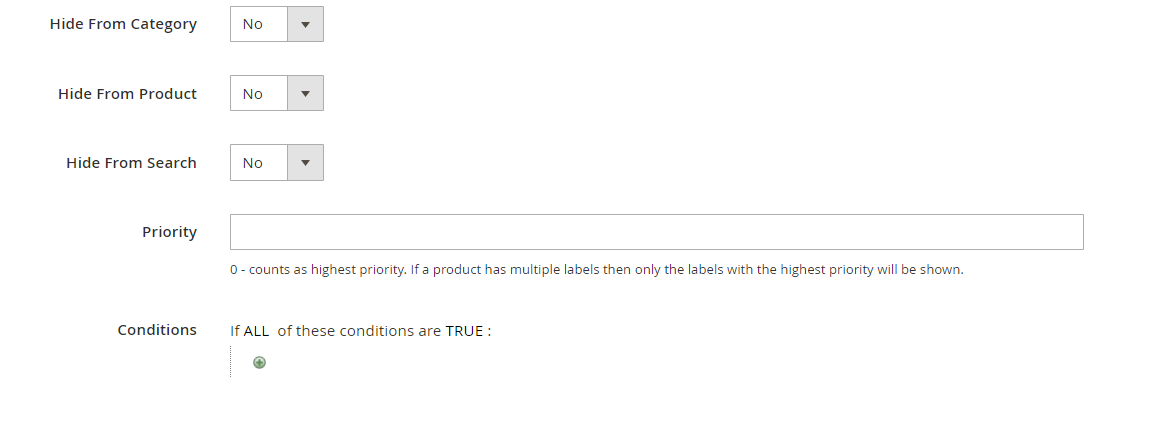
- **Hide From Category–** Select "Yes" or "No" to hide or show the label on Category page.
- **Hide From Product–** Select "Yes" or "No" to hide or show the label on product page.
- **Hide From Search–** Select "Yes" or "No" to enable or disable the label on search page.
- **Priority–** Add the priority of the label with 0 being the highest priority. Product with multiple labels assigned will display the label with highest priority.
- **Conditions–** Add conditions for the label as per your requirement
[](https://docs.scommerce-mage.com/uploads/images/gallery/2025-05/o2Uimage-22.png)
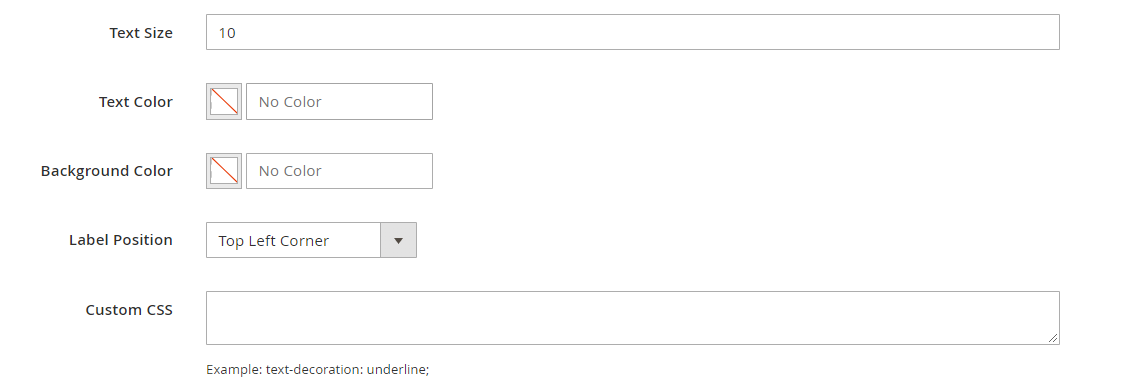
- **Text Size–** Enter the text size for the product label.
- **Text Color–** Enter the text color for the product label.
- **Background Color–** Enter the background color for the product label.
- **Label Position–** Enter the label position for the product label.
- **Custom CSS–** Enter the custom CSS for the product label.
[](https://docs.scommerce-mage.com/uploads/images/gallery/2025-05/G5eimage-23.png)
### Front-end Site View [](#bkmrk--10)
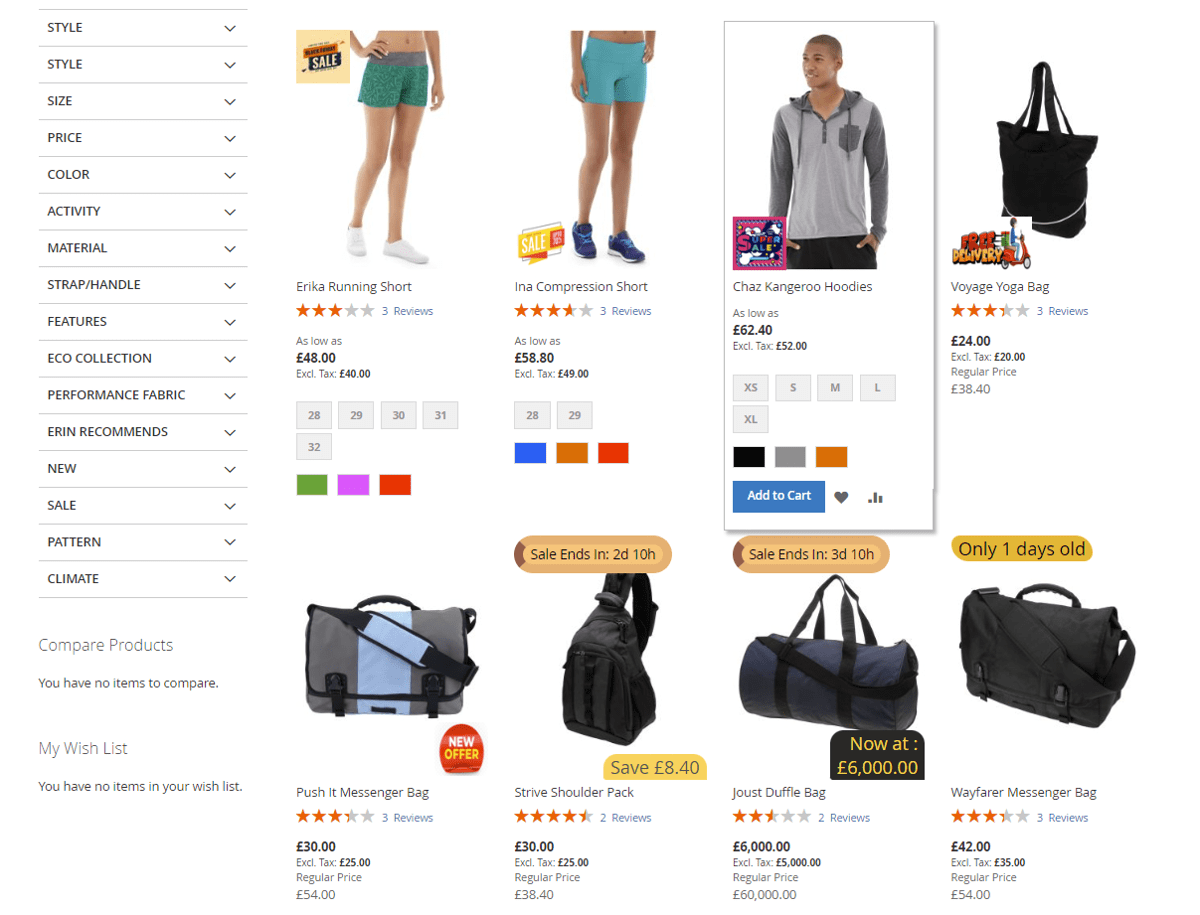
- **Product Label on Category Page**
**[](https://docs.scommerce-mage.com/uploads/images/gallery/2025-05/image-6-1.png)**
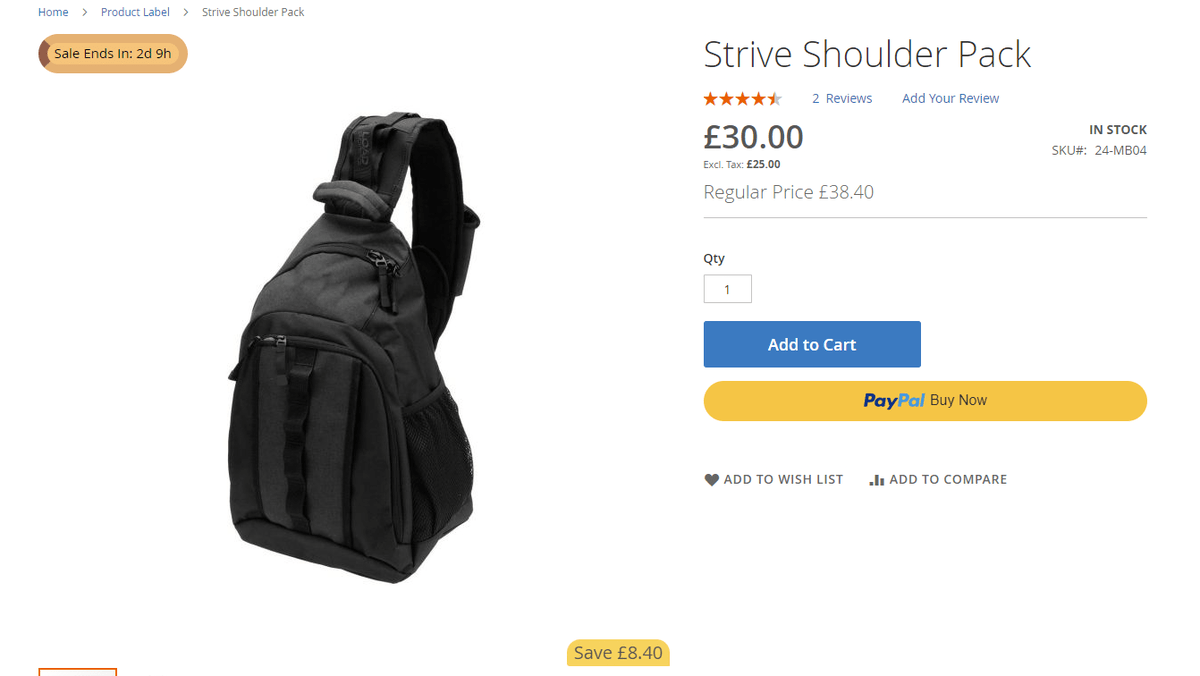
- **Product label on Product Page**
**[](https://docs.scommerce-mage.com/uploads/images/gallery/2025-05/image-7-1.png)**
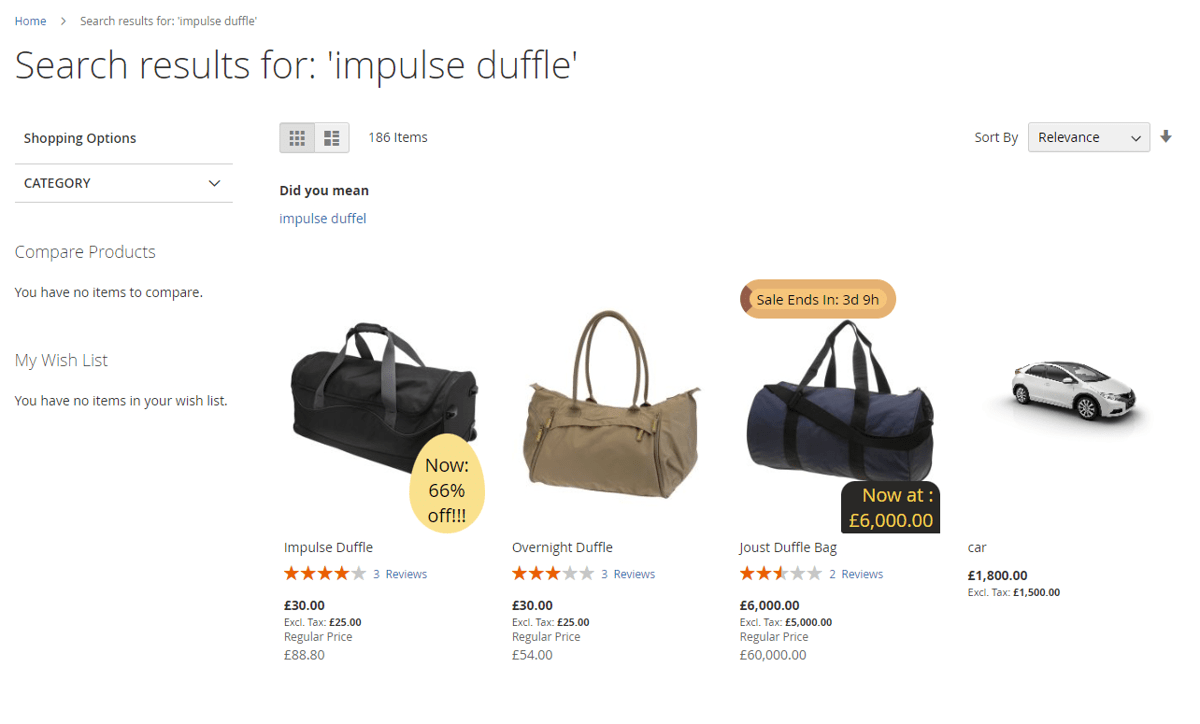
- **Product label on Search Page**
**[](https://docs.scommerce-mage.com/uploads/images/gallery/2025-05/image-8-1.png)**
If you have a question related to this extension please check out our [**FAQ Section**](https://www.scommerce-mage.com/magento2-product-label.html#customfaq) first. If you can't find the answer you are looking for then please contact [**support@scommerce-mage.com**](mailto:core@scommerce-mage.com)**.**