# Magento2 Custom Options Discount
### Installation and User Guide for Magento 2 Custom Options Discount
**Table of Contents**
1. [I*nstallation* ](#bkmrk-installation)
- *Installation via app/code*
- *Installation via Composer*
2. [*Configuration Settings for Custom options Discount* ](#bkmrk-configuration-settin)
- *General Settings*
3. *[Adding Custom Options to Products](#bkmrk-adding-custom-option)*
4. [*Adding Cart Price Rules for Custom Options* ](#bkmrk-adding-cart-price-ru)
- *Apply Cart Rule for all custom options available*
- *Apply cart Rule for specific custom options*
5. [*Frontend Screengrabs* ](#bkmrk-frontend-screengrabs)
- *When "only for selected custom options is set to "Yes"*
- *When "only for selected custom options is set to "No"*
- *When "only for selected custom options is set to "Yes" and Conditions are set*
### Installation [](#bkmrk-)
- **Installation via app/code:** Upload the content of the module to your root folder. This will not overwrite the existing Magento folder or files, only the new contents will be added. After the successful upload of the package, run below commands on Magento 2 root directory.
```php
php bin/magento setup:upgrade
php bin/magento setup:di:compile
php bin/magento setup:static-content:deploy
```
- **Installation via Composer:** Please follow the guide provided in the below link to complete the installation via composer.
[https://docs.scommerce-mage.com/magento-2-extensions/installation-via-composer/installation-via-composer](https://docs.scommerce-mage.com/magento-2-extensions/installation-via-composer/installation-via-composer)
### Configuration Settings for Custom options Discount [](#bkmrk--1)
#### Go to Admin > Stores > Configuration > Scommerce Configuration > Custom options Discount
#### General Settings [](#bkmrk--2)
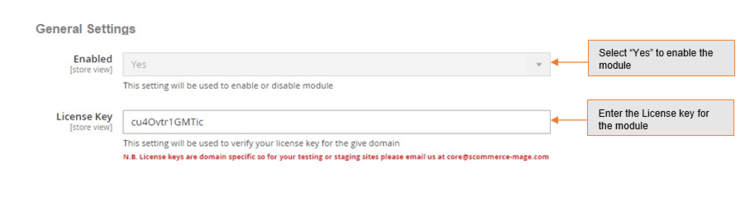
- **Enabled -** Select "Yes" or "No" to enable or disable the module.
- **License Key -** Please add the license for the extension which is provided in the order confirmation email. Please note license keys are site URL specific. If you require license keys for dev/staging sites then please email us at .
[](https://docs.scommerce-mage.com/uploads/images/gallery/2025-05/image-43.png)
### Adding Custom Options to Products [](#bkmrk--4)
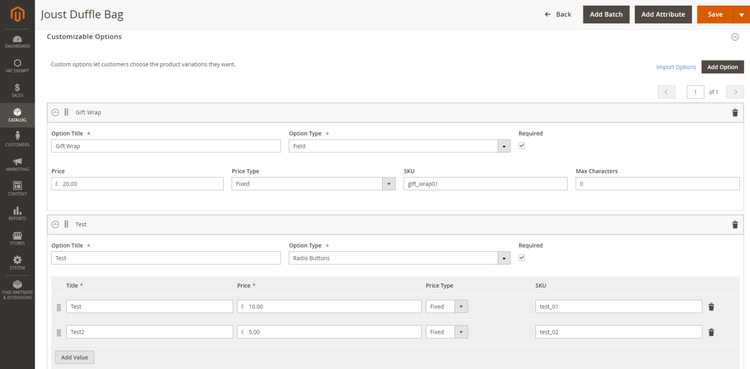
Login to your admin panel then go to **Catalog > Products**. Select your product and click edit from the action column. Scroll down to Customizable options. Click on add option to add a new custom option for the selected product.
[](https://docs.scommerce-mage.com/uploads/images/gallery/2025-05/image-44.png)
### Adding Cart Price Rules for Custom Options [](#bkmrk--6)
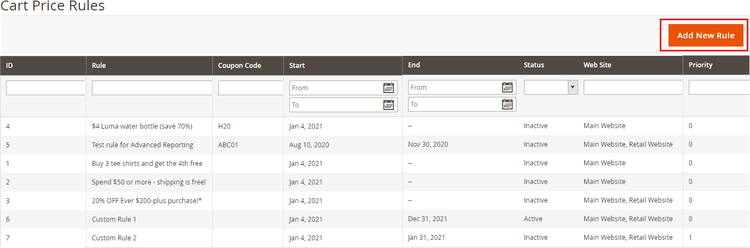
Go to **Marketing > Promotions > Cart Price Rules** and click on Add New Rule.
[](https://docs.scommerce-mage.com/uploads/images/gallery/2025-05/image-45.png)
#### Apply Cart Rule for all custom options available [](#bkmrk--8)
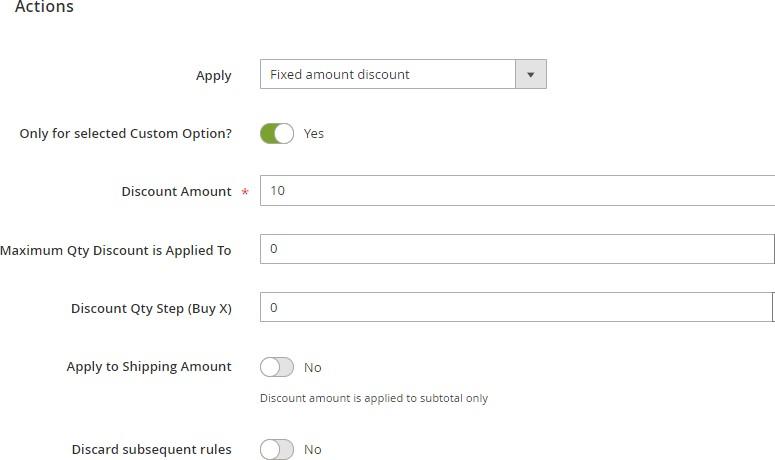
Create your Cart Price Rule Normally. Then scroll down to **Actions** dropdown. Make sure **Only for selected Custom Option?** Is set to "Yes". This option will enable the cart price rule to be applied on the custom options. Make sure there are no conditions set.
[](https://docs.scommerce-mage.com/uploads/images/gallery/2025-05/Af8image-26.jpg)
#### Apply cart Rule for specific custom options [](#bkmrk--10)
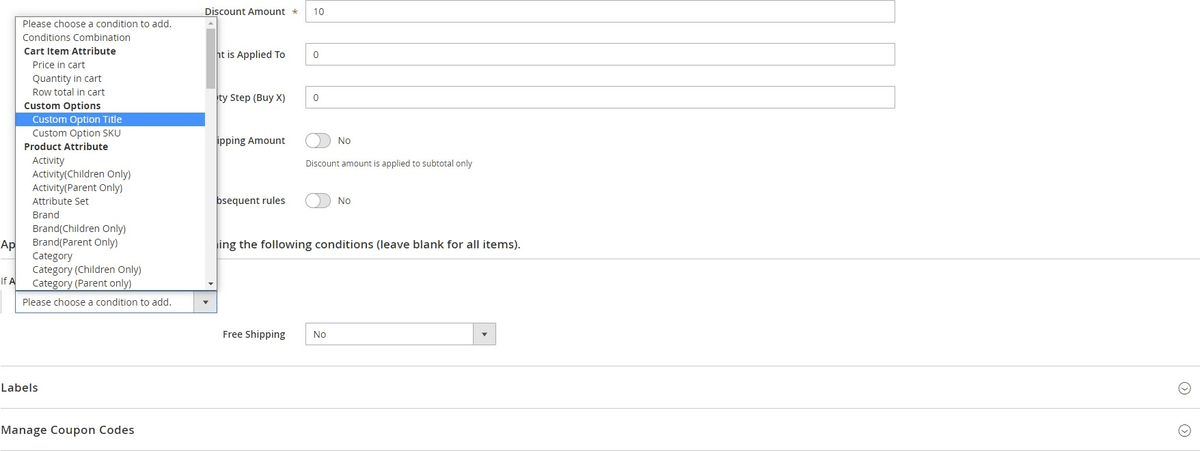
To create cart price rule for specific custom options you will need to add conditions in the Actions Column. For eg: - we have added a condition to apply discount only on the custom option that has custom options title as "Gift Wrap". So now the discount will only be available for the Gift wrap custom option. Similarly, you can create conditions based on custom options SKU and create your custom options discount.
[](https://docs.scommerce-mage.com/uploads/images/gallery/2025-05/UPsimage-27.jpg)
Conditions available for custom options are custom options title and custom options SKU.
[](https://docs.scommerce-mage.com/uploads/images/gallery/2025-05/image-26-1.png)
### Frontend Screengrabs [](#bkmrk--13)
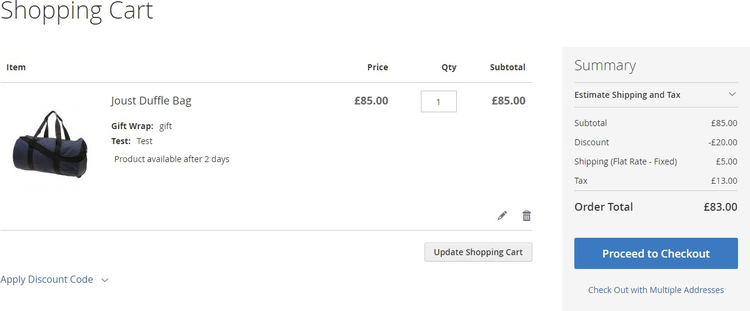
#### When "only for selected custom options is set to "Yes" [](#bkmrk--14)
[](https://docs.scommerce-mage.com/uploads/images/gallery/2025-05/image-46.png)
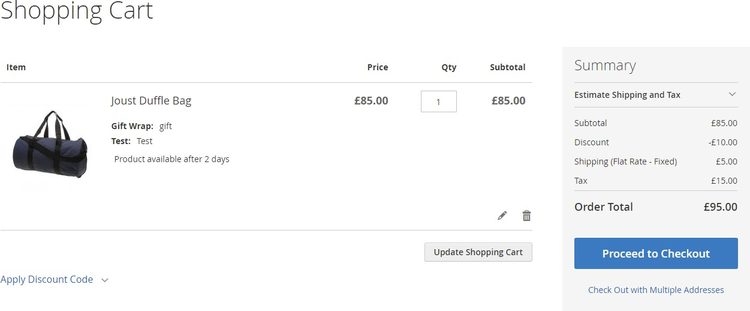
#### When "only for selected custom options is set to "No" [](#bkmrk--16)
[](https://docs.scommerce-mage.com/uploads/images/gallery/2025-05/image-47.png)
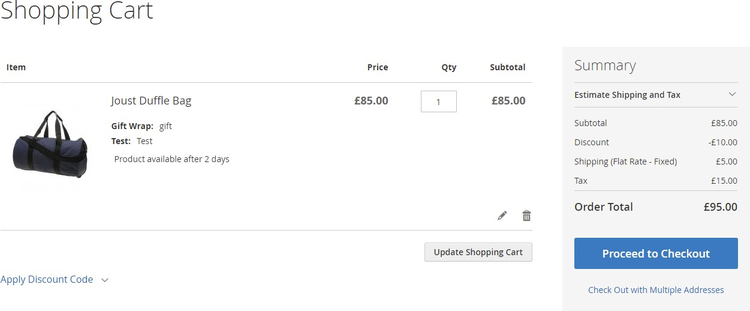
#### When "only for selected custom options is set to "Yes" and Conditions are set [](#bkmrk--18)
[](https://docs.scommerce-mage.com/uploads/images/gallery/2025-05/image-48.png)
If you have a question related to this extension please check out our [**FAQ Section**](https://www.scommerce-mage.com/magento-2-custom-options-discount.html#customfaq) first. If you can't find the answer you are looking for then please contact [**support@scommerce-mage.com**](mailto:core@scommerce-mage.com)**.**