SEO Extensions
- Magento SEO Unique Catalog URLs
- Jquery Asynchronous Image Loader (JAIL)
- Google Friendly SEO Layered Navigation
- Meta Information for Any Page
- Canonical Urls for Category, Product and CMS pages
- Magento Rich Snippets & Cards (schema.org)
- Magento 1 Google Site Map Exclusion with Image Sitemap
Magento SEO Unique Catalog URLs
Installation and User Guide for Magento 1 SEO Unique Catalog URLs
Table of Contents
- Installation
- Configuration Settings for Catalog URL
- General Settings
- Configuration Path to Set Up Primary Category
- Front-end site view
- Product Page Unique URL
- Search Page / Category Page Unique Catalog Product URL
Installation
- Disable Compilation Mode: To check that this is disabled, go to System >Tools> Compilation. If the compiler status is ‘Disabled’, you are ready to go. If not, simply click the ‘Disable’ button on the right-hand side of the screen.
- Upload Package: Upload the content of the module to your root folder. This will not overwrite the existing Magento folder or files, only the new contents will be added.
- Clear Caches: This can be done from the admin console by navigating to the cache management page (System > Cache Management), selecting all caches, clicking ‘refresh’ from the drop-down menu, and submitting the change.
Configuration Settings for Catalog URL
Go to Admin > Stores > Configuration > Scommerce Configuration > Catalog URL
General Settings
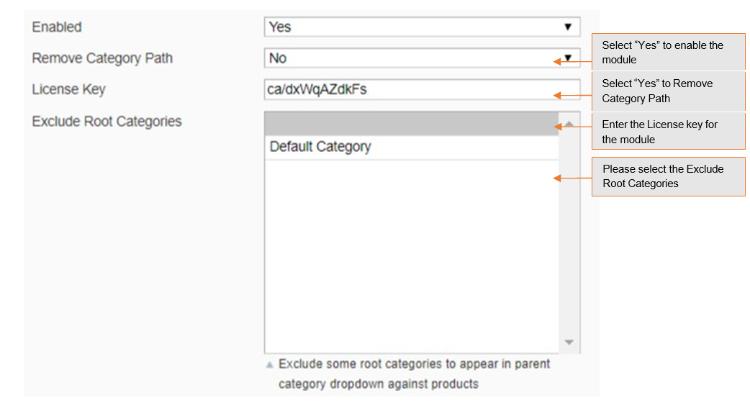
- Enabled – Select “Yes” or “No” to enable or disable the module.
- Remove Category Path – Select “Yes” if you want to remove category path from product URLs. By default it is “No”.
- License Key – Please add the license for the extension which is provided in the order confirmation email. Please note license keys are site URL specific. If you require license keys for dev/staging sites then please email us at support@scommerce-mage.com.
- Exclude Root Categories – Exclude some root categories to appear as primary category dropdown against products.
Configuration Path to Set Up Primary Category
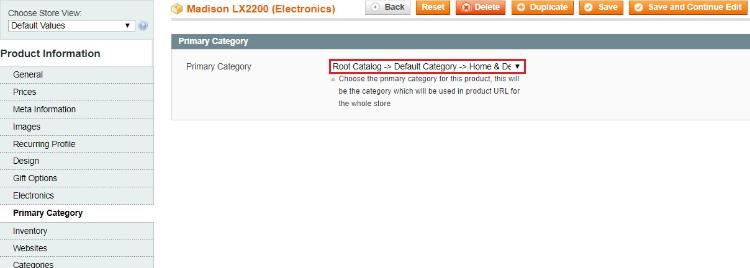
To set primary category go to Admin > Catalog > Select Product > Primary Category. The drop down will show all the categories selected for the product from where you can select the primary category of the product.
Front-end site view
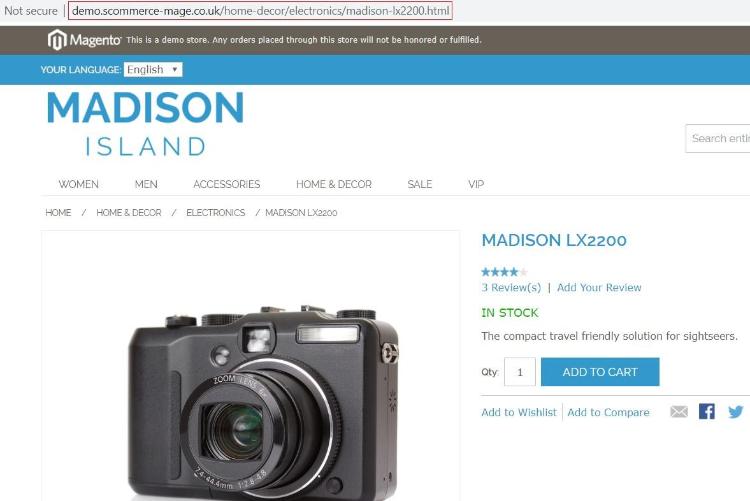
- Product Page Unique URL –You can assign primary category to a product from Admin > Catalog > Select Product > Primary Category. In the below image you can see the primary category “Home & Decor > Electronics” has been set for the product Madison LX2200.
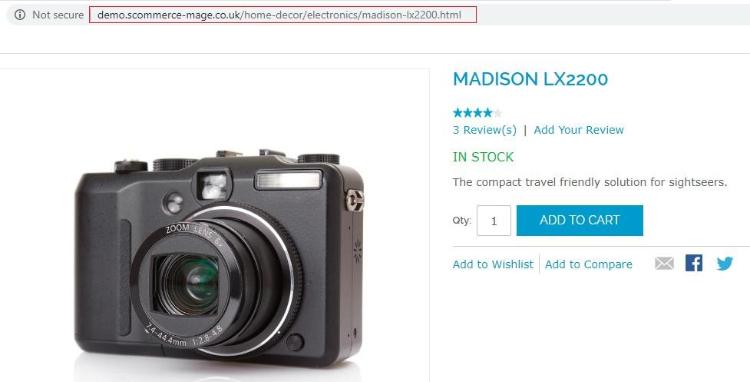
- Search Page / Category Page Unique Catalog Product URL –We have set the primary category of "Madison LX2200" product to “Home & Decor > Electronics”, and the category path remains the same when we access the product from the search or any other category, which you can see in the below image.
If you have a question related to this extension please check out our FAQ Section first. If you can't find the answer you are looking for then please contact support@scommerce-mage.com.
Jquery Asynchronous Image Loader (JAIL)
Magento Jquery Asynchronous Image Loader Extension Installation/Set-up Guide
- Disable Compilation Mode: To check that this is disabled, go to System->Tools->Compilation. If the compiler status is 'Disabled', you are ready to go. If not, simply click the 'Disable' button on the righ**-**hand side of the screen.
- Upload Package: Upload the content of the module to your root folder. This will not overwrite the existing Magento folder or files, only the new contents will be added.
- Clear Caches: This can be done from the admin console by navigating to the cache management page (System->Cache Management), selecting all caches, clicking 'refresh' from the drop-down menu, and submitting the change. Log out and login back in Admin.
- Admin Configuration: Go to Admin ->System->Configuration->Scommerce Configuration -> Lazy Load Images -> General
- Enable : Enable / Disable Module
- License key : Enter License key provided by Scommerce Mage
Theme changes: If you are not using your custom theme then this module should work out of the box. But if you are using custom theme then follow the following steps -:
- Check if you have the following file in your custom theme folder
- /app/design/frontend/default//template/cate gory /list.phtml
If the above file does exist in your custom theme then copy the differences from the following file -:
- /app/design/frontend/default/base/template/category/list.phtml
- Clear Caches: Once you are done with everything above, clear the cache to get the changes reflect on your website.
If you have a question related to this extension please check out our FAQ Section first. If you can't find the answer you are looking for then please contact support@scommerce-mage.com.
Google Friendly SEO Layered Navigation
Installation and User Guide for Magento 1 Google Friendly SEO Layered Navigation
Table of Contents
- Installation
- Disable Compilation Mode
- Upload Package
- Clear Caches
- Configuration Settings for Layered Navigation
- General Settings
- Google Friendly SEO Navigation (Fetch as Google)
- Front-end Site View
- Search Engine Optimization of Layered Navigation
- Custom View of Layered Navigation
Installation
- Disable Compilation Mode: To check that this is disabled, go to System >Tools> Compilation. If the compiler status is 'Disabled', you are ready to go. If not, simply click the 'Disable' button on the right-hand side of the screen.
- Upload Package: Upload the content of the module to your root folder. This will not overwrite the existing Magento folder or files, only the new contents will be added.
- Clear Caches: This can be done from the admin console by navigating to the cache management page (System > Cache Management), selecting all caches, clicking 'refresh' from the drop-down menu, and submitting the change.
Configuration Settings for Layered Navigation
Go to Admin > Stores > Configuration > Scommerce Configuration > Layered Navigation
General Settings
- Enabled – Select "Yes" or "No" to enable or disable the module.
- License Key – Please add the license for the extension which is provided in the order confirmation email. Please note license keys are site URL specific. If you require license keys for dev/staging sites then please email us at support@scommerce-mage.com.

Google Friendly SEO Navigation (Fetch as Google)
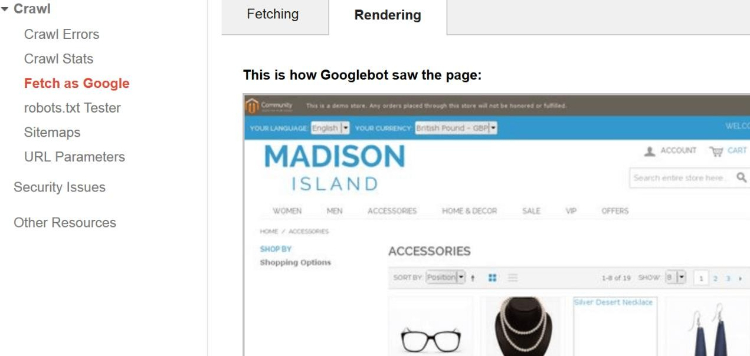
Front-end Site View
-
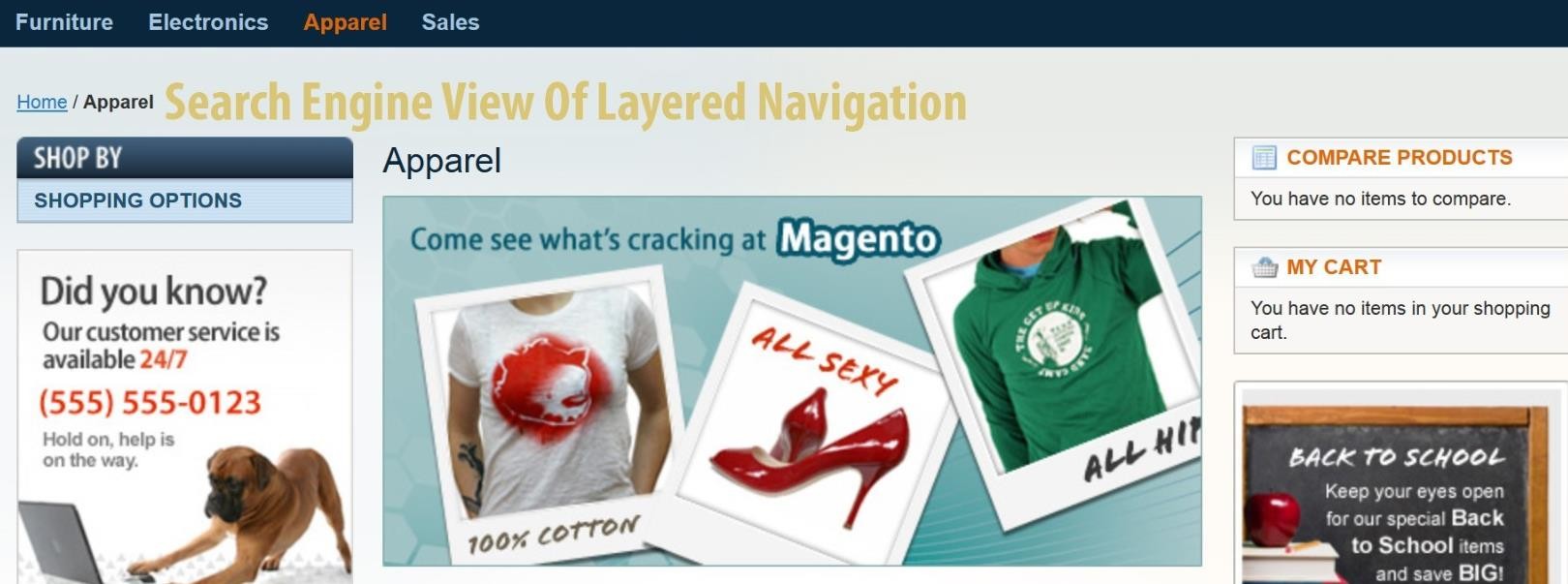
Search Engine Optimization of Layered Navigation - See the image below for Layered Navigation view.
-
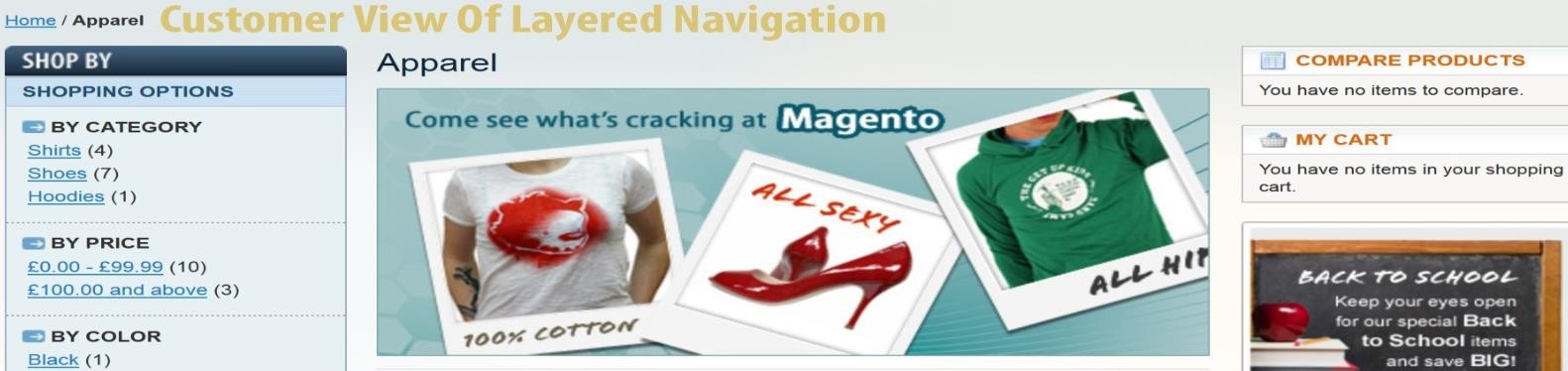
Custom View of Layered Navigation – Here is the custom view of the Layered Navigation
If you have a question related to this extension please check out our FAQ Section first. If you can't find the answer you are looking for then please contact support@scommerce-mage.com.
Meta Information for Any Page
Installation and User Guide for Magento 1 Meta Information for Any Page
Table of Contents
- Installation
- Disable Compilation Mode
- Upload Package
- Clear Caches
- Configuration Settings for Meta Information for Any Page
- General Settings
- Manage Meta Information
- Add Meta Information
Installation
- Disable Compilation Mode: To check that this is disabled, go to System > Tools > Compilation. If the compiler status is 'Disabled', you are ready to go. If not, simply click the 'Disable' button on the right-hand side of the screen.
- Upload Package: Upload the content of the module to your root folder. This will not overwrite the existing Magento folder or files, only the new contents will be added.
- Clear Caches: This can be done from the admin console by navigating to the cache management page (System > Cache Management), selecting all caches, clicking 'refresh' from the drop-down menu, and submitting the change.
Configuration Settings for Meta Information for Any Page
Go to Admin > Stores > Configuration > Scommerce Configuration > Meta Information for Any Page
General Settings
- Enabled: Select "Yes" or "No" to enable or disable the module.
- License Key: Please add the license for the extension which is provided in the order confirmation email. Please note license keys are site URL specific. If you require license keys for dev/staging sites then please email us at support@scommerce-mage.com.

Manage Meta Information
Manage Meta Information

Add Meta Information
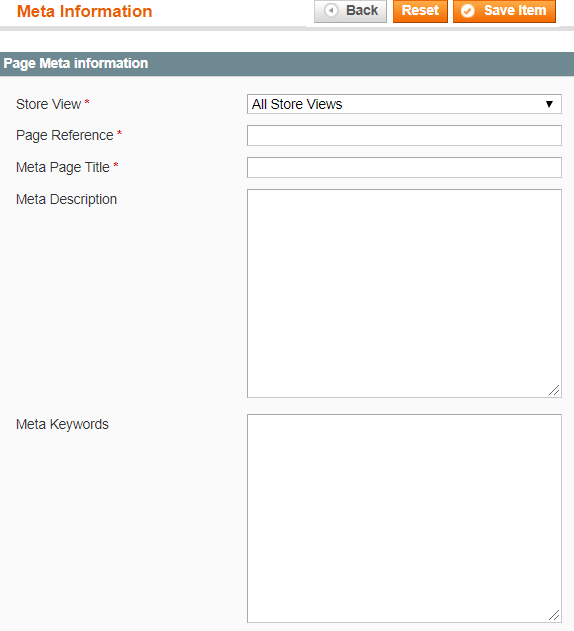
Front-end site view
- Meta Information
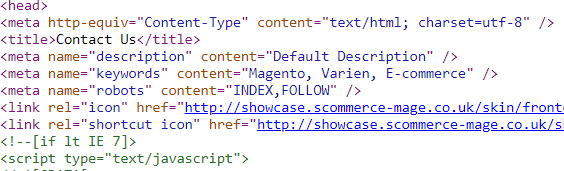
If you have a question related to this extension please check out our FAQ Section first. If you can't find the answer you are looking for then please contact support@scommerce-mage.com.
Canonical Urls for Category, Product and CMS pages
Installation and User Guide for Magento 1 Canonical URL for Category, Product and CMS Pages
Table of Contents
- Installation
- Disable Compilation Mode
- Upload Package
- Clear Caches
- Configuration Settings for Canonical Tags
- General Settings
- Category Canonical Tags
- Product Canonical Tags
- CMS Canonical Tags
- No Index No Follow
- Category set up for Canonical URL
- Product set up for Canonical URL
- CMS set up for Canonical URL
- Rollback Plan
- Front-end Site View
- Category Canonical Tags
- Product Canonical Tags
- CMS Canonical Tags
Installation
- Disable Compilation Mode: To check that this is disabled, go to System >Tools> Compilation. If the compiler status is 'Disabled', you are ready to go. If not, simply click the 'Disable' button on the right hand side of the screen.
- Upload Package: Upload the content of the module to your root folder. This will not overwrite the existing Magento folder or files, only the new contents will be added.
- Clear Caches: This can be done from the admin console by navigating to the cache management page (System > Cache Management), selecting all caches, clicking 'refresh' from the drop-down menu, and submitting the change.
Configuration Settings for Canonical Tags
Go to Admin > Stores > Configuration > Scommerce Configuration > Canonical Tags
General Settings
- License Key – Please add the license for the extension which is provided in the order confirmation email. Please note license keys are site URL specific. If you require license keys for dev/staging sites then please email us at support@scommerce-mage.com.

Category Canonical Tags
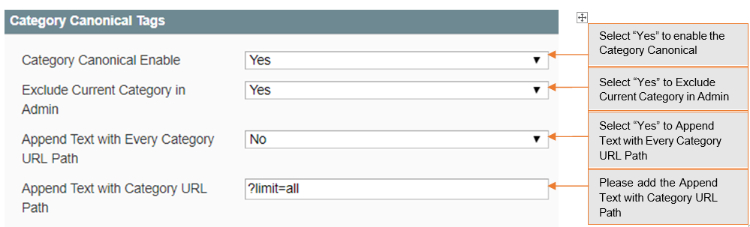
- Category Canonical Enable – Set it to yes, if you want canonical tag on category pages.
- Exclude Current Category in Admin – Set it to yes, if you don't want same category to appear in the drop-down selection while choosing canonical category for a category.
- Append Text with Every Category URL Path – Set it to yes, if you want to append text with overridden canonical URL as well. This setting is useful when you have pagination/filtered navigation/sorting on your site.
- Append Text with Category URL Path – Enter text to append with canonical URL. This setting is useful when you have pagination/filtered navigation/sorting on your site. For example http://www.domain.com/category.html?limit=all
Product Canonical Tags
- Product Canonical Enable – Set it to yes, if you want canonical tag on product pages.
- Include Category Path – Set it to yes, if you want to include category path in the canonical tag alone with product URL.

CMS Canonical Tags
- CMS Canonical Enable – Set it to yes, if you want canonical tag on cms pages.

No Index No Follow
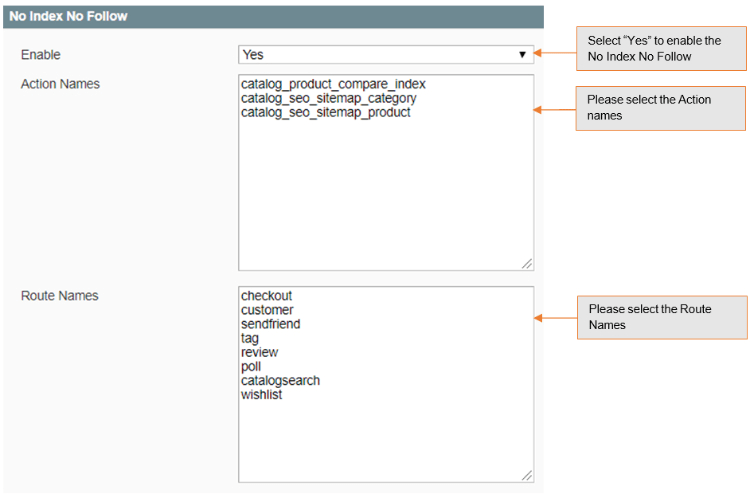
- Enable – Set it to yes, if you want to add noindex, nofollow in the head section.
- Action Names – Add action names here to add noindex, nofollow in the head section for specific page. New route name needs to be added in next line. Action name can be determined using $this > getAction() > getFullActionName()
- Route Names – Add route name here to add noindex, nofollow in the head section for list of pages. New route name needs to be added in next line. Route name can be determined using Mage::app() > getFrontController() > getRequest() > getRouteName()
Category set up for Canonical URL
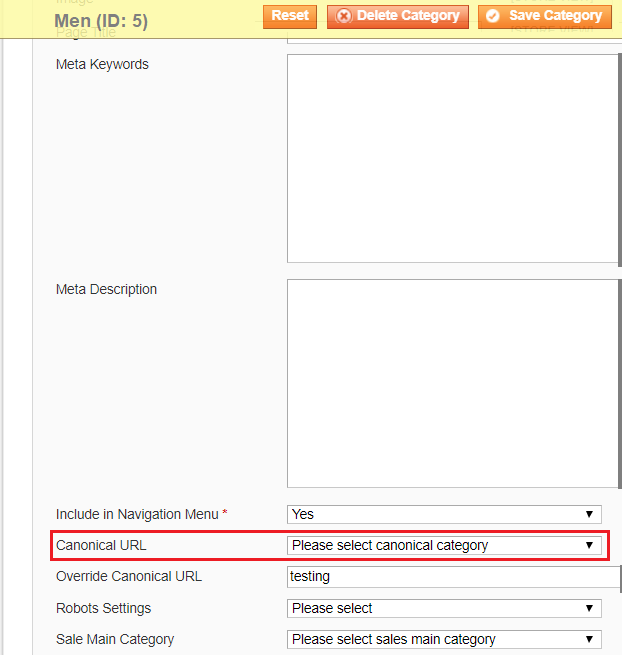
Go to Admin > Catalog > Categories > Manage Categories > Choose Category (for which you want to set Canonical URL)
- Canonical URL – Select the category from the dropdown, this selected category's URL will be rendered for search engines to pick it up as canonical URL.
- Override Canonical URL – Enter text here to be used as canonical tag URL. This will be given highest priority if entered.
- Robots Setting – Select the robot settings from dropdown, it comes with the following options -:
- No Index, No Follow
- No Index, Follow
- Index, No Follow
Product set up for Canonical URL
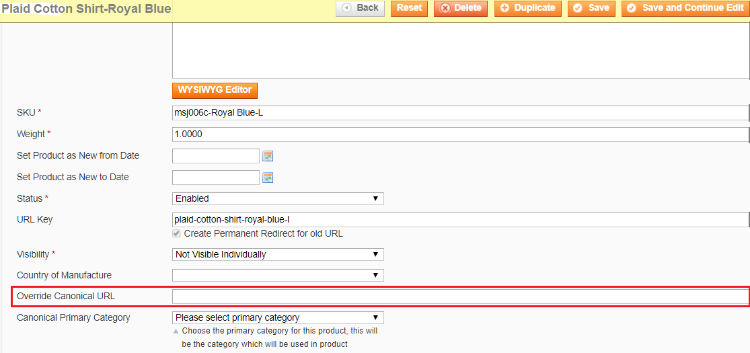
Go to Admin > Catalog > Manage Product > Choose Product (for which you want to set Canonical URL)
- Override Canonical URL – Enter text here to be used as canonical tag URL. This will be given highest priority if entered.
- Canonical Primary Category – Select primary category to be included in canonical URL tag.
CMS set up for Canonical URL
Go to Admin > Catalog > CMS > Pages > Choose Page (for which you want to set Canonical URL)
- Canonical URL – Enter text here to be used as canonical tag URL. For homepage you can enter "/"
- Robots Setting – Select the robot settings from dropdown, it comes with the following options -:
- No Index, No Follow
- No Index, Follow
- Index, No Follow
Front-end Site View
-
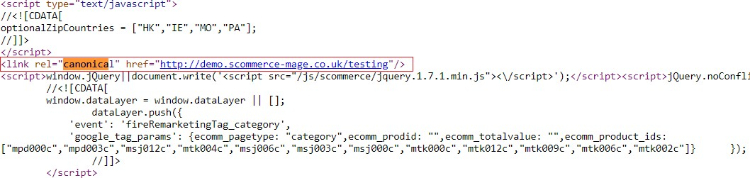
Category Canonical Tags – You can enable canonical tags on the category page from Admin > Stores > Configuration > Scommerce Configuration > Canonical Tags > Category Canonical Enable – Select – "Yes"
-
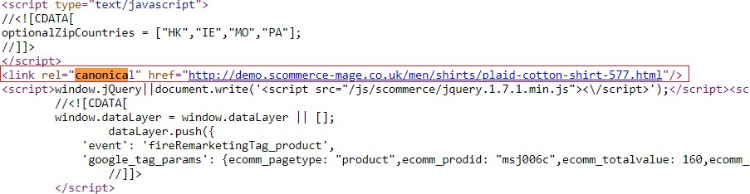
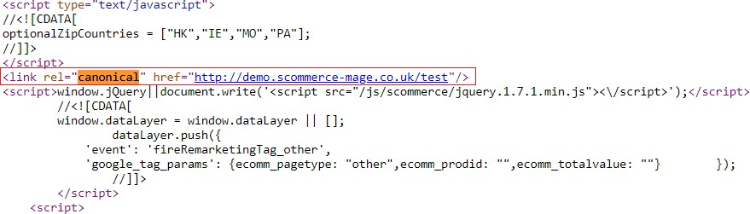
Product Canonical Tags – To add canonical tag on the product page, go to Admin > Stores > Configuration > Scommerce Configuration > Canonical Tags> Product Canonical Enable – Select – "Yes"
If you have a question related to this extension please check out our FAQ Section first. If you can't find the answer you are looking for then please contact support@scommerce-mage.com.
Magento Rich Snippets & Cards (schema.org)
Installation and User Guide for Magento 1 Rich Snippets & Cards (schema.org)
Table of Contents
- Installation
- Disable Compilation Mode
- Upload Package
- Clear Caches
- Configuration Settings for Rich Snippet
- General Settings
- HTML Selectors
- Facebook OpenGraph
- Attributes
- Structured Data / Markup Code of Front-end Page(s) in Structured Data Testing Tool
- Home Page Markup Code
- Category Page Markup Code
- Product Page Markup Code
- Twitter, Facebook Open Graph Social Sharing Code
- Increased and Optimized Page Ranking in Search Result
Installation
- Disable Compilation Mode: To check that this is disabled, go to System >Tools> Compilation. If the compiler status is 'Disabled', you are ready to go. If not, simply click the 'Disable' button on the right hand side of the screen.
- Upload Package: Upload the content of the module to your root folder. This will not overwrite the existing Magento folder or files, only the new contents will be added.
- Clear Caches: This can be done from the admin console by navigating to the cache management page (System > Cache Management), selecting all caches, clicking 'refresh' from the drop-down menu, and submitting the change.
Configuration Settings for Rich Snippet
Go to Admin > Stores > Configuration > Scommerce Configuration > Rich Snippet
General Settings
- Enabled – Select "Yes" or "No" to enable or disable the module.
- License Key – Please add the license for the extension which is provided in the order confirmation email. Please note license keys are site URL specific. If you require license keys for dev/staging sites then please email us at support@scommerce-mage.com.

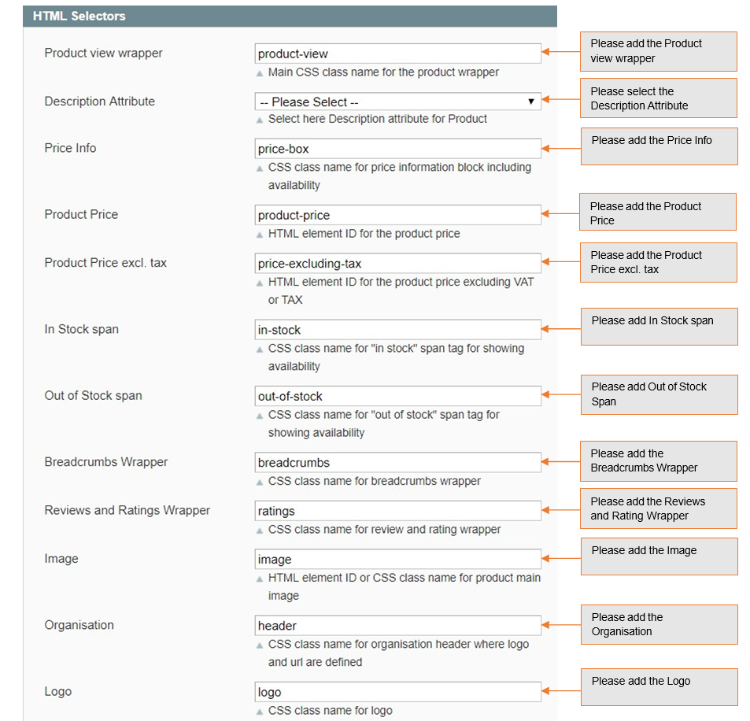
HTML Selectors
- Product view wrapper – Main CSS class name for the product wrapper.
- Description Attribute – CSS class name for short description.
- Price Info – CSS class name for price information block including availability.
- Product Price – HTML element ID for the product price.
- Product Price excl. tax – HTML element ID for the product price excluding VAT or TAX.
- In Stock Span – CSS class name for "in stock" span tag for showing availability.
- Out of Stock span – CSS class name for "out of stock" span tag for showing availability.
- Breadcrumbs Wrapper – CSS class name for breadcrumbs wrapper.
- Reviews and Rating Wrapper – CSS class name for review name and rating wrapper.
- Image – HTML element ID or CSS class name for product main image.
- Organisation – CSS class name for div in the where log is defined.
- Logo – CSS class name for anchor element of the logo.
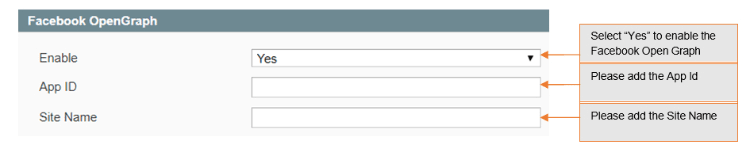
Facebook OpenGraph
- Enable – Set "yes" to enable Facebook open graph tags.
- AppId – Set Facebook app id
- Sitename – Set Facebook site name
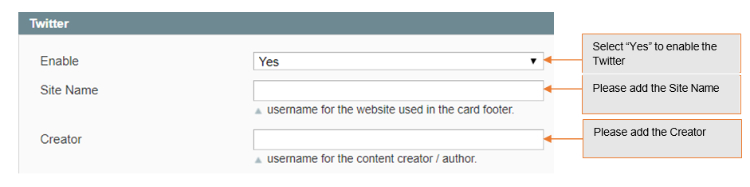
- Enable – Set "yes" to enable twitter.
- Sitename – Set twitter site name (@username for the website used in the card footer)
- Creator – Set twitter creator name (@username for the content creator / author)
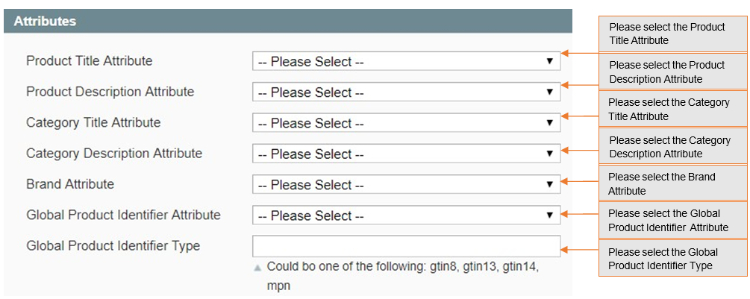
Attributes
- Product Title Attribute – Select product title attribute you want to send to Google, Facebook, Twitter etc.
- Product Description Attribute – Select product description attribute you want to send to Google, Facebook, Twitter etc.
- Category Title Attribute – Select category title attribute you want to send to Google, Facebook, Twitter, etc.
- Category Description Attribute – Select category description attribute you want to send to Google, Facebook, Twitter etc.
- Brand Attribute – Please select brand attribute from the dropdown.
- Global Product Identifier Attribute – Select product identifier attribute from the drop-down list.
- Global Product Identifier Type – Select product identifier type from the drop- down list. It could be one of the following: gtin8, gtin13, gtin14, mpn.
Structured Data / Markup Code of Front-end Page(s) in Structured Data Testing Tool
-
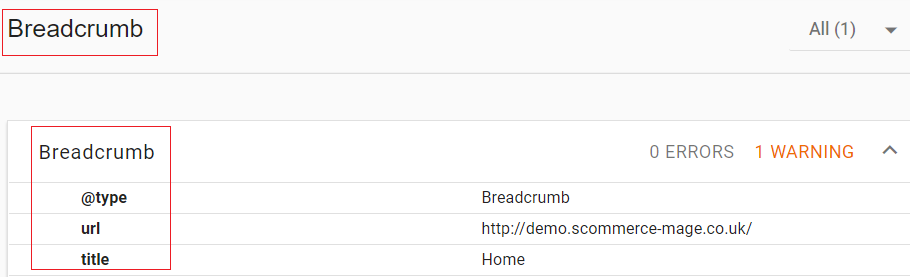
Home Page Markup Code – You can add structured data/markup code on homepage from Admin > Stores > Configuration > Rich Snippet > Enable – "Yes". To test structured data, go to Structured Data Testing Tool > Provide Home Page URL > Click "Run Test".
-
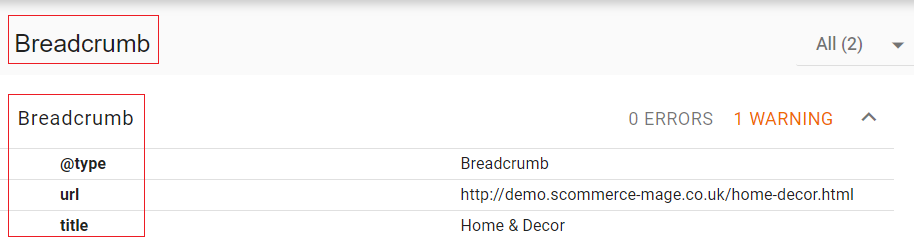
Category Page Markup Code – You can add markup code, breadcrumbs on category page from Admin > Stores > Configuration > Rich Snippet > Enable – "Yes".
-
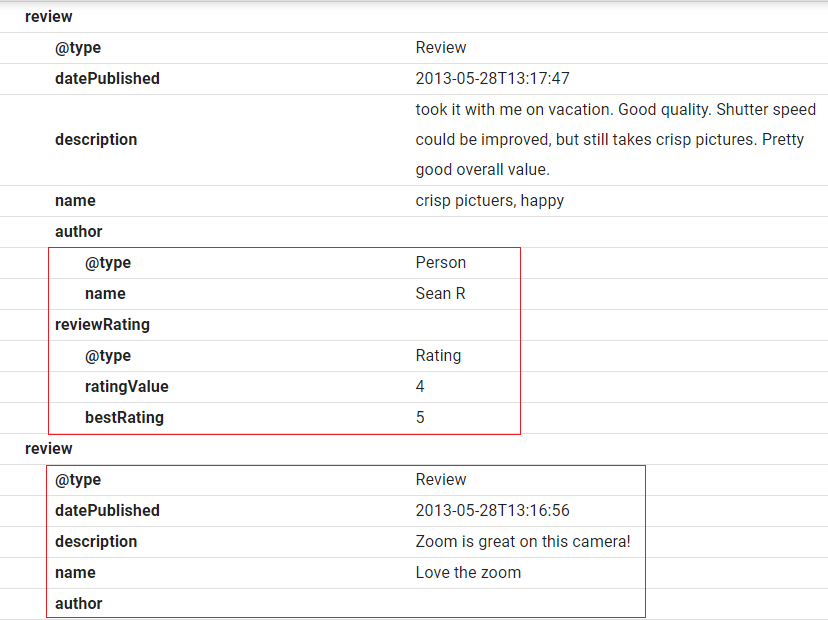
Product Page Markup Code – To add structured data markup code on product page, set "Enable" to "Yes" from Admin > Configuration > Rich Snippet .
Twitter, Facebook Open Graph Social Sharing Code
-
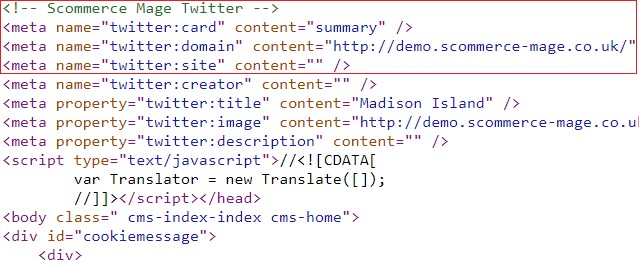
Twitter Code – You can enable Twitter from Admin > Stores > Configuration> Rich Snippet > Twitter > Enable – "Yes"
-
Facebook Open Graph – Enable Facebook Open Graph from Admin > Stores> Configuration > Rich Snippet > Facebook Open Graph > Enable – "Yes"

-
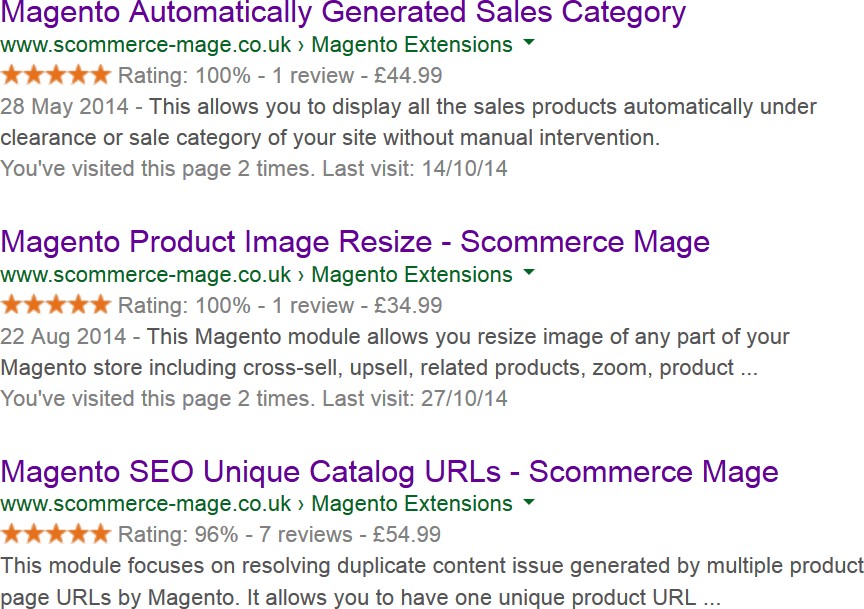
Increased and Optimized Page Ranking in Search Result – In the below image you can see the increased and optimized page ranking in search results.
If you have a question related to this extension please check out our FAQ Section first. If you can't find the answer you are looking for then please contact support@scommerce-mage.com.
Magento 1 Google Site Map Exclusion with Image Sitemap
Installation and User Guide for Magento 1 Google Site Map Exclusion with Image Sitemap
Table of Contents
- Installation
- Disable Compilation Mode
- Upload Package
- Clear Caches
- Configuration Settings for Google Sitemap
- General Settings
- Exclude Categories from Sitemap
- Exclude Products from Sitemap
- Exclude CMS from Sitemap
- How to Generate Sitemap
- Add new Sitemap
- Magento Out of the Box Functionality to set the Category Path
- Google Sitemap XML
- Product Link in Sitemap XML
- Category Link in Sitemap XML
- CMS Page Link in Sitemap XML
Installation
- Disable Compilation Mode: To check that this is disabled, go to System >Tools> Compilation. If the compiler status is 'Disabled', you are ready to go. If not, simply click the 'Disable' button on the right hand side of the screen.
- Upload Package: Upload the content of the module to your root folder. This will not overwrite the existing Magento folder or files, only the new contents will be added.
- Clear Caches: This can be done from the admin console by navigating to the cache management page (System > Cache Management), selecting all caches, clicking 'refresh' from the drop-down menu, and submitting the change.
Configuration Settings for Google Sitemap
Go to Admin > Stores > Configuration > Scommerce Configuration > Sitemap
General Settings
-
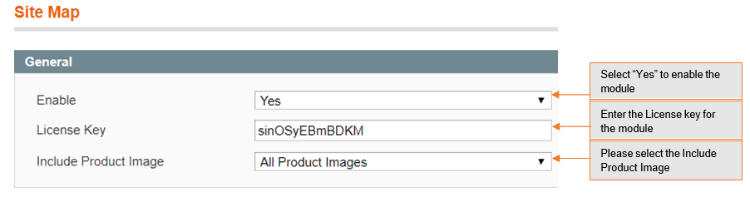
Enabled - Select "Yes" or "No" to enable or disable the module.
-
License Key - Please add the license for the extension which is provided in the order confirmation email. Please note license keys are site URL specific. If you require license keys for dev/staging sites then please email us at support@scommerce-mage.com.
-
Include Product Image - This option allows to add main product image or main and additional product images to Google Site Map.
-
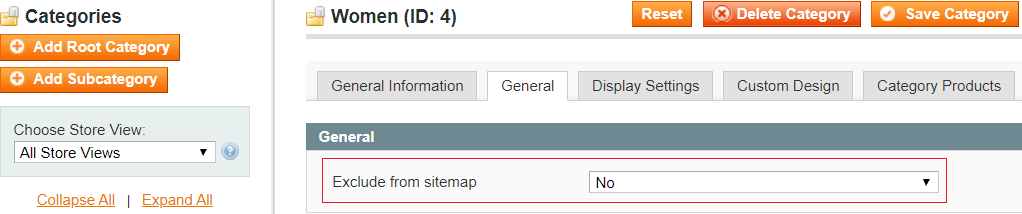
Exclude Categories from Sitemap - To include or exclude categories, go to Admin > Catalog > Manage Categories > Select Category (you want to exclude from site map) > General > Exclude from Sitemap: Set to "Yes/No".
-
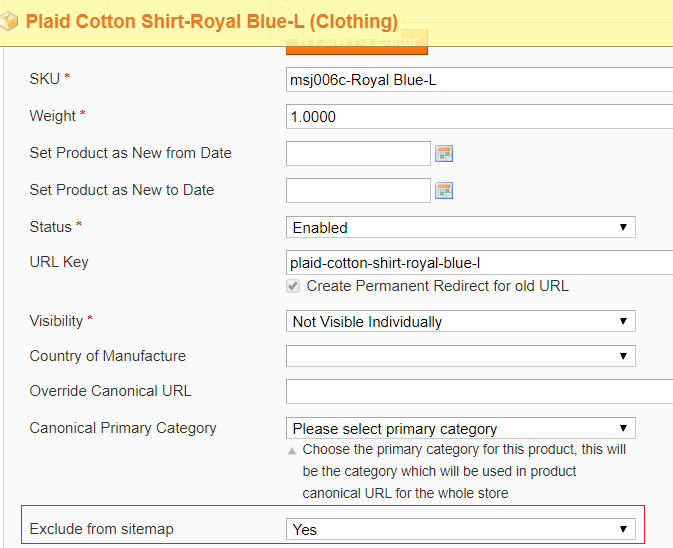
Exclude Products from Sitemap - To exclude products from sitemap, go to Admin > Catalog > Manage Products > Select Product (you want to exclude from site map) > General > Exclude from Sitemap: Set to "Yes/No".
-
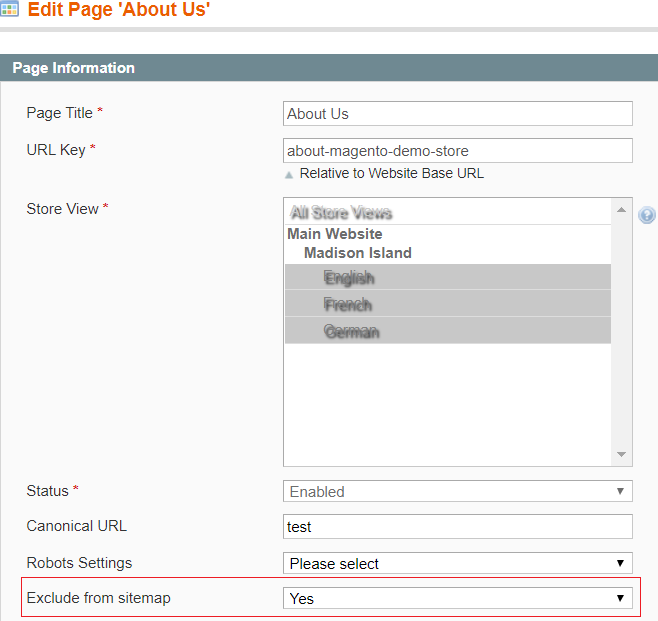
Exclude CMS from Sitemap - To exclude CMS pages from sitemap, go to Admin > CMS > Pages > Select CMS Page (you want to exclude from site map) > General > Exclude from Sitemap: Set to "Yes/No".
-
How to Generate Sitemap - To generate the site map from the admin panel go to Admin > Catalog > Google Sitemap > Click "Generate Sitemap".

-
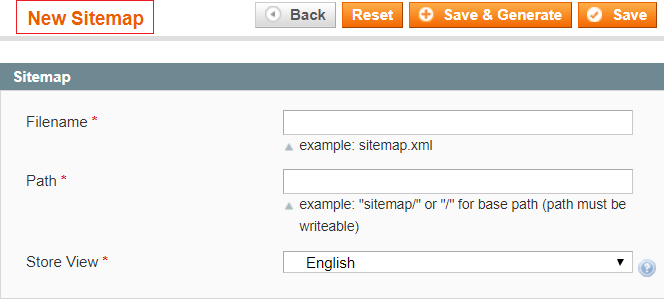
Add new Sitemap - You can create a new site map from Admin > Catalog > Google Sitemap > Click "Add Sitemap", it redirects to New Site Map page, and by providing all the required details you can create Site Map.
-
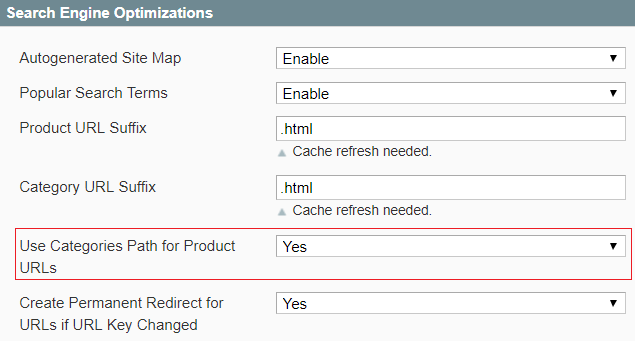
Magento Out of the Box Functionality to set the Category Path - To include category path in product URLs in sitemap.xml, go to Admin > System > Catalog > Catalog > Search Engine Optimizations > Use Categories Path for Product URLs: Set to "Yes".
Google Sitemap XML
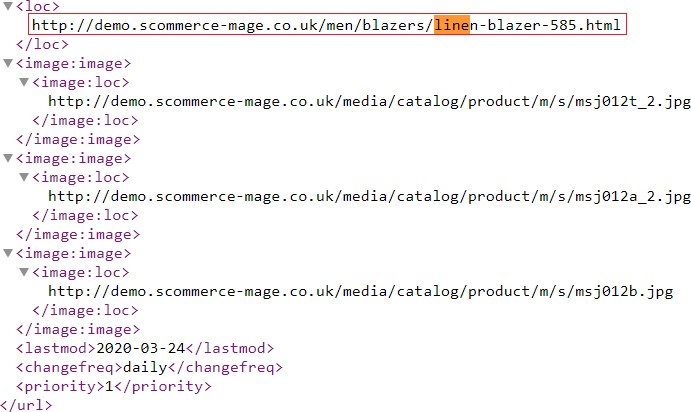
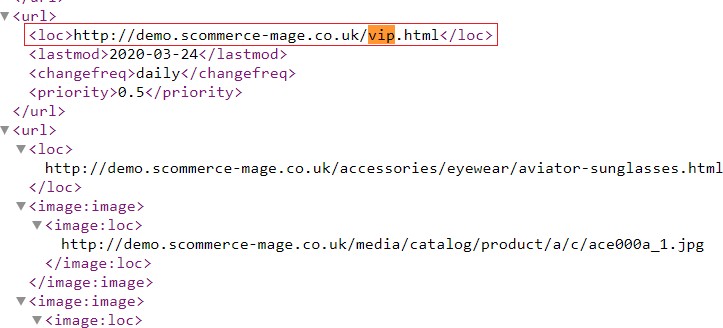
Google site map shows all the Included Products, Categories, and CMS Page links in the sitemap.xml
-
Product Link in Sitemap XML - You can see the product link in the Google Sitemap XML.
-
Category Link in Sitemap XML - You can see the category link in the Google Sitemap XML.
-
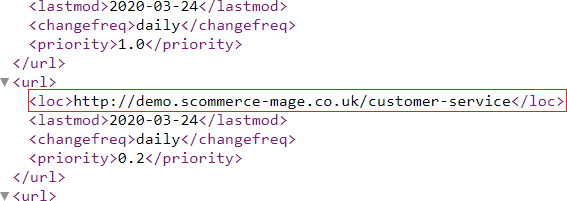
CMS Page Link in Sitemap XML - You can see the about-us page link in the Google Sitemap XML.
If you have a question related to this extension please check out our FAQ Section first. If you can't find the answer you are looking for then please contact support@scommerce-mage.com.