Magento 2 SEO Unique Catalog URLs
Installation and User Guide for Magento 2 SEO Unique Catalog URLs
Table of Contents
- Installation
- Installation via app/code
- Installation via Composer
- Configuration Settings for SEO Base
- General Settings
- Configuration settings for Catalog URL
- General Settings
- Configuration Path to Set Up Primary Category
- Primary Category settings for Category
- Run the script to setup primary category of one or all products together
- Set Primary Categories
- Front-end Site View
- Product Page Unique URL
- Search Page / Category Page Unique Catalog Product URL
Installation
- Installation via app/code: Upload the content of the module to your root folder. This will not overwrite the existing Magento folder or files, only the new contents will be added. After the successful upload of the package, run below commands on Magento 2 root directory.
php bin/magento setup:upgrade
php bin/magento setup:di:compile
php bin/magento setup:static-content:deploy- Installation via Composer: Please follow the guide provided in the below link to complete the installation via composer.
Configuration Settings for SEO Base
Go to Admin > Stores > Configuration > Scommerce Configuration > SEO Base
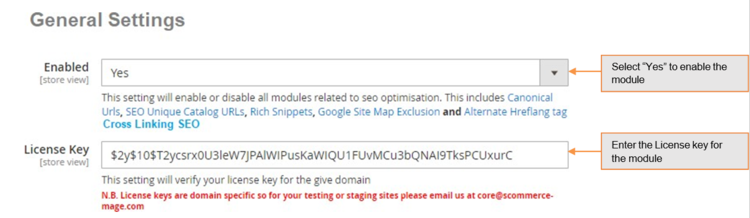
General Settings
- Enabled - Select “Yes” or “No” to enable or disable the module.
- License Key - Please add the license for the extension which is provided in the order confirmation email. Please note license keys are site URL specific. If you require license keys for dev/staging sites then please email us at support@scommerce-mage.com.
Configuration Settings for Catalog URL
Go to Admin > Stores > Configuration > Scommerce Configuration > Catalog URL
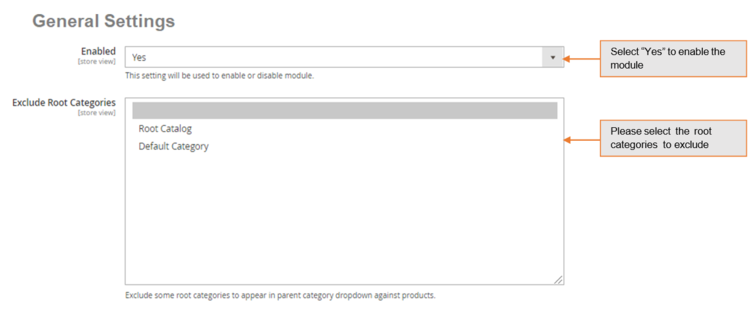
General Settings
- Enabled - Select “Yes” or “No” to enable or disable the module.
- Exclude Root Categories – Exclude some root categories to appear as primary category dropdown against products.
Configuration Path to Set Up Primary Category
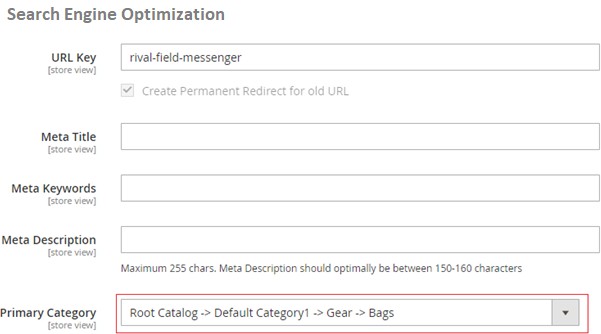
Go to Admin > Catalog > Select Product > Search Engine Optimization > Primary Category . The drop down will show all the categories selected for the product from where you can select the primary category of the product.
Primary Category settings for Category
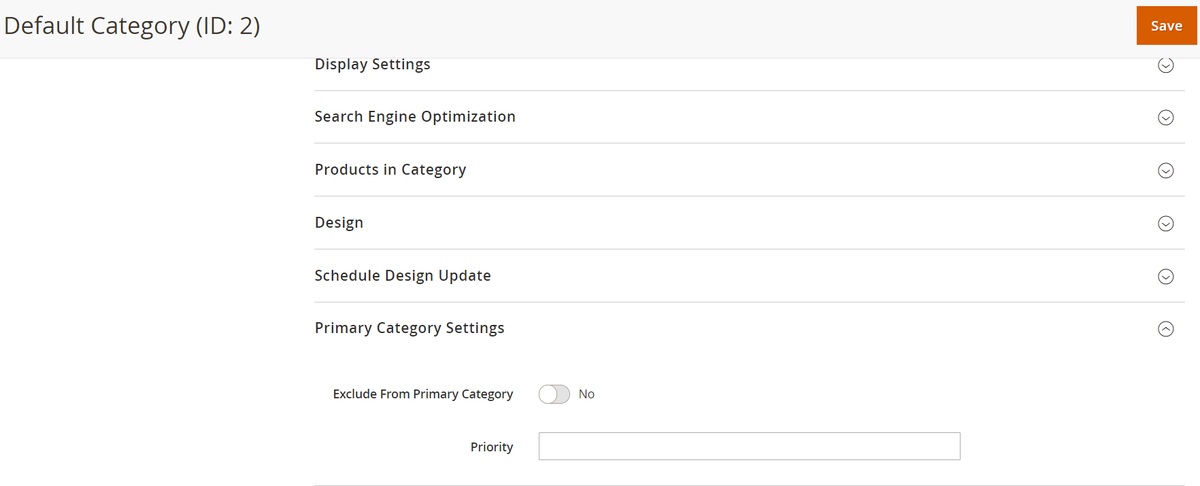
Go to Admin > Catalog > Categories > Select Category > Primary Category Settings. The drop down will show two primary category settings for the selected category: -
- Exclude from Primary Category (Yes/No) - Select Yes/No whether you want this category to excluded from the primary category or not.
- Exclude Root Categories – Set the priority for the category, the highest priority will be selected as the primary category.
Run the script to setup primary category of one or all products together
We have included a PHP script that can be utilized to set primary category for one or all products together. Simply run the script in the url and the primary categories will get updated for the set products.
- For one product – Run the script given and refer to the image below to update the primary category of a single product.
{{Website_URL}}/SetPrimaryCategoryM2.php?deleteSku s=MH01
- For all Products – Run the script given and refer to the image below to update the primary category of all products.
{{Website_URL}}/SetPrimaryCategoryM2.php?deleteSkus=all
If the script doesen't work in the URL then make sure to place the script inside PUB directory and change line number 6 as follows:-

Once updated, please run the script again.
Set Primary Categories
You can use a script provided with the extension to automatically add primary categories for products. Admin can exclude certain categories from primary category and also prioritise one category over the other to be picked as the primary category.
Go to Admin>Catalog>Categories select a category then scroll down to find the option "Primary Category Settings". Here click on "Exclude From Primary Category" to exclude this category from primary category or enter the priority 0 being the highes. The highest priority category will be picked first for the primary category.
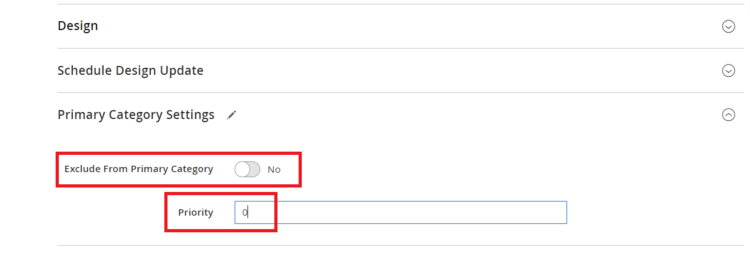
N.B - Run the script provided in the extension folder at the path Data/SetPrimaryCategoryM2.php from ssh
Front-end Site View
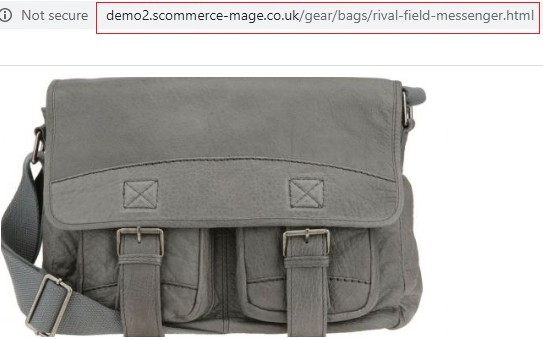
- Product Page Unique URL - You can assign primary category to any product from Admin > Catalog > Select Product > Search Engine Optimization > Primary Category. In the below image you can see the assigned category of product Rival Field Messenger is "Gear->Bags".
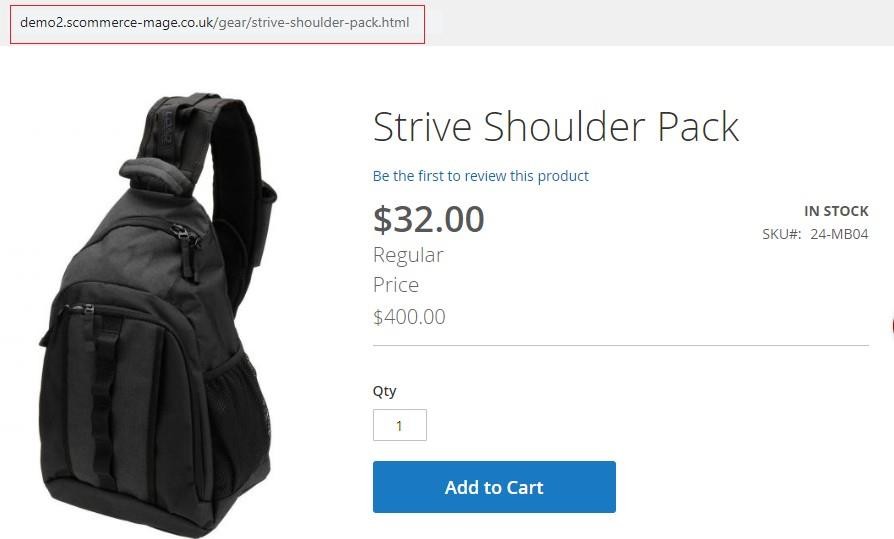
- Search Page / Category Page Unique Catalog Product URL – We have assigned “Strive Shoulder Pack” product to “Gear” Category and the URL stays the same when we access the product from the search or category page.
If you have a question related to this extension please check out our FAQ Section first. If you can't find the answer you are looking for then please contact support@scommerce-mage.com.