# Magento 2 Product Reviews
### Installation and User Guide for Magento 2 Product Reviews
**Table of Contents**
1. [*Installation* ](#bkmrk-installation)
- *Installation via app/code*
- *Installation via Composer*
2. [*Configuration Settings for Product Reviews*](#bkmrk-configuration-settin)
- *General Settings*
3. *[Creating New Review Sliders](#bkmrk-creating-new-review-)*
4. [*Adding Review Slider*](#bkmrk-adding-review-slider)
- *Category Page*
- *CMS Pages*
5. [*Front-End View*](#bkmrk-front-end-view)
- *Email Field in Review Form*
- *Reviews on CMS Pages*
- *Reviews on Category Pages*
### Installation [](#bkmrk-)
- **Installation via app/code:** Upload the content of the module to your root folder. This will not overwrite the existing Magento folder or files, only the new contents will be added. After the successful upload of the package, run below commands on Magento 2 root directory. ```php
php bin/magento setup:upgrade
php bin/magento setup:di:compile
php bin/magento setup:static-content:deploy
```
- **Installation via Composer:** Please follow the guide provided in the below link to complete the installation via composer.
[https://docs.scommerce-mage.com/magento-2-extensions/installation-via-composer/installation-via-composer](https://docs.scommerce-mage.com/magento-2-extensions/installation-via-composer/installation-via-composer)
### Configuration Settings for Substitute Products [](#bkmrk--1)
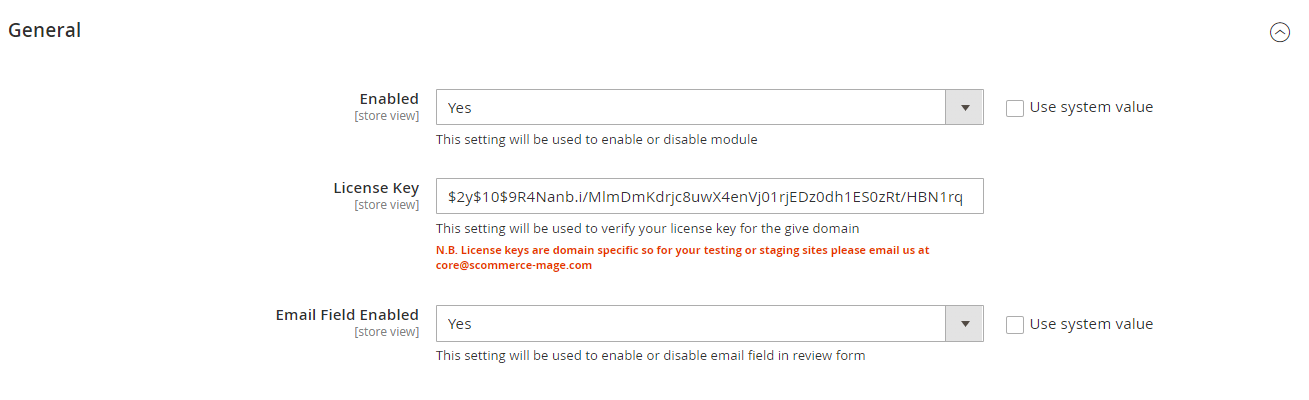
Go to **Admin > Stores > Configuration > Scommerce Configuration >Substitute Products**
#### General Settings [](#bkmrk--18)
- **Enabled -** Select "Yes" or "No" to enable or disable the module.
- \*\*License Key –\*\*Please add the license for the extension which is provided in the order confirmation email. Please note license keys are site URL specific. If you require license keys for dev/staging sites then please email us at .
- \*\*Email Field Enabled -\*\*Set "Yes" to enable the email field in the product review form and set "No" to disable the email field.
[](https://docs.scommerce-mage.com/uploads/images/gallery/2025-06/image-2025-06-11t144254-431.png)
### Creating New Review Sliders [](#bkmrk--8)
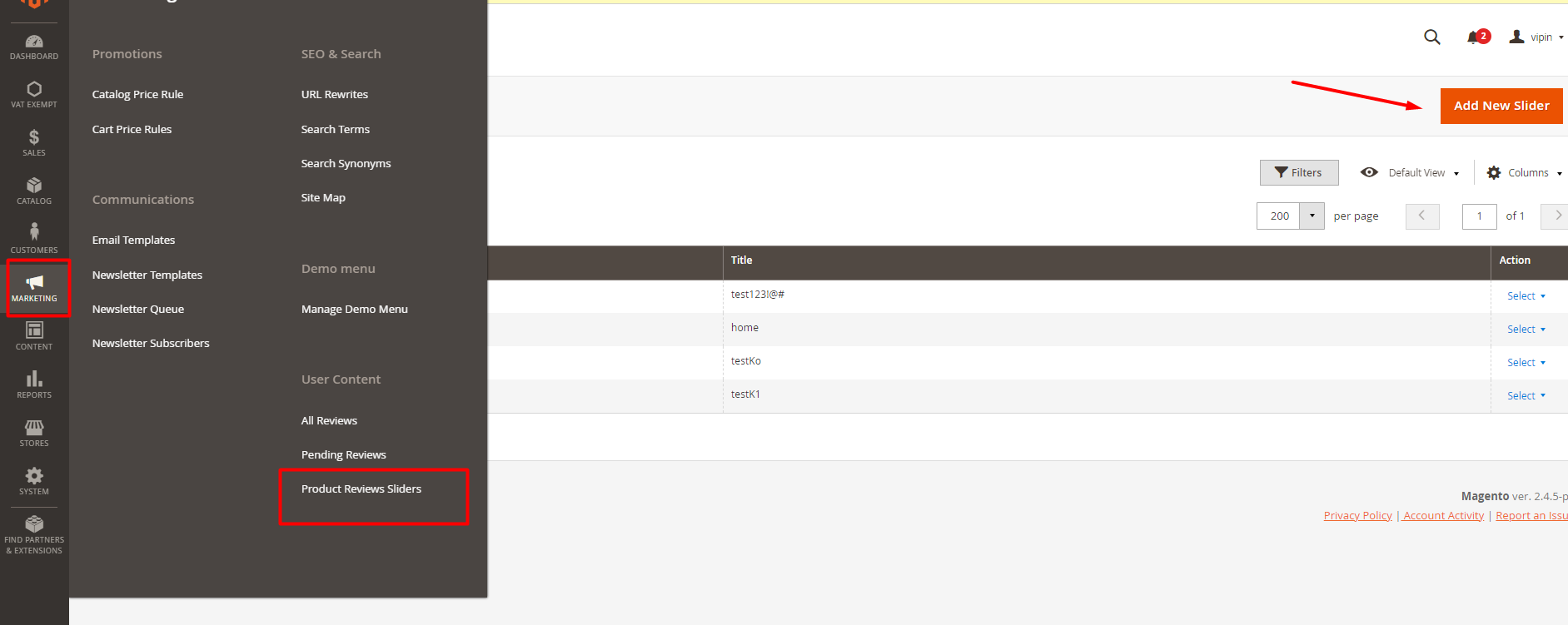
- Go to 'Marketing'->'Product Review Slider'
- Click on 'Add New Slider'
[](https://docs.scommerce-mage.com/uploads/images/gallery/2025-06/image-2025-06-11t144331-991.png)
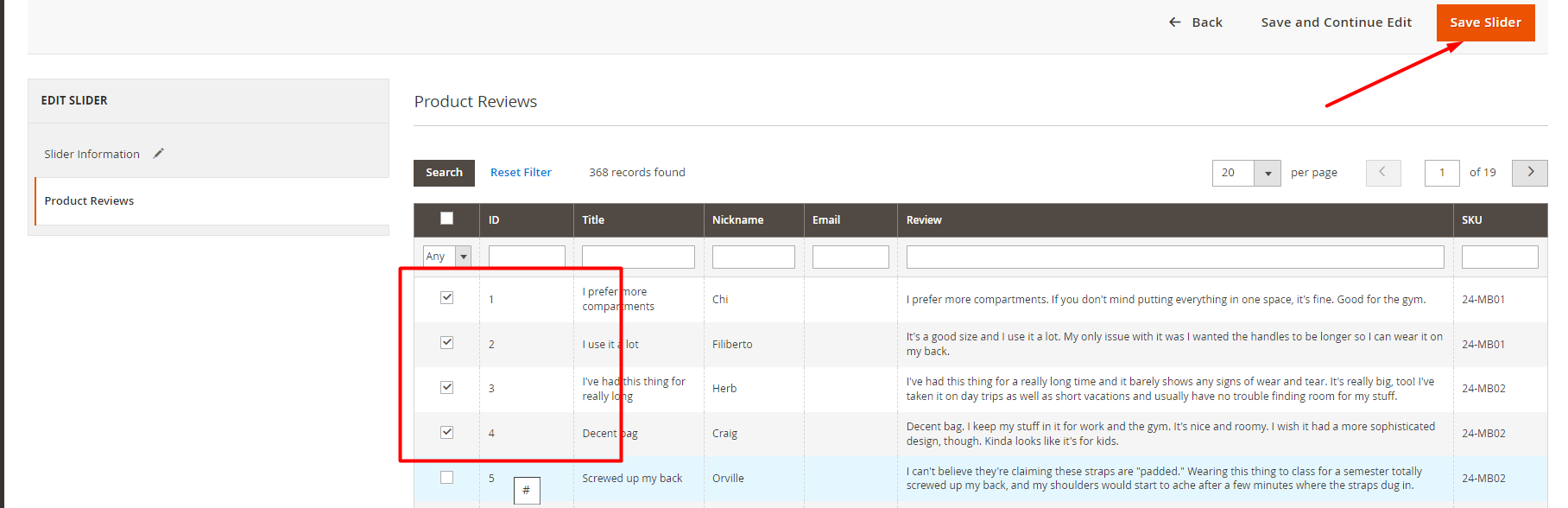
- In 'slider information' fill the title then go to 'product reviews'. and you will be able to see approved reviews.
[](https://docs.scommerce-mage.com/uploads/images/gallery/2025-06/image-2025-06-11t144417-543.png)
- Select as many reviews as you want and click on 'Save Slider' or 'Save and Continue Edit'
[](https://docs.scommerce-mage.com/uploads/images/gallery/2025-06/image-2025-06-11t144500-170.png)
- You can add this review slider to any category page, CMS page and CMS block
### Adding Review Sliders [](#bkmrk--8)
#### Category Page [](#bkmrk--18)
To see reviews under category page.
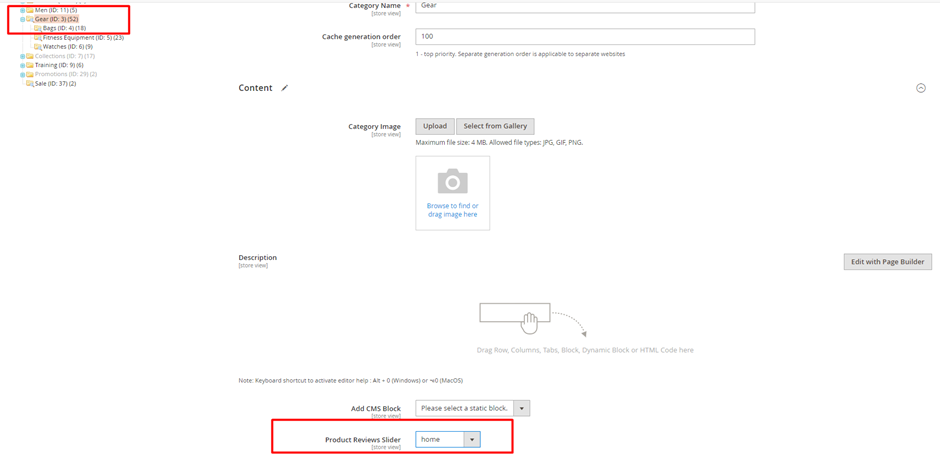
- Go to Catalog-> Categories. Select any category.
- Under 'Content' group, go to 'Product Reviews Slider' and add one of the Review Slider you have created.
- Save and clear the caches.
[](https://docs.scommerce-mage.com/uploads/images/gallery/2025-06/image-2025-06-11t144528-916.png)
#### CMS Pages [](#bkmrk--18)
To see reviews under CMS page(e.g.->home page)
- Go to Content->Pages. Select any one of the pages.
- Select the HTML code and click on edit.
[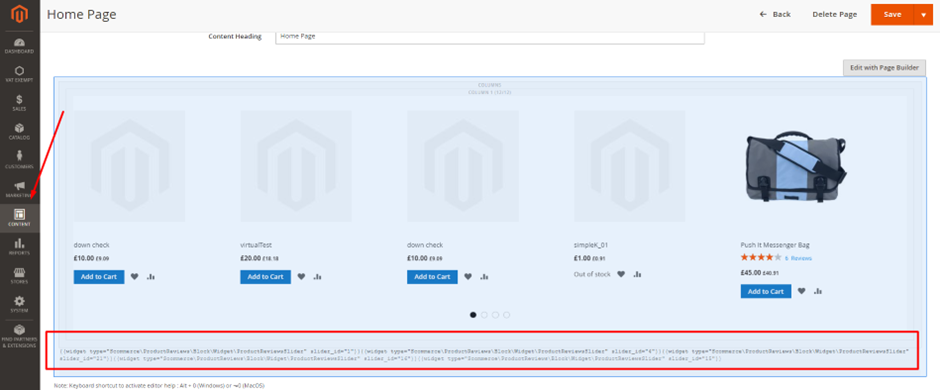](https://docs.scommerce-mage.com/uploads/images/gallery/2025-06/image-2025-06-11t144559-458.png)
- Click on Insert Widget. Select the Widget type and widget option.
[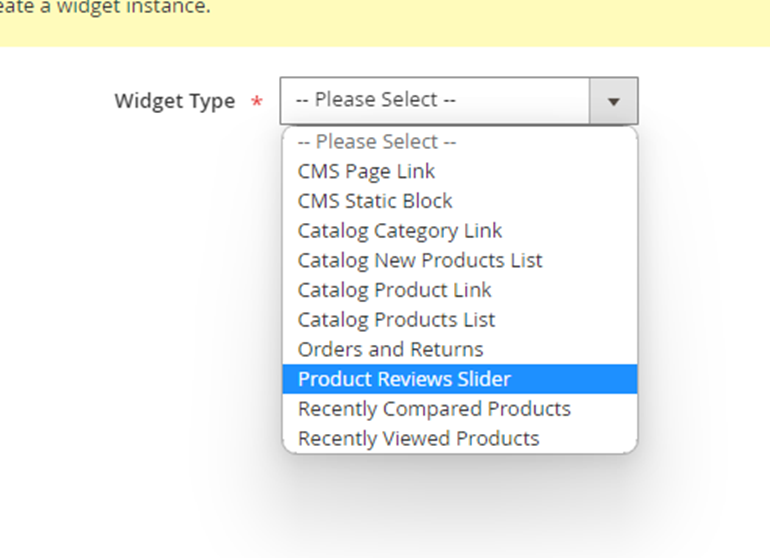](https://docs.scommerce-mage.com/uploads/images/gallery/2025-06/image-2025-06-11t144628-530.png)
- Save and clear the caches.
***Note:-** Similary you add product reviews slider in Blocks using widgets.*
### Front-End View
#### Email Field in Review Form [](#bkmrk--18)
Once Email field is enabled from the configuration this field is visible in the Product review form:
[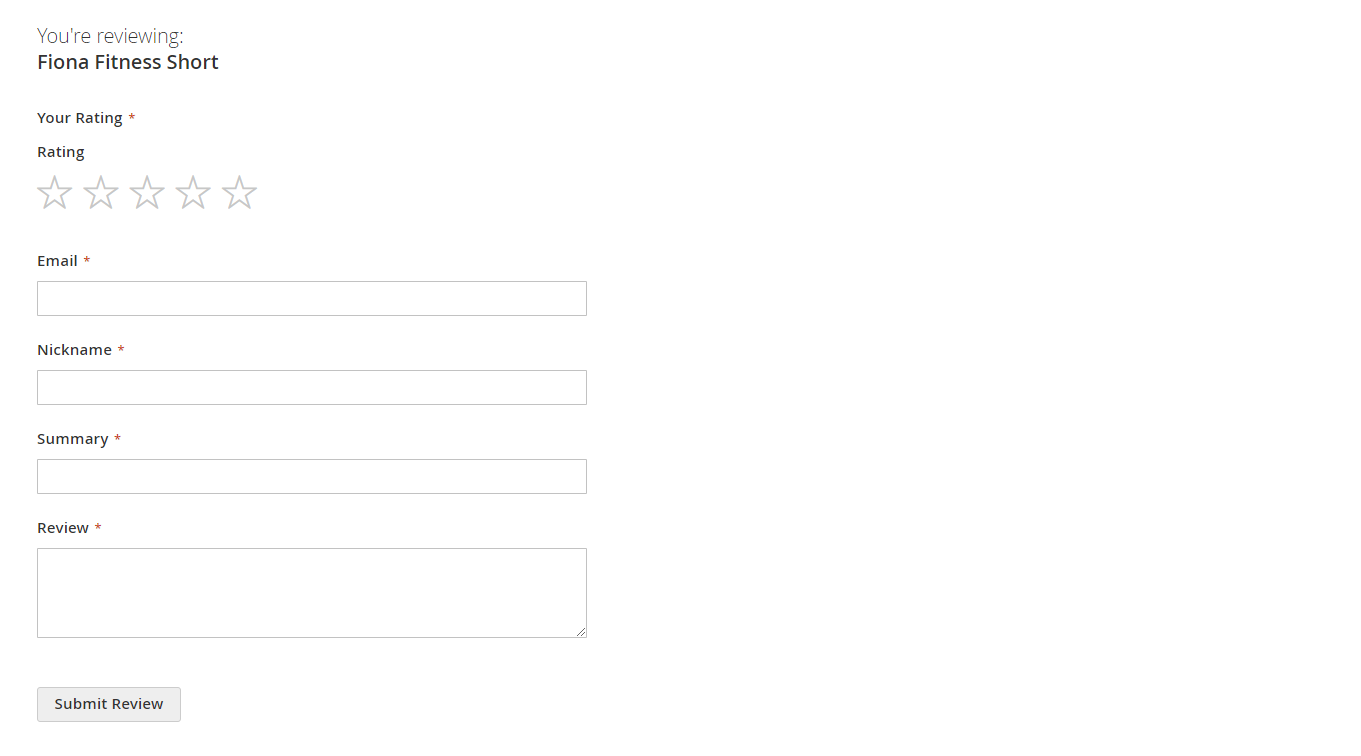](https://docs.scommerce-mage.com/uploads/images/gallery/2025-06/image-2025-06-11t144716-768.png)
#### Reviews on CMS Pages [](#bkmrk--18)
We had assigned product reviews slider to the What's New Page the review slider can be seen on the product page.
[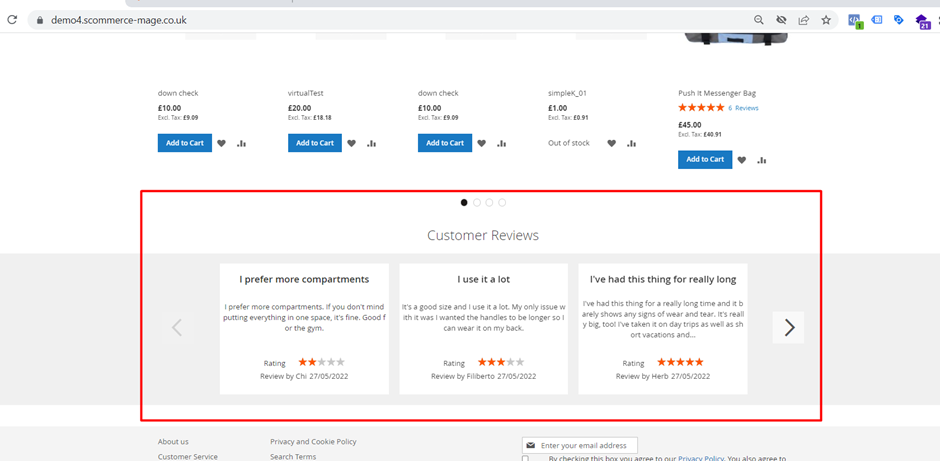](https://docs.scommerce-mage.com/uploads/images/gallery/2025-06/image-2025-06-11t144749-433.png)
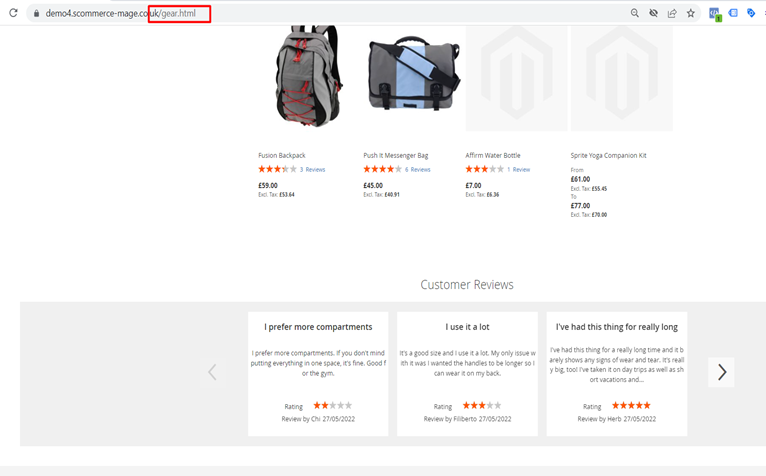
#### Reviews on Category Pages [](#bkmrk--18)
Go to the frontend to that category and reviews will be seen at the bottom of the page.
[](https://docs.scommerce-mage.com/uploads/images/gallery/2025-06/image-2025-06-11t145130-370.png)
If you have a question related to this extension please check out our [**FAQ Section**](https://www.scommerce-mage.com/magento-2-product-reviews.html#customfaq) first. If you can't find the answer you are looking for then please contact [**support@scommerce-mage.com**](mailto:core@scommerce-mage.com)**.**