# Magento 2 Substitute Products

### <span style="color: rgb(59, 130, 246);">Installation and User Guide for Magento 2 Substitute Products Extension</span>

****Table of Contents****

1. [**Installation**](#bkmrk-installation)
    - **Installation via app/code**
    - **Installation via Composer**
2. [\_Configuration Settings for Substitute Products](#bkmrk-configuration-settin)
    - **General Settings**
    - **Changes Required Using Custom Product Attribute Set**
3. [\_Assigning Substitute Products](#bkmrk-assigning-substitute)
    - **Add Substitute Products**
    - **Order Placed with Substitute Product**
4. [**Front-End View**](#bkmrk-front-end-view)

### <span style="color: rgb(59, 130, 246);">Installation</span>

- ****Installation via app/code:****<span style="white-space: pre-wrap;"> Upload the content of the module to your root folder. This will not overwrite the existing Magento folder or files, only the new contents will be added. After the successful upload of the package, run below commands on Magento 2 root directory.</span>  
    <span style="white-space: pre-wrap;"> </span>  
    ```php
    php bin/magento setup:upgrade
    php bin/magento setup:di:compile
    php bin/magento setup:static-content:deploy
    ```
- ****Installation via Composer:****<span style="white-space: pre-wrap;"> Please follow the guide provided in the below link to complete the installation via composer.</span>

<p class="callout success">[https://docs.scommerce-mage.com/magento-2-extensions/installation-via-composer/installation-via-composer](https://docs.scommerce-mage.com/magento-2-extensions/installation-via-composer/installation-via-composer)</p>

### <span style="color: rgb(59, 130, 246);">Configuration Settings for Substitute Products</span>

<span style="white-space: pre-wrap;">Go to </span>****Admin &gt; Stores &gt; Configuration &gt; Scommerce Configuration &gt;Substitute Products****

#### <span style="color: rgb(249, 115, 22);">General Settings</span>

- ****Enabled -****<span style="white-space: pre-wrap;"> Select "Yes" or "No" to enable or disable the module.</span>
- <span style="white-space: pre-wrap;">\*\*License Key –\*\*Please add the license for the extension which is provided in the order confirmation email. Please note license keys are site URL specific. If you require license keys for dev/staging sites then please email us at </span><support@scommerce-mage.com>.

[![image - 2025-06-11T142758.746.jpg](https://docs.scommerce-mage.com/uploads/images/gallery/2025-06/scaled-1680-/image-2025-06-11t142758-746.jpg)](https://docs.scommerce-mage.com/uploads/images/gallery/2025-06/image-2025-06-11t142758-746.jpg)

#### <span style="color: rgb(249, 115, 22);">Changes Required Using Custom Product Attribute Set</span>

****If you are using custom product attribute set and not the default attribute then this step must be performed to see the Substitute Products option at the product level.****

****Cause:****<span style="white-space: pre-wrap;"> This issue occurs when the necessary product attribute, </span>`<span class="editor-theme-code">is_substitute_products_enabled</span>`<span style="white-space: pre-wrap;">, has not been correctly assigned within its attribute set. For the extension's interface to work correctly, this attribute </span>****must****<span style="white-space: pre-wrap;"> be placed inside a specific group named "Substitute Products."</span>

****Solution:****

1. ****Navigate to Attribute Sets:****<span style="white-space: pre-wrap;"> Go to </span>`<span class="editor-theme-code">Stores > Attributes > Attribute Set</span>`<span style="white-space: pre-wrap;"> in your Magento admin panel.</span>
2. ****Select the Correct Attribute Set:****<span style="white-space: pre-wrap;"> Find and click on the attribute set that is used by the products you are trying to link (e.g., </span>`<span class="editor-theme-code">custom_attribute_set</span>`<span style="white-space: pre-wrap;">, </span>`<span class="editor-theme-code">Default</span>`, etc.).
3. ****Create the "Substitute Products" Group:****
    - <span style="white-space: pre-wrap;">On the Attribute Set edit page, click the </span>****Add New****<span style="white-space: pre-wrap;"> button under the "Groups" column.</span>
    - <span style="white-space: pre-wrap;">In the popup, enter </span>`<span class="editor-theme-code">Substitute Products</span>`<span style="white-space: pre-wrap;"> as the group name and click </span>****OK****.
4. ****Assign the Attribute to the New Group:****
    - <span style="white-space: pre-wrap;">Locate the </span>`<span class="editor-theme-code">is_substitute_products_enabled</span>`<span style="white-space: pre-wrap;"> attribute in the "Unassigned Attributes" column on the right.</span>
    - <span style="white-space: pre-wrap;">Drag and drop this attribute into the newly created </span>****"Substitute Products"****<span style="white-space: pre-wrap;"> group in the central column.</span>
5. ****Save the Attribute Set:****<span style="white-space: pre-wrap;"> Click the </span>****Save****<span style="white-space: pre-wrap;"> button at the top right of the page.</span>
6. ****Clear Caches:****<span style="white-space: pre-wrap;"> After saving, it is always a good practice to clear your Magento caches by running </span>`<span class="editor-theme-code">php bin/magento cache:flush</span>`.

[![image.png](https://docs.scommerce-mage.com/uploads/images/gallery/2025-10/scaled-1680-/image.png)](https://docs.scommerce-mage.com/uploads/images/gallery/2025-10/image.png)

Once you have completed these steps, return to the product edit page. The "Substitute Products" interface will now function as expected, allowing you to add multiple SKUs and save your changes correctly.

<p class="callout warning">****Note:-**** If you are not seeing the substitute product option under products or are not able to add more than one substitute products or save the SKUs that you enter then this step must be followed.</p>

### <span style="color: rgb(59, 130, 246);">Assigning Substitute Products</span>

The substitute product should have exactly same configurations as the main product only the SKU will be different. You can create a duplicate product of the main product while creating a new substitute product.

#### <span style="color: rgb(249, 115, 22);">Add Substitute Products</span>

<span style="white-space: pre-wrap;">Go to </span>****Admin&gt;Catalog&gt;Products****<span style="white-space: pre-wrap;">, navigate to your product from the list and click on Edit from the action column. Scroll down to find the </span>****Subsitute Products****<span style="white-space: pre-wrap;"> tab. Please refer to the image below: -</span>

[![image - 2025-06-11T142849.136.png](https://docs.scommerce-mage.com/uploads/images/gallery/2025-06/scaled-1680-/image-2025-06-11t142849-136.png)](https://docs.scommerce-mage.com/uploads/images/gallery/2025-06/image-2025-06-11t142849-136.png)

<span style="white-space: pre-wrap;">Click on </span>****Enabled****<span style="white-space: pre-wrap;"> to enable the substitute products for this main product. Add the SKU of the product that you want to add as a substitute of this product and add the priority. In case of multiple substitute products you can set the priortiy highest being 0 so that whenever products are out of stock, upon order placement the SKU will be chosen based on the priority set.</span>

Also, as long as the substitute products attached to the main product are not out of stock the main product on the frontend will never show out of stock.

You can add substitute products for several products such as Simple, Configurable, Bundled etc.

#### <span style="color: rgb(249, 115, 22);">Order Placed With Subsitute Products</span>

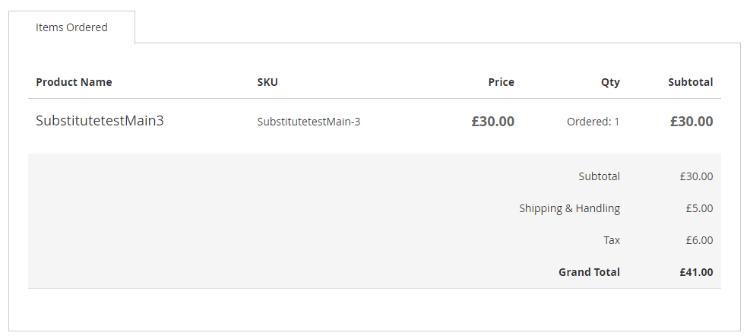
<span style="white-space: pre-wrap;">Suppose our main product is out of stock then when a customer visits the storefront they will always see the product available as long as the substiute product assigned is in stock. Orders placed with the main product will be fullfilled with the subsitute product. Place an order with the main product then go to </span>****Admin&gt;Sales&gt;Orders****, and select your order. We can see the substitute product SKU in the order detail since main product is out of stock.

[![image - 2025-06-11T142946.668.jpg](https://docs.scommerce-mage.com/uploads/images/gallery/2025-06/scaled-1680-/image-2025-06-11t142946-668.jpg)](https://docs.scommerce-mage.com/uploads/images/gallery/2025-06/image-2025-06-11t142946-668.jpg)

### <span style="color: rgb(59, 130, 246);">Front-End View</span>

<span style="white-space: pre-wrap;">We place the order with the main product having sku SubstitutetestMain but since this product is out of stock the order should be fullfilled with the substitute product assigned. Now upon placing the order go to </span>****My Account&gt;My Orders****<span style="white-space: pre-wrap;"> and view the order, you will be able to see that the order is placed with the substiute product.</span>

[![image - 2025-06-11T143022.256.jpg](https://docs.scommerce-mage.com/uploads/images/gallery/2025-06/scaled-1680-/image-2025-06-11t143022-256.jpg)](https://docs.scommerce-mage.com/uploads/images/gallery/2025-06/image-2025-06-11t143022-256.jpg)

<span style="white-space: pre-wrap;">If you have a question related to this extension please check out our </span>[<u>****FAQ Section****</u>](https://www.scommerce-mage.com/magento2-substitute-products.html#customfaq)<span style="white-space: pre-wrap;"> first. If you can't find the answer you are looking for then please contact </span>[****support@scommerce-mage.com****](mailto:core@scommerce-mage.com)****.****