
Magento 2 Affiliate Program
Installation and User Guide for Magento 2 Affiliate Program
Table of Contents
- Installation
- Download Extension
- Installation via app/code
- Installation via Composer
- Configuration Settings for Affiliate
- General Settings
- Workflow
- Setting Up Bundle Items Association
- Associating Bundle Items & Defining Quantities
- Updating or Removing Bundle Associations
- Inventory Automation
- On Purchase
- On Refund
- Out-of-Stock Handling
- What Customers See
- Bulk Import & Export
- Bulk Import
- Bulk Export
Installation
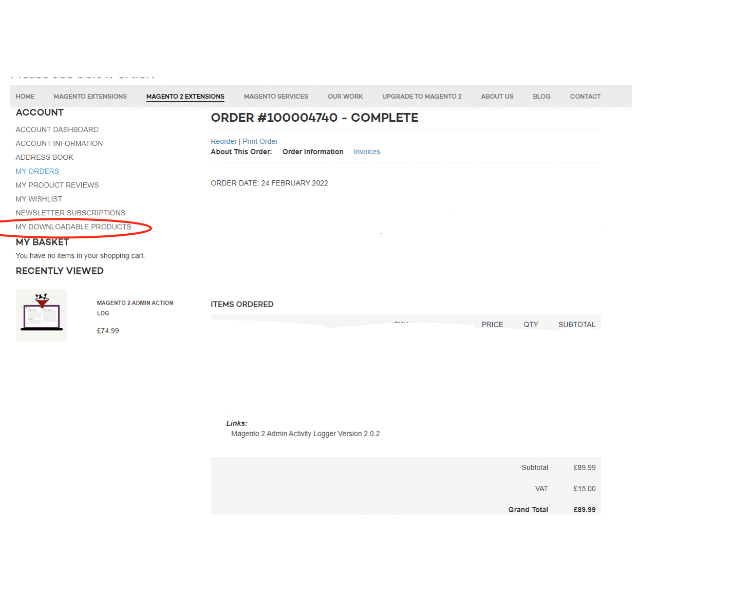
- Download Extension: Once you have placed the order from our site then go to Account section and click on My Downloadable Products and download the extension package.
- Installation via app/code: Upload the content of the module to your root folder. This will not overwrite the existing Magento folder or files, only the new contents will be added. After the successful upload of the package, run below commands on Magento 2 root directory.
php bin/magento setup:upgrade
php bin/magento setup:di:compile
php bin/magento setup:static-content:deploy
- Installation via Composer: Please follow the guide provided in the below link to complete the installation via composer.
Configuration Settings for Affiliate Program
Go to Admin > Stores > Configuration > Scommerce Configuration > Security Base
General Settings
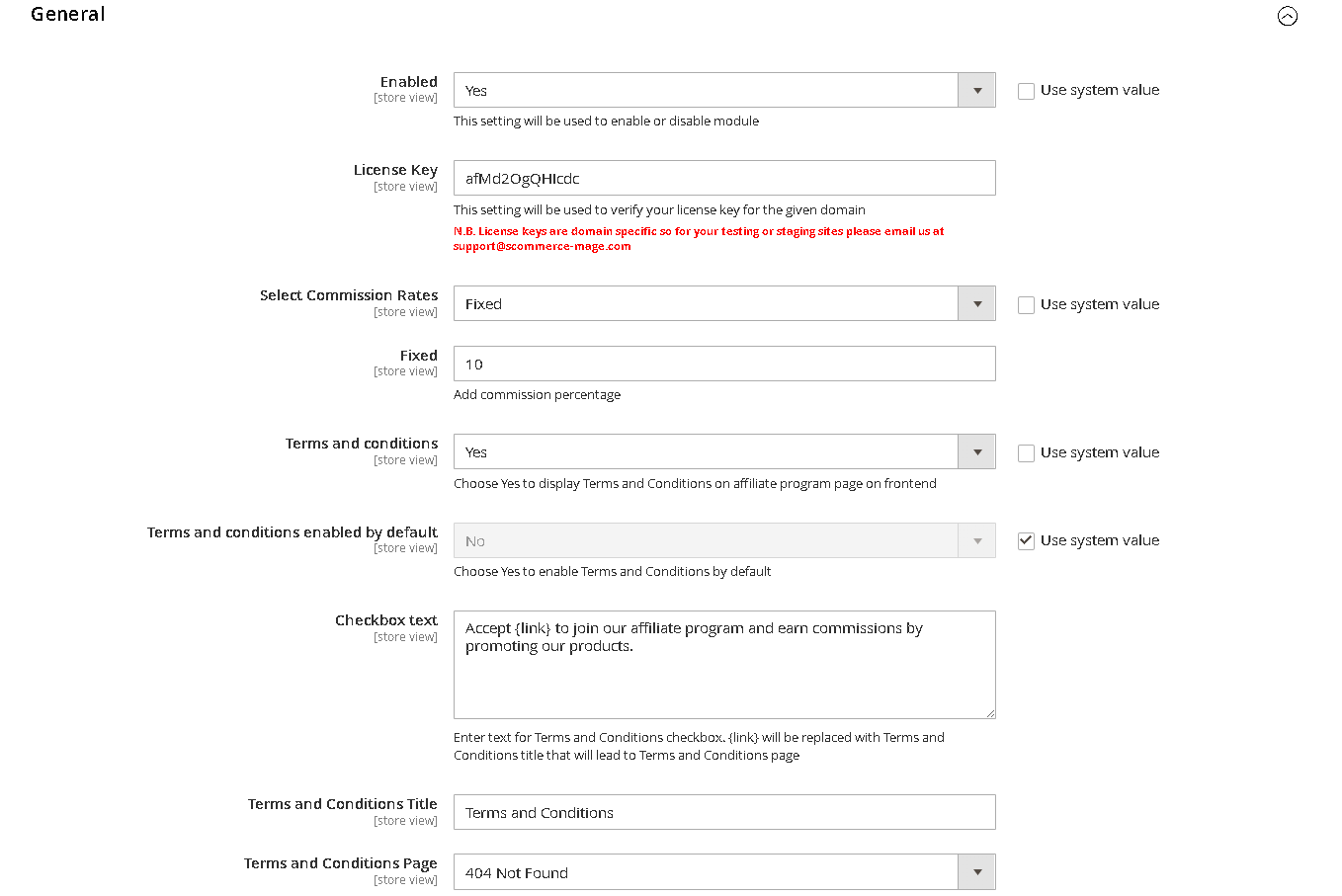
- Enabled – Select "Yes" or "No" to enable or disable the module.
- License Key – Please add the license for the extension which is provided in the order confirmation email. Please note license keys are site URL specific. If you require license keys for dev/staging sites then please email us at support@scommerce-mage.com.
- Select Commission Rates – Select commission rate type Fixed/Tier
- Fixed – In case commission tier is "Fixed" then enter the commission percentage.
- Tier – Define different tiers and their commission percentage
- Min value of purchase
- Max value of purchase
- Commission (Percentage)
- Action:- Delete
- Terms and conditions – Set "Yes" to display Terms and Conditions on the affiliate program page on the frontend.
- Terms and conditions enabled by default – Set "Yes" to enable Terms and Conditions by default
- Checkbox text – Enter the text for Terms and Conditions Checkbox
- Terms and Conditions Title – Enter the title for Terms and Conditions
- Terms and Conditions Page – Select the page to be used to display Terms and Conditions
Payout Settings
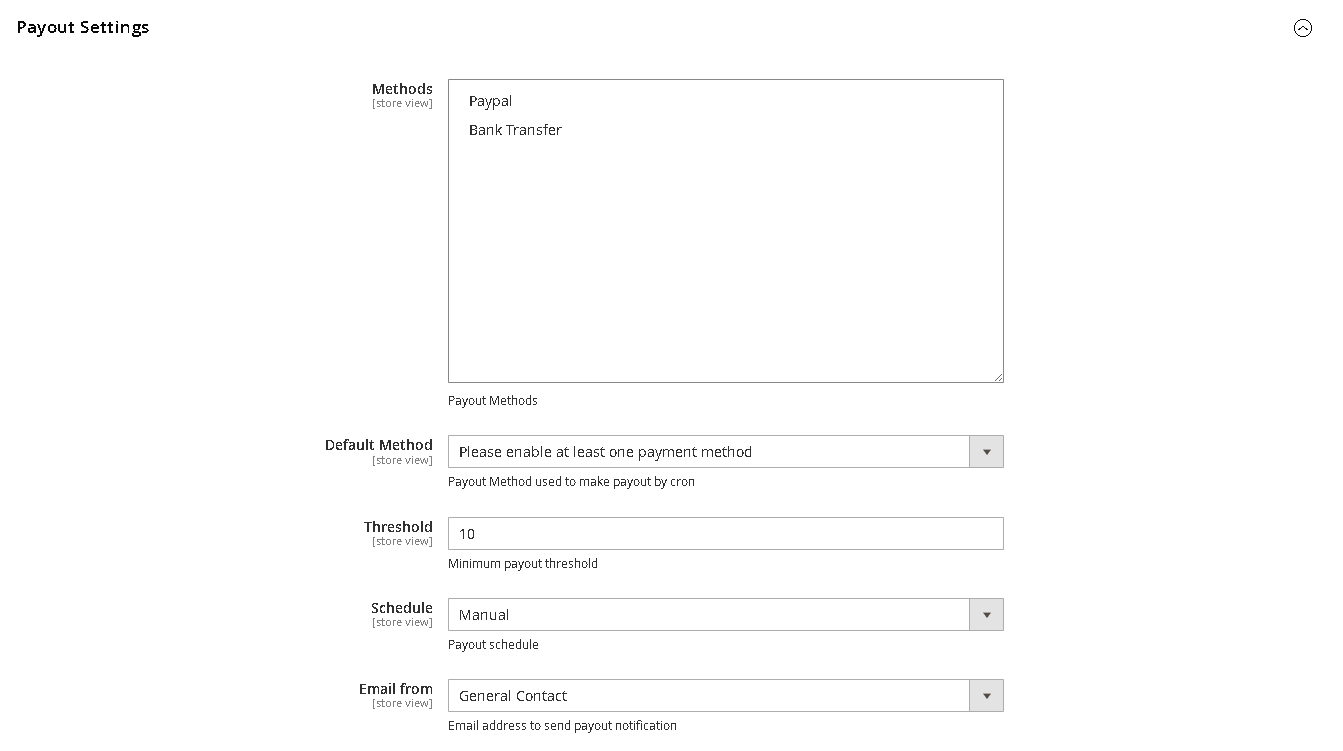
- Methods – Select payment methods to be used for making payouts for affiliates
- Default Method – Select the payment method/payout method to make payout automatically via cron
- Threshold – Enter the minimum amount required to make payouts.
- Schedule – Select Manual/weekly/monthly, when "Manual" is selected payouts need to be done manually by admin and in case "weekly/monthly" is selected payout will be made automatically using CRON in 7 or 30 days.
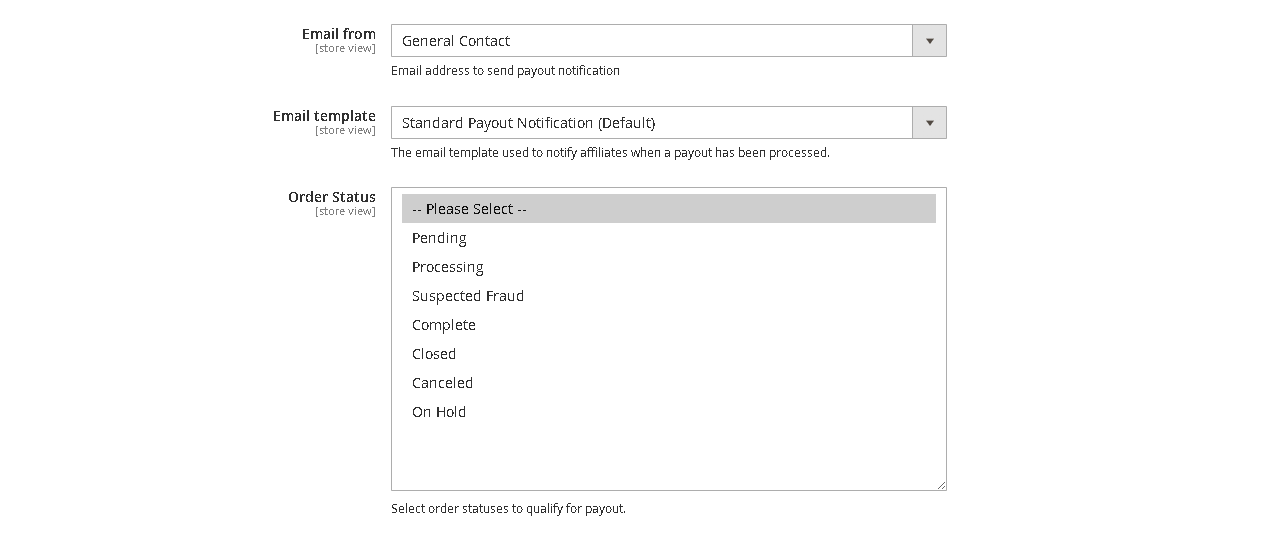
- Email From – Enter the email address to send payout notification
- Email Template – Select the email template used to notify affiliates when a payout has been processed.
- Order Status – Select order statuses to qualify for payout.
Share Settings
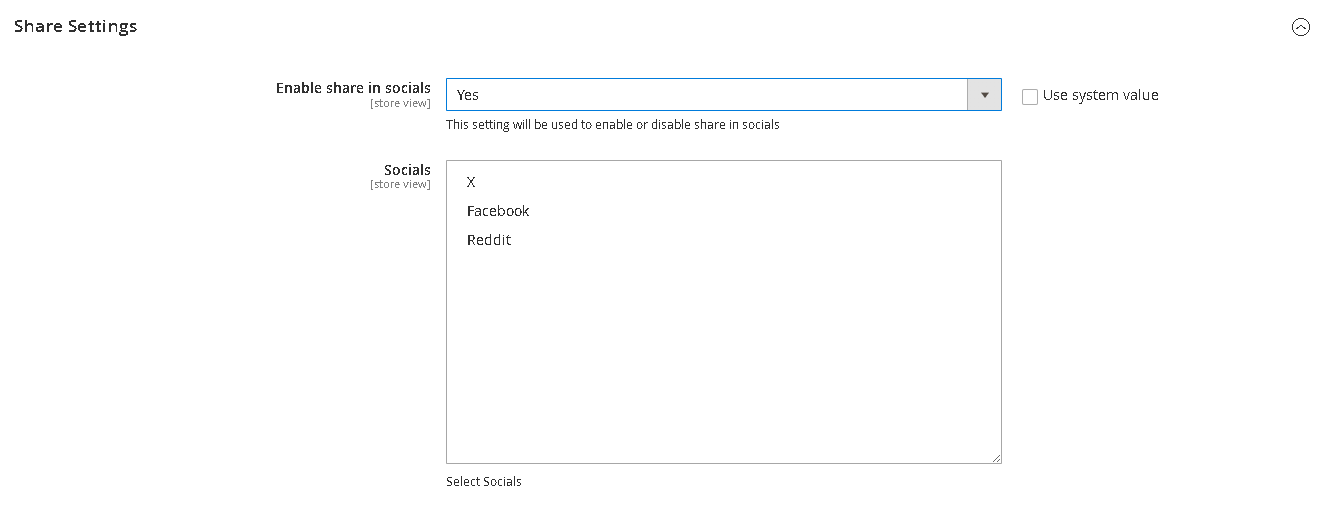
Workflow
The extension empowers Magento 2 stores with a robust affiliate program, enabling customers to promote your products in exchange for commissions and allowing admins to efficiently monitor, pay, and manage program performance.
For Customers: Join and Use the Affiliate Program
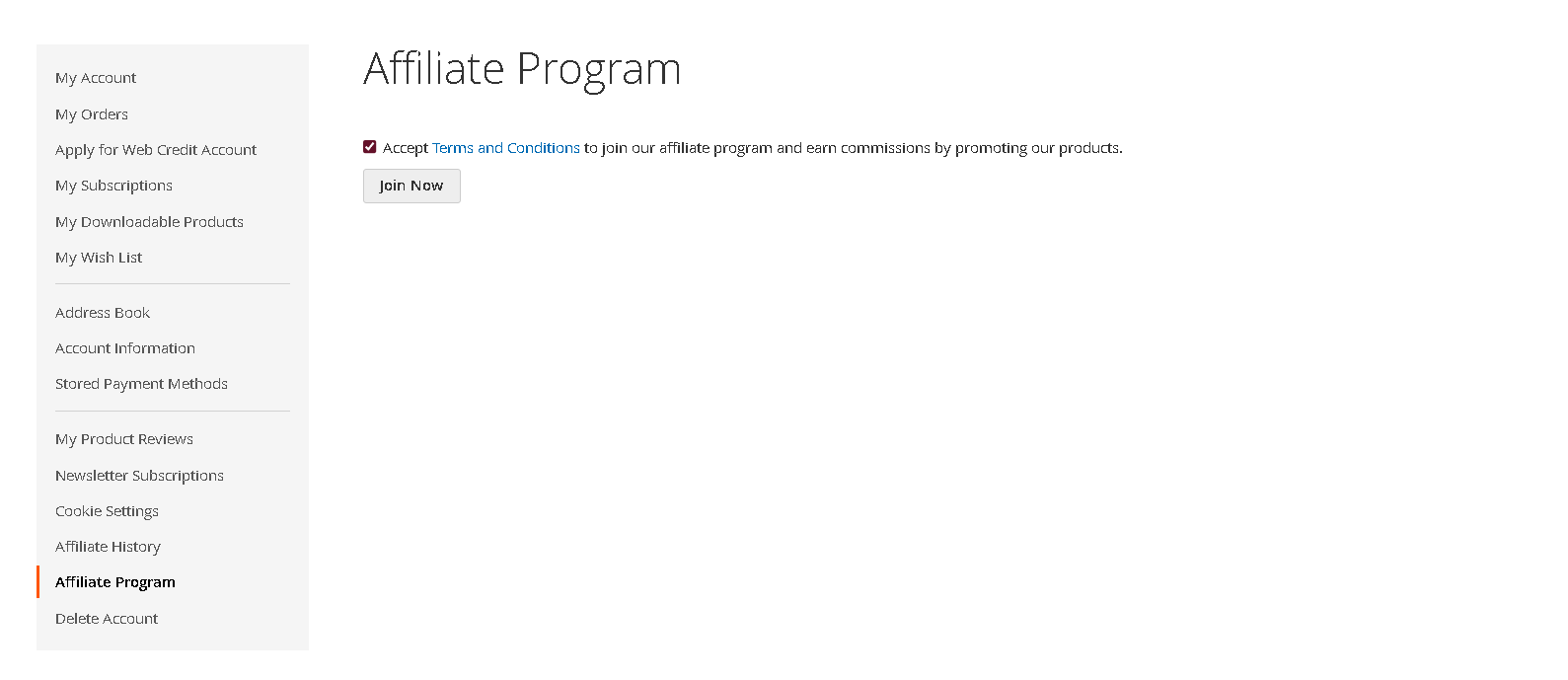
Affiliate Registration
- Go to My Account > Affiliate Program after logging in.
- Review the affiliate program description and Terms and Conditions.
- Accept the Terms by checking the box; the box text and content depend on admin configuration.
- Click "Join Program". Once enrolled, you’ll see your unique referral link.
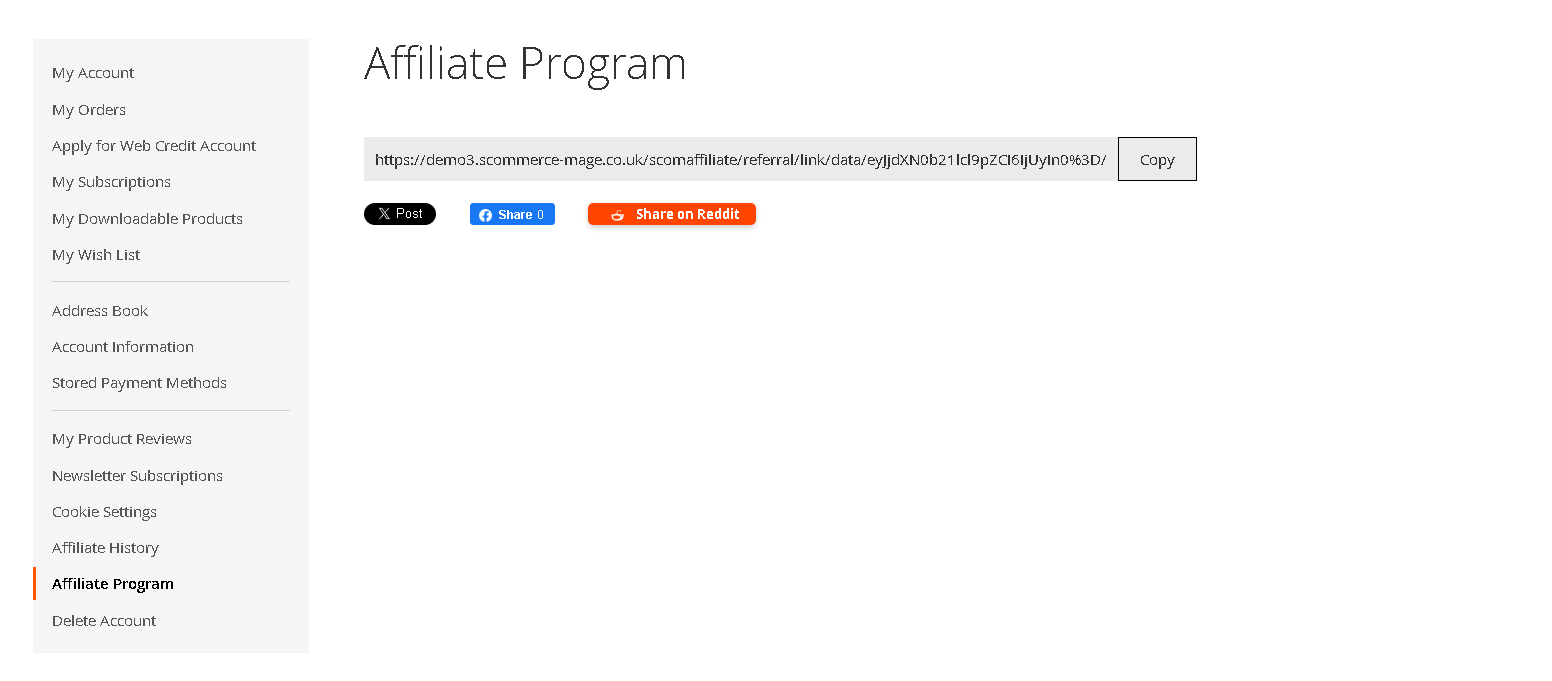
Referral Links
- Your referral link is displayed prominently.
- Use Copy to quickly copy it to your clipboard.
- Use Share to distribute via Facebook, Twitter, Reddit, or Instagram with one click.
- You can now share this link anywhere. Anyone using your link is tracked for commission.
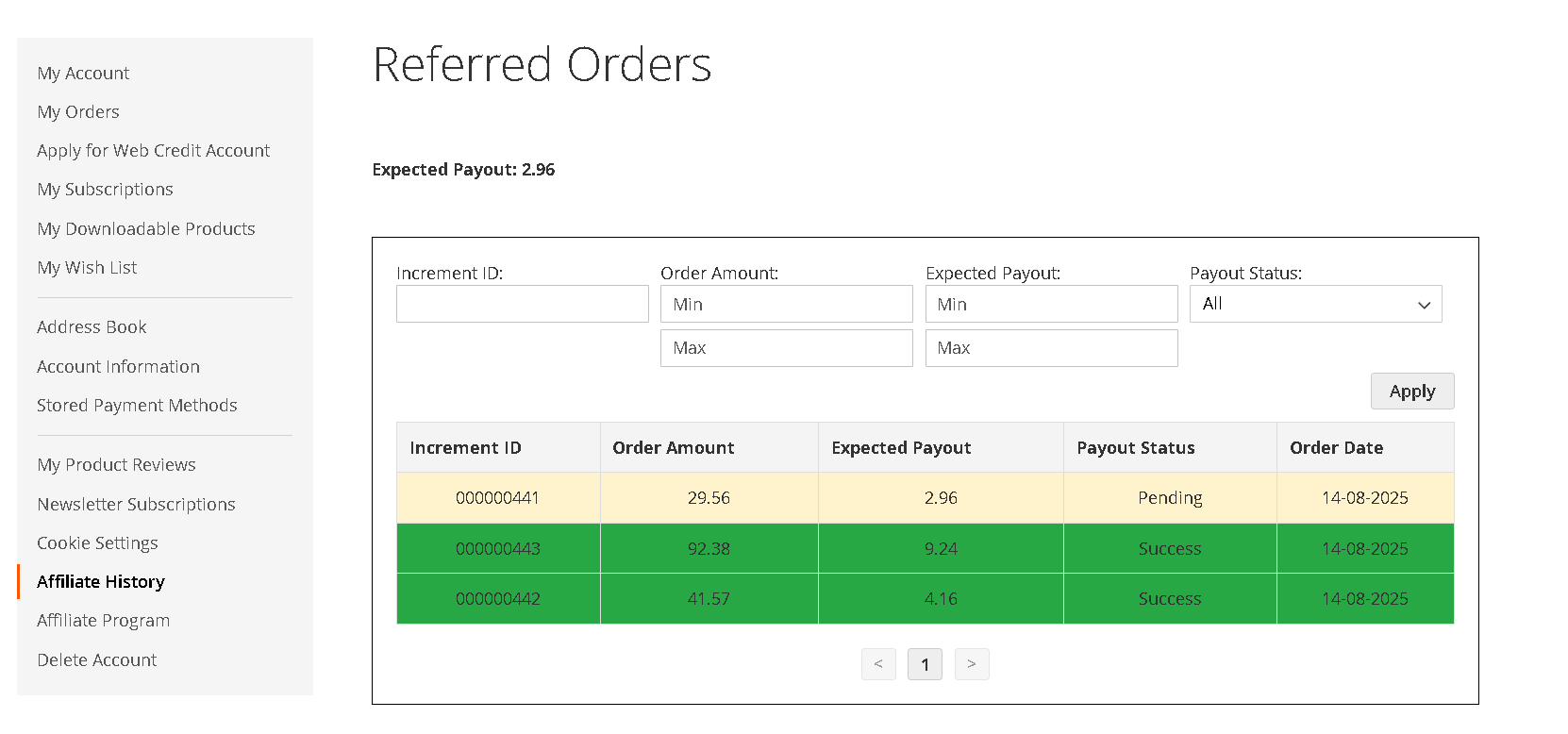
Affiliate Dashboard
- In My Account > Affiliate History, view:
- Increment ID
- Order Amount
- Expected Payout
- Payout Status
- Order Date
For Admins: Managing the Affiliate Program
Affiliate Dashboard
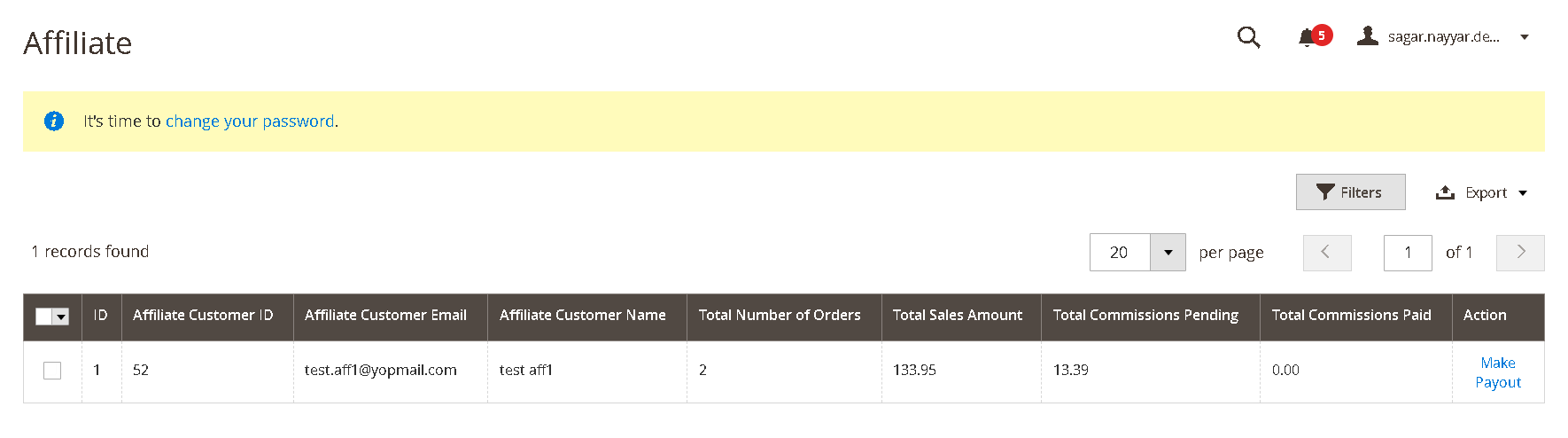
Referred Orders Overview (Admin)
- Examine which orders were generated by each affiliate from the dashboard.
- View and validate predicted commissions, manage disputes or issues.
Payout Management
- View a list of affiliates eligible for payouts:
- Payouts are only due for orders with approved statuses (e.g., Complete, Shipped).
- Set minimum payout threshold and payout schedule (weekly, monthly, manual).
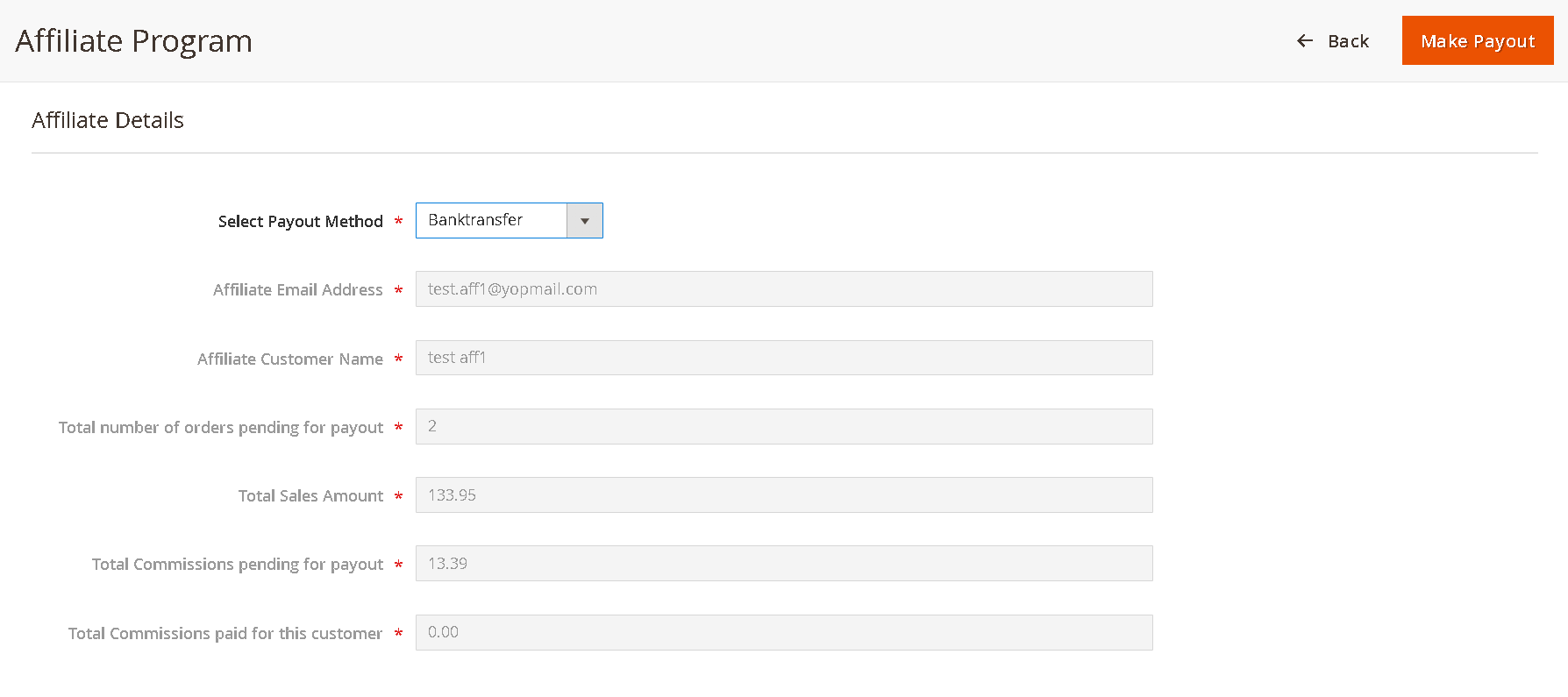
- Payout Processing:
- Select payout method (Bank Transfer or PayPal).
- Mark payouts as “Paid”–affiliate’s balance resets to 0.
- All payouts and payment history are tracked for each affiliate.
- Affiliates receive email notification templates you configure.
- Refunds and Cancelations:
- If an order is refunded or canceled after commission has been paid, commission is deducted or reversed automatically.
Multi-tier Commission Structure
- Enable/Disable tiered commission system from Affiliate Settings.
- Configure slabs and rates, e.g.:
- £1–£999.99: 10% commission
- £1,000–£1,999.99: 15% commission
- £2,000+: 20% commission
Order & Affiliate Tracking
How Order Attribution Works
- When a prospect clicks your referral link:
- A browser cookie stores your affiliate ID for 30 days.
- Any purchase in that period is attributed to you.
- After 30 days or if no link is used, no commission is awarded.
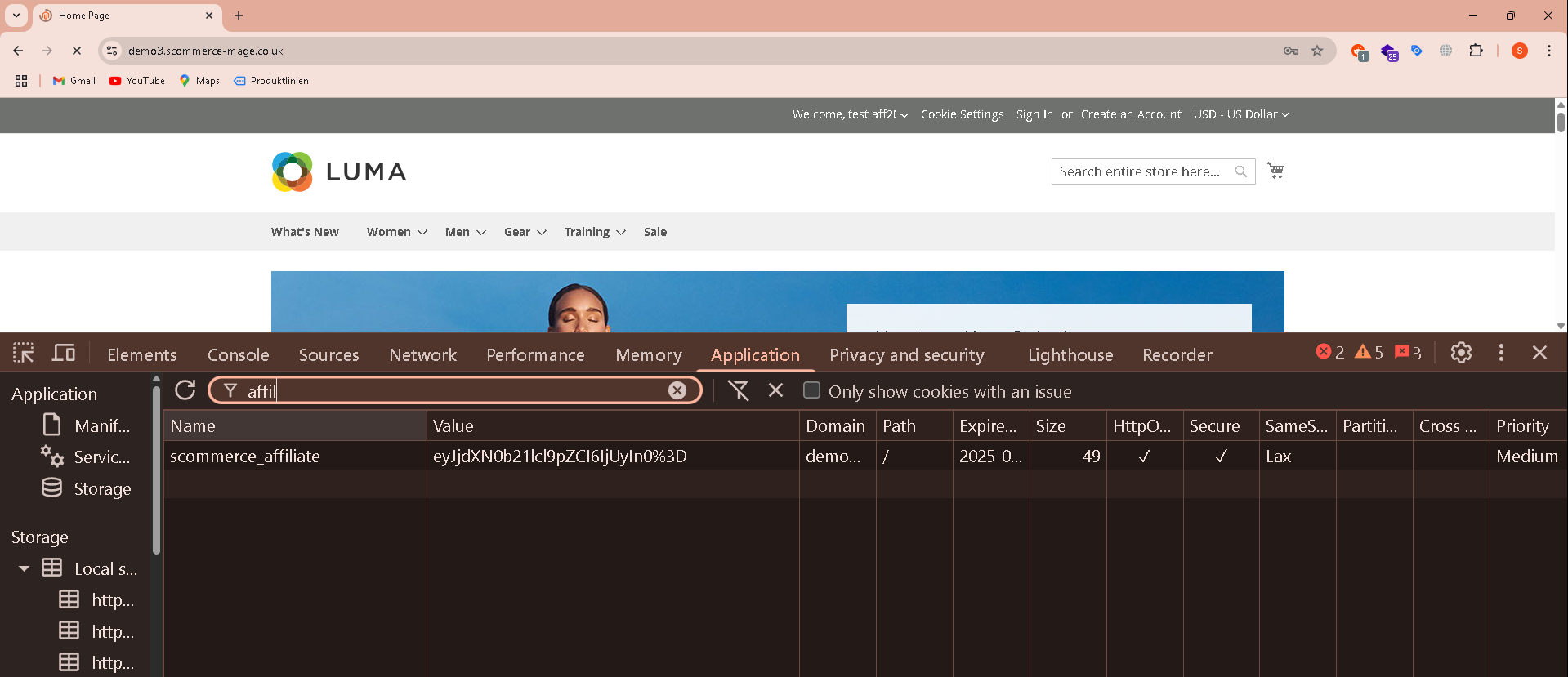
Cookie Lifecycle
- Creation: On link click.
- Active period: 30 days from last click.
- Expiry: After 30 days.
If you have a question related to this extension please check out our FAQ Section first. If you can't find the answer you are looking for then please contact support@scommerce-mage.com.