
Magento 2 Content Generator
Installation and User Guide for Magento 2 Content Protection Extension
Table of Contents
- Installation
- Installation via app/code
- Installation via Composer
- Configuration Settings for Content Protection
- Order Tags Logs
- Order Tags Grid
- General Settings
- Types of Tags
- Static Tags
- Dynamic Tags
- Predefined Tags
- Assign Tags
- Manually Assign/Remove Tags
- Assign Tags Based on Conditions
- Tags in Action
- Order Grid
- Filter Order Grid
Installation
-
Installation via app/code: Upload the content of the module to your root folder. This will not overwrite the existing Magento folder or files, only the new contents will be added. After the successful upload of the package, run below commands on Magento 2 root directory.
php bin/magento module:enable Scommerce_ContentProtect php bin/magento setup:upgrade php bin/magento setup:di:compile php bin/magento setup:static-content:deploy -f php bin/magento cache:flush -
Installation via Composer: Please follow the guide provided in the below link to complete the installation via composer.
(https://docs.scommerce-mage.com/magento-2-extensions/installation-via-composer/installation-via-composer)
Configuration Settings for Content Protection
Go to Admin > Stores > Configuration > Scommerce Configuration > Content Protection
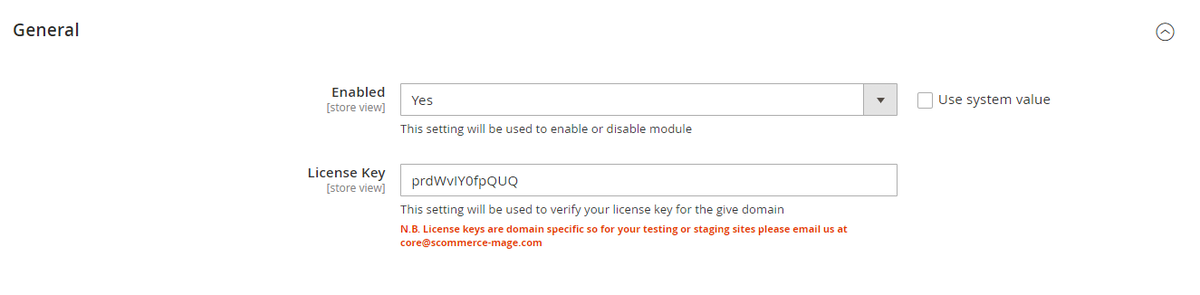
General Settings
- Enabled – Select "Yes" or "No" to enable or disable the module.
- License Key – Please add the license for the extension which is provided in the order confirmation email. Please note license keys are site URL specific. If you require license keys for dev/staging sites then please email us at support@scommerce-mage.com.
Password Configuration
Go to Admin > Stores > Configuration > Scommerce Configuration > Content Protect > Password Configuration
- Global Access Password – Enter the password that visitors must provide to unlock access to any password-protected page. The password is stored using Magento's native encryption and will never appear in plain text in the database or configuration files.
Note: If the Global Access Password field is left empty, the gate page will be displayed but no password will unlock it. Always ensure a password is set before enabling protection on any page.
Protecting a CMS Page
Go to Admin > Content > Pages
Open any existing CMS page or create a new one. Scroll down to find the Page Protection fieldset. Set the Password Protected toggle to Yes and save the page. The page is now gated any visitor attempting to access it without an unlocked session will be redirected to the password gate page.
- Password Protected – Select "Yes" to enable password protection on this CMS page. Select "No" (default) to leave the page publicly accessible.
Protecting a Product Page
Go to Admin > Catalog > Products
Open any existing product or create a new one. Scroll down to find the Page Protection fieldset. Set the Password Protected toggle to Yes and save the product. Visitors attempting to access the product page without an unlocked session will be redirected to the gate page.
- Password Protected – Select "Yes" to enable password protection on this product page. Select "No" (default) to leave the product page publicly accessible.
Note: The Password Protected attribute is scoped to store view level. This means you can enable protection on a product for one store view (e.g. your trade store) while leaving it accessible on another (e.g. your retail store). Make sure you are in the correct store view scope when editing the attribute.
Protecting a Category Page
Go to Admin > Catalog > Categories
Select any category from the category tree on the left. Scroll down to find the Page Protection fieldset in the category edit form. Set the Password Protected toggle to Yes and save the category. Visitors attempting to access the category page without an unlocked session will be redirected to the gate page.
- Password Protected – Select "Yes" to enable password protection on this category page. Select "No" (default) to leave the category publicly accessible.
Note: Protecting a category gates the category listing page only. Individual product pages within the category are not automatically protected — you must enable protection on each product separately if required. The attribute is scoped to store view level.
Frontend - The Gate Page
/contentprotect/page/gate?return=<base64-encoded-return-path>Gate Page Layout
The gate page uses your store's active theme layout (1-column, full width) and contains two sections:
- Restricted Area (info block) – Displayed at the top of the page. Contains a message informing the visitor that the content is restricted. The message text can be customised by editing view/frontend/templates/gate.phtml.
- Enter Password to Continue (form block) – Displayed below the info block. Contains a password input field, an Unlock button, and a Required Fields note.
Entering the Password
- Correct password – The visitor is redirected directly to the page they originally requested not to the homepage. The return URL is preserved throughout the process.
- Incorrect password – The gate page is redisplayed with an error message: "Incorrect password. Please try again." The return URL parameter is retained so a correct entry on the next attempt still redirects to the original page.
- Empty password submission – Client-side validation prevents the form from being submitted with an empty password field.
Session Unlock Behaviour
- Session duration – The unlock flag persists for the duration of the browser session. Closing the browser or session expiry will require the visitor to enter the password again on their next visit.
- Guest and logged-in visitors – The session unlock works for both guest visitors and authenticated customer account holders.
- Multiple protected pages – A single password entry unlocks all protected pages across all page types (CMS, product, category) for that session.
Disabling Protection
Protection can be disabled at two levels:
- Per page – Open the CMS page, product, or category in the admin and set the Password Protected toggle to No. Save the record. The page immediately becomes publicly accessible no cache flush required.
- Globally (entire module) – Go to Stores Configuration Scommerce Configuration Content Protect and set Enabled to No. This immediately disables all gate redirects across every page on the store, regardless of individual page toggle states. Your per-page settings are preserved in the database and will be restored if you re-enable the module.
Tip: If you need to quickly make all protected pages public — for example, on public launch day after a pre-launch review — setting Enabled to No in the global configuration is the fastest method. No individual page changes are needed.
Technical notes for Developers
Module Structure
- Vendor / Module name – Scommerce_ContentProtect
- Module path – app/code/Scommerce/ContentProtect/
- Frontend route – /contentprotect/page/gate and /contentprotect/page/unlock
- Session key – content_protect_unlocked (stored in Magento customer session)
Database Changes
The module applies the following database changes via Magento's patch system on setup:upgrade:
- cms_page table – Adds is_password_protected column (SMALLINT, default 0) via SchemaPatchInterface DDL-safe, runs outside of a transaction.
- catalog_product_entity (EAV) – Adds is_password_protected attribute (int, store view scope, default 0) via DataPatchInterface.
- catalog_category_entity (EAV) – Adds is_password_protected attribute (int, store view scope, default 0) via DataPatchInterface.
Plugin Interception
Content Protect uses Magento's around plugin system to intercept the execute() method on three controllers:
- Magento\Cms\Controller\Page\View – Handles CMS page protection loads the page by identifier or ID and checks the is_password_protected flag.
- Magento\Catalog\Controller\Product\View – Handles product page protection loads the product by ID via ProductRepositoryInterface.
- Magento\Catalog\Controller\Category\View – Handles category page protection loads the category by ID via CategoryRepositoryInterface.
All three plugins are registered in etc/frontend/di.xml and apply on the frontend area only. No core files are modified.
Admin UI Component Injection
The Page Protection fieldset and Password Protected toggle are injected into the three admin forms via Magento's UI component merge system:
- view/adminhtml/ui_component/cms_page_form.xml – Injects the fieldset into the CMS page edit form
- view/adminhtml/ui_component/product_form.xml – Injects the fieldset into the product edit form.
- view/adminhtml/ui_component/category_form.xml – Injects the fieldset into the category edit form.
Customising the Gate Page
The gate page template is located at:
app/code/Scommerce/ContentProtect/view/frontend/templates/gate.phtmlEdit this file to customise the info message text, the password form labels, or the page layout. To customise styles, edit:
app/code/Scommerce/ContentProtect/view/frontend/web/css/content-protect.css Note: If you customise the template or CSS, copy the files to your active theme's directory structure rather than editing the module files directly. This ensures your customisations are not overwritten by future module updates.
Hyva Theme Compatibility
The backend logic plugins, session handling, configuration, and redirect is fully themeagnostic and works with any Magento 2 theme including Hyva. The gate page template (gate.phtml) uses standard Magento HTML and the module's own CSS file. For Hyva, we recommend copying gate.phtml to your Hyva theme and adapting the markup to use Tailwind utility classes to match your storefront styling. The CSS file can then be omitted as Tailwind will handle all styling.
Full-page Cache Compatability
ContentProtect intercepts requests at the controller plugin level, which fires before Magento's full-page cache (Varnish or built-in FPC) would serve a cached response. Protected pages that redirect to the gate page are not cached. Once a visitor's session is unlocked, the page proceeds to render normally and may be served from FPC on subsequent requests within that session.
If you have a question related to this extension please check out our FAQ Section first. If you can't find the answer you are looking for then please contact support@scommerce-mage.com.