
Magento 2 Custom Currency Manager
Installation and User Guide for Magento 2 Custom Currency Manager Extension
Table of Contents
- Installation
- Installation via app/code
- Installation via Composer
- Configuration Settings for Custom Currency Manager
- Order Tags Logs
- Order Tags Grid
- General Settings
- Types of Tags
- Static Tags
- Dynamic Tags
- Predefined Tags
- Assign Tags
- Manually Assign/Remove Tags
- Assign Tags Based on Conditions
- Tags in Action
- Order Grid
- Filter Order Grid
Installation
-
Installation via app/code: Upload the content of the module to your root folder. This will not overwrite the existing Magento folder or files, only the new contents will be added. After the successful upload of the package, run below commands on Magento 2 root directory.
php bin/magento setup:upgrade php bin/magento setup:di:compile php bin/magento setup:static-content:deploy -
Installation via Composer: Please follow the guide provided in the below link to complete the installation via composer.
Configuration Settings for Custom Currency Manager
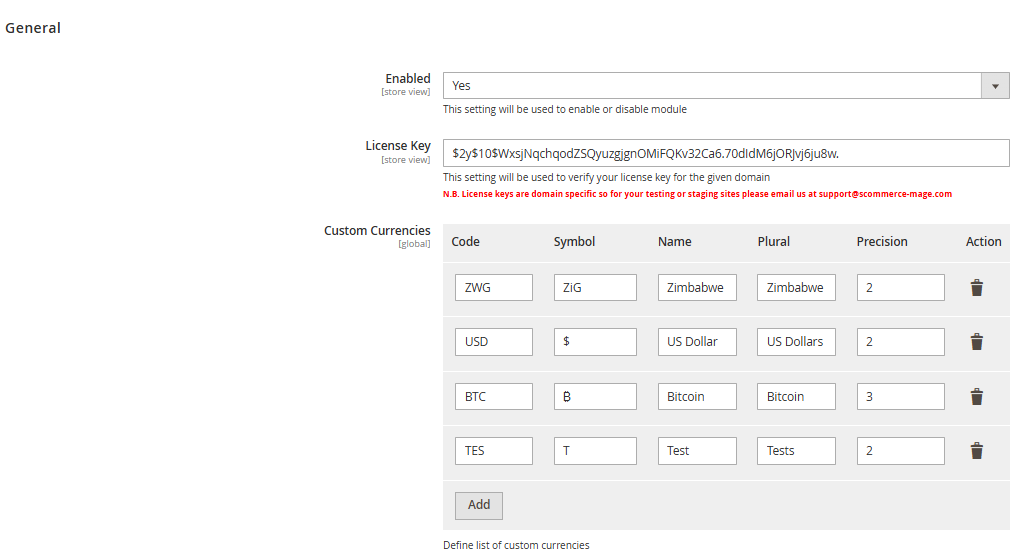
Go to Admin > Stores > Configuration > Scommerce Configuration > Custom Currency Manager
General Settings
- Enabled – Select "Yes" or "No" to enable or disable the module.
- License Key – Please add the license for the extension which is provided in the order confirmation email. Please note license keys are site URL specific. If you require license keys for dev/staging sites then please email us at support@scommerce-mage.com.
- Custom Currencies - Please add the defined list of custom currencies.
Order Tags Grid
Go to Admin>Sales>Scommerce Order Tagger>Order Tags
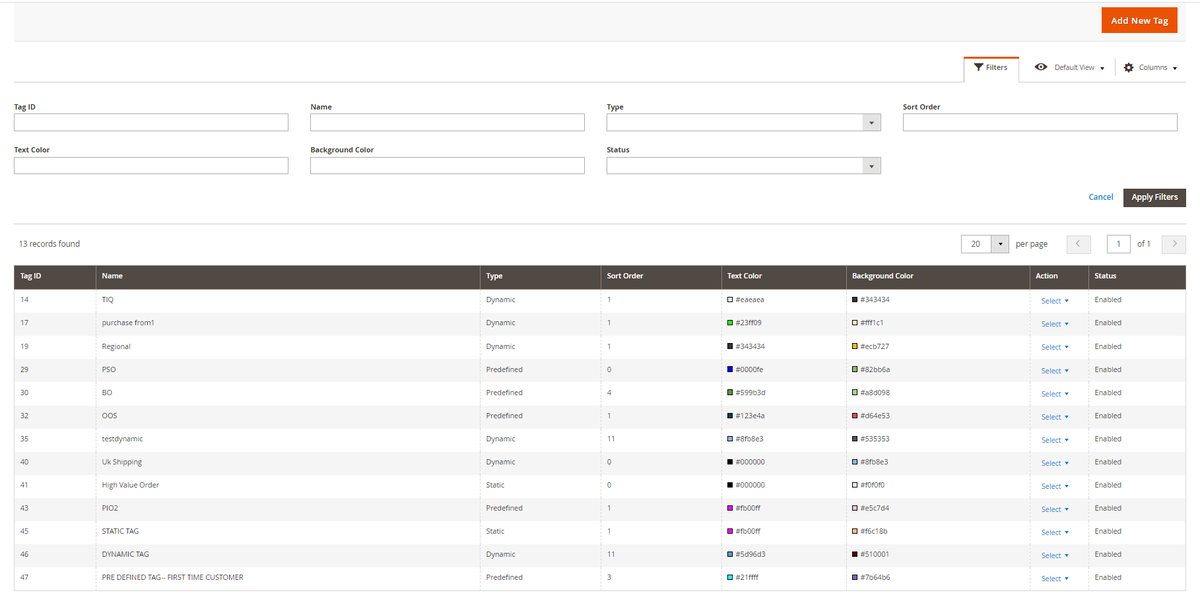
- Name– Enter the name of the tag.
- Type– Select "Static" or "Dynamic" or "Predefined". Static tags can be manually assigned and dynamic tags can be assigned using conditions. Predefined tags already have conditions set so you only to select the predefined tag type.
- Sort Order– Define the priority of the tag(0 being the highest priority), the highest priority tag will be displayed first.
- Text Color– Add the text color for the tag.
- Background Color– Add the background color for the tag
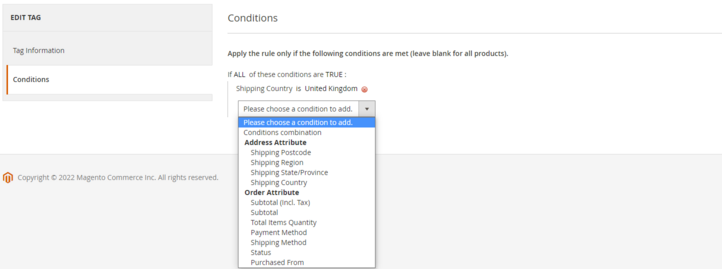
Conditions– Add the conditions using order or address attributes.
If you have a question related to this extension please check out our FAQ Section first. If you can't find the answer you are looking for then please contact support@scommerce-mage.com.