
Magento 2 Custom Currency Manager
Installation and User Guide for Magento 2 Custom Currency Manager Extension
Table of Contents
- Installation
- Installation via app/code
- Installation via Composer
- Configuration Settings for Custom Currency Manager
- Order Tags Logs
- Order Tags Grid
- General Settings
- Types of Tags
- Static Tags
- Dynamic Tags
- Predefined Tags
- Assign Tags
- Manually Assign/Remove Tags
- Assign Tags Based on Conditions
- Tags in Action
- Order Grid
- Filter Order Grid
Installation
-
Installation via app/code: Upload the content of the module to your root folder. This will not overwrite the existing Magento folder or files, only the new contents will be added. After the successful upload of the package, run below commands on Magento 2 root directory.
php bin/magento setup:upgrade php bin/magento setup:di:compile php bin/magento setup:static-content:deploy -
Installation via Composer: Please follow the guide provided in the below link to complete the installation via composer.
Configuration Settings for Custom Currency Manager
Go to Admin > Stores > Configuration > Scommerce Configuration > Custom Currency Manager
General Settings
- Enabled – Select "Yes" or "No" to enable or disable the module.
- License Key – Please add the license for the extension which is provided in the order confirmation email. Please note license keys are site URL specific. If you require license keys for dev/staging sites then please email us at support@scommerce-mage.com.
- Custom Currencies - Please add the defined list of custom currencies.
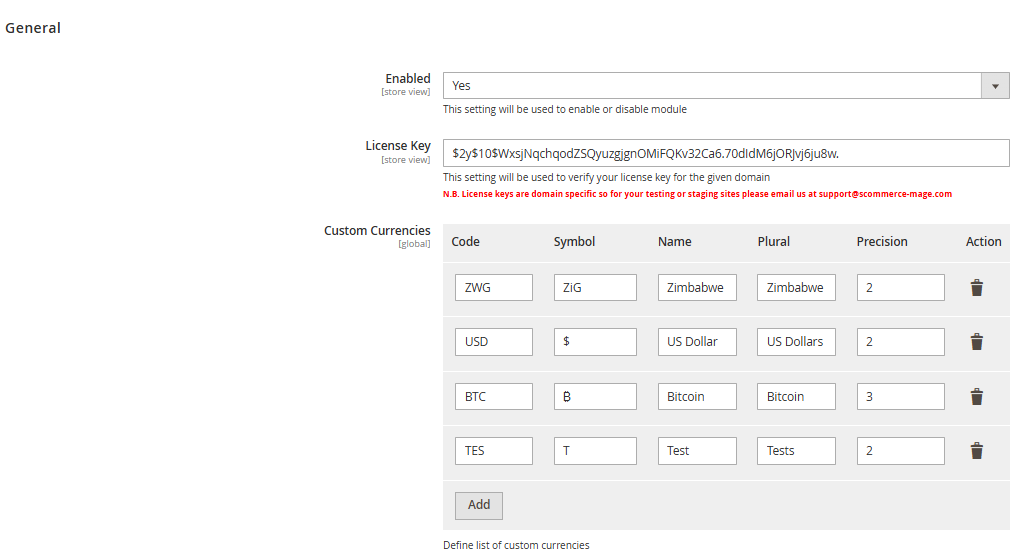
Custom Currency Manager
As a Magento store administrator, you have the flexibility to create and configure custom currencies (e.g., BTC, ZWG, Points) directly from the Admin Panel. This feature allows you to support non-standard payment systems without requiring developer assistance.
To add a Custom Currency like BTC add from Configuration, path - Admin > Stores > Configuration > Custom Currency Manager,
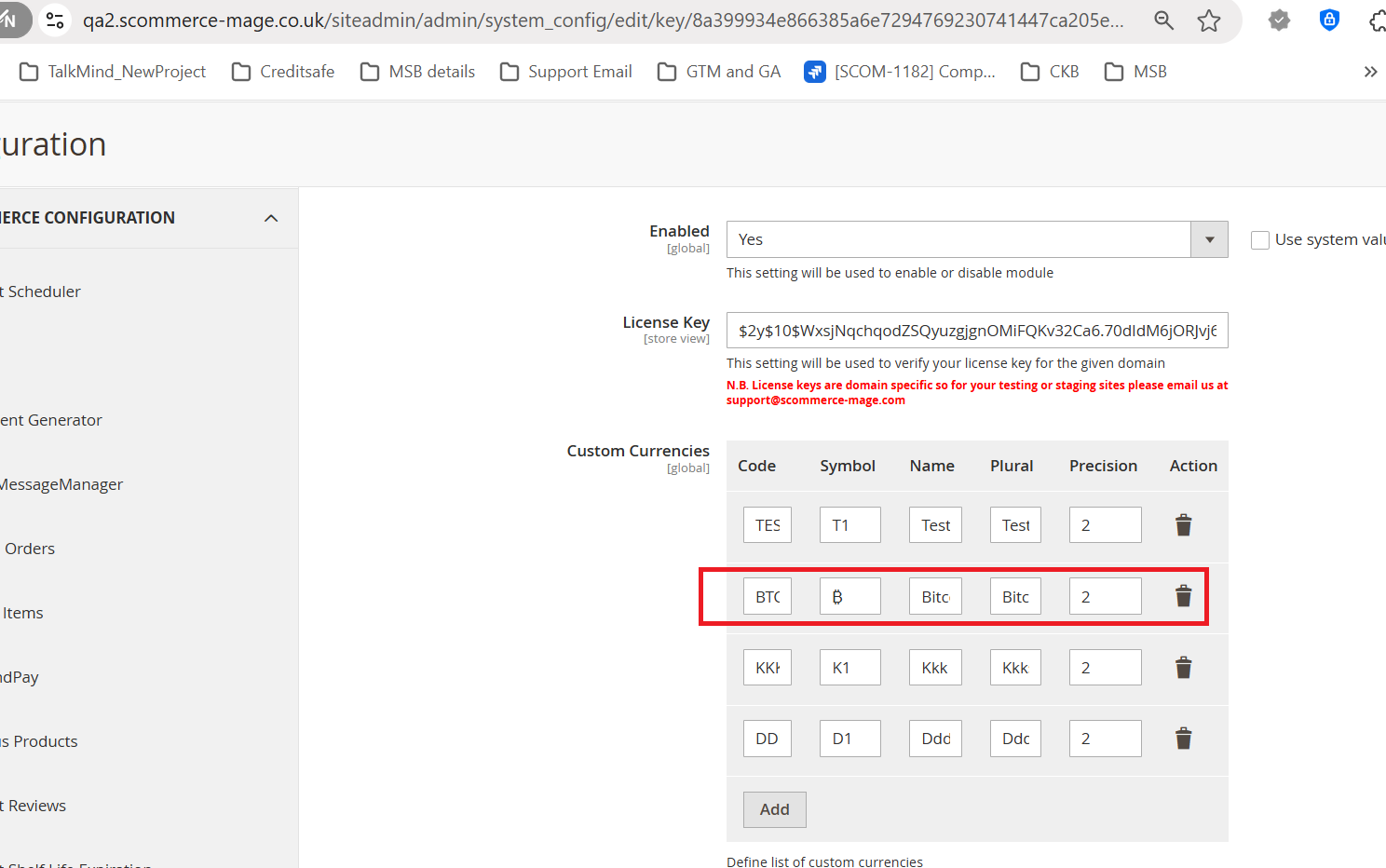
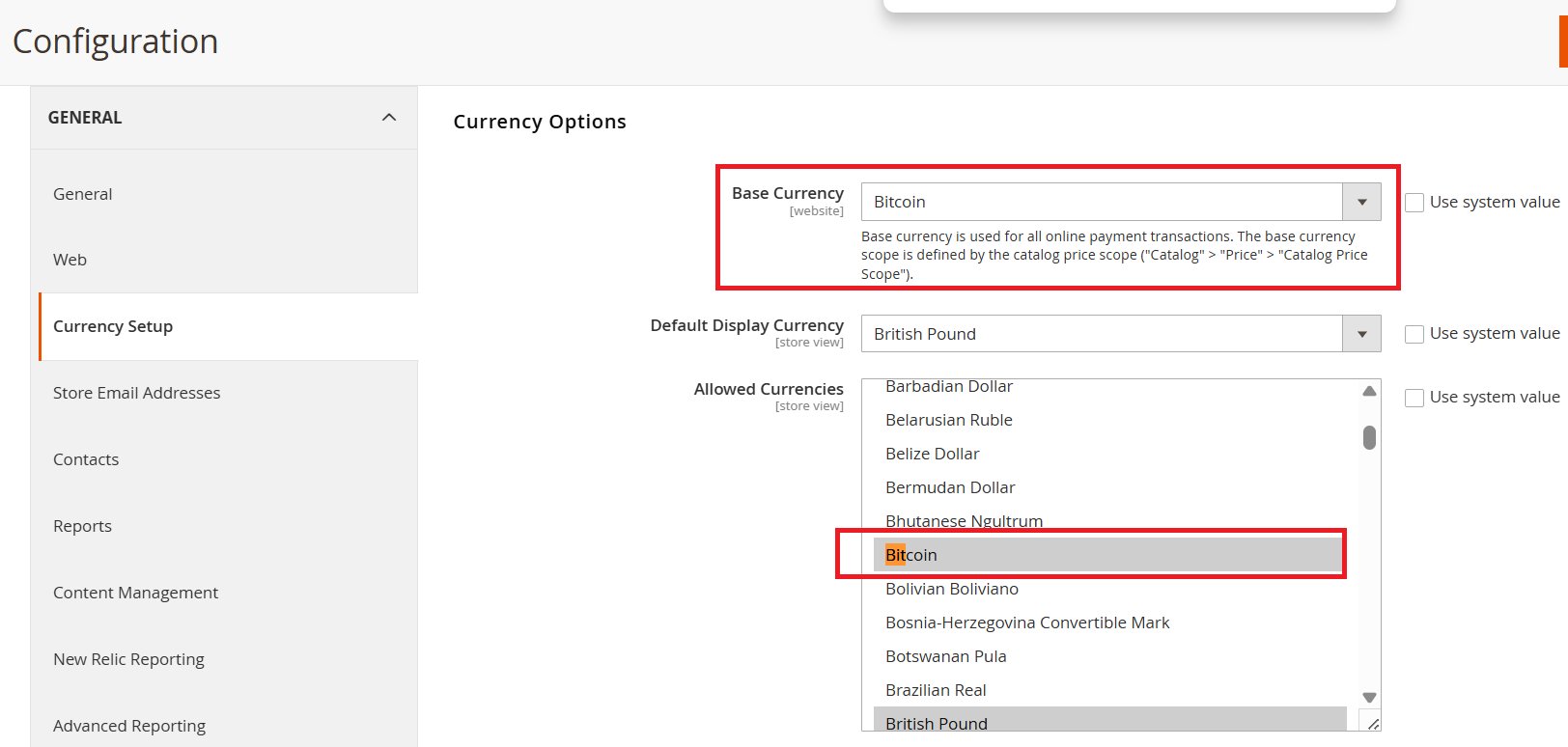
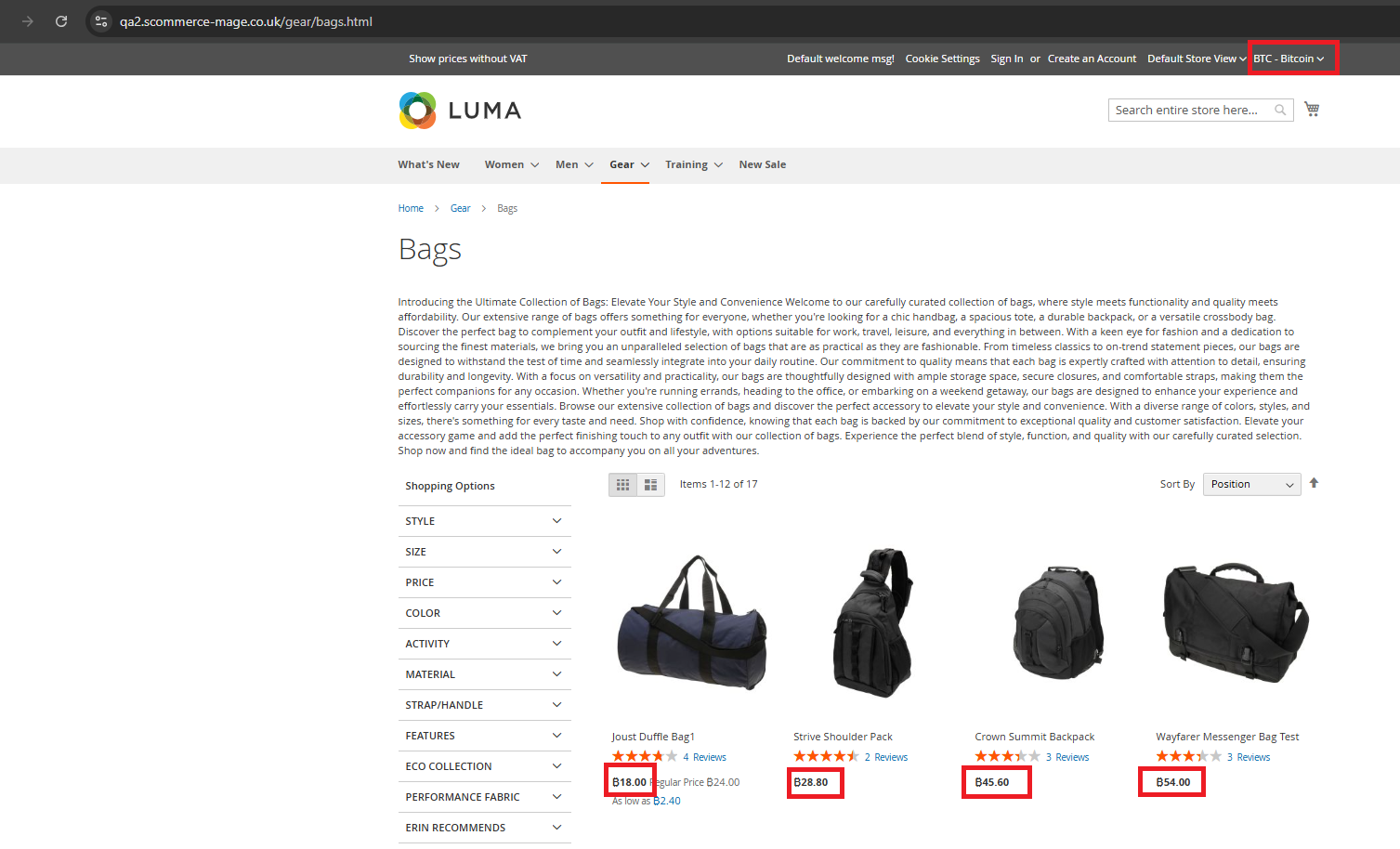
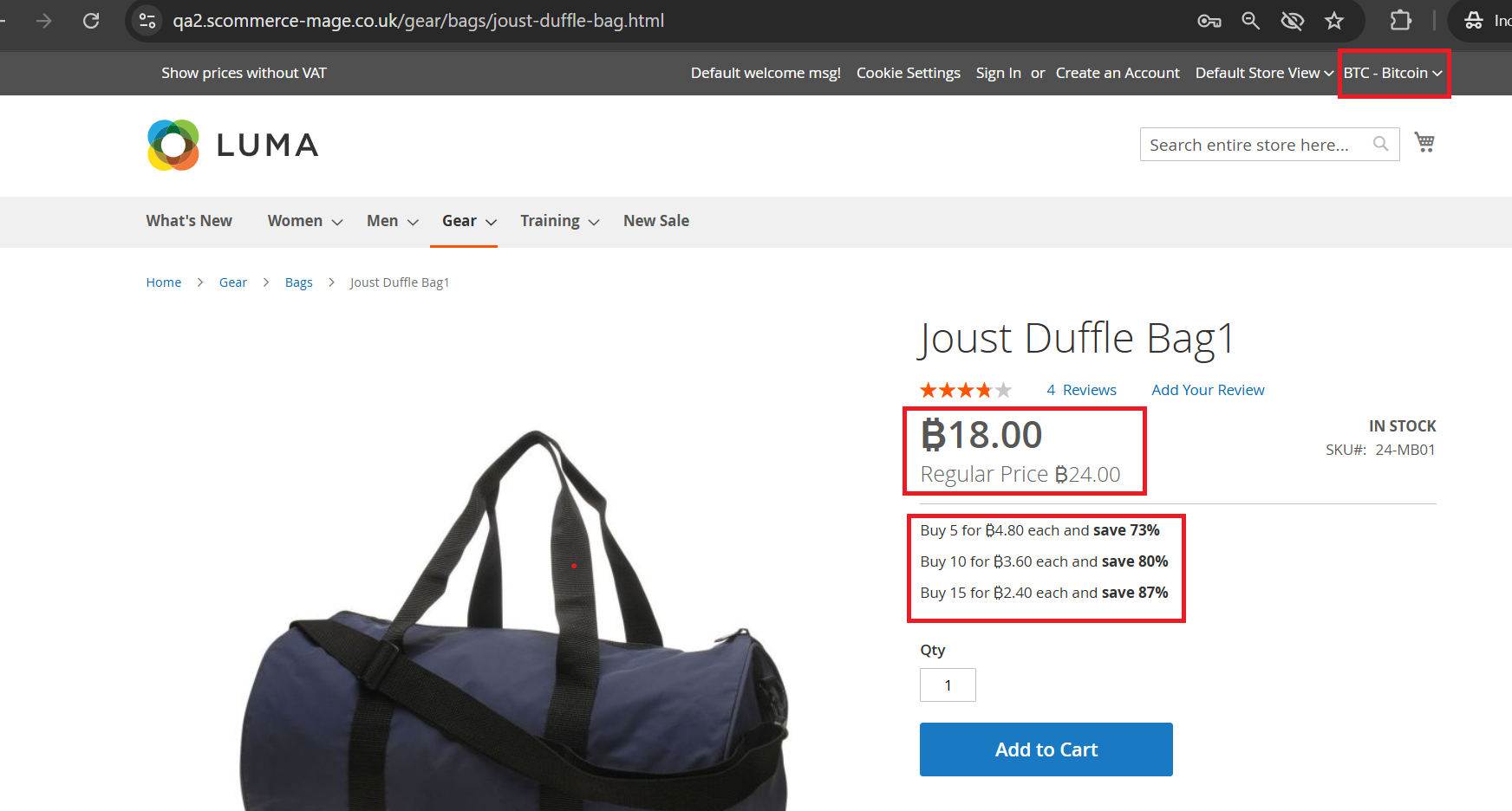
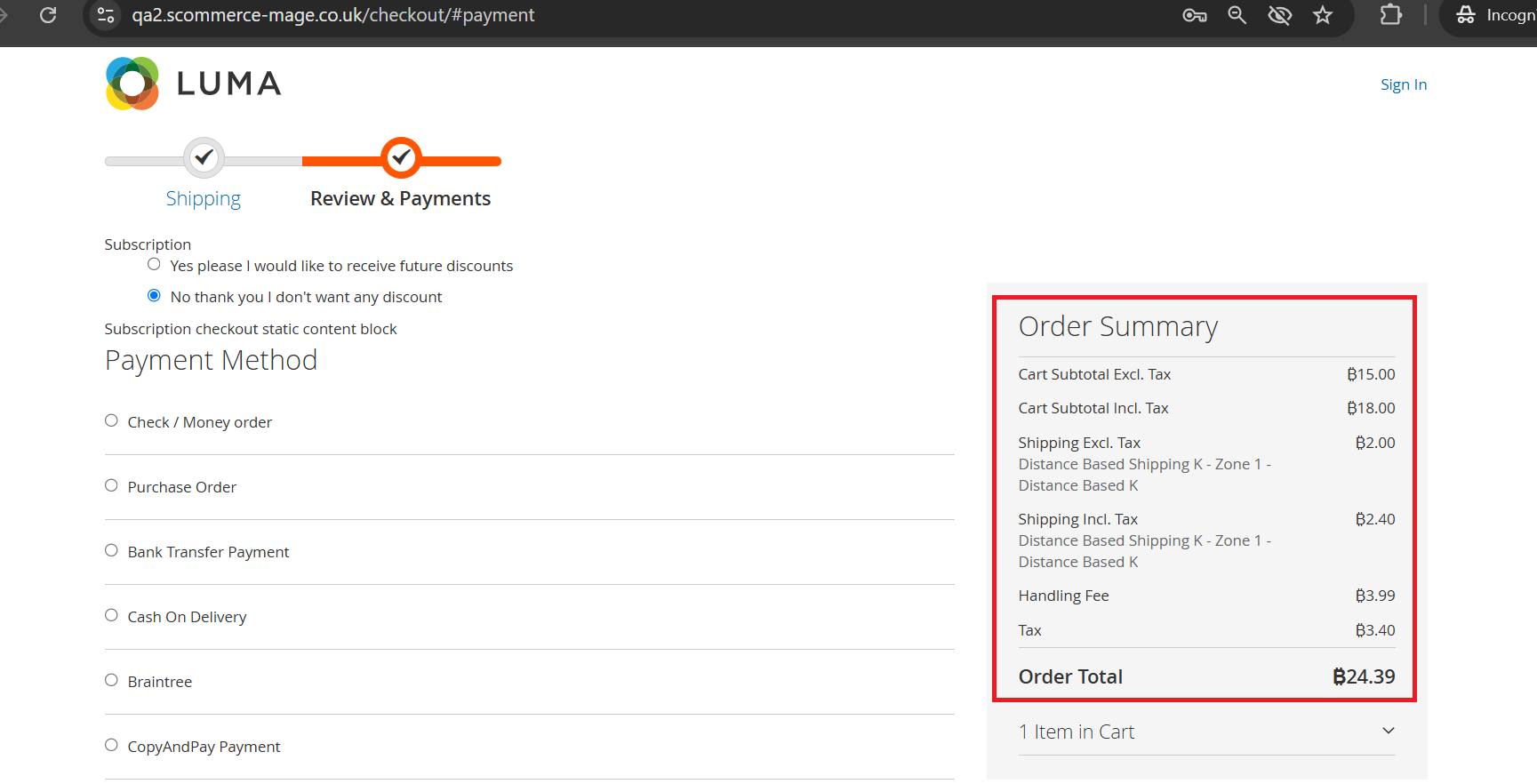
In the Currency Options section, you can define your custom currency codes like BTC.. Navigate to: Admin Panel > Stores > Configuration > General > Currency Setup. Once configured, these custom currencies will appear in the currency selector on the frontend typically at the top of your store.
Please refer to the screenshots below for visual guidance on setting up custom currencies.
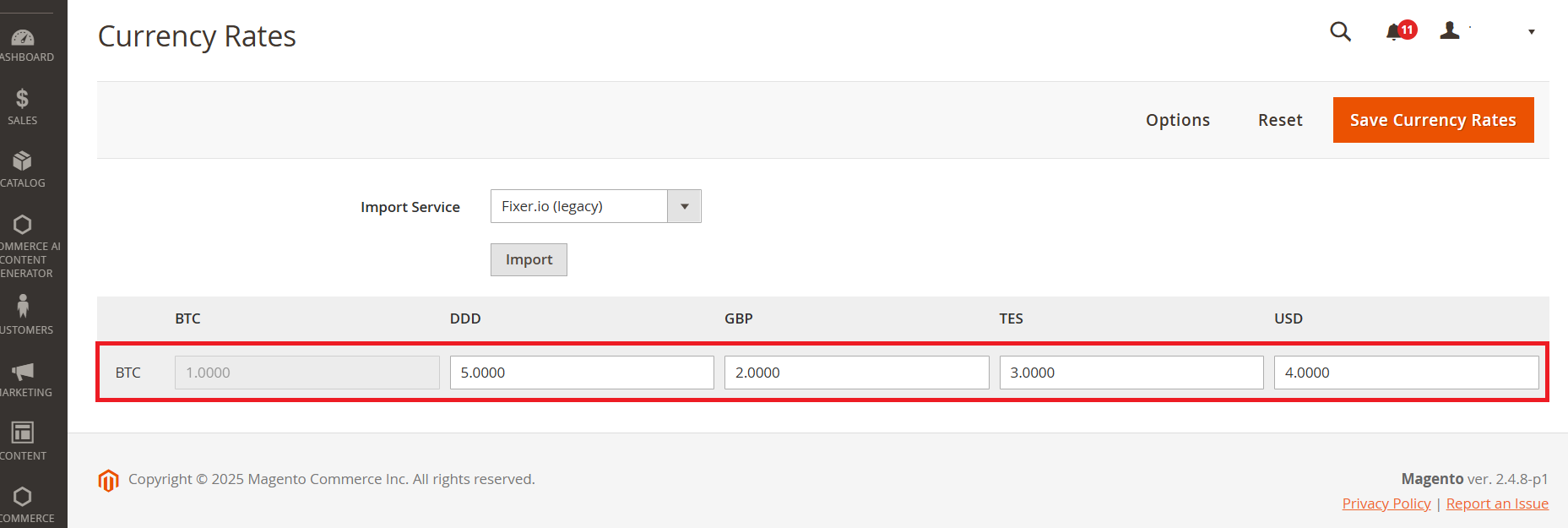
To configure currency rates for your store:
-
Go to Admin Panel > Stores > Configuration > Currency Rates.
-
From this section, you can manually set exchange rates or import them from supported services.
-
Make sure to save your changes to apply the updated rates across your storefront.
Frontend Screenhots
If you have a question related to this extension please check out our FAQ Section first. If you can't find the answer you are looking for then please contact support@scommerce-mage.com.