
Magento 2 Custom Currency Manager
Installation and User Guide for Magento 2 Custom Currency Manager Extension
Table of Contents
- Installation
- Installation via app/code
- Installation via Composer
- Configuration Settings for Custom Currency Manager
- General Settings
- Custom Currency Manager
- Frontend Screenshots
- Error Message When Adding Duplicate currency in Configuration settings
- Error for Deleting Currency for Configuration settings
Installation
-
Installation via app/code: Upload the content of the module to your root folder. This will not overwrite the existing Magento folder or files, only the new contents will be added. After the successful upload of the package, run below commands on Magento 2 root directory.
php bin/magento setup:upgrade php bin/magento setup:di:compile php bin/magento setup:static-content:deploy -
Installation via Composer: Please follow the guide provided in the below link to complete the installation via composer.
Configuration Settings for Custom Currency Manager
Go to Admin > Stores > Configuration > Scommerce Configuration > Custom Currency Manager
General Settings
- Enabled – Select "Yes" or "No" to enable or disable the module.
- License Key – Please add the license for the extension which is provided in the order confirmation email. Please note license keys are site URL specific. If you require license keys for dev/staging sites then please email us at support@scommerce-mage.com.
- Custom Currencies - Please add the defined list of custom currencies.
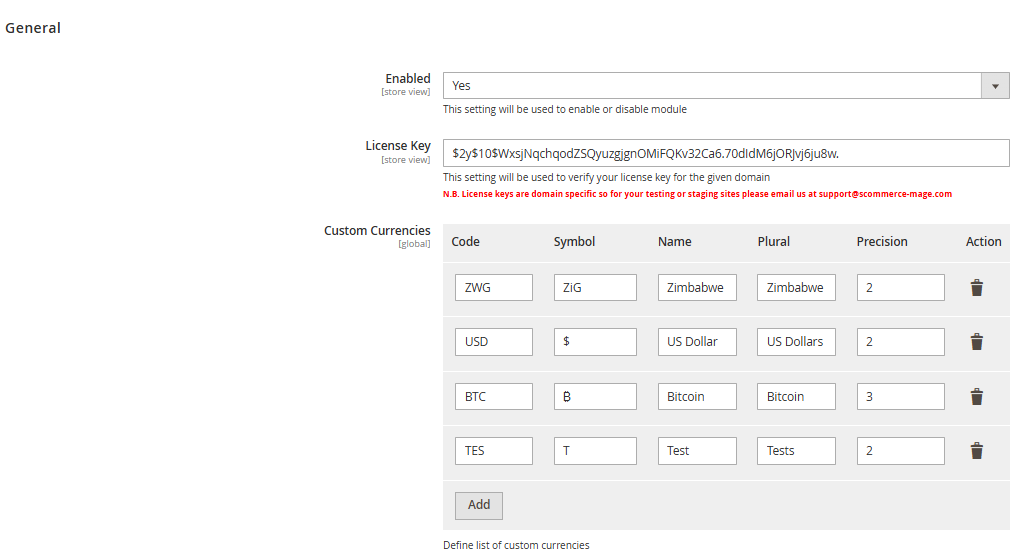
Custom Currency Manager
As a customer using the Custom Currency Manager extension, you can create and configure various custom currencies such as BTC, ZWG, and others to suit your store's needs.
To add a Custom Currency like BTC add from Configuration, path - Admin > Stores > Configuration > Custom Currency Manager
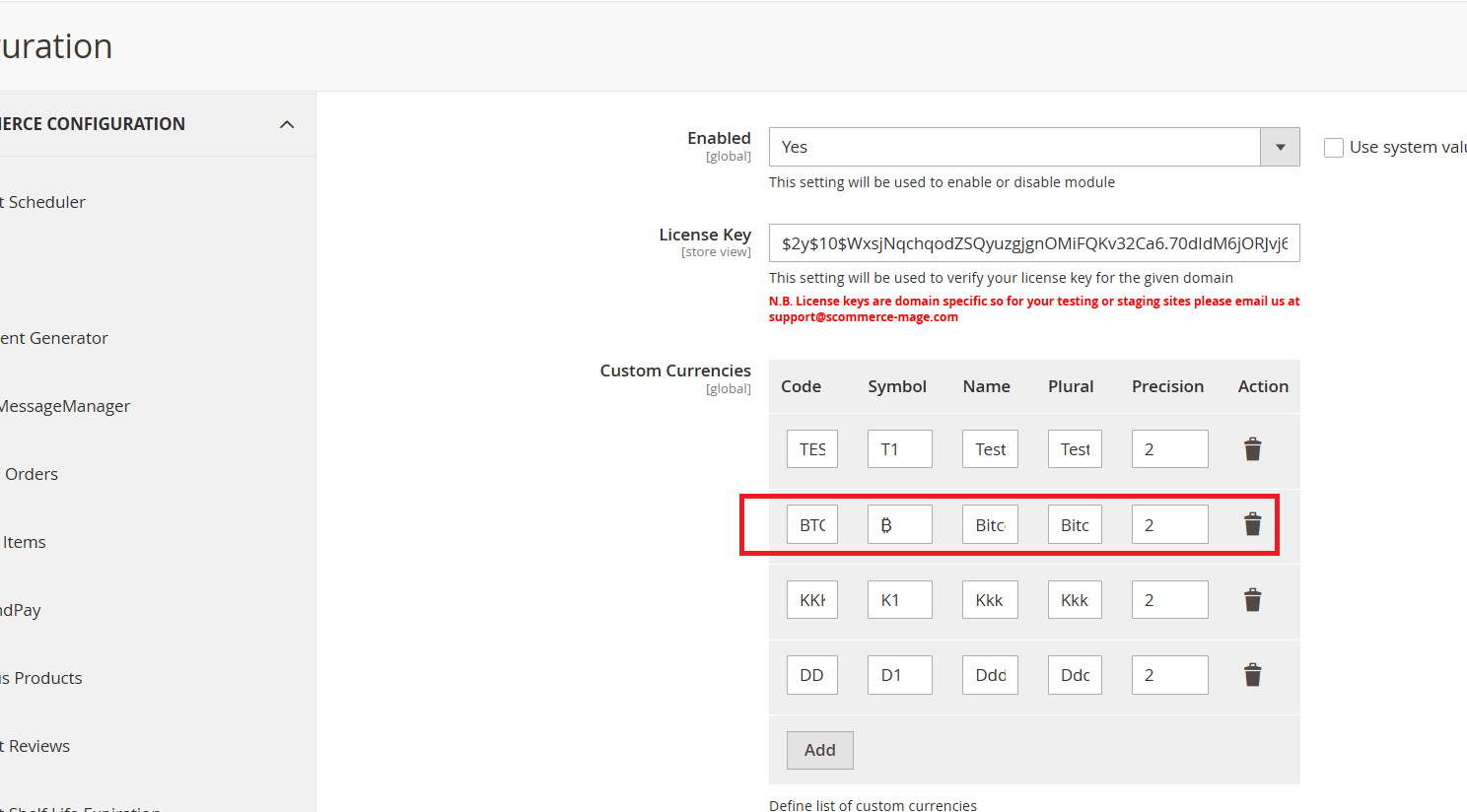
Once you configure custom currencies by adding the currency code, symbol, plural name, and precision in the configuration, the newly added currency appears in the "All".
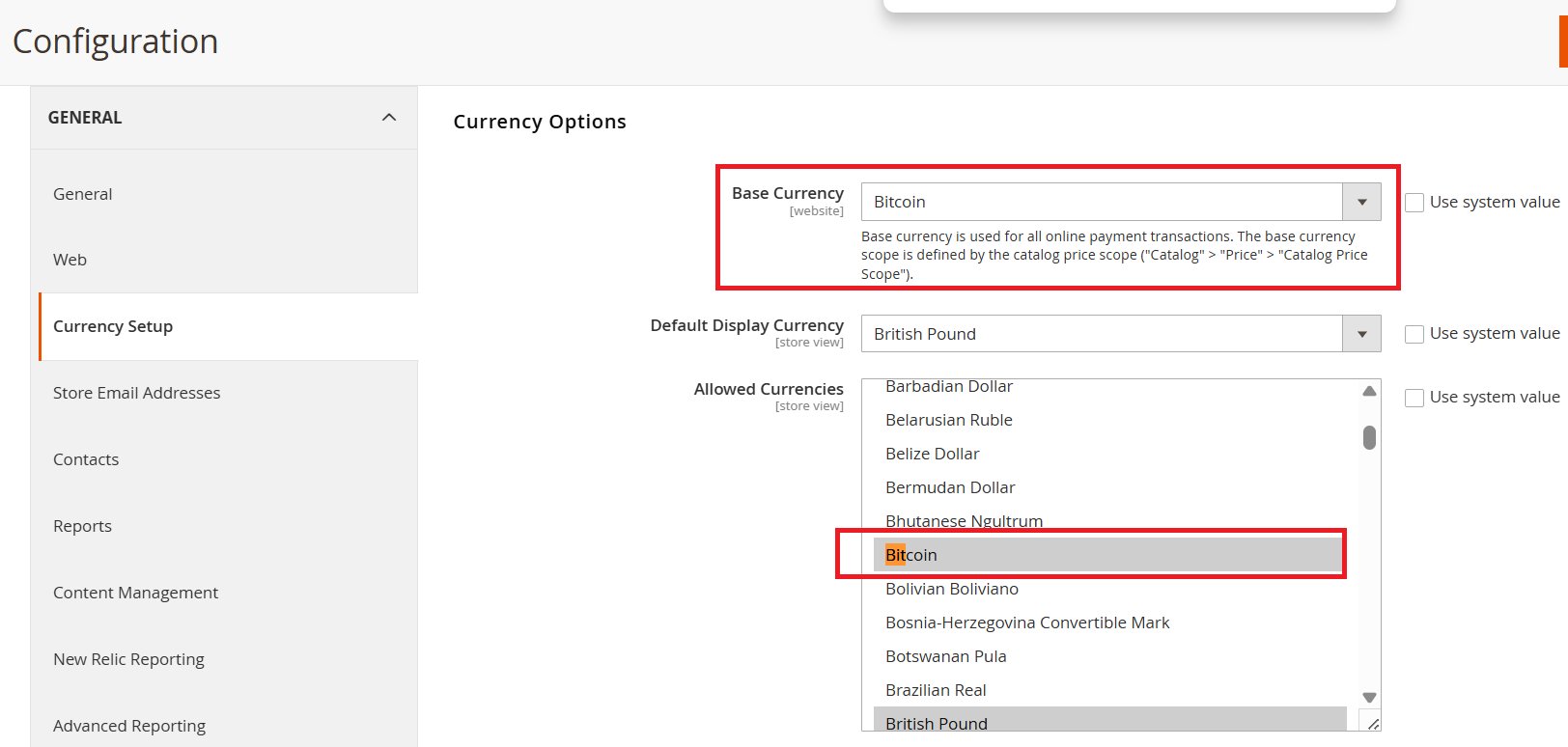
To configure your store’s currency settings, go to Admin Panel > Stores > Configuration > General > Currency Setup, where you can choose the base currency, default display currency, and allowed currencies.
Please refer to the screenshots below for visual guidance on setting up custom currencies.
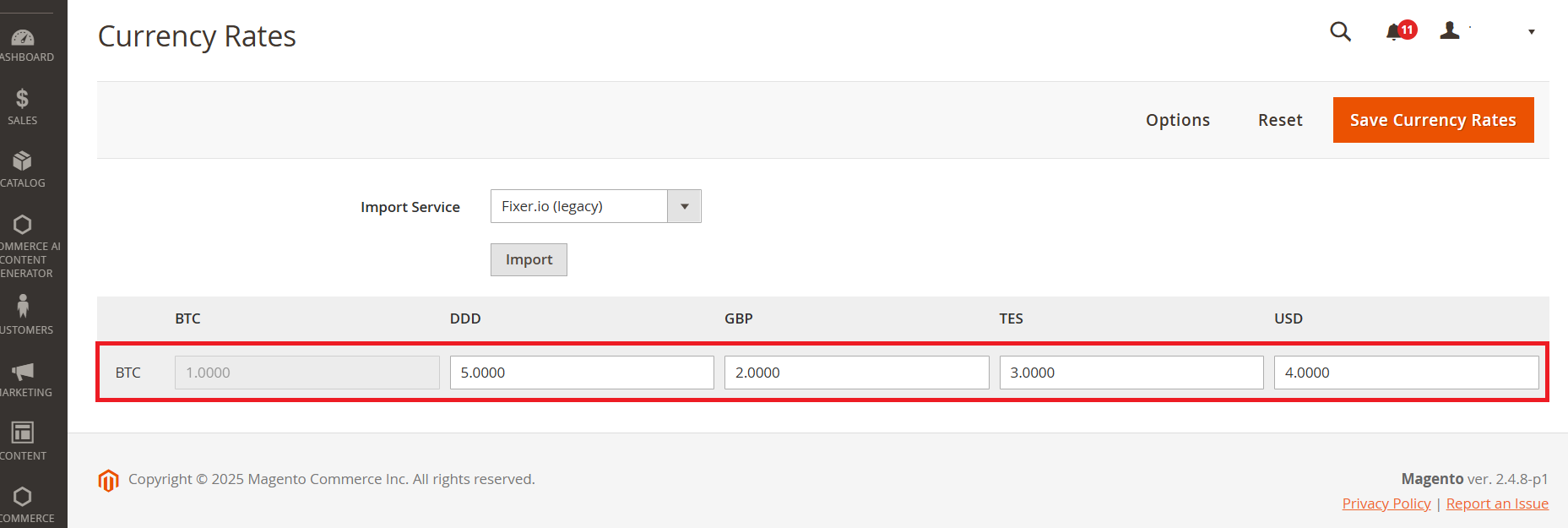
To configure currency rates for your store:
- Go to Admin Panel > Stores > Configuration > Currency Rates.
- From this section, you can manually set exchange rates or import them from supported services.
- Make sure to save your changes to apply the updated rates across your storefront.
Frontend Screenhots
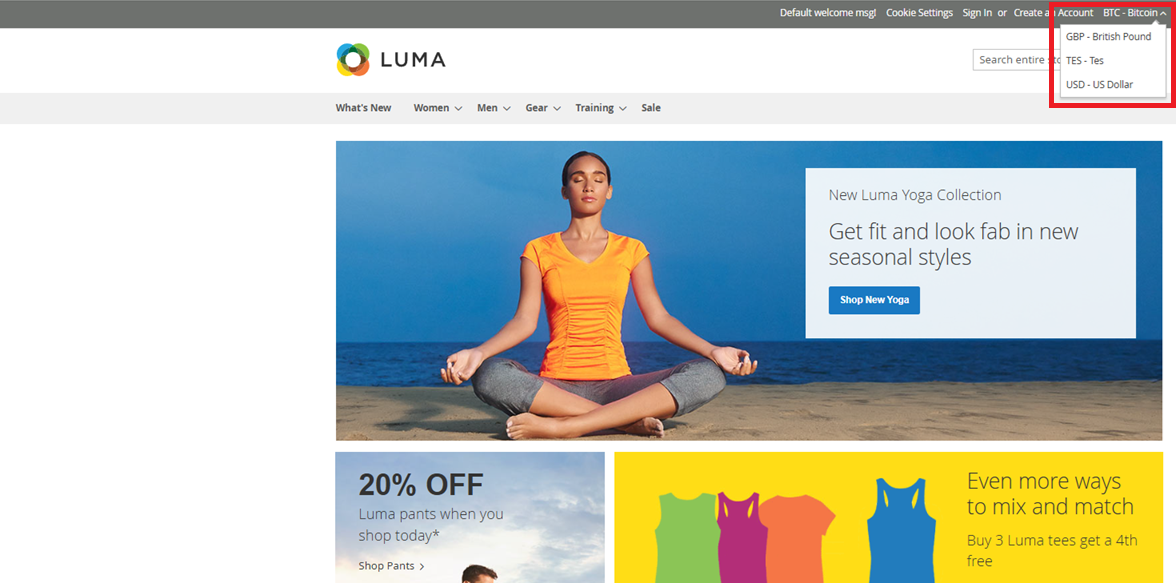
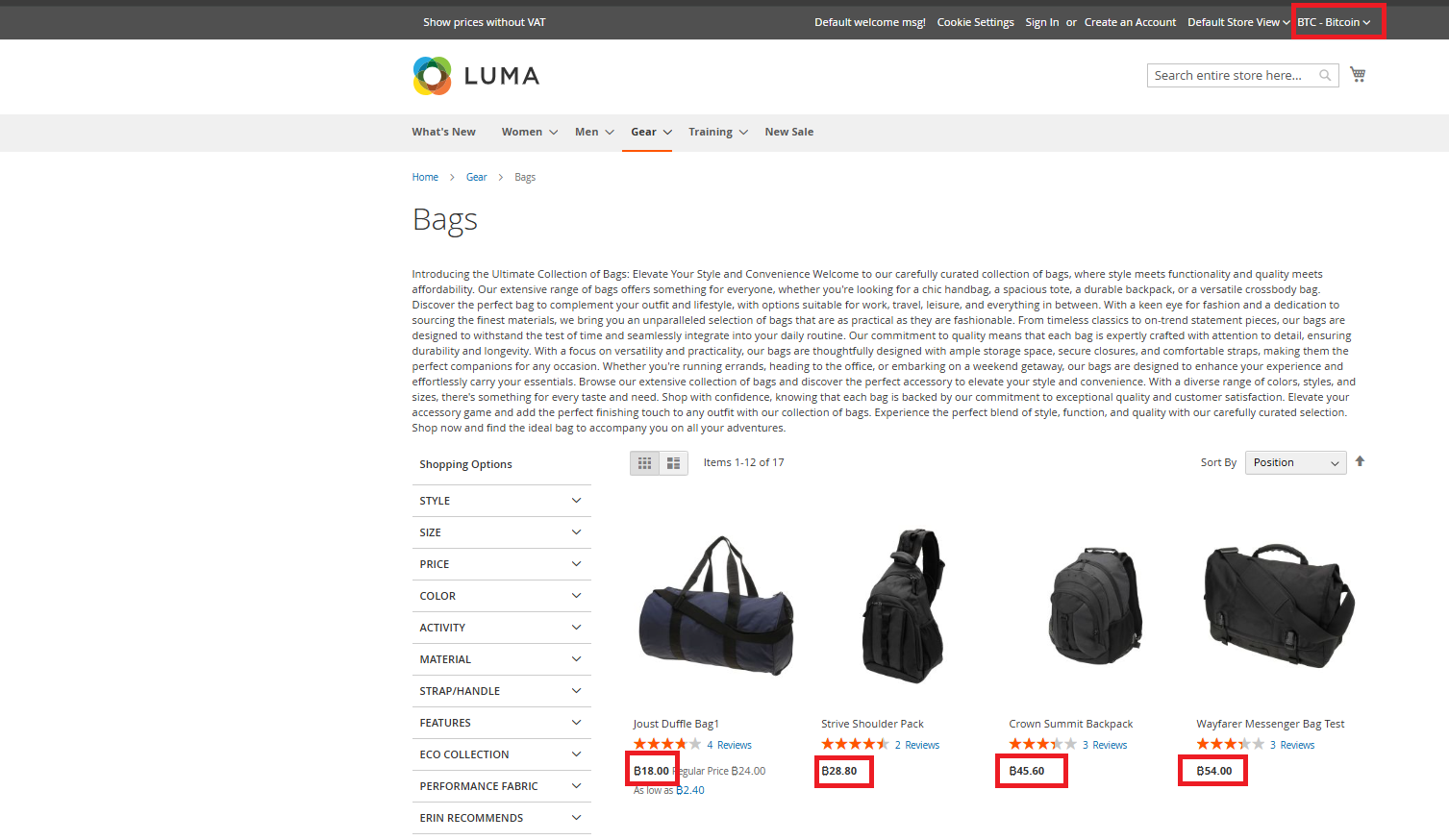
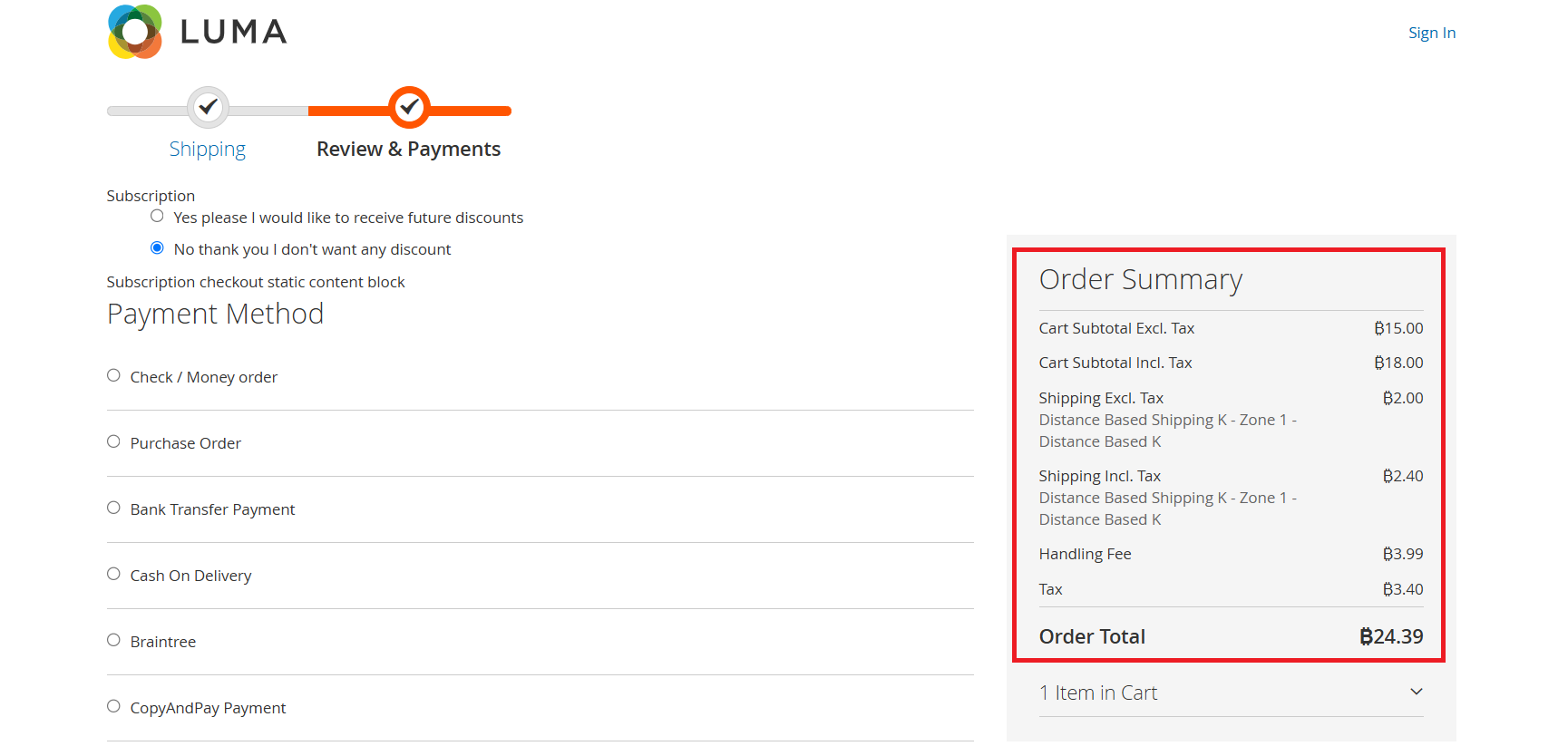
Error Message When Adding Duplicate Currency in Configuration Settings
The currency 'DDDGBP' has been selected in the Allowed Currency list for the UK site. It cannot be deleted because it is currently assigned as an allowed currency.
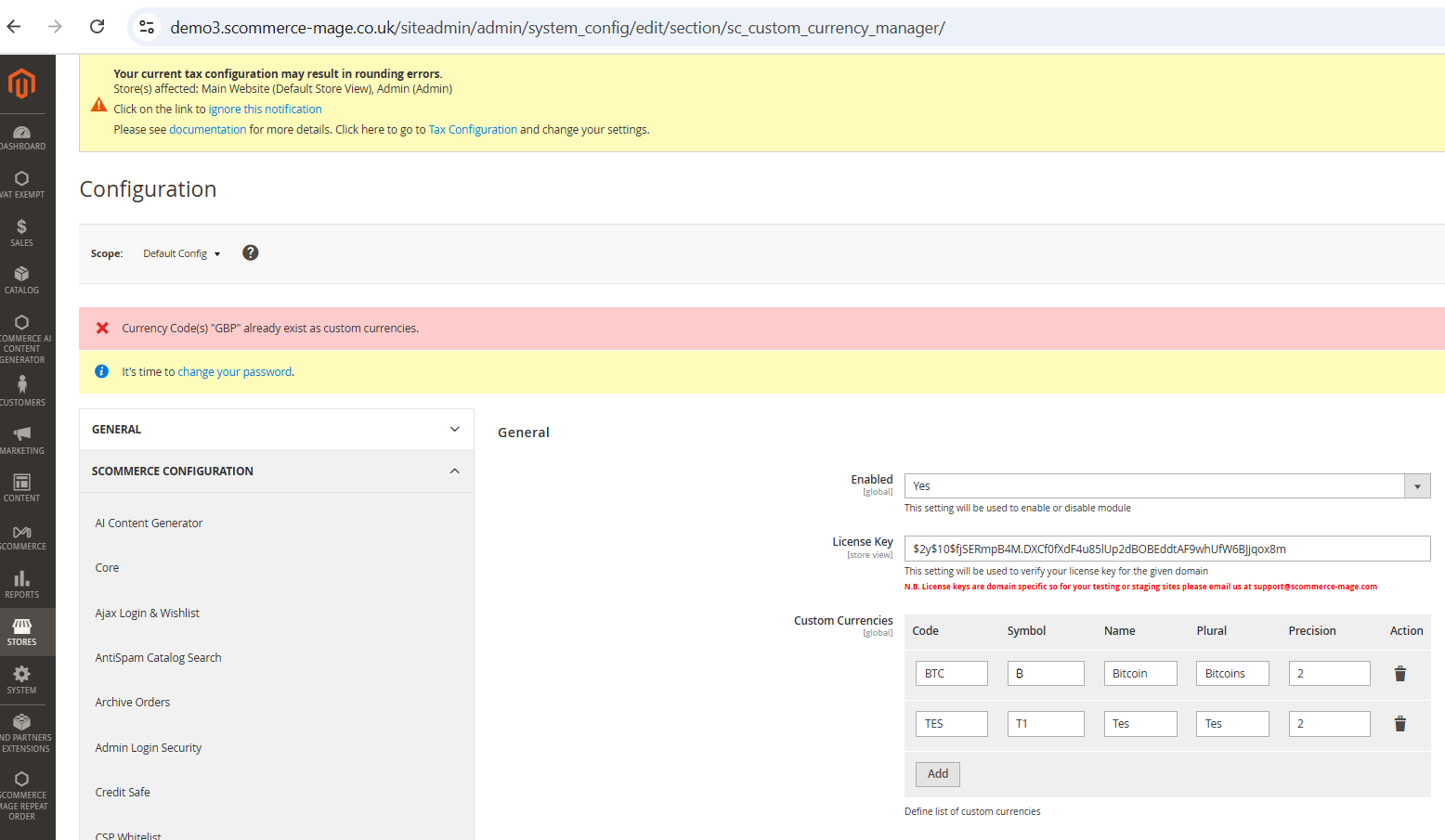
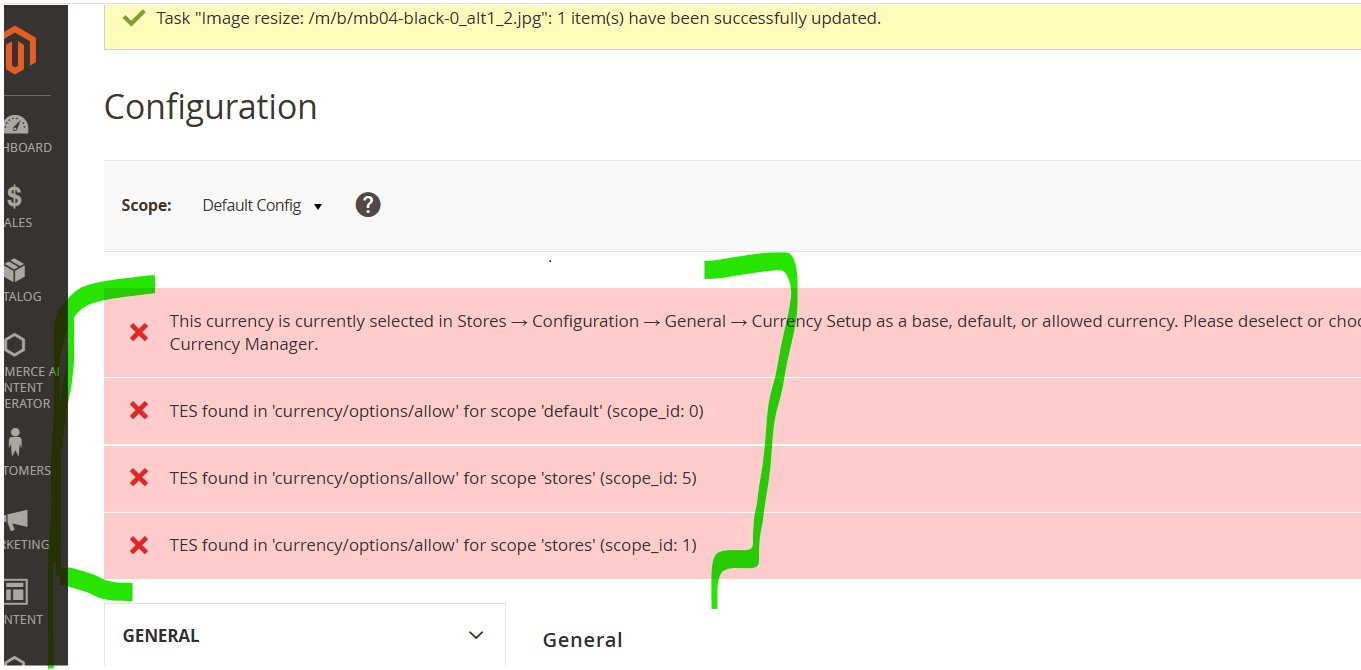
Error for Deleting Currency for configuration settings
The 'Test' currency has been selected in the Allowed Currency list for the UK site, Default Configuration, and Default Store View.
If you have a question related to this extension please check out our FAQ Section first. If you can't find the answer you are looking for then please contact support@scommerce-mage.com.