
Magento 2 Distance Based Shipping
Installation and User Guide for Magento 2 Distance Based Shipping Extension
Table of Contents
- Installation
- Installation via app/code
- Installation via Composer
- Configuration Settings for Distance Based Shipping
- Order Tags Logs
- Order Tags Grid
- General Settings
TypesShippingof TagsCostStatic TagsDynamic TagsPredefined Tags
AssignPickTagsStore / Website Address fromManually Assign/Remove TagsAssign Tags Based on Conditions
Tags in ActionOrder GridFilter Order Grid
Installation
-
Installation via app/code: Upload the content of the module to your root folder. This will not overwrite the existing Magento folder or files, only the new contents will be added. After the successful upload of the package, run below commands on Magento 2 root directory.
php bin/magento setup:upgrade php bin/magento setup:di:compile php bin/magento setup:static-content:deploy -
Installation via Composer: Please follow the guide provided in the below link to complete the installation via composer.
Configuration Settings for Distance Based Shipping
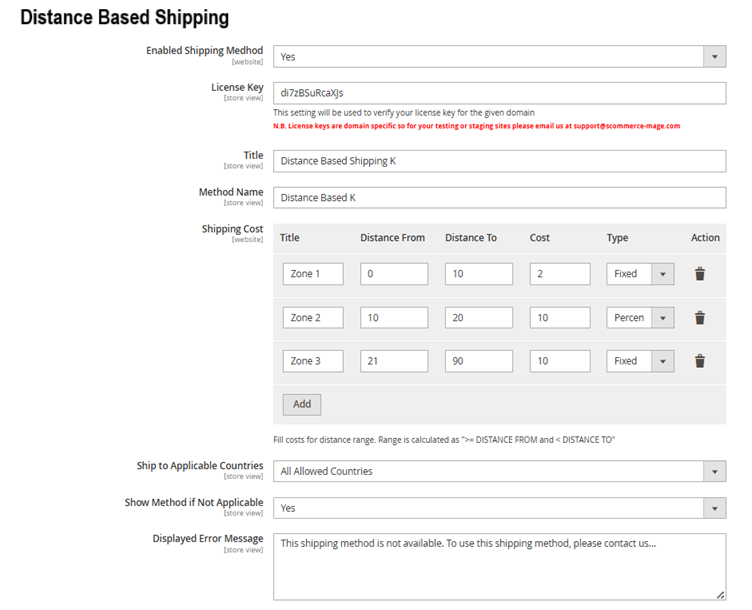
Go to Admin > Stores > Configuration > Sales> Delivery Methods > Distance Based Shipping
General Settings
-
Enabled Shipping Method – Select "Yes" or "No" to enable or disable the module.
-
License Key – Please add the license for the extension which is provided in the order confirmation email. Please note license keys are site URL specific. If you require license keys for dev/staging sites then please email us at support@scommerce-mage.com.
-
Title - Please enter the Title of Distance based Shipping.
-
Method Name - Please enter the Method name of Distance based Shipping.
-
Shipping Cost - The range is defined as: greater than or equal to "Distance From" and less than "Distance To".
-
Ship to Applicable Countries - Select the applicable shipping destination(s).
-
Show Method if Not Applicable - Select “Yes” or “No” to display the method when it is not applicable
-
Displayed Error Message - Please enter the error message to be displayed
-
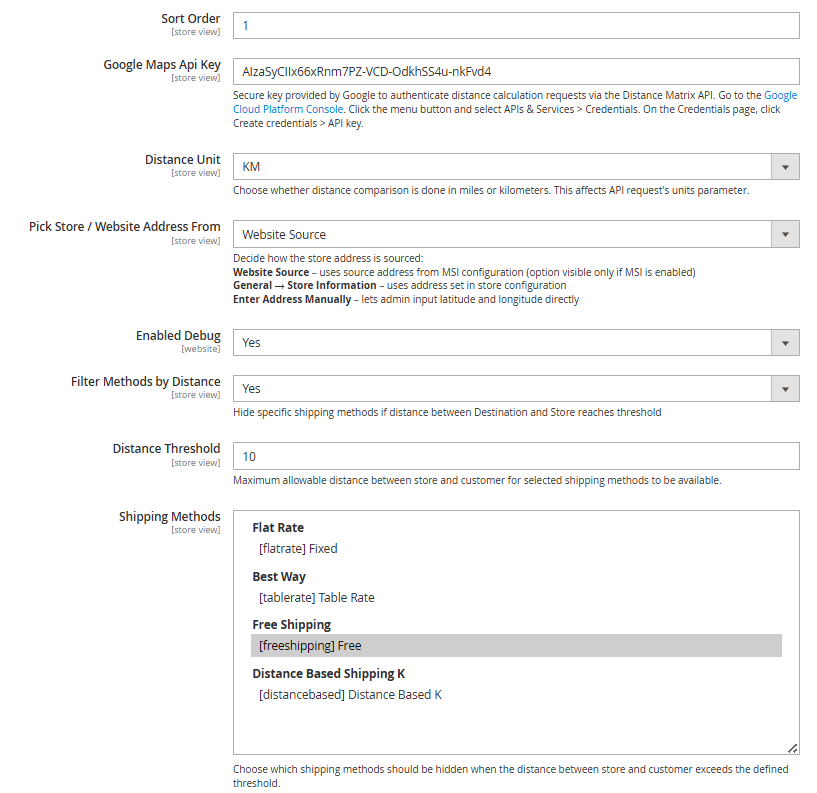
Sort Order - Please enter the Sort order
-
Google Maps Api key - Use a secure API key provided by Google to authenticate distance calculation requests via the Distance Matrix API.
-
Distance Unit - Select whether to compare distances in miles or kilometers.
-
Pick Store / Website Address From -
Select the method for sourcing the store address:
Website Source: Uses the address defined in the MSI configuration. (Visible only when MSI is enabled.)
General → Store Information: Pulls the address from the store’s configuration settings.
Enter Address Manually: Allows the admin to input latitude and longitude directly.
-
Enabled Debug - Select “Yes” to enable debug mode, or “No” to disable it.
-
Filter Methods by Distance - Select “Yes” to enable distance-based filtering, or “No” to disable it
-
Distance Threshold - Please add the Distance Threshold.
-
Shipping Methods - Select the shipping methods to hide when the store-to-customer distance exceeds the defined threshold.
Shipping Cost
Go to Admin> Stores > Sales > Delivery Methods > Distance Based Shipping
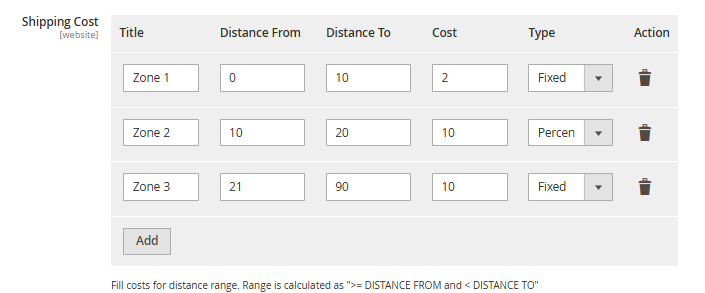
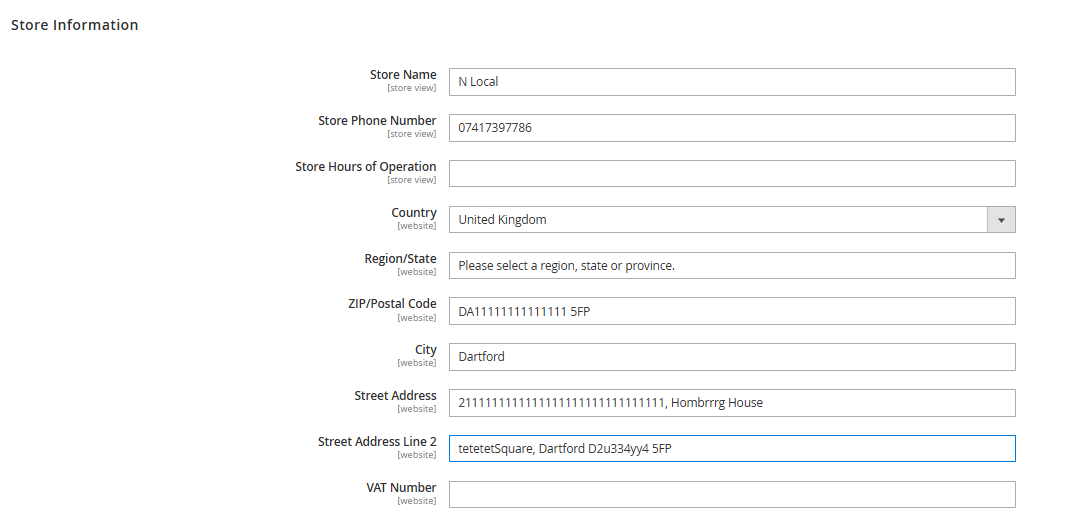
To define a title (e.g., Zone 1) and set the starting distance (e.g., 0)0) from Store information, go to: Admin > Stores > General > Store Information
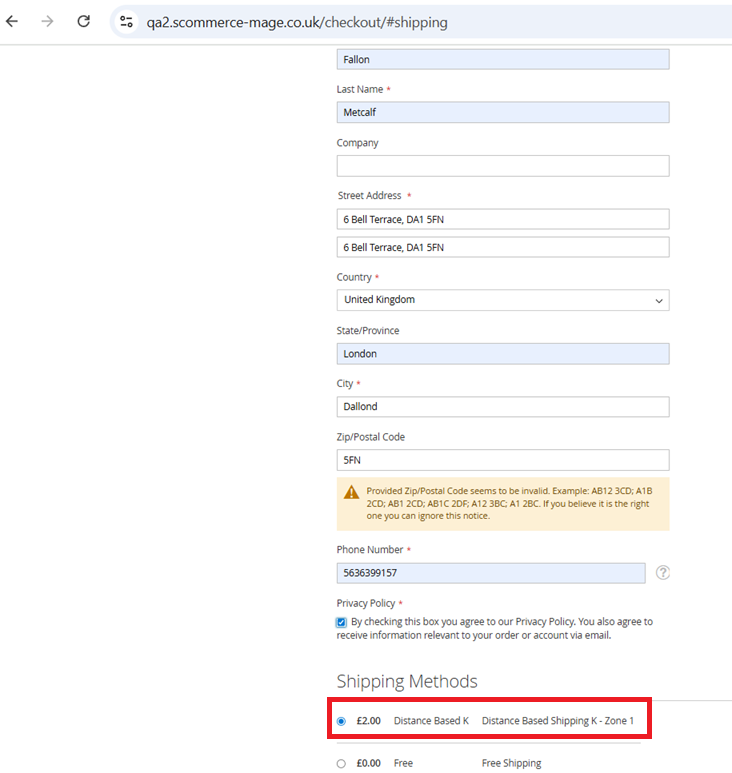
When a customer enters an address on the frontend, the system calculates delivery cost based on the distance from the store:
0–10 km: Delivery cost is ₹2
11–20 km: Delivery cost is ₹10
21–90 km: Delivery cost is ₹10
Refer to the screenshot below for how this appears on the frontend.
Pick Store / Website Address from
General - Store Information – Displays the store address as configured in the Store Settings section. This information is automatically pulled from the predefined store configuration and reflects the official location details provided during setup. Go to: Admin > Stores > General > Store Information
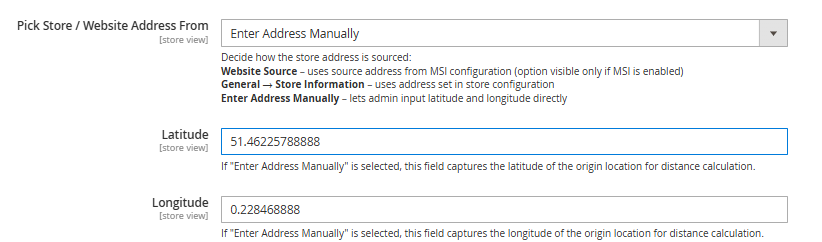
Enter Address Manually – – Enables administrators to input geographic coordinates—latitude and longitude—directly, bypassing automated location detection or map-based selection.
To configure this manually, navigate to: Admin > Stores > Sales > Delivery Methods > Distance-Based Shipping From there, enter the desired latitude and longitude values. These coordinates allow Google Maps to accurately detect and associate the location for distance-based calculations.
Order Tags Logs
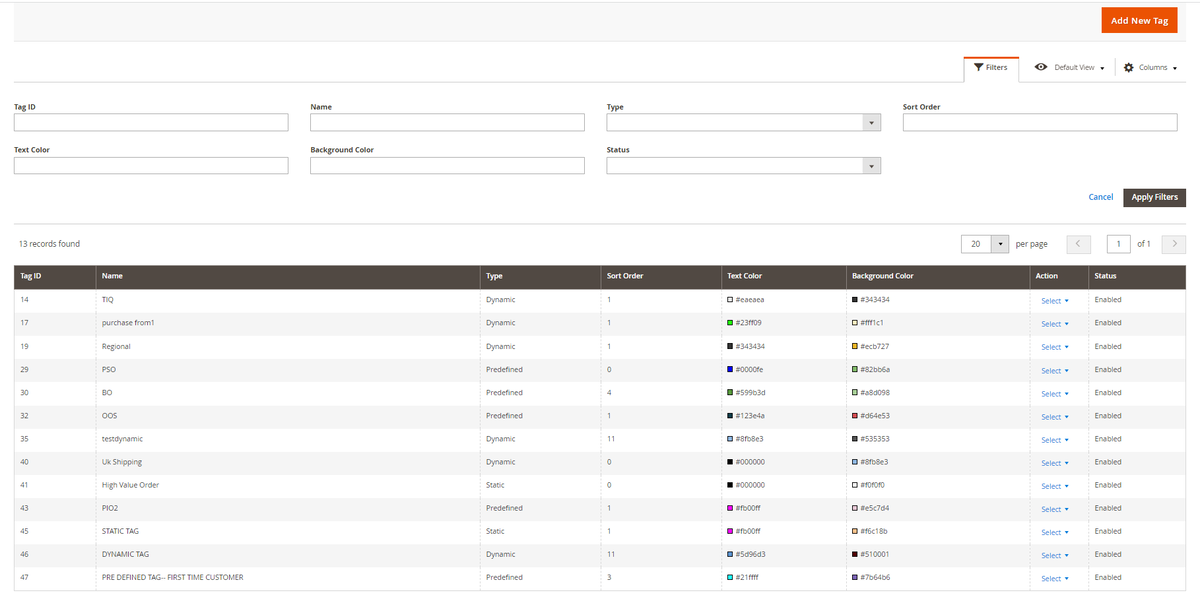
Go to Admin>Sales>Scommerce Order Tagger>Order Tags Logs
The logs keep track of all the dynamic tags that are assigned to orders. It has its own set of filters which can be used to identify a specific assigned tag.
Pick Store / Website Address From
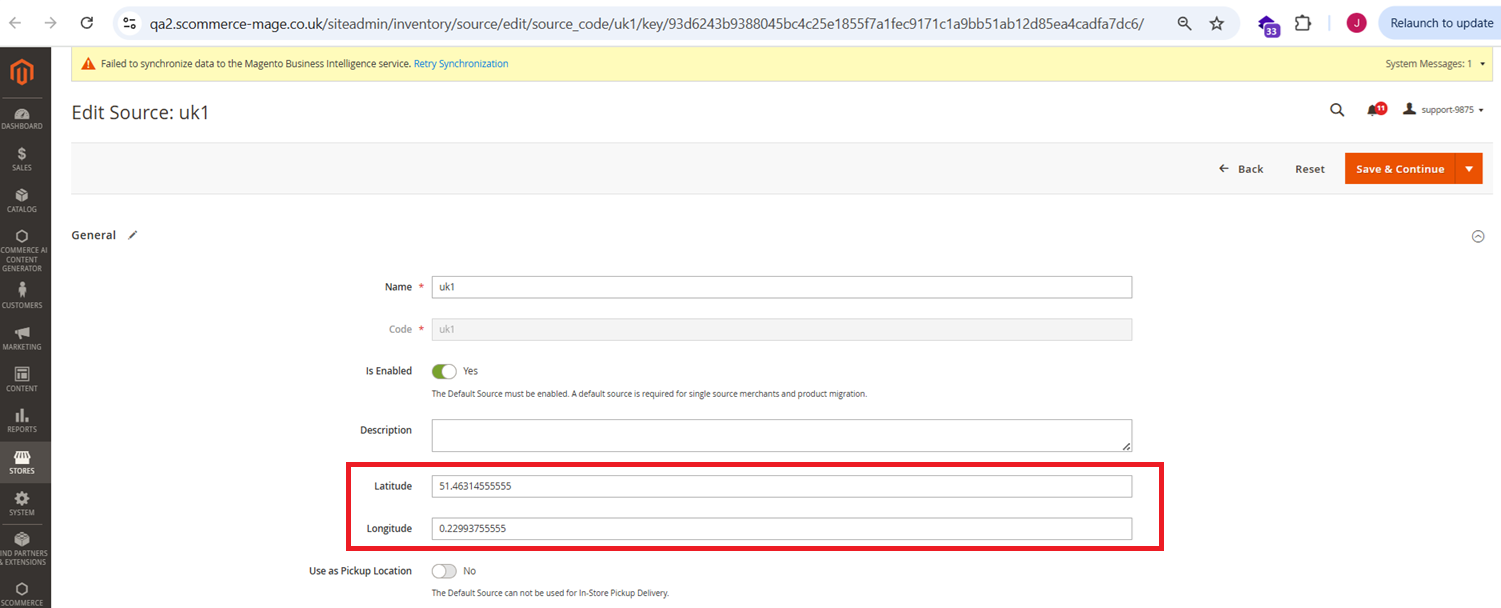
Website Source – Retrieves the source address from the MSI configuration. This option is available only when MSI (Managed Service Identity) is enabled and add Longitude and Latitude from Admin > Stores > Sources, please check the below screenshot.
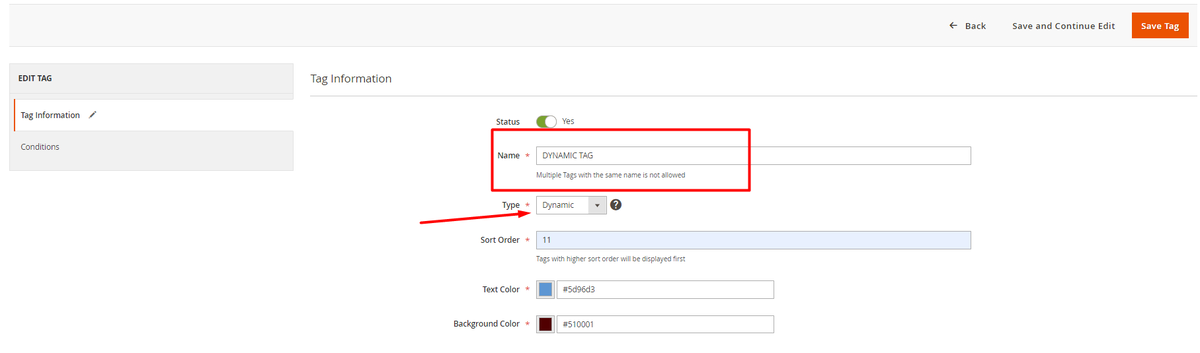
Dynamic Tags
After creation, these types of tags are added automatically to the orders applicable.Conditions are added in these types of tags.They are shown in the Order tags logs.
Predefined Tags
After creation, these types of tags are added automatically to the orders applicable.Conditions are not added in these types of tags as they are already set. They are shown in the Order tags logs Irrespective of the name, only one type of tag can be created for one 'Predefined' field.
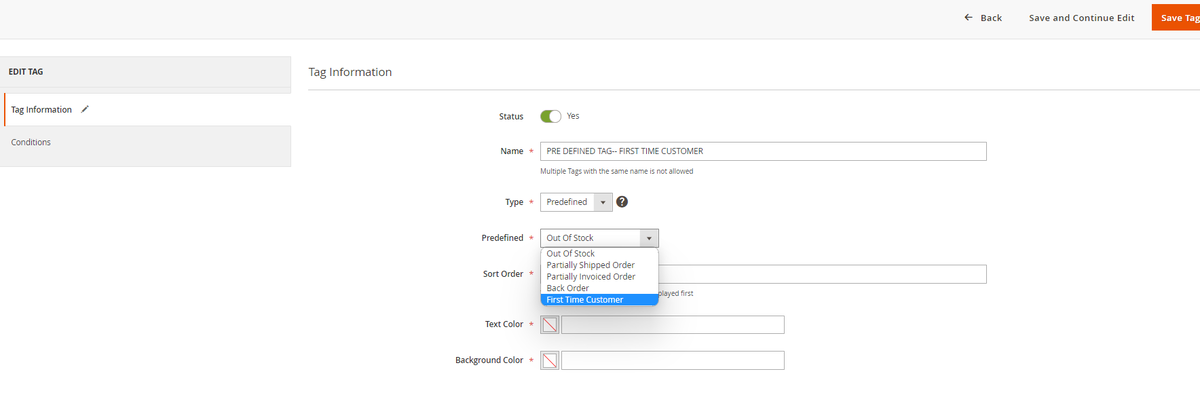
There are five types of predefined tags to choose from:-
- Out of Stock :- Gets automatically assigned to the orders whose products are out of stock. As soon as the product is available the tag gets removed automatically.
- Partially Shipped Order:- Gets automatically assigned to orders that are partially shipped i.e only a few quantities are shipped from the order. As soon all the entire order is invoiced the tag gets removed automatically.
- Partially Invoiced Order:- Gets automatically assigned to orders that are partially invoiced i.e only some quantity of the order is invoiced. As soon all the entire order is invoiced the tag gets removed automatically.
- Back Order:- Gets automatically assigned to backorders. This tag doesn't work with downloadable and virtual products. As soon as all the items in the order are shipped the tag gets removed automatically.
- First Time Customer:- Gets automatically assigned to the orders that are placed by first-time customers. This works for both guest/registered users.
Assign Tags
Manually Assign/Remove Tags
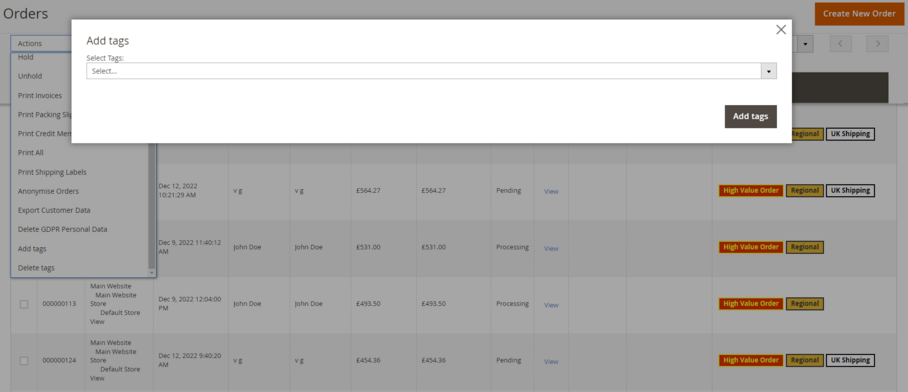
Go to Admin>Sales>Orders then select the order or multiple orders then click on the Actions dropdown and click on 'Add tags' or 'Remove tags'. Select the tag that you want add with the order from the 'Select Tags' dropdown and finally click on Add tags.
Note:- Only static Tags can be manually assigned.
Assign Tags Based on Conditions
Tags in Action
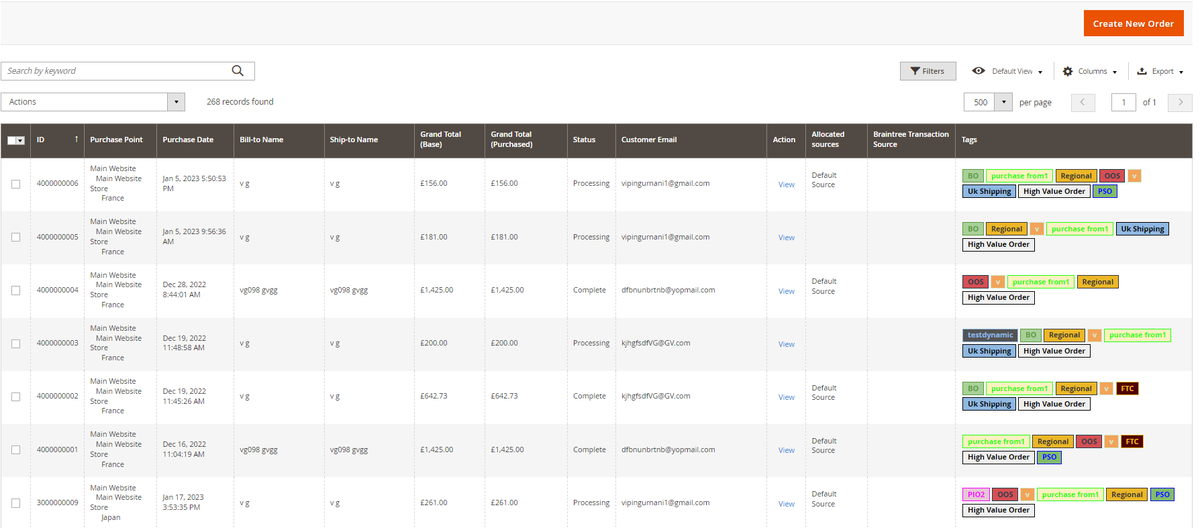
Order Grid
Filter Order Grid
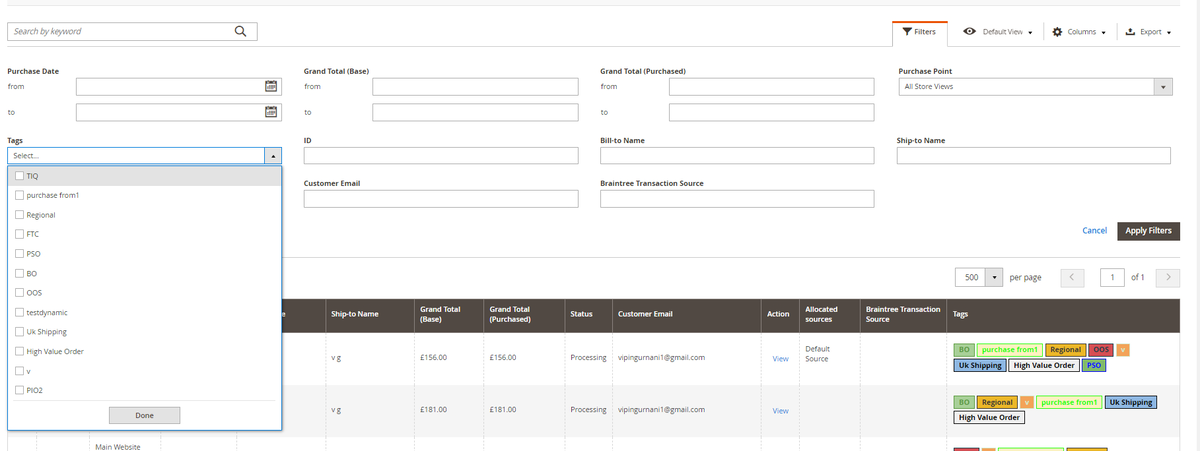
Orders can be filtered based on the tags. New filter option can be found in the filters where orders can be sorted based on the tags selected. Go to Admin>Sales>Filters and click on the Tags dropdown to select the tags.
If you have a question related to this extension please check out our FAQ Section first. If you can't find the answer you are looking for then please contact support@scommerce-mage.com.