
Magento 2 Bundle Items Inventory
Installation and User Guide for Magento 2 Bundle Items Inventory
Table of Contents
- Installation
- Download Extension
- Installation via app/code
- Installation via Composer
- Configuration Settings for Bundle Items
- General Settings
- Workflow
- Setting Up Bundle Items Association
- Associating Bundle Items & Defining Quantities
- Updating or Removing Bundle Associations
- Inventory Automation
- On Purchase
- On Refund
- Out-of-Stock Handling
- What Customers See
- Bulk Import & Export
- Bulk Import
- Bulk Export
Installation
-
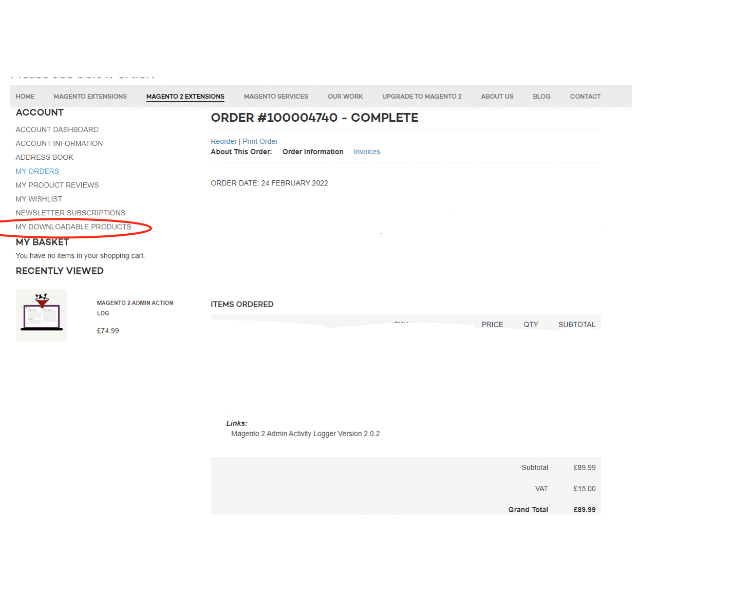
Download Extension: Once you have placed the order from our site then go to Account section and click on My Downloadable Products and download the extension package.
-
Installation via app/code: Upload the content of the module to your root folder. This will not overwrite the existing Magento folder or files, only the new contents will be added. After the successful upload of the package, run below commands on Magento 2 root directory.
php bin/magento setup:upgrade php bin/magento setup:di:compile php bin/magento setup:static-content:deploy - Installation via Composer: Please follow the guide provided in the below link to complete the installation via composer.
Configuration Settings for BundleAffiliate ItemsProgram
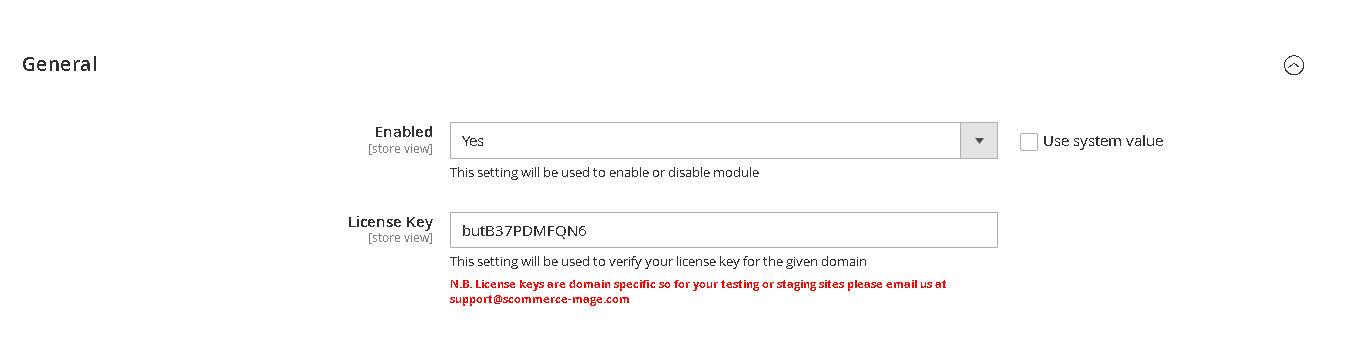
Go to Admin > Stores > Configuration > Scommerce Configuration > Security Base
General Settings
- Enabled – Select "Yes" or "No" to enable or disable the module.
- License Key – Please add the license for the extension which is provided in the order confirmation email. Please note license keys are site URL specific. If you require license keys for dev/staging sites then please email us at support@scommerce-mage.com.
Workflow
The extension empowers Magento 2 storesBundle Items Inventory extension allows store administrators to associate any number of component products with simple items in their catalogue—each with a robustprecise affiliatequantity. program,This enablingsetup customersenables toinventory promotededuction yourand products in exchangerestoration for commissionsboth main and allowingassociated admins(bundle) toitems efficientlyduring monitor, pay,purchases and managerefunds, programstreamlining performance.complex product management and keeping total inventory accurate.
ForSetting Customers:Up JoinBundle andItem UseAssociations the Affiliate Program
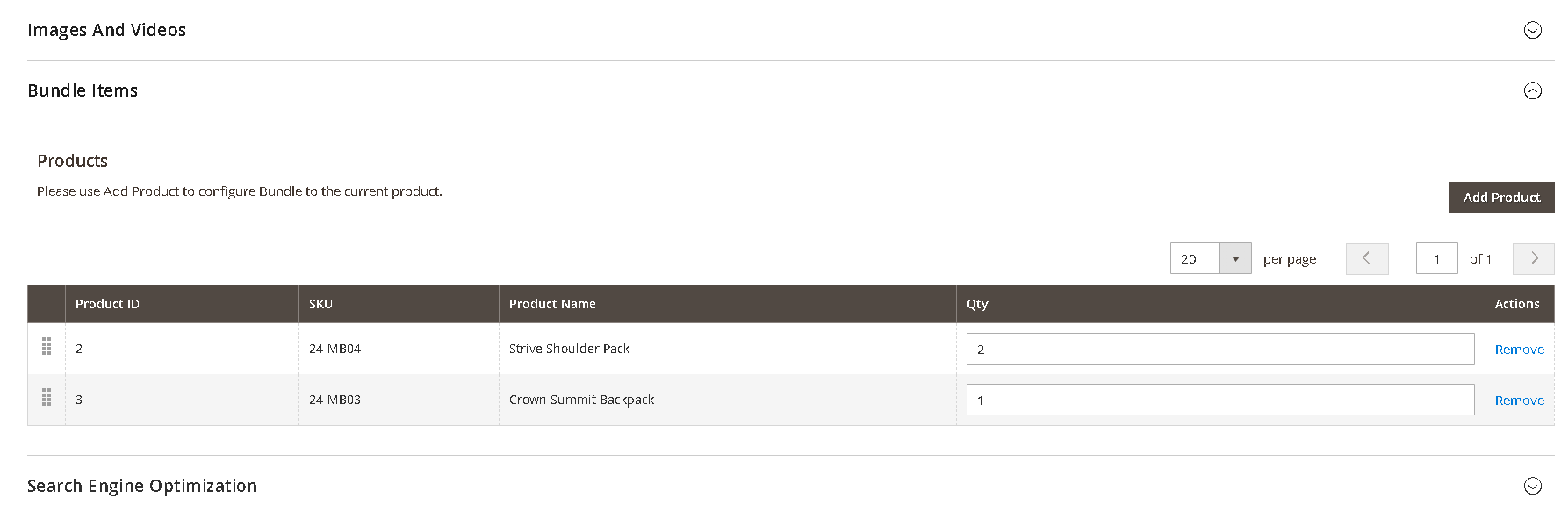
Associating Bundle Items & Defining Quantities
Affiliate
Catalog > Products in your Magento Admin.Open the product you want to add bundle items to (e.g., "Deluxe Gift Set").
(This extension will add a new tab or section named Bundle Items)
- Click
Go'Add Bundle Item'. - Use the search/picker to
MyselectAccountproducts>you'dAffiliatelikeProgramtoafterincludelogging(e.g.,in."Gift Box", "Greeting Card", "Ribbon"). ReviewEnter theaffiliatenumberprogramofdescriptioneachanditemTermsrequiredandperConditionsunit (e.g., 1 ribbon per gift set, 2 cards per set).Accept the Terms by checking the box; the box text and content depend on admin configuration.
- Save the main product to commit changes.
- To change quantities: Edit the relevant field next to each bundle item.
- To remove an item: Use the remove/delete option within the grid.
- The main product stock decreases by the quantity purchased.
- Each bundle item's stock decreases based on the quantity defined per main product × number of mains sold.
- Main product: 4 deducted
- Candles: 8 deducted (4 × 2)
- Oil bottles: 4 deducted (4 × 1)
- an
Yourorderreferralforlinkthe main product isdisplayed prominently.refunded:- The main product stock increases by the quantity refunded.
- Each bundle item's stock increases based on the refund quantity and their association.
UseExample:
Refund 2 "Family Baking Kits":- Main product: +2
- Rolling pins: +2
- Spatulas: +4 (2 × 2)
- Mixing bowls: +6 (2 × 3)
CopyOut-of-Stock HandlingBy default, the main product can be purchased even if bundle items are out of stock.
(Future versions will allow configuration toquicklypreventcopypurchaseitiftobundle items are unavailable.)What Customers See
On the main product's page, your
clipboard.customers will see all associated bundle items and the quantities per unit (e.g. "Includes: 2 Candles, 1 Essential Oil Bottle per kit").Bulk Import & Export
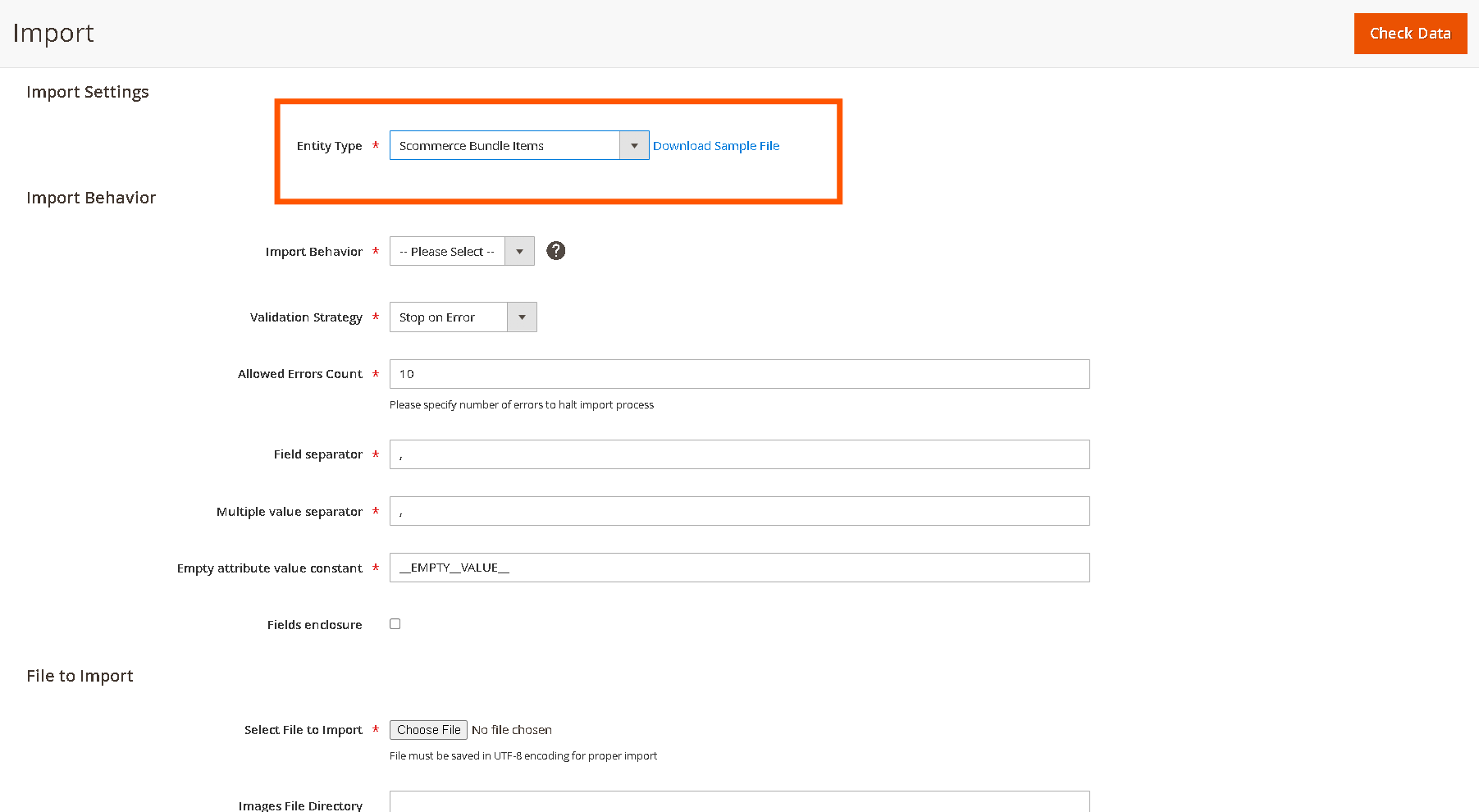
Bulk Import
- Prepare a CSV File: Each row should include:
- Main Product SKU
- Bundle
UseItemShareSKU - Quantity
distributeperviamainFacebook, Twitter, Reddit, or Instagram with one click.
to - Go
Youto:Systemcan>nowDatashareTransferthis>link anywhere. Anyone using your link is tracked for commission.
- Choose
Type:AffiliateEntityDashboard
"Bundle Item Associations" - Upload and Import:
- The
validates:InsystemMy Account > Affiliate Dashboard, view:- All
TotalSKUsSales Generated - Quantities
TotalareCommissionwholeEarned - No
relationshipsCommissionduplicatePaid/Pendingare Performance overview(click-throughs, orders)
- All
Referred Orders DashboardGo toMy Account > Referred Ordersto see:Order ID, Order DateOrder Amount, StatusPredicted commission amount
- Errors
withTopwillsummaryappeardisplays:- guidance
- to
Total order amount Total commission paidTotal commission pending
- to
ForSampleAdmins:CSVManagingFormatmain_product_sku bundle_item_sku quantity_per_unit spa-kit candle 2 spa-kit oil-bottle 1 baking-kit spatula 2 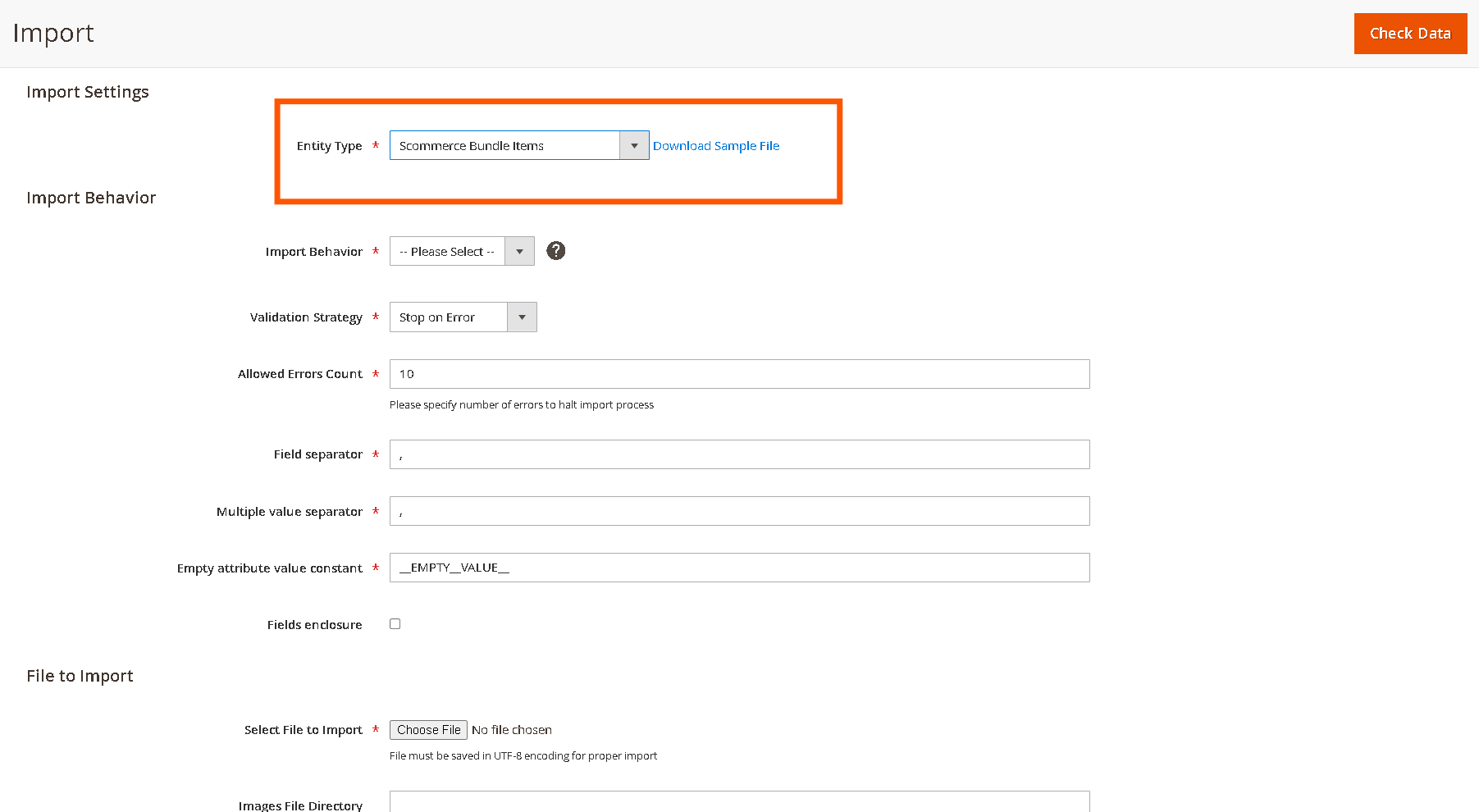
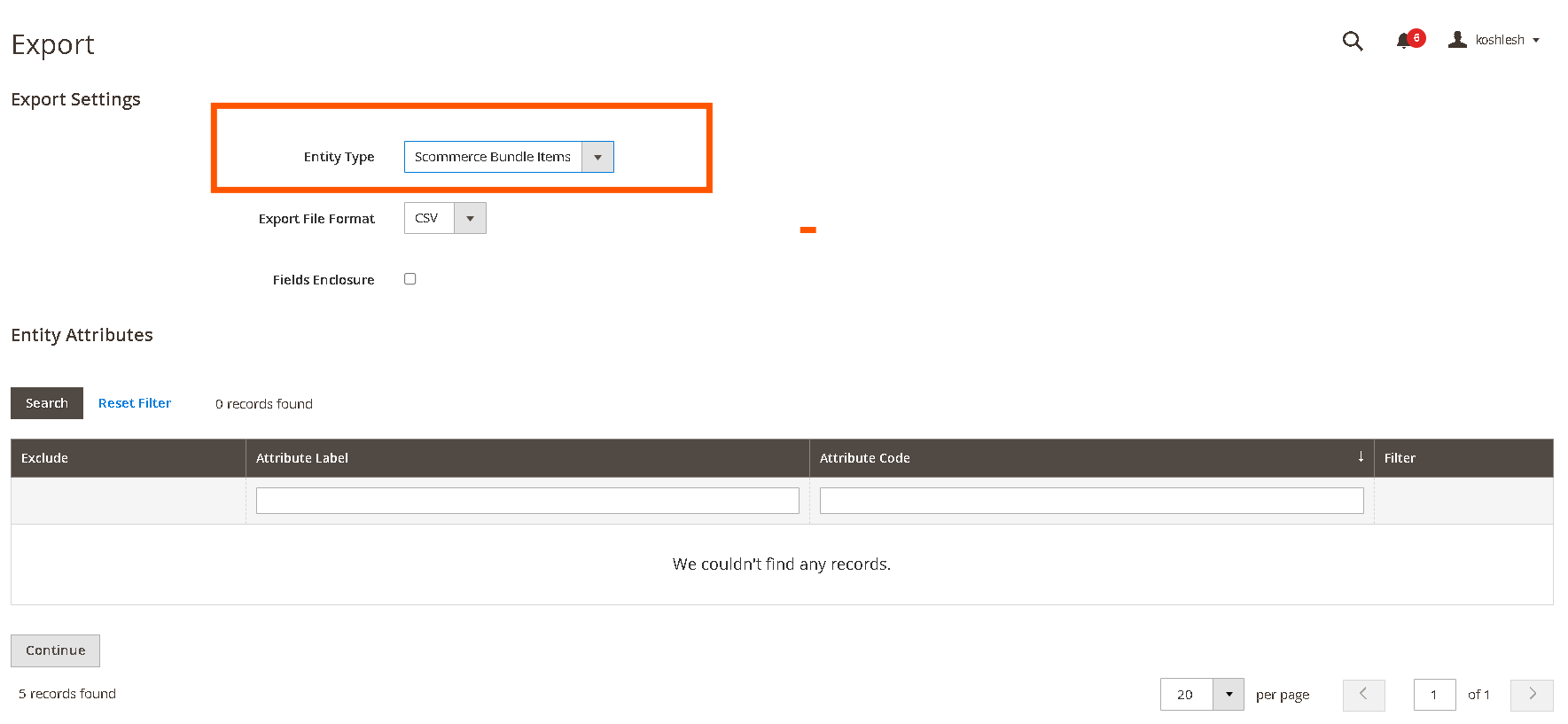
Bulk Export
- Go to:
System > Data Transfer > Export - Choose "Bundle Item Associations" as entity.
- Download the
AffiliateCSV:
TheProgramexport
show:AffiliatewillDashboard- Each
NavigatemaintoMarketing > Affiliatesin the admin panel. - Associated
ThebundledashboardSKUs - Quantities for each
affiliate:Customer ID, Name, EmailTotal Orders, Sales Amount, Commissions (pending/paid)
grid lists - Each
Actions: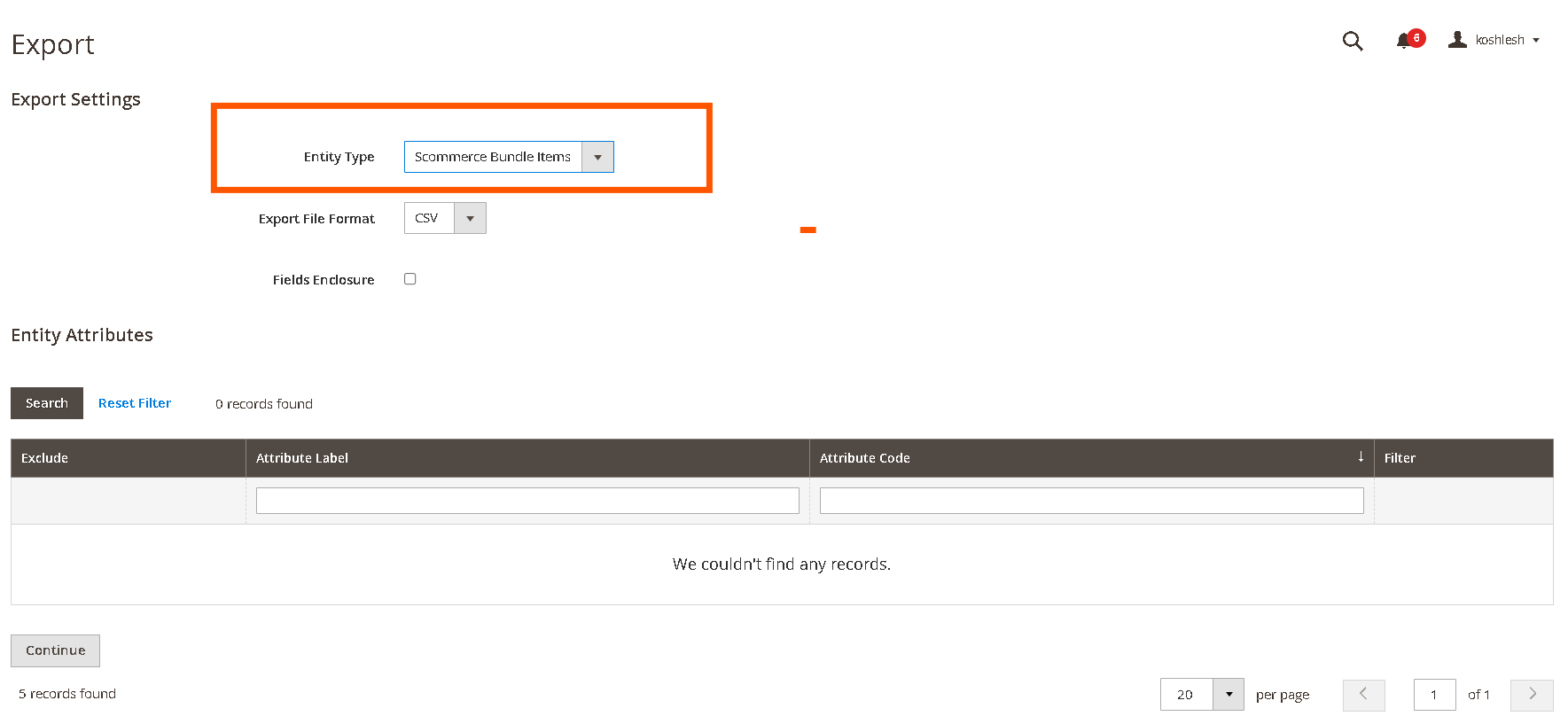
Search, filter, and sortto find affiliates easily.Exportaffiliate data for reporting or external processing.Click on an affiliate to see:Order breakdownsPayout historyDetails of commissions
- The
ClickExample:
If "Family Baking Kit" requires 1 rolling pin, 2 spatulas, and 3 mixing bowls per kit, add each as a bundle item and specify quantities accordingly.
Updating or Removing Bundle Associations
Inventory Automation
On Purchase
When an order containing the main product is placed:
Example:
Purchasing 4 "JoinSpa Program".Kits" Once(each enrolled,requires you’ll2 seecandles yourand unique1 referralbottle link.of oil):
ReferralOn LinksRefund
When
Referred Orders Overview (Admin)
Examine which orders were generated by each affiliate from the dashboard.View and validate predicted commissions, manage disputes or issues.
Payout Management
View a list of affiliates eligible for payouts:Payouts are only due for orders with approved statuses (e.g., Complete, Shipped).Setminimum payout thresholdandpayout schedule(weekly, monthly, manual).
Payout Processing:Select payout method (Bank Transfer or PayPal).Mark payouts as “Paid”–affiliate’s balance resets to 0.All payouts and payment history are tracked for each affiliate.Affiliates receive email notification templates you configure.
Refunds and Cancelations:If an order is refunded or canceled after commission has been paid, commission is deducted or reversed automatically.
Multi-tier Commission Structure
Enable/Disable tiered commission system fromAffiliate Settings.Configure slabs and rates, e.g.:£1–£999.99: 10% commission£1,000–£1,999.99: 15% commission£2,000+: 20% commission
Order & Affiliate Tracking
How Order Attribution Works
When a prospect clicks your referral link:A browser cookie stores your affiliate ID for 30 days.
Any purchase in that period is attributed to you.After 30 days or if no link is used, no commission is awarded.
Cookie Lifecycle
Creation:On link click.Active period:30 days from last click.Expiry:After 30 days.
If you have a question related to this extension please check out our FAQ Section first. If you can't find the answer you are looking for then please contact support@scommerce-mage.com.