
Magento 2 VAT Switcher
Installation and User Guide for Magento 2 VAT Switcher Extension
Table of Contents
- Installation
- Installation via app/code
- Installation via Composer
- Configuration Settings for VAT Switcher
- General Settings
- Show Price without VAT
- Show Price with VAT
Installation
-
Installation via app/code: Upload the content of the module to your root folder. This will not overwrite the existing Magento folder or files, only the new contents will be added. After the successful upload of the package, run below commands on Magento 2 root directory.
php bin/magento setup:upgrade php bin/magento setup:di:compile php bin/magento setup:static-content:deploy -
Installation via Composer: Please follow the guide provided in the below link to complete the installation via composer.
Configuration Settings for VAT Switcher
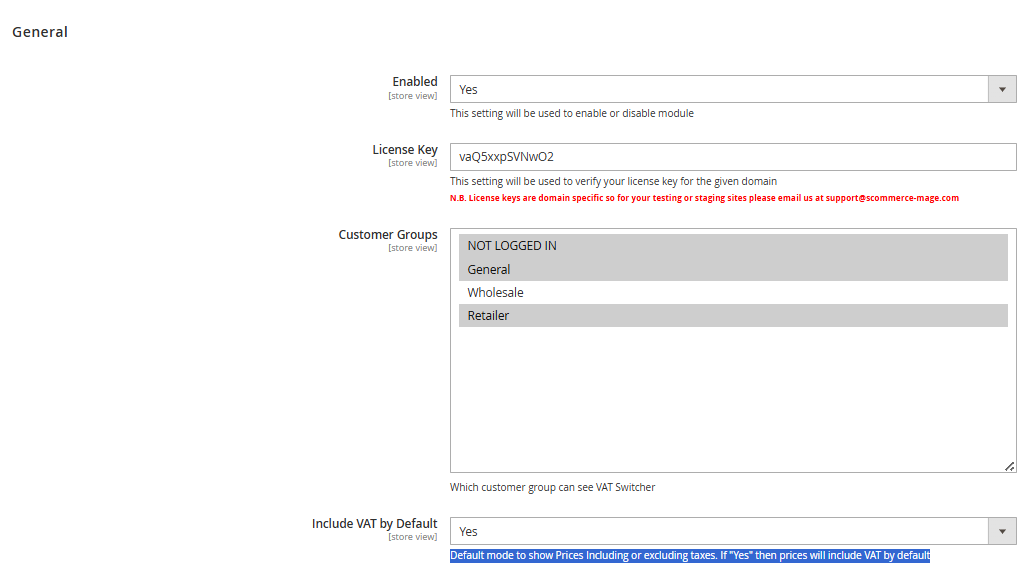
Go to Admin > Stores > Configuration > Scommerce Configuration > VAT Switcher
General Settings
- Enabled – Select "Yes" or "No" to enable or disable the module.
- License Key – Please add the license for the extension which is provided in the order confirmation email. Please note license keys are site URL specific. If you require license keys for dev/staging sites then please email us at support@scommerce-mage.com.
- Customer Groups - The VAT Switcher is visible only to users belonging to customer groups that have been explicitly granted access.
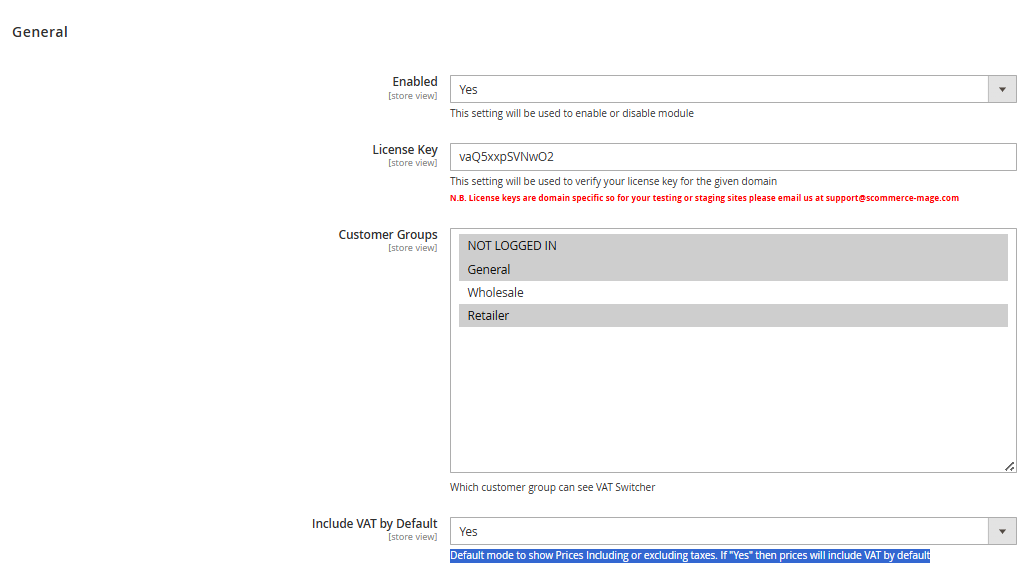
PleaseThereferB2BtoandyourB2Cstore’scontentconfigurationdoesn’tsettingsapplytohere,verifysincewhichwe use different customergroups are enabled for VAT visibilitygroups. - Include VAT by Default - This setting determines whether product prices are shown inclusive or exclusive of VAT by default.
If set to "Yes", prices will be displayed with VAT included
Show Price without VAT
The VAT switcher is prominently displayed on all product listing and product detail pages. It is positioned within the header or embedded in a persistent interface element such as a sticky bar or dropdown for consistent and convenient access.
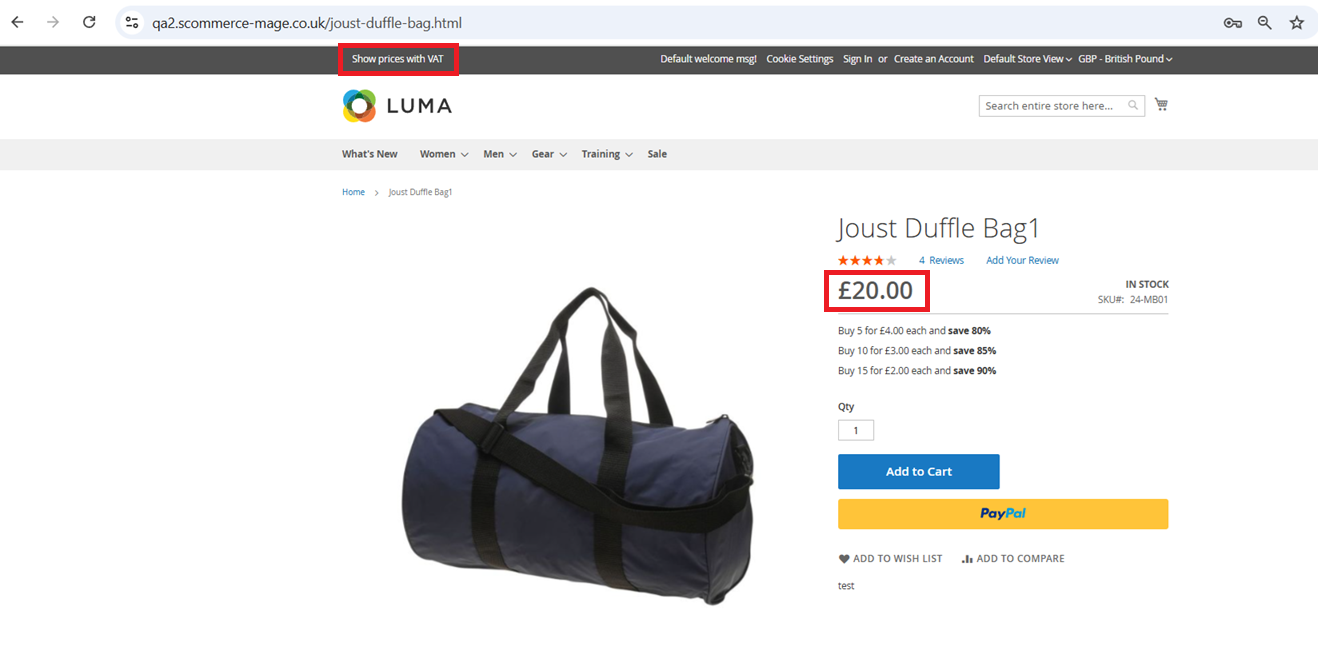
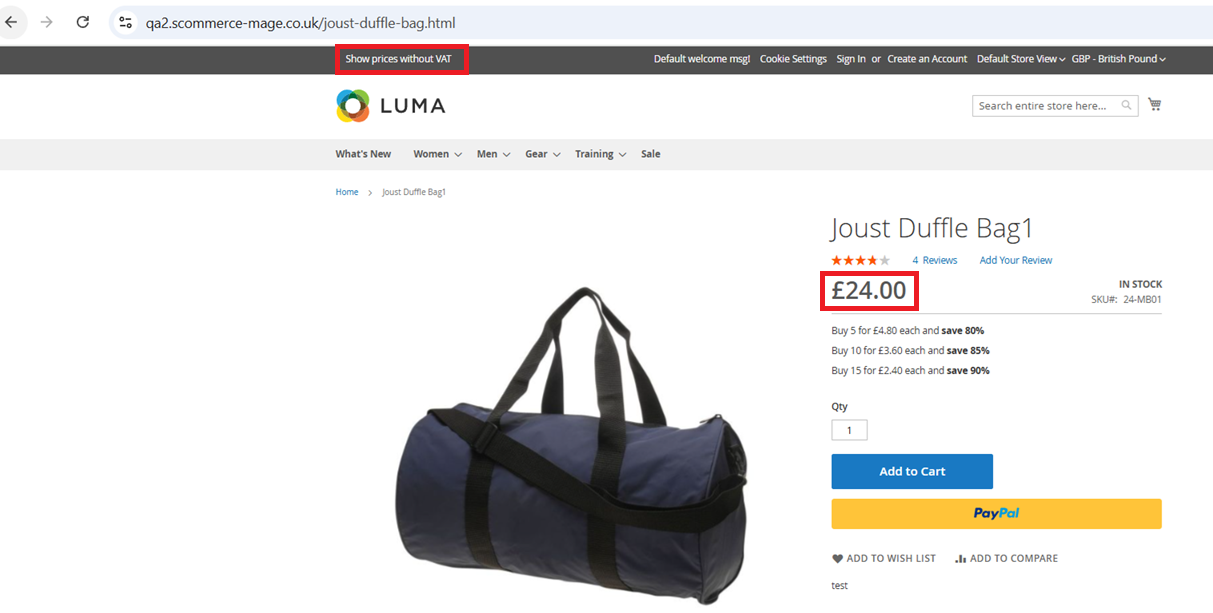
When a user selects “Show prices without VAT”, all product prices are dynamically updated to exclude applicable VAT.
If a customer is logged in and belongs to a B2B group, prices are shown without VAT by default. Conversely, customers in a B2C group will see VAT-inclusive pricing by default.
VAT rates are calculated based on the customer’s shipping address or the store’s default tax zone. Displayed prices accurately reflect tax inclusion or exclusion in accordance with Magento’s tax configuration settings.
From the backend, administrators can fully manage VAT switcher behavior, including:
-
Enabling or disabling the VAT switcher
-
Setting the default display mode (inclusive or exclusive) per store view
-
Defining which customer groups have access to the switcher
Show Price with VAT
The VAT switcher is prominently displayed on all product listing and product detail pages. It is positioned in the header or embedded within a persistent interface element such as a sticky bar or dropdown for consistent and convenient access.
When a user selects “Show prices with VAT”, all product prices are recalculated to include the applicable VAT.
If a customer is logged in and belongs to a B2C group, prices are shown with VAT included by default. Guest users see pricing based on the store’s default configuration but can manually adjust the display using the VAT switcher.
VAT rates are calculated based on the customer’s shipping address or the store’s default tax zone. Displayed prices accurately reflect tax inclusion or exclusion in accordance with Magento’s tax configuration settings.
From the backend, administrators can configure VAT switcher settings, including:
-
Enabling or disabling the VAT switcher
-
Setting the default display mode (inclusive or exclusive) per store view
-
Defining which customer groups can access the switcher
If you have a question related to this extension please check out our FAQ Section first. If you can't find the answer you are looking for then please contact support@scommerce-mage.com.