
Magento 1 Google Site Map Exclusion with Image Sitemap
Installation and User Guide for Magento 1 Google Site Map Exclusion with Image Sitemap
Table of Contents
- Installation
- Disable Compilation Mode
- Upload Package
- Clear Caches
- Configuration Settings for Google Sitemap
- General Settings
- Exclude Categories from Sitemap
- Exclude Products from Sitemap
- Exclude CMS from Sitemap
- How to Generate Sitemap
- Add new Sitemap
- Magento Out of the Box Functionality to set the Category Path
- Google Sitemap XML
- Product Link in Sitemap XML
- Category Link in Sitemap XML
- CMS Page Link in Sitemap XML
Installation
- Disable Compilation Mode: To check that this is disabled, go to System >Tools> Compilation. If the compiler status is 'Disabled', you are ready to go. If not, simply click the 'Disable' button on the right hand side of the screen.
- Upload Package: Upload the content of the module to your root folder. This will not overwrite the existing Magento folder or files, only the new contents will be added.
- Clear Caches: This can be done from the admin console by navigating to the cache management page (System > Cache Management), selecting all caches, clicking 'refresh' from the drop-down menu, and submitting the change.
Configuration Settings for Google Sitemap
Go to Admin > Stores > Configuration > Scommerce Configuration > Sitemap
General Settings
-
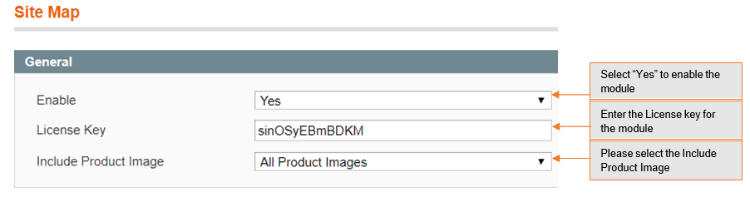
Enabled - Select "Yes" or "No" to enable or disable the module.
-
License Key - Please add the license for the extension which is provided in the order confirmation email. Please note license keys are site URL specific. If you require license keys for dev/staging sites then please email us at support@scommerce-mage.com.
-
Include Product Image - This option allows to add main product image or main and additional product images to Google Site Map.
-
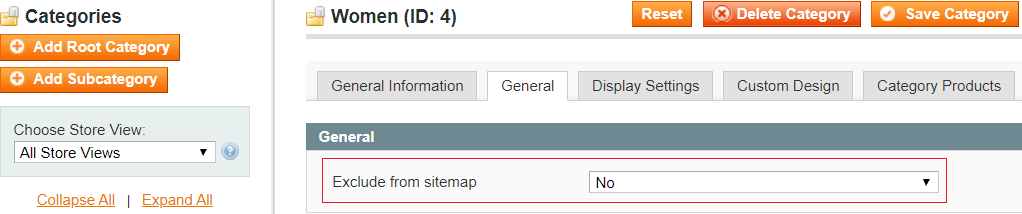
Exclude Categories from Sitemap - To include or exclude categories, go to Admin > Catalog > Manage Categories > Select Category (you want to exclude from site map) > General > Exclude from Sitemap: Set to "Yes/No".
-
Exclude Products from Sitemap - To exclude products from sitemap, go to Admin > Catalog > Manage Products > Select Product (you want to exclude from site map) > General > Exclude from Sitemap: Set to "Yes/No".
-
Exclude CMS from Sitemap - To exclude CMS pages from sitemap, go to Admin > CMS > Pages > Select CMS Page (you want to exclude from site map) > General > Exclude from Sitemap: Set to "Yes/No".
-
How to Generate Sitemap - To generate the site map from the admin panel go to Admin > Catalog > Google Sitemap > Click "Generate Sitemap".
-
Add new Sitemap - You can create a new site map from Admin > Catalog > Google Sitemap > Click "Add Sitemap", it redirects to New Site Map page, and by providing all the required details you can create Site Map.
-
Magento Out of the Box Functionality to set the Category Path - To include category path in product URLs in sitemap.xml, go to Admin > System > Catalog > Catalog > Search Engine Optimizations > Use Categories Path for Product URLs: Set to "Yes".
Google Sitemap XML
Google site map shows all the Included Products, Categories, and CMS Page links in the sitemap.xml
-
Product Link in Sitemap XML - You can see the product link in the Google Sitemap XML.
-
Category Link in Sitemap XML - You can see the category link in the Google Sitemap XML.
-
CMS Page Link in Sitemap XML - You can see the about-us page link in the Google Sitemap XML.
If you have a question related to this extension please check out our FAQ Section first. If you can't find the answer you are looking for then please contact support@scommerce-mage.com.