
Magento 2 Abandoned Basket Email
Installation and User Guide for Magento 2 Abandoned Basket email extension
Table of Contents
- Installation
- Installation via app/code
- Installation via Composer
- *Configuration Settings for Abandoned Basket Email
- General Settings
- 360 view settings
- Add 360 View Images to a Product
- Frontend
Installation
-
Installation via app/code: Upload the content of the module to your root folder. This will not overwrite the existing Magento folder or files, only the new contents will be added. After the successful upload of the package, run below commands on Magento 2 root directory.
php bin/magento setup:upgrade php bin/magento setup:di:compile php bin/magento setup:static-content:deploy -
Installation via Composer: Please follow the guide provided in the below link to complete the installation via composer.
[https://docs.scommerce-mage.com/magento-2-extensions/installation-via-composer/installation-via-composer]
Configuration Settings for Abandoned Basket Email
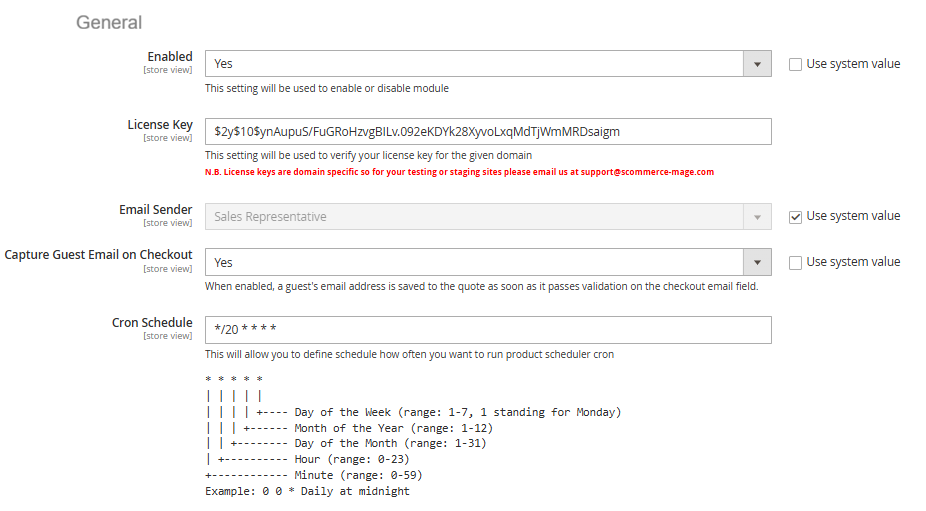
Go to Admin > Stores > Configuration > Scommerce Configuration > Abandoned Basket Email
General Settings
- Enabled – Select "Yes" or "No" to enable or disable the module.
- License Key – Please add the license for the extension which is provided in the order confirmation email. Please note license keys are site URL specific. If you require license keys for dev/staging sites then please email us at support@scommerce-mage.com.
- Email Sender - Please Select the Email Sender.
- Capture Guest Email on Checkout - Select "Yes" to enabled a guest's email address is saved to the quote as soon as it passes validation on the checkout email field.
- Cron Schedule - This will allow you to define cron frequency, how often you want to run Abandoned Basket Email cron.
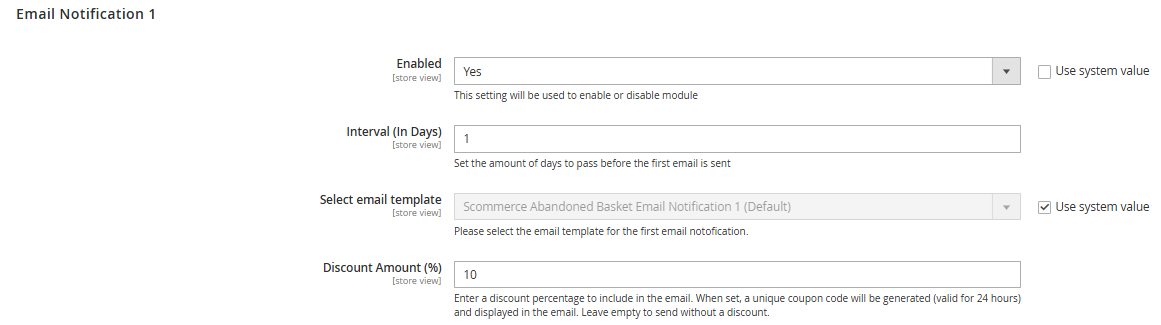
Email Notification 1
- Enabled – Select "Yes" or "No" to enable or disable module.
- Interval (In Days) – Please Set the amount of days to pass before the first email is sent.
- Select Email Template – Please select the email template for the first email notofication.
- Discount Amount (%) – Please enter a discount percentage to include in the email (10%).
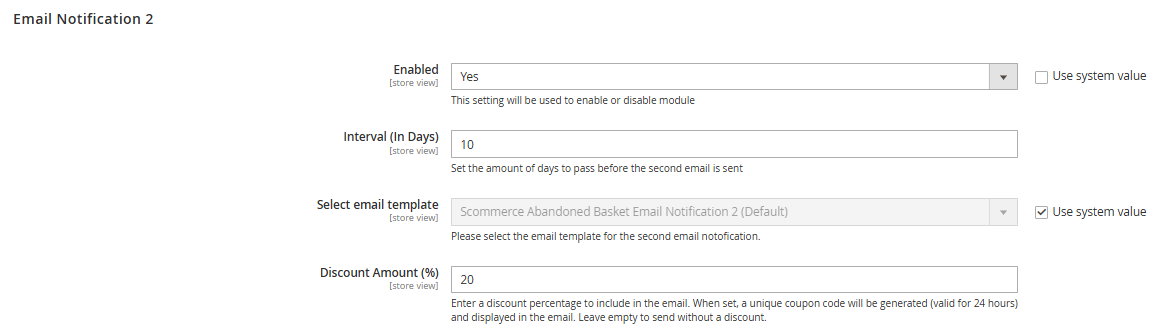
Email Notification 2
- Enabled – Select "Yes" or "No" to enable or disable module.
- Interval (In Days) – Please Set the amount of days to pass before the first email is sent.
- Select Email Template – Please select the email template for the first email notofication.
- Discount Amount (%) – Please enter a discount percentage to include in the email (20%).
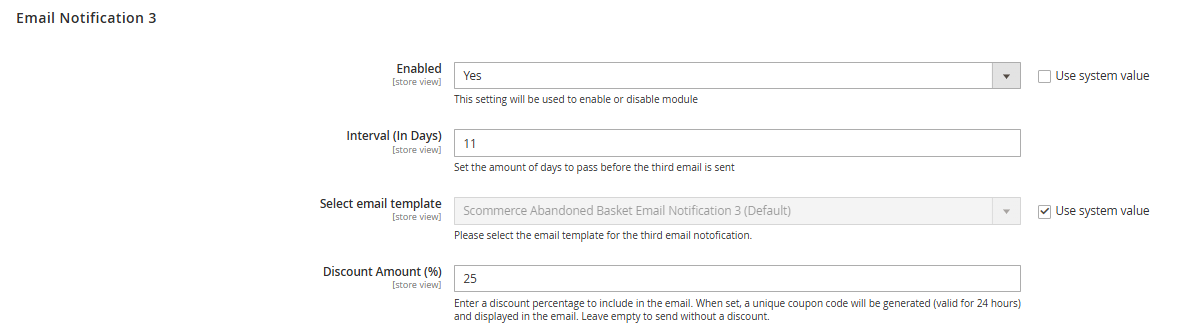
Email Notification 3
- Enabled – Select "Yes" or "No" to enable or disable module.
- Interval (In Days) – Please Set the amount of days to pass before the first email is sent.
- Select Email Template – Please select the email template for the first email notofication.
- Discount Amount (%) – Please enter a discount percentage to include in the email (25%).
Abandoned Basket in Frontend
Add the following sections in the user guide:
How the Email Sequence Works:
A typical workflow begins when a customer, whether a registered user or a guest user, adds items to their cart but leaves the website without completing the order.
The email sequence is based on timed intervals that determine when each reminder is sent after a cart is abandoned. Each email becomes progressively more persuasive by offering a higher discount. Importantly, both the interval days and the discount percentages are fully configurable from Admin → Stores > Configuration > Abandoned Basket Email → General.
For example, if the business wants to send the first email after two days instead of one, or offer a 15% discount instead of 10%, these values can be easily updated in the settings.
A typical flow might look like this: if a customer abandons their cart on Monday, the system sends the first reminder on Tuesday with a 10% discount. If the customer still does not complete the purchase, a second reminder is sent on Thursday with a 20% discount. Finally, if the cart remains incomplete, a third reminder is sent the following Monday with a 25% discount. Once the customer completes the order at any point, the remaining emails are automatically cancelled.
| Interval | Discount | Purpose | |
|---|---|---|---|
| Email 1 | 1 day after abandonment | 10% | Gentle reminder + small incentive |
| Email 2 | 3 days after abandonment | 20% | Stronger incentive |
| Email 3 | 7 days after abandonment | 25% | Final attempt with highest discount |
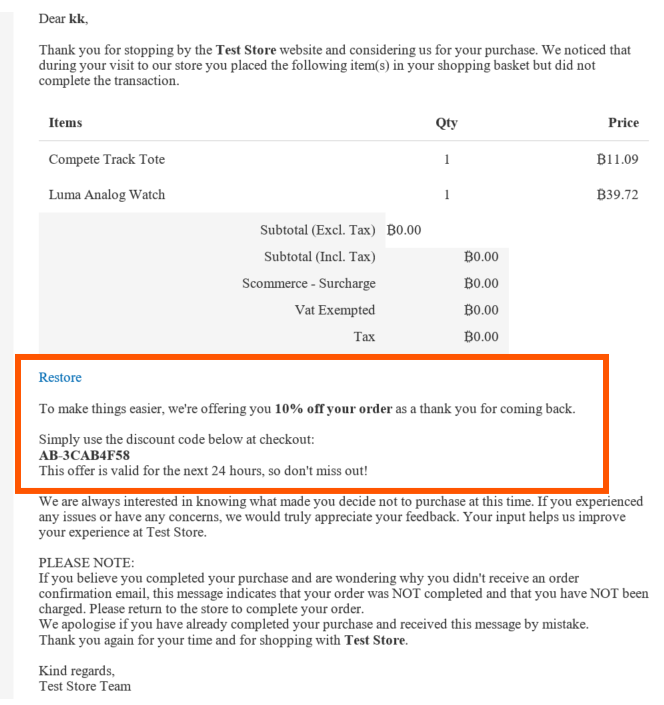
Email 1Content (and Customer Experience
Each abandoned cart email contains a reminder message, a list of the products left in the customer’s cart, a restore‑cart link, and a discount, a unique coupon code along with a short message explaining the offer. For example, the email may say: “We’re offering you 10% OFF)off your order as a thank you for coming back. Use code XYSZ‑3CAB4F58 at checkout.” Customers can then apply the discount code during checkout and complete their purchase. This creates a smooth and user‑friendly experience that increases the likelihood of conversion.
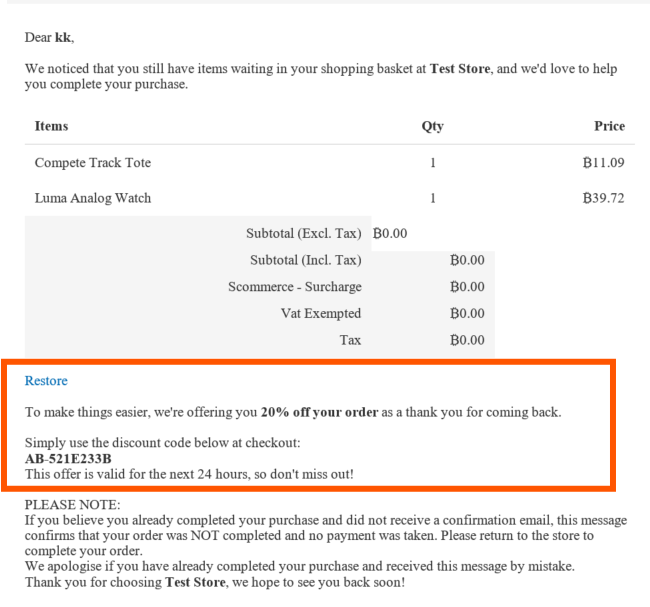
Email 2 (20% OFF)
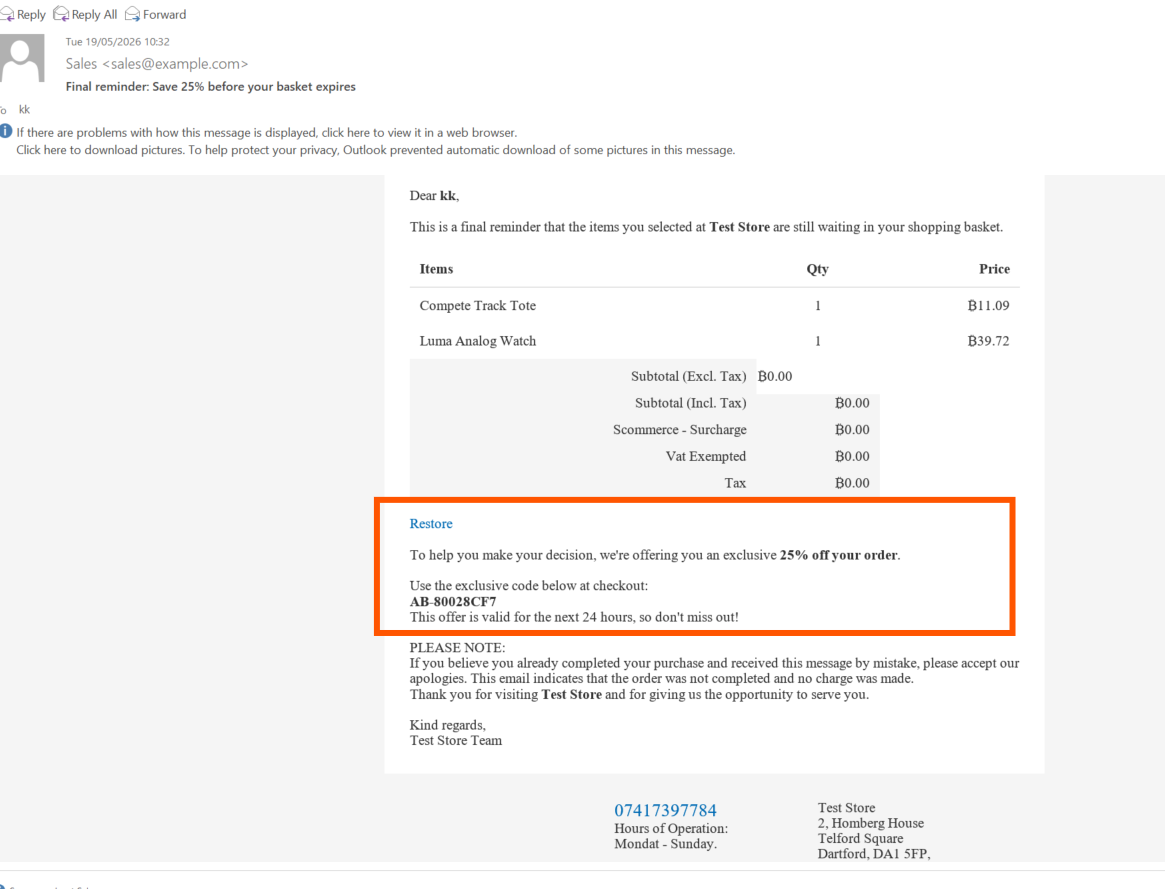
Email 3 (25% OFF)
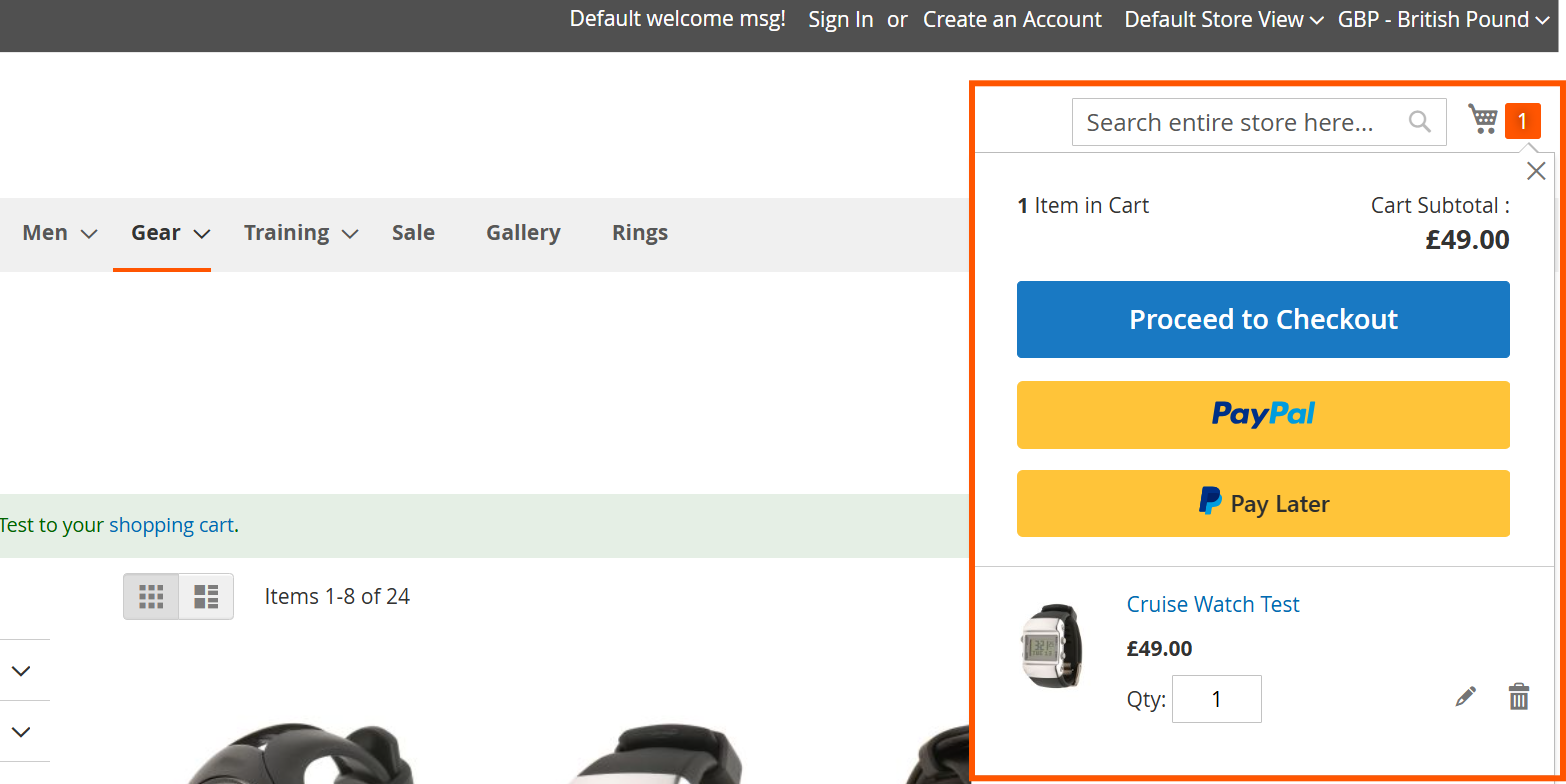
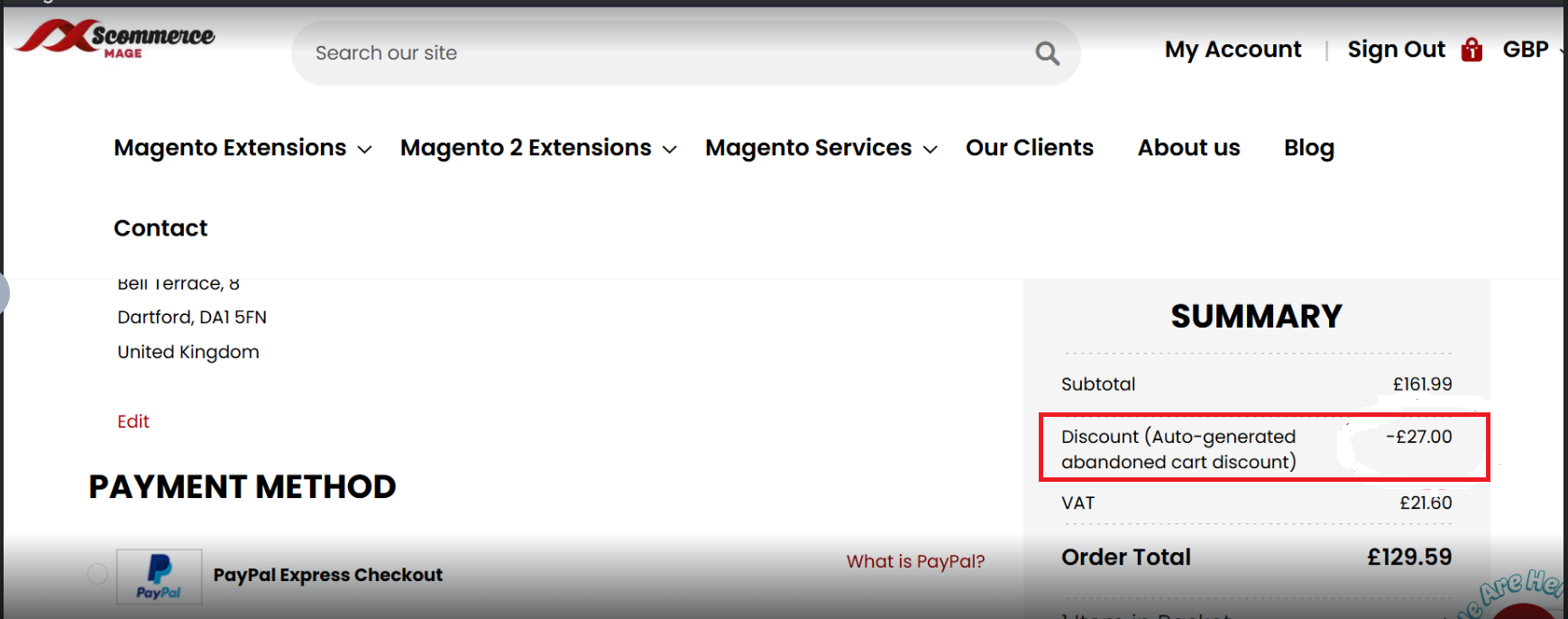
Discount from Abandoned Cart Email Applied
If you have a question related to this extension please check out our FAQ Section first. If you can't find the answer you are looking for then please contact support@scommerce-mage.com.